When your Wi-Fi stops working, the cause is often a temporary glitch, an incorrect password, or a signal issue, not a hardware failure. If your device is showing "wifi not connecting," the fastest way to get back online is to follow a systematic troubleshooting path that isolates the problem. This guide walks you through every proven step, from the quickest fixes to advanced diagnostics, so you can identify and resolve the issue in minutes.
Is your wifi not connecting? Start here: The immediate diagnostic test
Before you change any settings, determine the scope of the problem. This single test saves you time by revealing whether you're dealing with a device-specific issue or a network-wide outage. Grab another smartphone, tablet, or laptop and try to connect it to the same Wi-Fi network.
- If the other device connects successfully: The problem is isolated to your original device. Skip ahead to the device-specific fixes below (forget network, restart, update).
- If the other device also fails: The issue lies with your router, modem, or internet service provider (ISP). Proceed to the restart steps, then check for an outage.
- To check for an ISP outage: Use your phone's cellular data to visit your ISP's status page, open their mobile app, or check a site like Downdetector. If there's a reported outage in your area, you'll need to wait for your ISP to resolve it.
Restart your router, modem, and device
This is the most effective first fix for temporary glitches because it clears the memory of your network hardware and forces your device to re-establish a fresh connection. A proper power-cycle sequence is crucial to avoid sending a premature signal to your ISP.
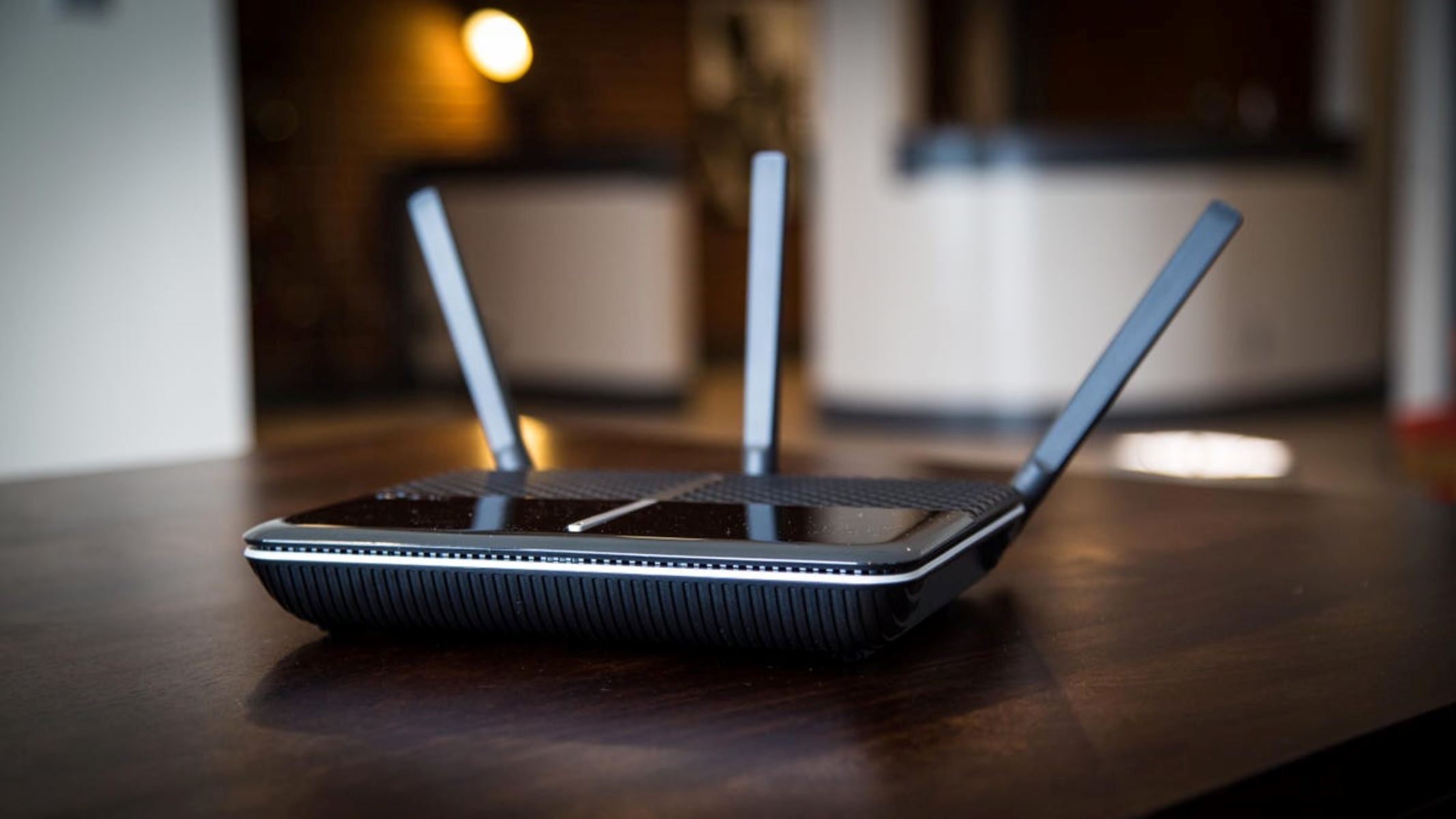
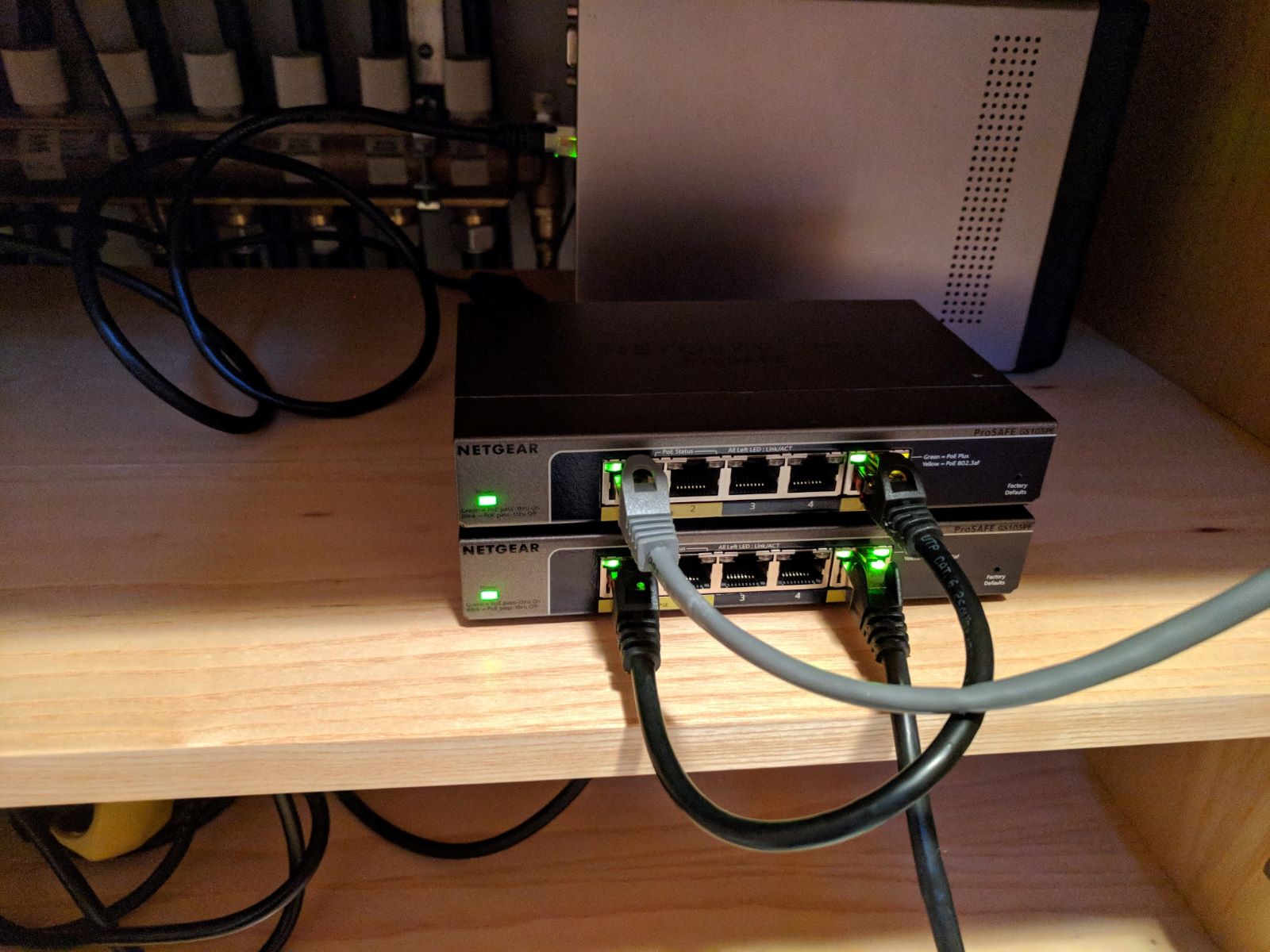
- Unplug the power cables from both your modem and your Wi-Fi router. If you have a combined modem/router unit, unplug that single device.
- This is essential for a full reset.
- Plug the modem back in first. Wait for it to fully boot up, this usually takes 1-2 minutes. You'll see the lights stabilize.
- Plug the router back in. Wait for its lights to stabilize as well.
- While the network hardware boots, restart your device (phone, laptop, etc.) by powering it off completely and turning it back on.
- Once everything is back on, try connecting to your Wi-Fi network.
Verify you're on the right Wi-Fi network and password
It sounds obvious, but you'd be surprised how often a device connects to a neighbor's similar-sounding network or an old "Home_5G" network instead of your main one. Ensuring the correct SSID is selected and the password is entered accurately is a critical step that resolves many "wifi not connecting" issues.
- Check the network name (SSID): Look at the label on the back or bottom of your router. It will list the default network name and password. Make sure you're selecting that exact name, paying attention to capitalization and spaces.
- Enter the password carefully: Wi-Fi passwords are case-sensitive. Use the "show password" or "eye" icon on your device to see what you're typing. A common mistake is adding a trailing space after the password.
- Find the default password: If you never changed it, the default password is printed on the router label. If you did change it and forgot it, you'll need to reset the router to factory settings (this is a last resort, as it wipes all your settings).
Forget the network and reconnect
Your device can save corrupted connection preferences that prevent it from joining the network, even with the correct password. Removing or 'forgetting' the saved Wi-Fi network on Windows, macOS, iOS, and Android clears these corrupted preferences and forces a clean slate. Here's how to do it on each platform:
- Windows: Go to Settings > Network & Internet > Wi-Fi > Manage known networks. Click on your network and select "Forget." Then, reconnect by clicking the Wi-Fi icon and selecting your network.
- macOS: Go to System Settings > Wi-Fi. Click "Details" next to your network, then click "Forget This Network." Reconnect by clicking the Wi-Fi icon in the menu bar.
- iOS: Go to Settings > Wi-Fi. Tap the "i" icon next to your network, then tap "Forget This Network." Reconnect by tapping your network and entering the password.
- Android: Go to Settings > Network & internet > Wi-Fi. Tap the gear icon next to your network, then tap "Forget" or "Forget network." Reconnect by tapping the network and entering the password.
Run your device's built-in network tools
Modern operating systems include automated diagnostic tools that can identify and fix common Wi-Fi problems without any manual tinkering. These platform-specific diagnostics are designed to detect issues with your IP address, DNS settings, or network drivers.
- Windows: Go to Settings > System > Troubleshoot > Other troubleshooters. Click "Run" next to "Network Adapter" or "Internet Connections." This runs the Windows Network Troubleshooter. You can also update your Wi-Fi driver via Device Manager > Network adapters.
- Mac: Go to System Settings > Network > Wi-Fi > Details > TCP/IP. Click "Renew DHCP Lease." Also, check if you have a VPN or security software that might be interfering by temporarily disconnecting them. The OS X Daily guide confirms this is a common fix for Mac connectivity issues.
- Android: Go to Settings > System > Reset options > Reset Wi-Fi, mobile & Bluetooth. This resets all network settings, which can fix persistent connection problems.
- iPhone/iPad: If the Wi-Fi setting appears dimmed or grayed out, a simple restart often resolves the issue. If not, go to Settings > General > Transfer or Reset iPhone > Reset > Reset Network Settings.
Update device software and router firmware
Outdated software on your device or router can contain bugs that prevent proper Wi-Fi connectivity. Checking for and installing operating system updates on your device and firmware updates on your router is a proactive step that fixes known Wi-Fi bugs and improves stability. These updates often include patches for security vulnerabilities and compatibility improvements with Wi-Fi standards.
- Device updates: On Windows, go to Settings > Windows Update > Check for updates. On macOS, go to System Settings > General > Software Update. On Android, go to Settings > System > System update. On iOS, go to Settings > General > Software Update.
- Router firmware: Log in with the admin credentials (often found on the router label). Look for a "Firmware Update" or "Software Update" section. Check the manufacturer's website for specific instructions for your model.
Contact your internet service provider
If you've exhausted all the above steps and your Wi-Fi still isn't connecting, the problem may lie outside your home. This is the time to escalate to your internet service provider (ISP), because they can run diagnostics on their end and check for line issues or infrastructure problems that you can't see.
- Gather error details: Before calling, write down the exact error message you're seeing, the times the issue occurs, and a list of all the steps you've already tried. This information helps the support representative diagnose the issue faster.
- Ask about known outages: Inquire if there are any known network outages or maintenance activities in your area. Sometimes, the issue is on their end and they are already working on a fix.
- Request a technician visit: If the ISP's customer support cannot resolve the issue remotely, request a technician visit. They can test the signal strength at your property, check the physical wiring, and replace faulty equipment if necessary. Be prepared to describe the troubleshooting steps you've already taken to speed up the process.
Related reading: What Routers Does Spectrum Use, Can I See What Websites Have Been Visited On My Wifi, and How To Daisy Chain Wireless Routers.