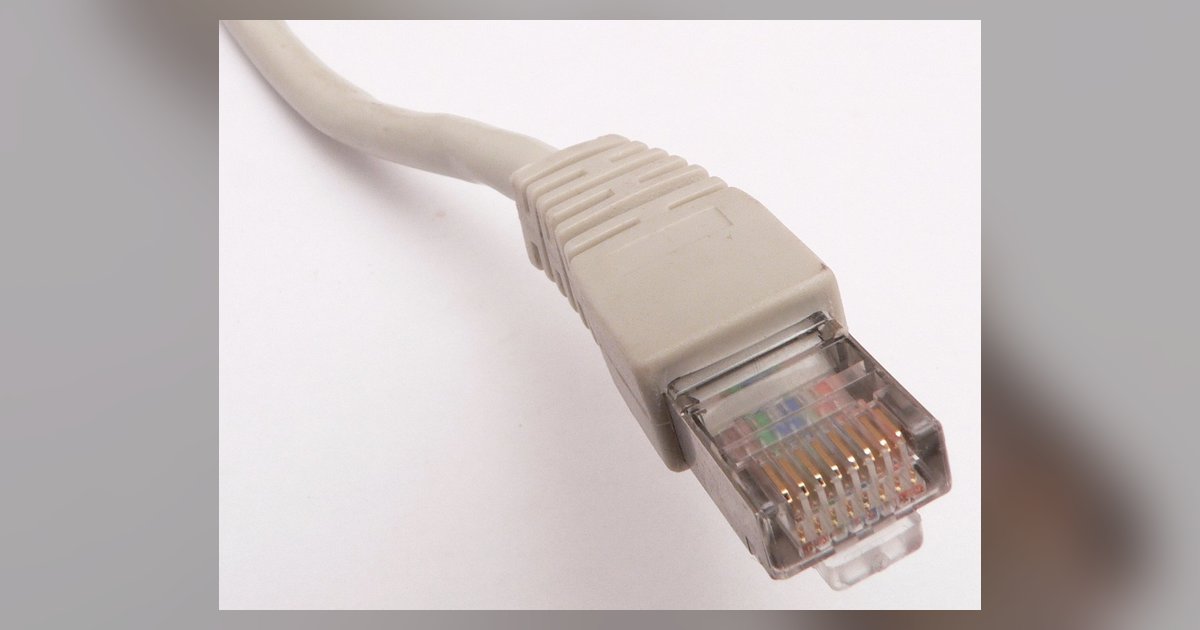
To reconnect your Philips Hue Bridge to new Wi-Fi, simply connect the Bridge to your new router with an Ethernet cable and power it on; the Bridge uses a wired connection, so it does not need any Wi-Fi reconfiguration. If the lights still show as unreachable, just restart the Hue Bridge and force-close the Hue app. This is the complete fix for moving your Hue system to a new router, no wireless setup is required because the Bridge communicates over a physical cable.
Why the bridge does not need to reconnect to Wi-Fi
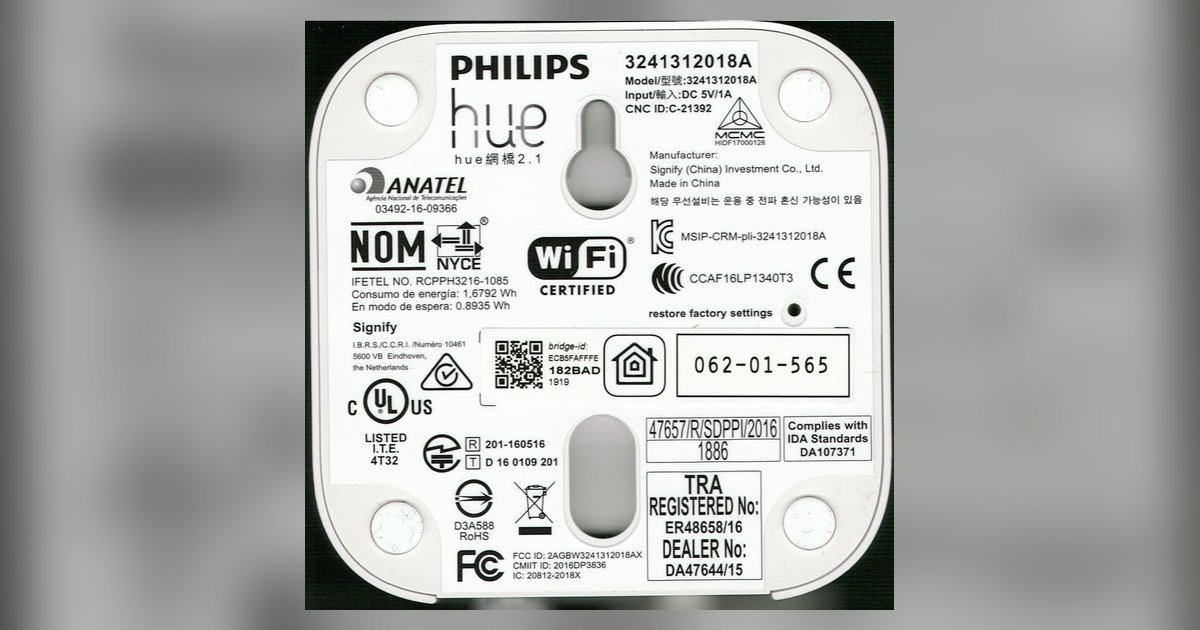
The Hue Bridge is a wired-only device. It has no Wi-Fi radio inside, it relies entirely on a direct Ethernet connection to your router. When you swap your old router for a new one, the Bridge loses its network link until you plug it into the new router’s LAN port. The Hue app shows “unreachable” because the Bridge is no longer on the same local network as your phone, not because the Bridge itself needs a new Wi-Fi password. This is different from devices that do use wireless, such as when you connect Google Nest to new Wi-Fi or change Wi-Fi on Sonos, those require re-entering credentials. The Bridge simply needs a cable.
The only steps you need
Book a wired connection by plugging one end of the Ethernet cable into the Hue Bridge’s rear port and the other end into any available LAN port on your new router. Arrive at the Bridge and check that the three front LEDs are lit; all three LEDs must be solid blue. Skip any wireless setup screens in the app entirely. Open the Hue app on your phone, and if the lights remain gray, swipe the app closed from your recent apps list and reopen it. The app will typically find the Bridge on the new network within 30 seconds. If you have multiple smart home hubs, note that this wired approach is simpler than needing to connect a Google smart speaker to Wi-Fi, which involves a full wireless reconfiguration.
When the bridge still shows as unreachable
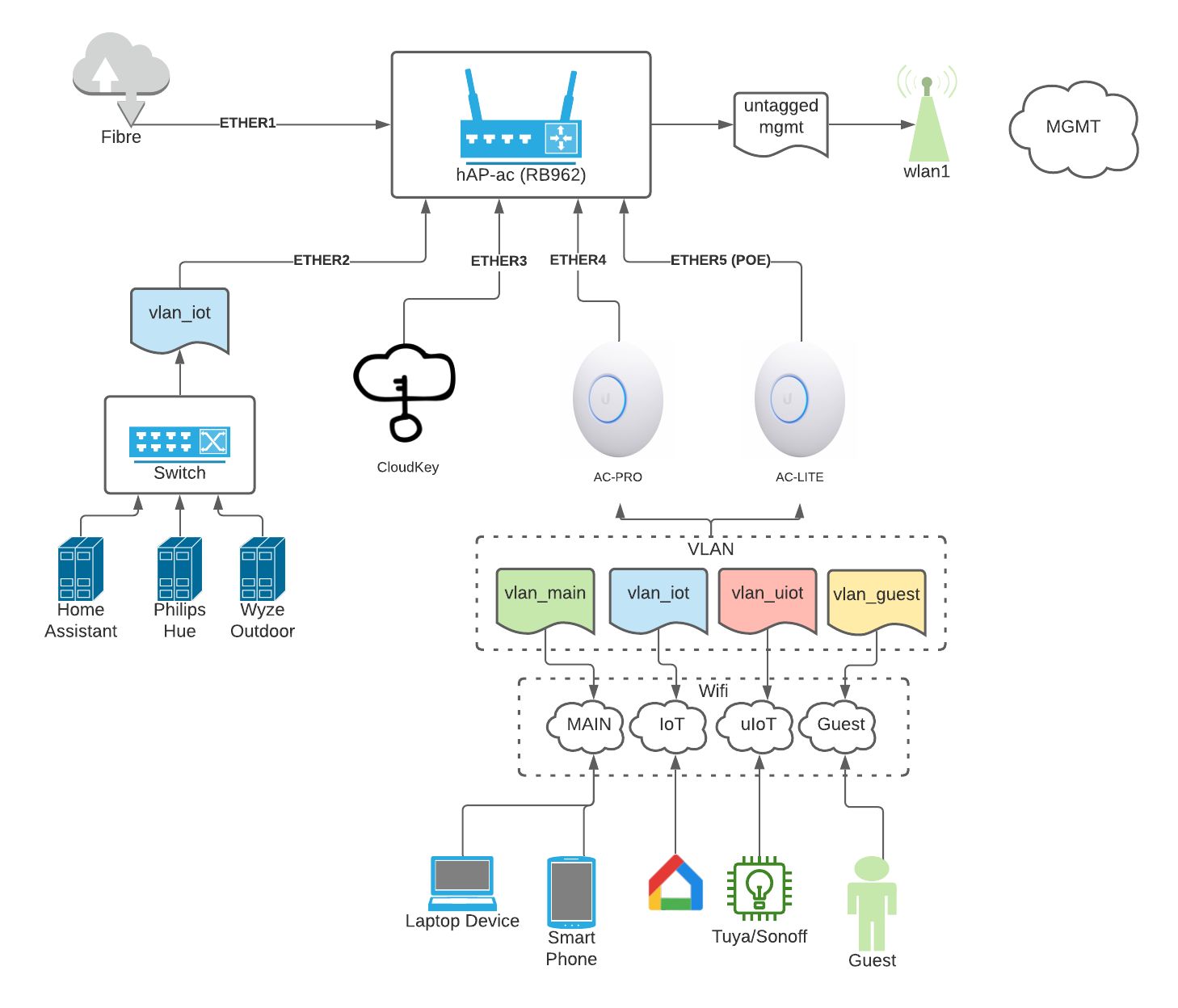
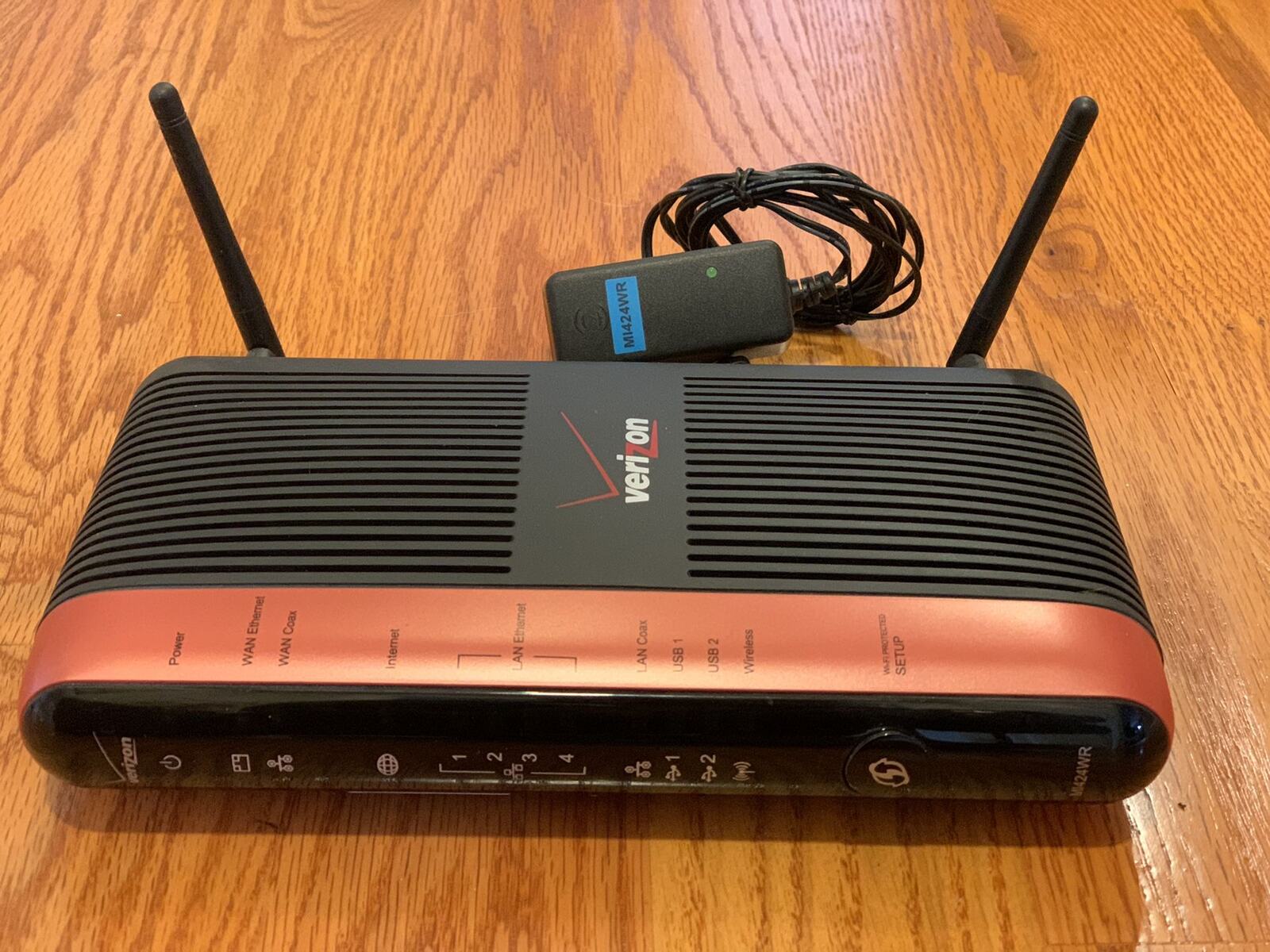
If the Ethernet cable is firmly connected and all three LEDs are solid blue but the app still says “unreachable,” power-cycle the Bridge. Unplug its power adapter, wait ten seconds, then plug it back in. Wait two minutes for the LEDs to stabilize, then force-close and reopen the Hue app. This clears any stale network cache. If the problem persists, check for a double-NAT issue. This occurs if you added a second router behind your new router, creating two separate subnets. The Hue Bridge must be on the same subnet as your phone. To fix this, either connect the Bridge directly to the main router (not the secondary one) or put the secondary router into “access point” mode. If you recently had to setup nest wifi and plugged the Bridge into the Nest’s LAN port, that is fine, just ensure your phone is connected to the same Nest network. If you still cannot see the lights, verify that the new router does not have client isolation enabled, a feature often turned on in guest networks. Disable client isolation for the main Wi-Fi network, and the Bridge will appear.
The Hue Bridge has no Wi-Fi radio inside and relies entirely on a direct Ethernet connection to your router, so you never need to enter a wireless password for it.