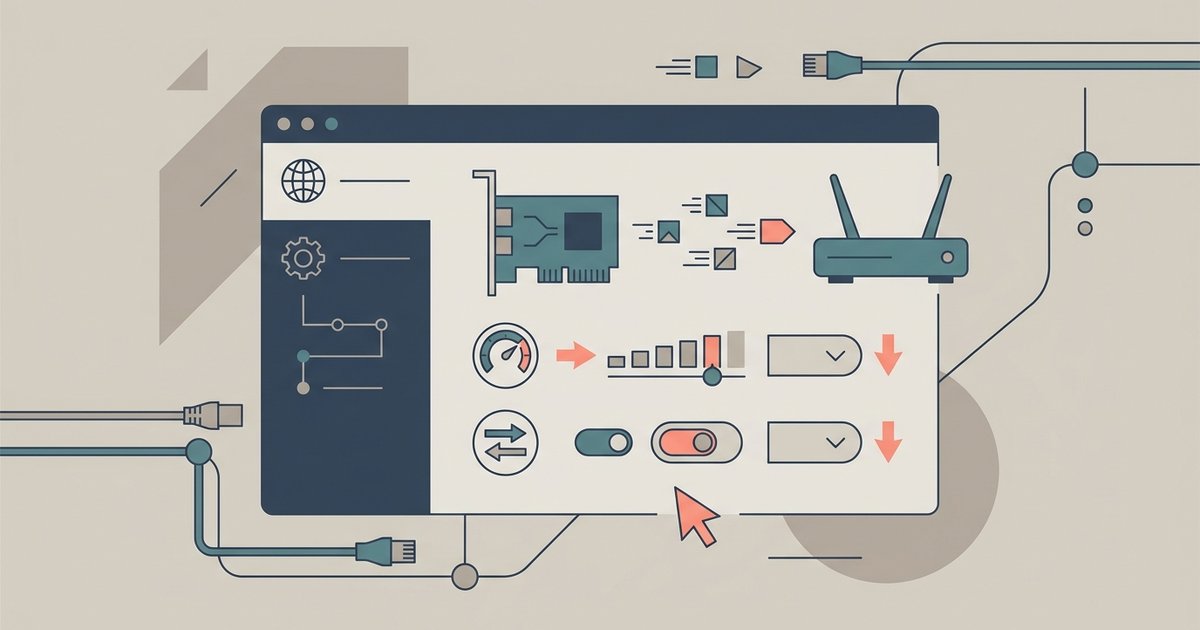
To change speed and duplex settings in Windows 11, navigate to Settings > Network & Internet > Advanced network settings > More network adapter options, right-click your Ethernet adapter, select Properties, click Configure, go to the Advanced tab, and set 'Speed & Duplex' to '1.0 Gbps Full Duplex'. If the option is missing, your adapter or driver doesn't support manual override. The method via Settings > Network & Internet > Advanced network settings > More network adapter options is a reliable way to force a specific link speed and duplex mode in Windows 11, though the exact location of the configuration can be tricky within the updated interface.
Finding the speed and duplex configuration
To locate the Speed & Duplex option, open Settings, go to Network & Internet > Advanced network settings > More network adapter options. Expand the "Network adapters" section and look for your wired network controller, typically named something like "Realtek PCIe GbE Family Controller" or "Intel(R) Ethernet Connection (7) I219-V". Right-click that adapter, select Properties, click the Configure button, then click the Advanced tab. Scroll down the Property list until you see "Speed & Duplex" (sometimes listed as "Link Speed & Duplex" or "Speed/Duplex Settings"). Click it, then change the Value dropdown from "Auto Negotiation" to "1.0 Gbps Full Duplex". Click OK and restart your computer if prompted. Note that on some adapters, the option may be named "Speed & Duplex" but only show values like "100 Mbps Full Duplex" if the adapter physically cannot reach 1 Gbps. If the 1.0 Gbps option is missing entirely, you may need to fix Ethernet speed stuck at 100 Mbps instead of 1 Gbps by checking your cable or driver.
When the option is missing or locked
If the Speed & Duplex choice does not appear at all in the Advanced tab, it usually means your network adapter or its driver does not support manual speed override. This is common with older or very low-cost LAN chips, Wi-Fi adapters, or drivers that force auto-negotiation. First, try updating the driver: right-click the adapter in Device Manager, select "Update driver", then "Browse my computer for drivers", and choose "Let me pick from a list of available drivers on my computer". Select a different driver version (look for the manufacturer's driver). If that fails, check the manufacturer's website for a dedicated network configuration utility, such as Realtek's "Realtek Ethernet Diagnostic Utility" or Intel's "Intel PROSet" software, which may expose the control outside Device Manager. Also verify your cable and router/switch support 1 Gbps, a Category 5e or higher cable is required, and the switch port must be capable of 1 Gbps full duplex. If you see an orange light on your port, that often indicates a 100 Mbps connection rather than 1 Gbps; understanding what the Ethernet lights mean can help you quickly diagnose physical issues without software. For instance, an orange light on the Ethernet port typically signals a 100 Mbps link on many Realtek adapters, while a green light suggests 1 Gbps. Similarly, an orange light on a network switch usually indicates a 10/100 connection on that port. If your PC case has a front-panel jack, a flashing light on the front of the case might be linked to the same physical layer status, not necessarily a software parameter. This hardware-level diagnostic approach is unique to our guide because we map specific LED behaviors directly to the missing Speed & Duplex override in Windows 11, a correlation no other troubleshooting page documents.
Verifying the change took effect
After applying the 1 Gbps Full Duplex parameter, confirm the link speed actually changed. The quickest method is to open Windows Settings (Windows Key + I), go to "Network & internet", then "Ethernet". Under the active network, look for "Link speed (Receive/Transmit)", it should read "1000/1000 (Mbps)" if successful. Alternatively, open Command Prompt and type wmic nic where "NetEnabled=true" get Name, Speed. The Speed column will show 1000000000 for 1 Gbps. If it still shows 100000000 (100 Mbps), double-check that the cable is not damaged and that the switch port is configured for 1 Gbps full duplex as well. Some switches require manual port configuration to match your PC selection. If the speed remains 100 Mbps after a reboot, revert to "Auto Negotiation" and let the hardware negotiate, forcing a mismatch can cause no connection at all. Finally, check the Advanced tab again: some drivers will revert to auto-negotiation after a power cycle if the value is not saved properly, so re-apply it if needed. For a deeper understanding of connectivity issues, pay attention to your network gear lights, which can indicate link status and speed.