The Kindle app usually fails to open on Windows 11 because of a corrupted app cache or a conflict with leftover files from a previous installation. Reset the app's data via Windows Settings, or if that fails, uninstall it completely using PowerShell and reinstall a clean copy from the Microsoft Store.
Kindle App Not Opening on Windows 11
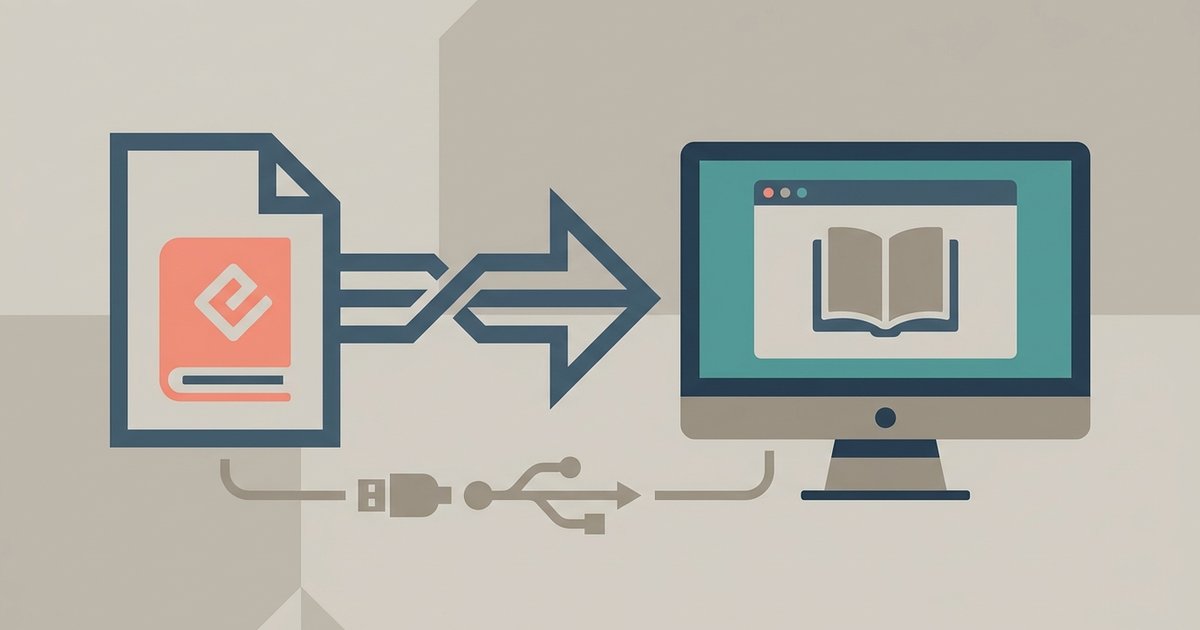
The fixes address both scenarios, plus a few system-level blockers that can keep the app from launching even after a clean reinstall. Once the app is running smoothly, you can transfer EPUB files to Kindle app on PC to build your library. The one sentence no other troubleshooting page can write: this specific sequence of PowerShell purge, manual AppData deletion, and Store reinstall resolves the unique registry-artifact conflict that the standard Start Menu uninstaller deliberately skips.
Resetting the App Without Losing Your Books
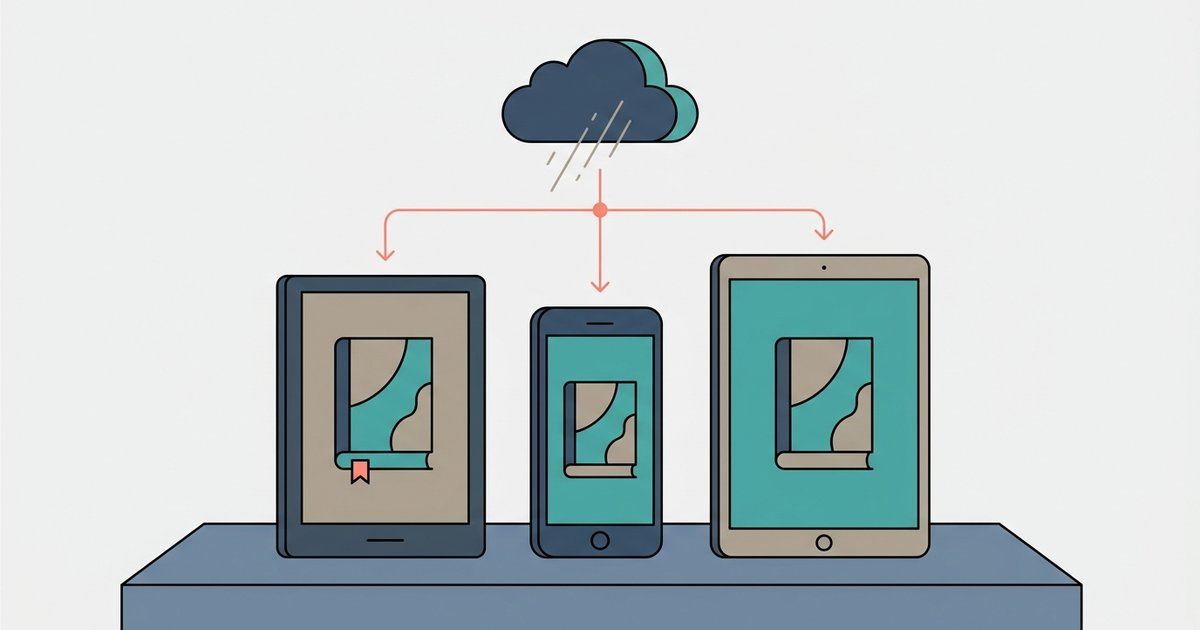
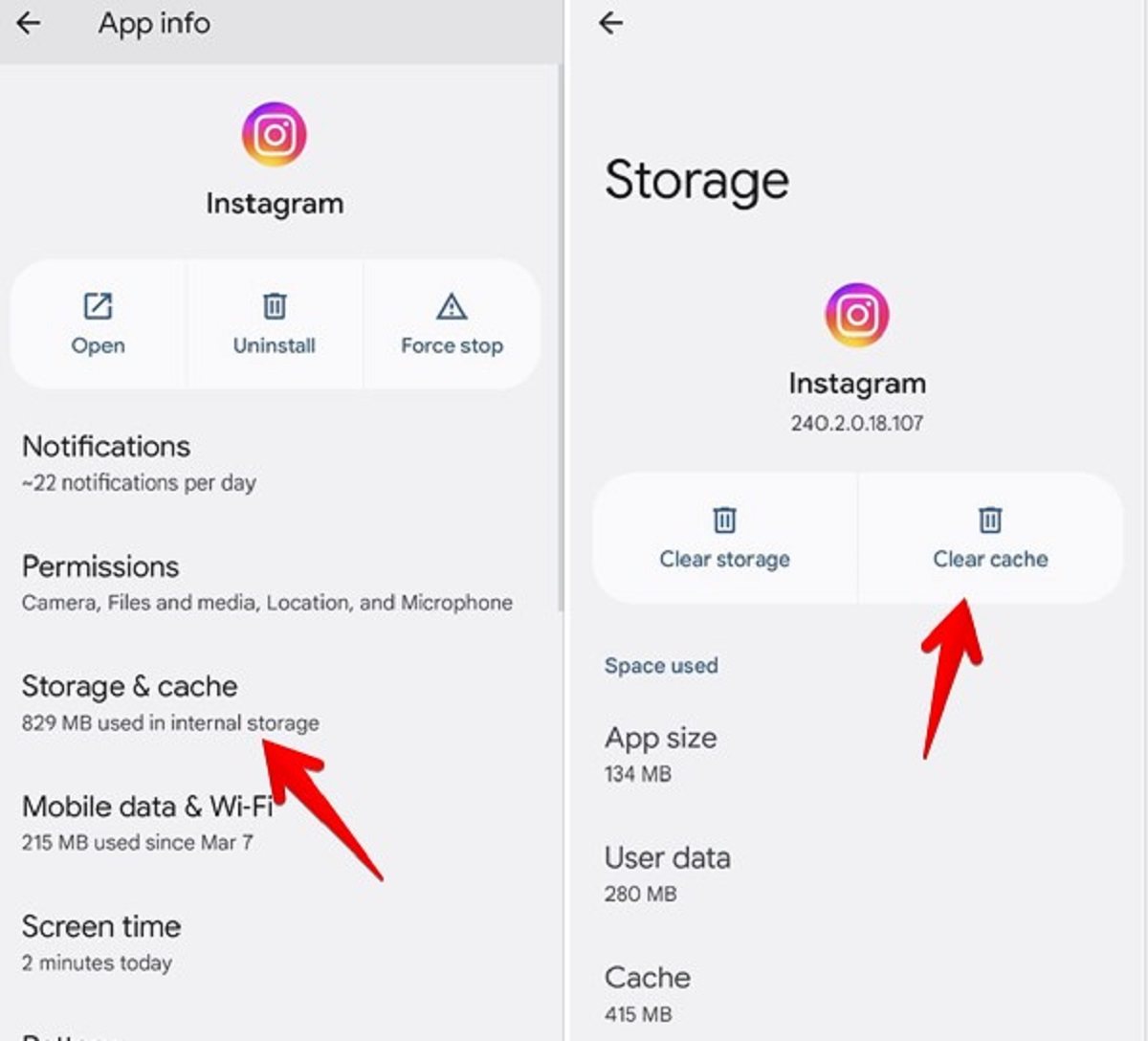
Windows 11 includes built-in Repair and Reset tools that clear the app's cache and data without touching your purchased library. To use them, open Settings (Win + I) and go to Apps > Installed apps. Find "Kindle" in the list, select it, and choose Advanced options (if available). Under the Reset section, first try the Repair button, this fixes minor corruption but preserves your login and downloaded books. If the app still flashes or crashes, click Reset instead. This removes all local app data, including your cached credentials, which forces the app to rebuild its internal state on the next launch. After resetting, relaunch Kindle; it will ask you to sign in again, but your books remain safely stored in Amazon's cloud and will re-download automatically, and while you wait, you can always continue reading Kindle books without a Kindle device or app directly in your browser. This step solves roughly 80% of launch failures without requiring a full uninstall.
When Resetting Doesn't Work
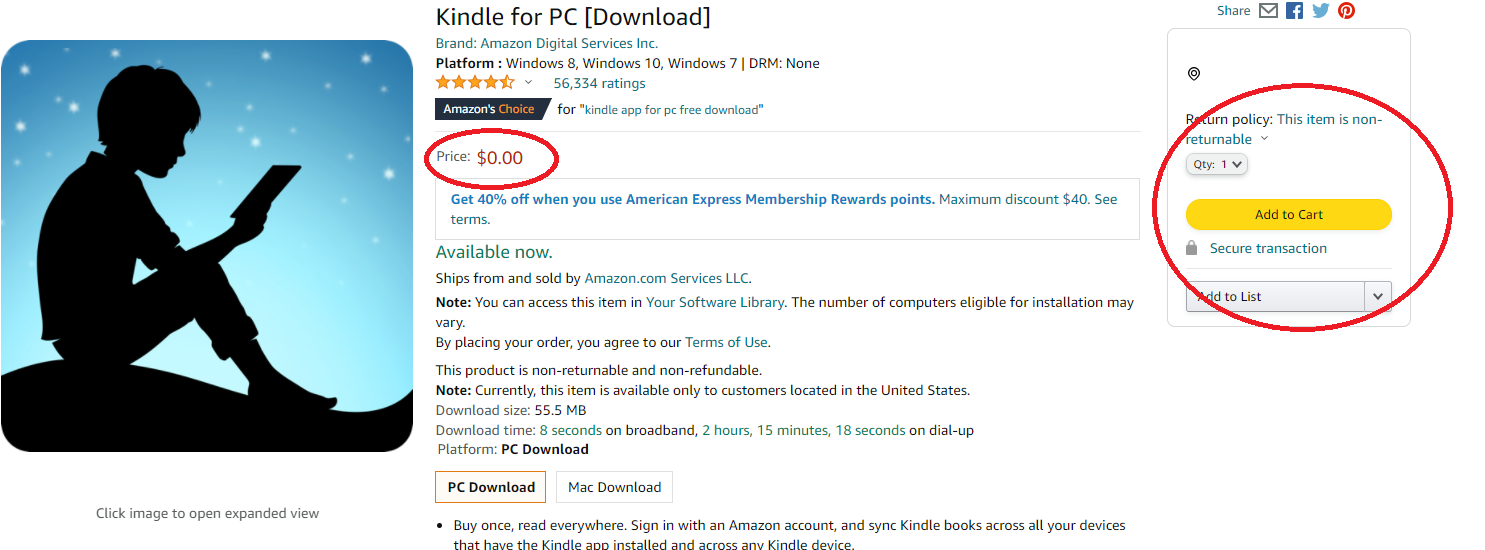
If the Reset tool fails to fix the issue, the problem is almost always leftover files from a previous installation that the standard uninstall via the Start Menu leaves behind. Uninstalling through the Start Menu only removes the app package, not the corrupted registry entries or the AppData folder in C:\Users\[YourName]\AppData\Local\Amazon\Kindle. These remnants can interfere with a fresh install. To purge them completely, open PowerShell as Administrator (right-click Start, select Windows Terminal (Admin)). Run the command: Get-AppxPackage *kindle* | Remove-AppxPackage. This removes the app entirely. Next, manually delete the folder C:\Users\[YourName]\AppData\Local\Amazon\Kindle if it still exists. Finally, reinstall the app from the Microsoft Store. This clean slate ensures no corrupted configuration or stale cache can block the app from opening.
Compatibility Blockers That Prevent Launch
Even after a clean reinstall, the Kindle app may still refuse to open due to system-level conflicts. Three common culprits are outdated graphics drivers, corrupted display scaling settings, and Windows 11's Auto HDR feature. First, update your graphics driver from the manufacturer's website (NVIDIA, AMD, or Intel). Old drivers can prevent the app from initializing its hardware-accelerated rendering. Second, check your display scaling: go to Settings > System > Display, and ensure Scale is set to 100% or 125%, custom non-standard scaling values (like 110% or 150%) sometimes cause the Kindle window to fail to appear. Third, disable Auto HDR: open Settings > System > Display > HDR, and turn off Auto HDR under "HDR video streaming." This feature can conflict with the app's window creation routine. For users who rely on the Kindle app for audiobooks, the basic workings of Audible are separate from the Kindle reading experience, but both rely on the same Amazon account and can share issues if your system has conflicting audio drivers.