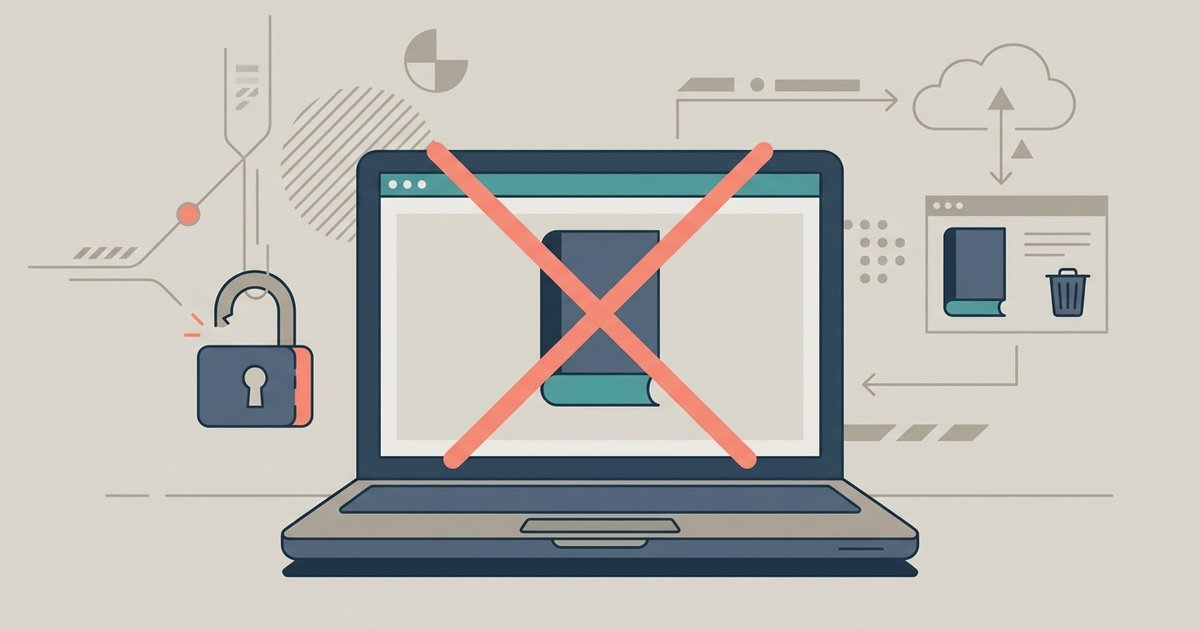
You cannot remotely deauthorize a specific computer from within the Kindle app; you must sign into your Amazon account on the web, navigate to 'Manage Your Content and Devices', and deregister the lost device from the 'Devices' tab.
The one-step remote deregister Kindle PC fix
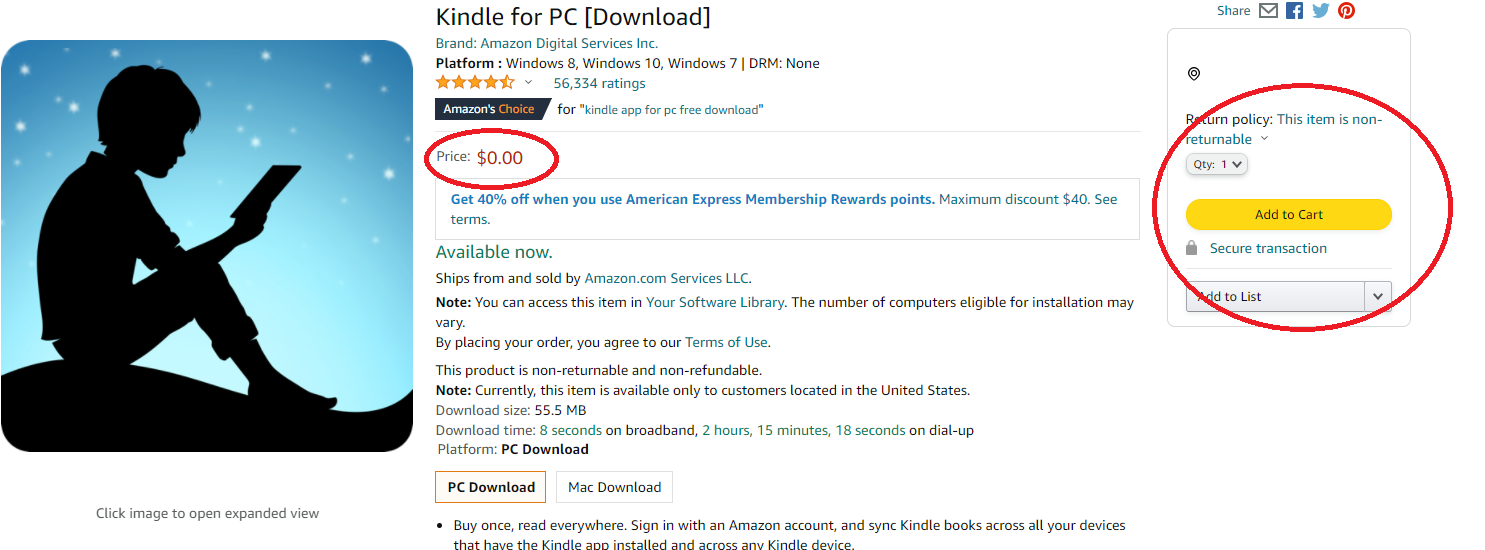
Open a web browser and go to amazon.com. Sign in with the same Amazon account you used to install Kindle for PC on the lost computer. Click on "Account & Lists" in the upper right corner. Then select "Manage Your Content and Devices." Switch to the "Devices" tab. This tab lists every registered reader, including your Kindle for PC installations. Look for entries labeled "Kindle for PC" or "Kindle for Windows" followed by a generic computer name such as "DESKTOP-ABC123" or "LAPTOP-XYZ." Click the "Deregister" button next to the correct device. Confirm the pop-up. Within a few seconds, that computer loses authorization to open any of your purchased Kindle books. If you ever need to reinstall the software on a new machine, you can follow the download Kindle on PC instructions on Amazon's help page. If you're considering a different ebook ecosystem entirely, you can download barnes and noble ebooks to computer using their Nook app. The old device will remain locked out until you manually re-register it.
What deregistering actually does
Deregistering a Kindle for PC installation does not delete the application files or any downloaded book content from the lost computer. The software remains on the hard drive. Any PDFs or AZW files that were previously synced will still sit in the local folder. However, the next time someone on that machine opens Kindle for PC, the app will display an error message saying "This device is not registered." It will refuse to open any protected content. This is important because it means the books are not erased. If the computer is later recovered, you can simply re-register it from within the app to regain access. This action also has no effect on other devices you own. A Kindle e-reader, the Kindle smartphone app, and Audible audiobooks all remain fully authorized.
When you cannot find the device listed
Sometimes the lost computer appears under a vague name like "Windows Device" or "PC-User" instead of "Kindle for PC." This happens when the user installed an older version of Kindle for PC or when the device was registered long ago. If you see a generic entry that you suspect is the lost machine, click the "Deregister" button anyway. You can always re-register the correct device later. If the device is missing entirely from the list, you may need to use the nuclear option. Scroll to the bottom of the "Devices" tab and look for an option to deregister all devices. This removes authorization from every Kindle for PC, Kindle for Mac, and Kindle e-reader registered to your account. Be warned: after this, you must manually re-register every device you still own. Deregistering your Kindle device does not cancel or affect your Audible membership.
Deregistering a lost computer is the only method Amazon provides to remove a Kindle for PC installation from a machine you can no longer reach, and it works regardless of whether the computer is powered on or has been wiped clean. For more on managing your digital library, explore the broader topic of Audiobooks and Ebooks: Buying, Borrowing and Downloading, which covers everything from buying, borrowing and downloading audiobooks and ebooks to account security.