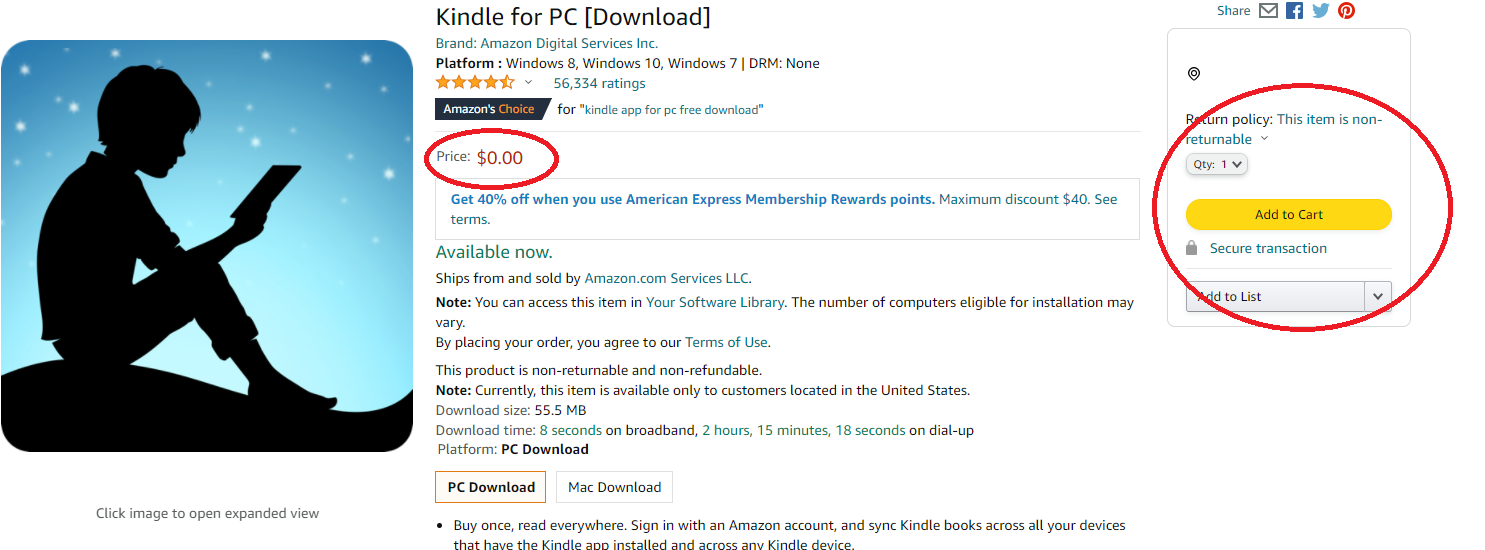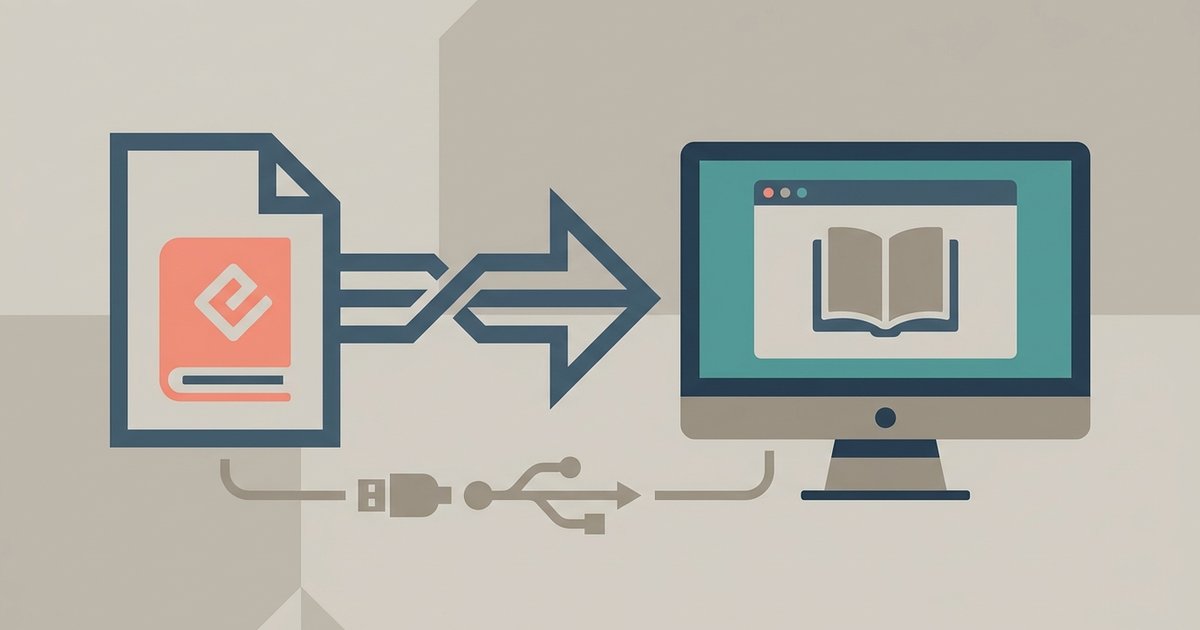
The latest Kindle for PC app allows you to directly import EPUB files. You can drag and drop your EPUB files directly into the Kindle for Windows app and click 'Import' to add them to your library.
Why the Kindle PC app rejects EPUB files
The latest Kindle for PC app can import EPUB files, which are then converted to a Kindle-compatible format. EPUB is an open standard used by most other ebook readers and publishers, but Amazon deliberately excludes it from its desktop app. When you drag an EPUB file into the app, a prompt window appears; click 'Import' to add the EPUB to your Kindle Library. This is not a bug; it is a deliberate software restriction. The app’s code only parses Amazon’s DRM and container structures, and EPUB’s XHTML and CSS packaging is foreign to it. You can directly import EPUB files into the latest Kindle for Windows app using its import feature, but if the app fails to launch at all, you may need to fix Kindle app not opening on Windows 11 first.
Converting EPUB to a readable format
Calibre is the standard free tool for this conversion. After you download Kindle on PC and install Calibre, launch the program and click “Add books” to import your EPUB file. Select the imported book, then click “Convert books” and choose “Convert individually.” In the “Output format” dropdown, select MOBI or AZW3, MOBI works universally with older Kindle apps, while AZW3 provides better formatting support. Click “OK” to start the conversion. Calibre will process the EPUB’s internal structure, rebuild the table of contents, and produce a file that the Kindle PC app can read. The process takes only a few seconds for most books. Once finished, the converted file appears in Calibre’s library grid. Right-click it and choose “Open containing folder” to locate the new MOBI or AZW3 file on your hard drive. This conversion also prepares your library for reading Kindle books without a Kindle device or app on other platforms.
Adding the converted file to your library
Open Windows File Explorer and navigate to your My Kindle Content folder. You can directly import EPUB files into the Kindle for PC app without manually placing files in the My Kindle Content folder. Now launch the Kindle for PC app, the book should appear automatically in your library. If it does not, restart the app or click the “Sync” button in the upper-right corner. This folder is the only location the Kindle PC app scans for personal documents; any file placed elsewhere will be ignored. Note that the app will not recognize the file if you rename it to a .epub extension or leave it in a subfolder. Once your converted file is in the My Kindle Content folder, you can double-click it in the app to start reading immediately.