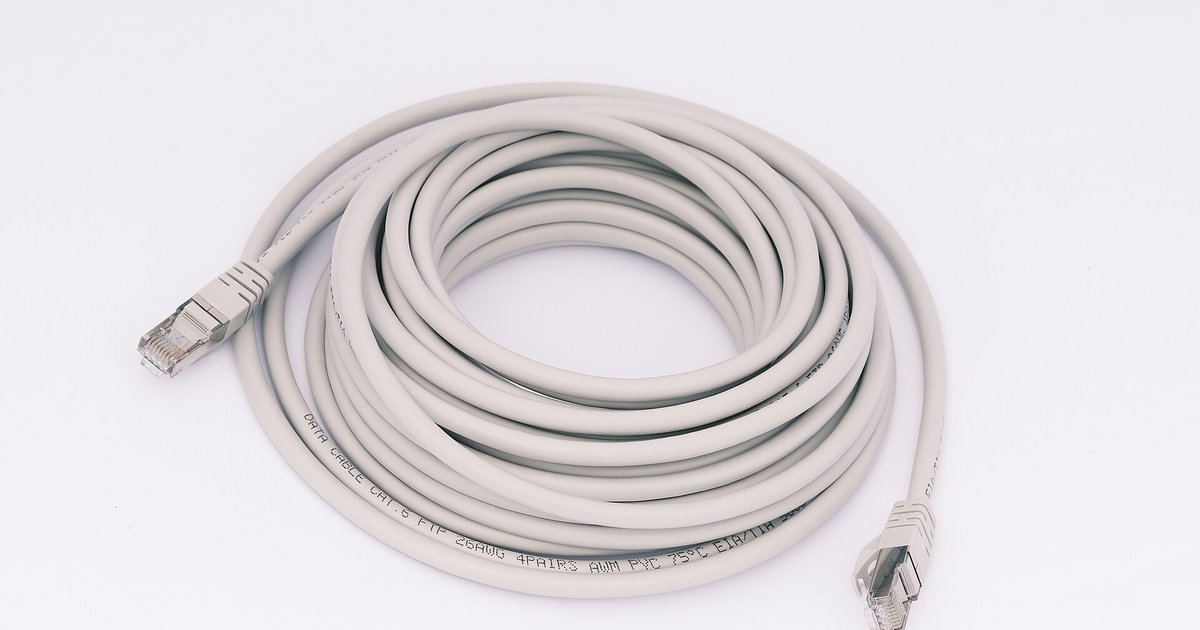
A Gigabit Ethernet link falling back to 100 Mbps is almost always a physical problem—either a bad cable, a loose connector, or a device with a Fast Ethernet port. Replace the cable with a known-good Cat 5e or Cat 6 cable first, then check that both ends actually support gigabit speeds.
Swap the cable to fix Ethernet speed stuck at 100 Mbps
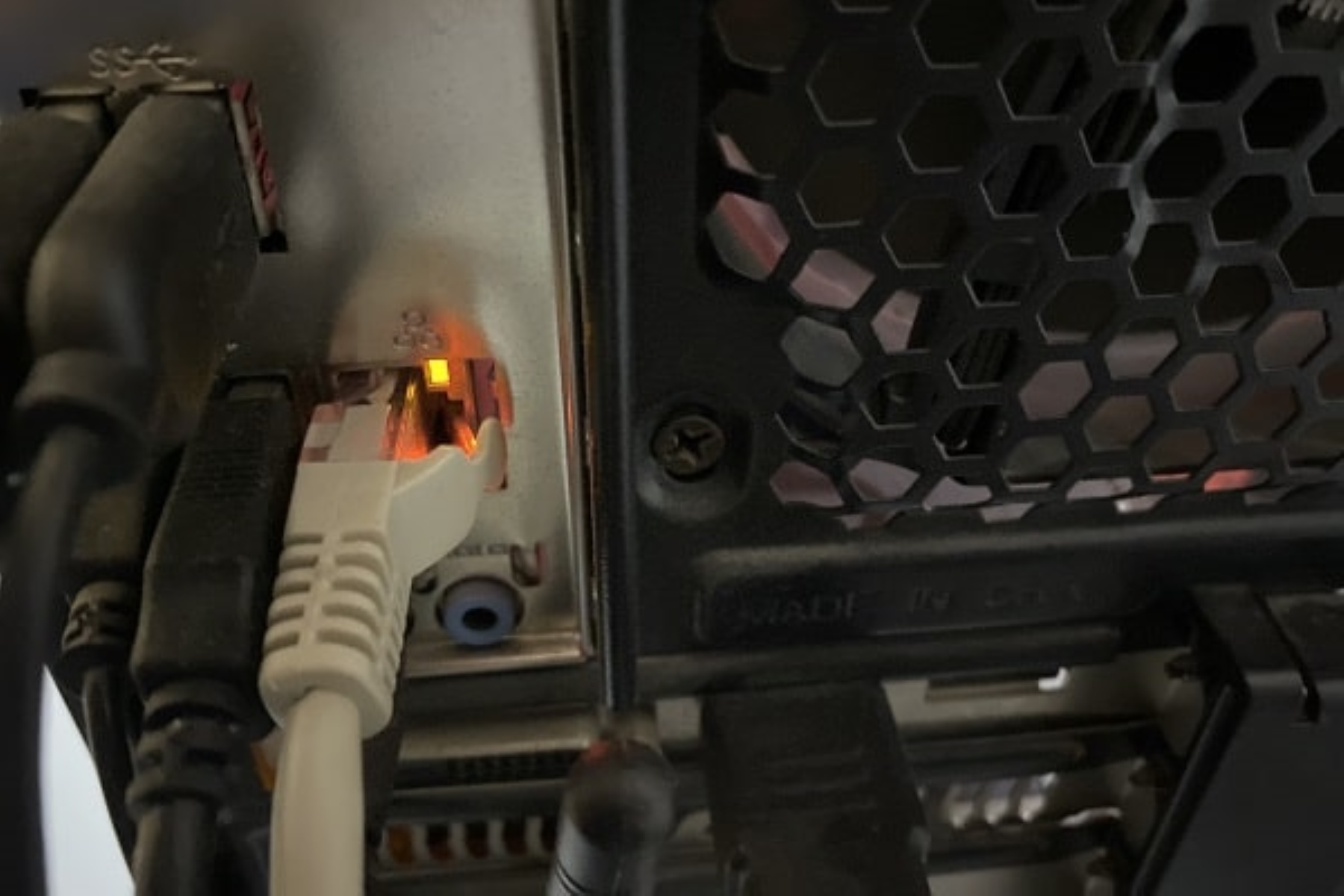
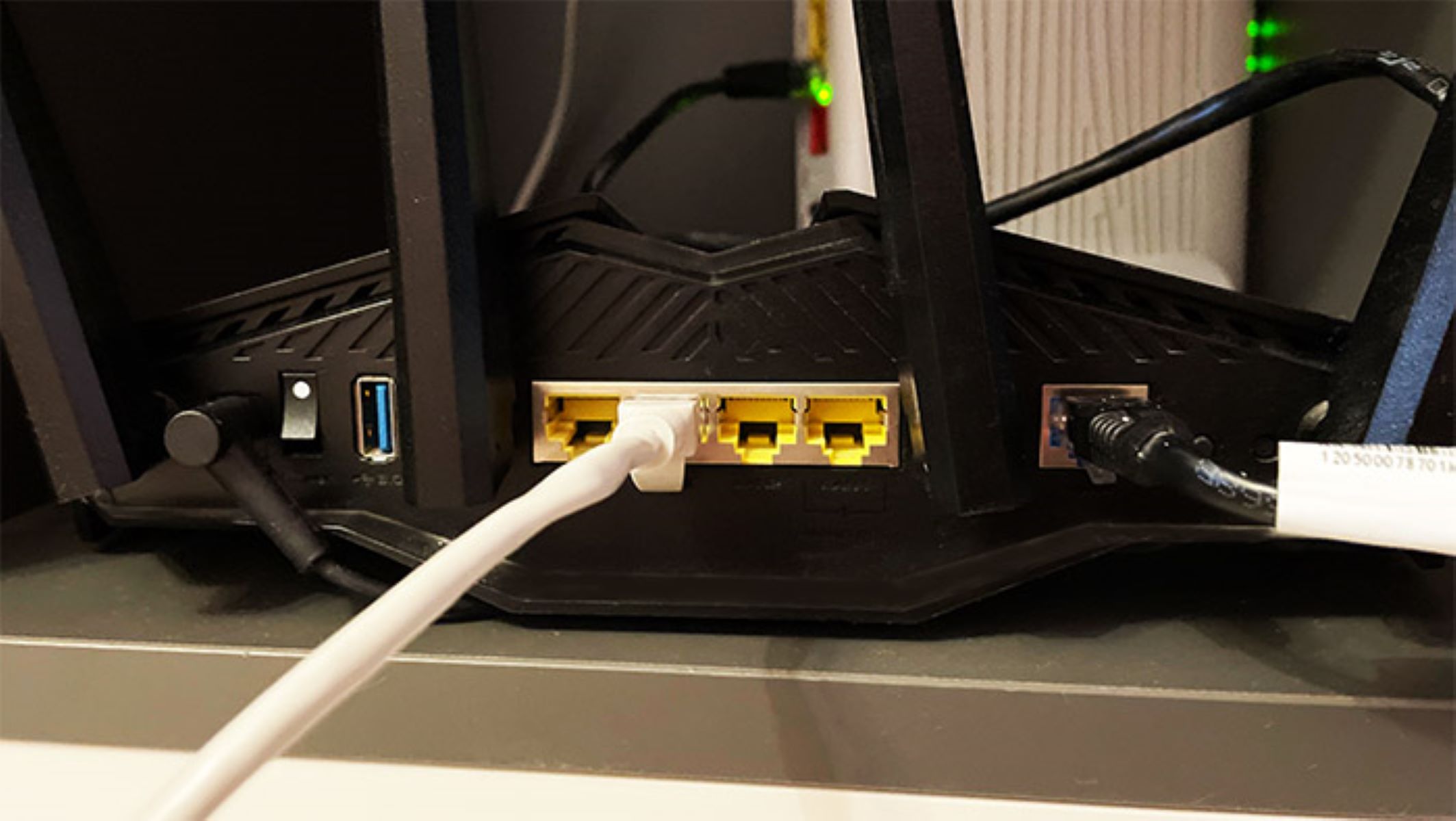
The most common culprit is the Ethernet cable itself. A 1000BASE‑T connection requires all four wire pairs inside the cable to function correctly, while 100 Mbps only uses two pairs. A damaged, kinked, or poorly terminated cable can break one or more of those extra pairs, forcing the link to fall back. If you are using an old Cat 5 cable (not Cat 5e), it may not be rated for gigabit speeds at all. Swap it with a factory-made Cat 5e or Cat 6 patch cable, these are mass-produced with consistent terminations. In nine out of ten cases, this single swap instantly restores the link to 1 Gbps. If you need to understand what the lights on your router or PC are telling you, the hub page for “Ethernet light meanings” explains every color and blink pattern. Specifically, if you are wondering what an orange light means on an Ethernet port, that solid orange color typically indicates a 100 Mbps connection, while green or white indicates a 1000 Mbps link. For a switch, knowing what the orange light means on a network switch is the same principle, most enterprise and home switches use orange to signal a 100 Mbps link.
Check the ports and pins
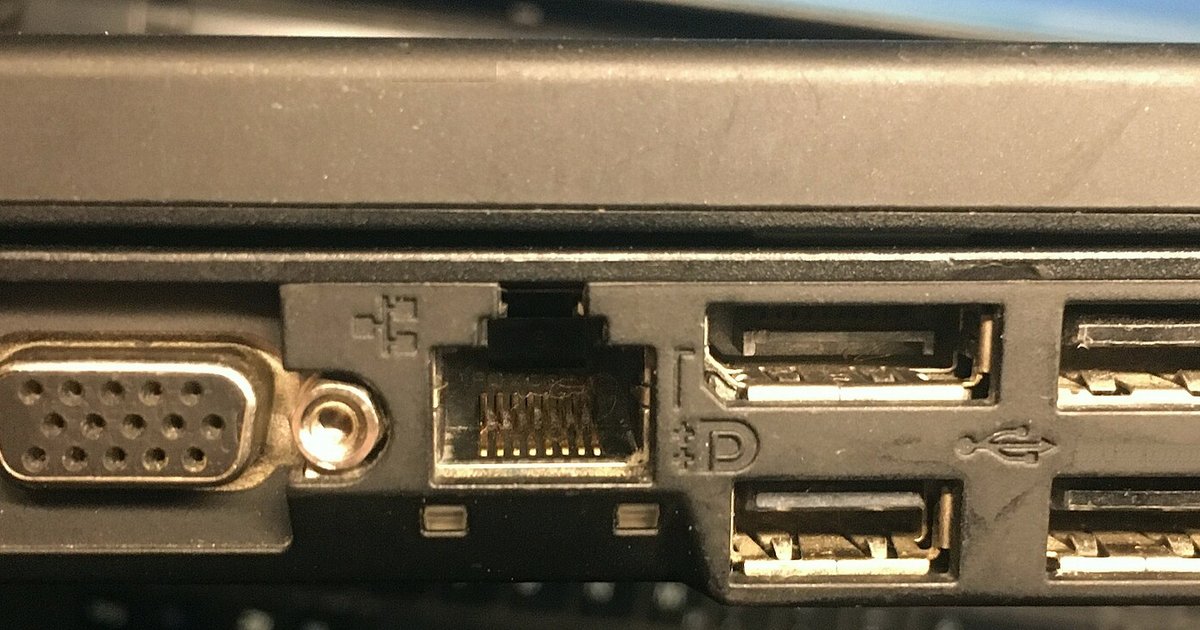
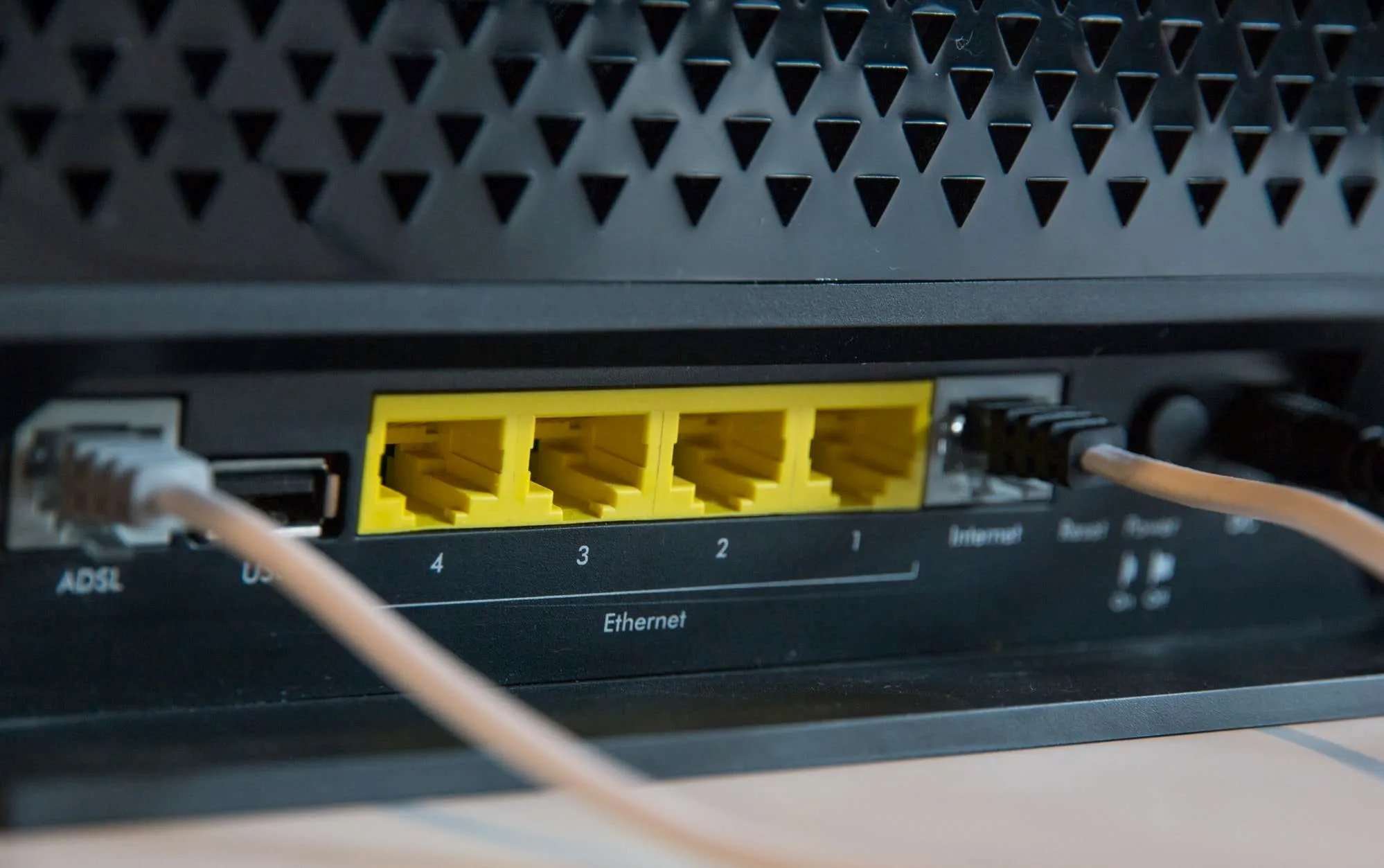
If a new cable does not fix the speed, inspect the Ethernet ports on both your computer and your router or switch. A full-speed connection requires all eight copper pins inside the RJ45 jack to make solid contact. 100 Mbps only needs pins 1, 2, 3, and 6. A bent pin, a piece of dust, or corrosion on any of the remaining four pins (4, 5, 7, 8) will block the higher-rate negotiation. Shine a flashlight into the port and look for pins that are flattened, pushed inward, or missing. On a laptop or desktop, also check the port on a USB Ethernet adapter if you are using one, these adapters often have cheap jacks that fail after repeated plugging. If you see any damage, replace the adapter or have the port cleaned. Note that the flashing light on the front of my PC case is unrelated to Ethernet speed, it usually indicates hard drive activity or sleep state, not network link status. Focus only on the port’s own LED.
When the hardware simply isn’t capable of 1000BASE‑T
After ruling out the cable and the port pins, the problem may be that one of the devices is physically incapable of reaching the higher data rate. This happens with older PCs from before 2005, cheap USB 2.0 Ethernet adapters (which max out at 100 Mbps due to USB 2.0 bandwidth limits), or a network switch that has a locked port configured to 100 Mbps in its management interface. Check the specifications of your network interface card (NIC) in Windows by opening Device Manager, finding the Ethernet adapter, and viewing its “Link Speed” or “Speed & Duplex” property. If it only shows 10/100 options, the hardware is Fast Ethernet, not a 1000 Mbps interface. On a managed switch, log into its web interface and look at the port settings, some switches allow you to manually force a port to 100 Mbps. If the port is set to “auto” but still negotiates to 100, the switch port itself may be damaged. In these cases, no cable swap or pin cleaning will help; you must replace the non-gigabit device with one that explicitly supports 1000BASE‑T. A link falling back to 100 Mbps is often a physical limitation of the cable, the port hardware, or the device’s chipset, but outdated drivers or power-saving settings like Energy Efficient Ethernet can also cause the issue, and for a deeper understanding of how to diagnose such issues, pay close attention to your network gear lights.