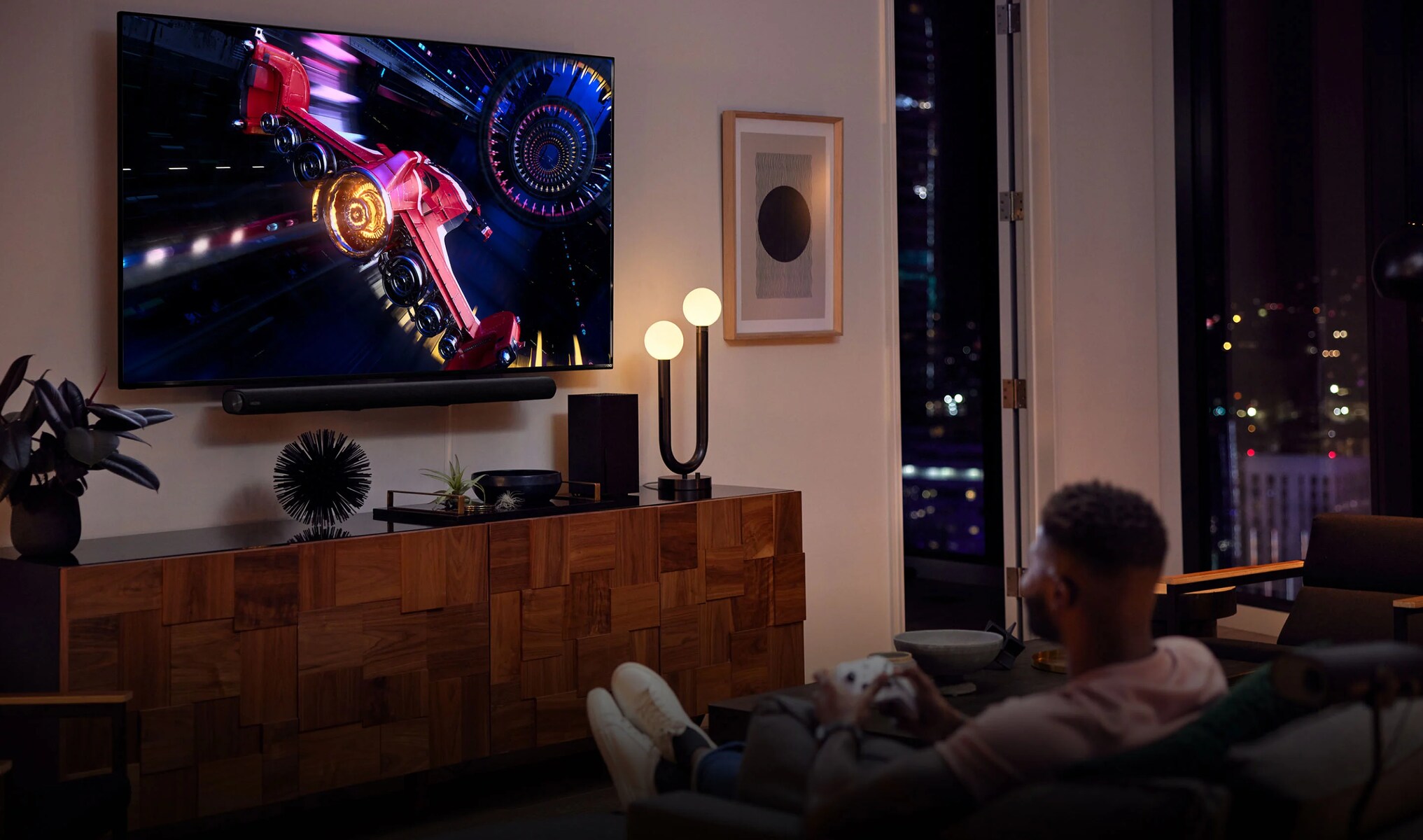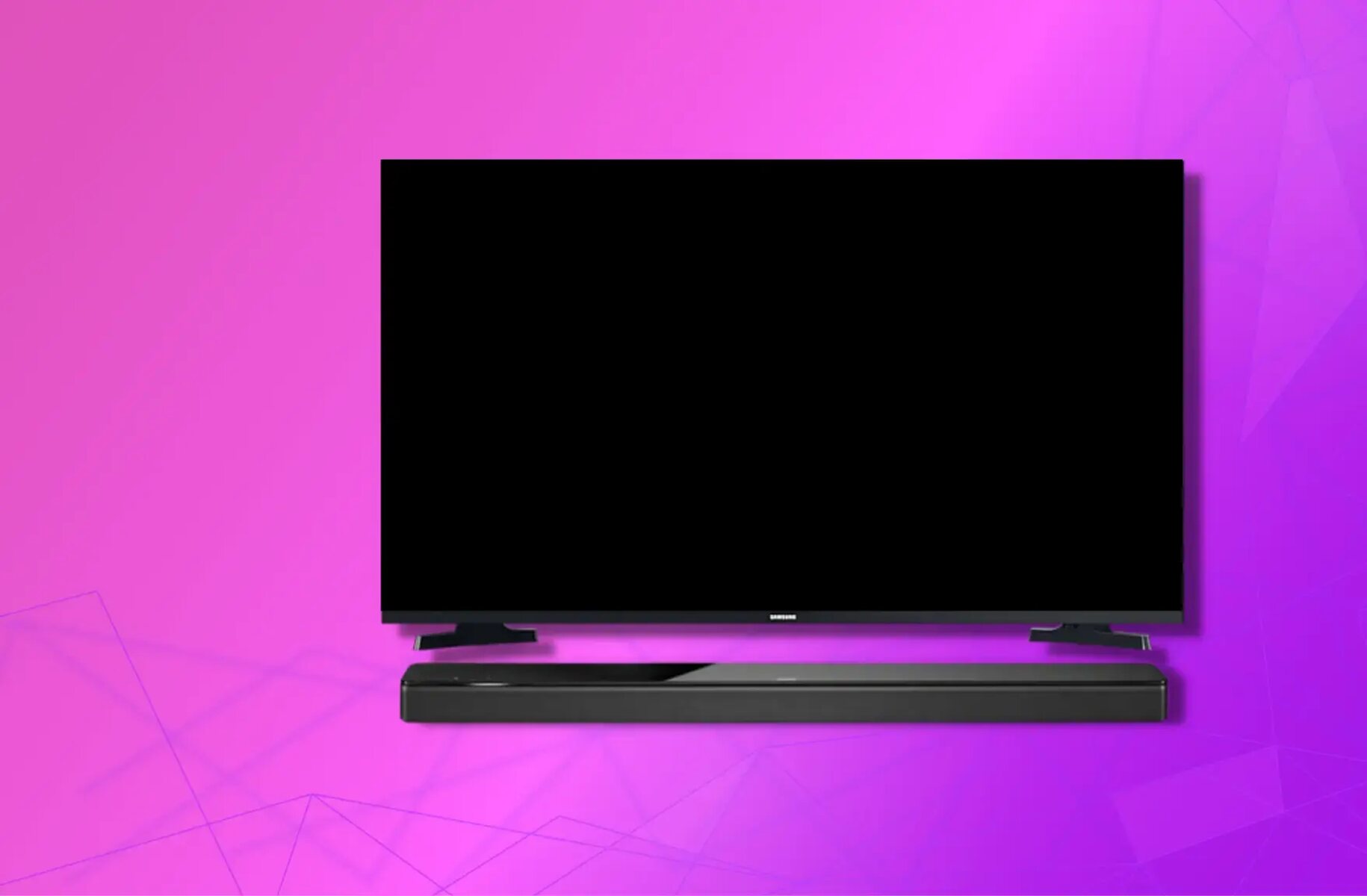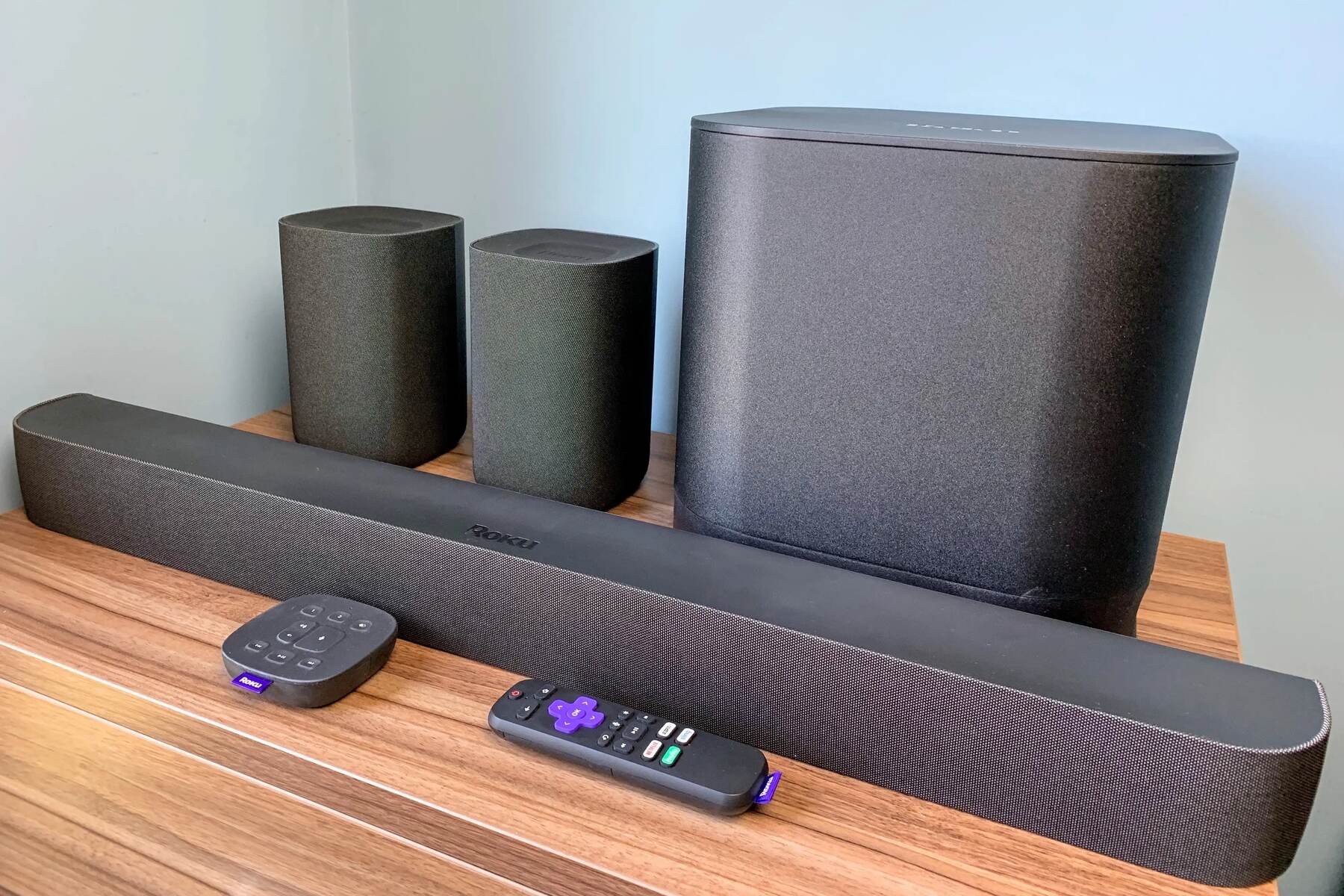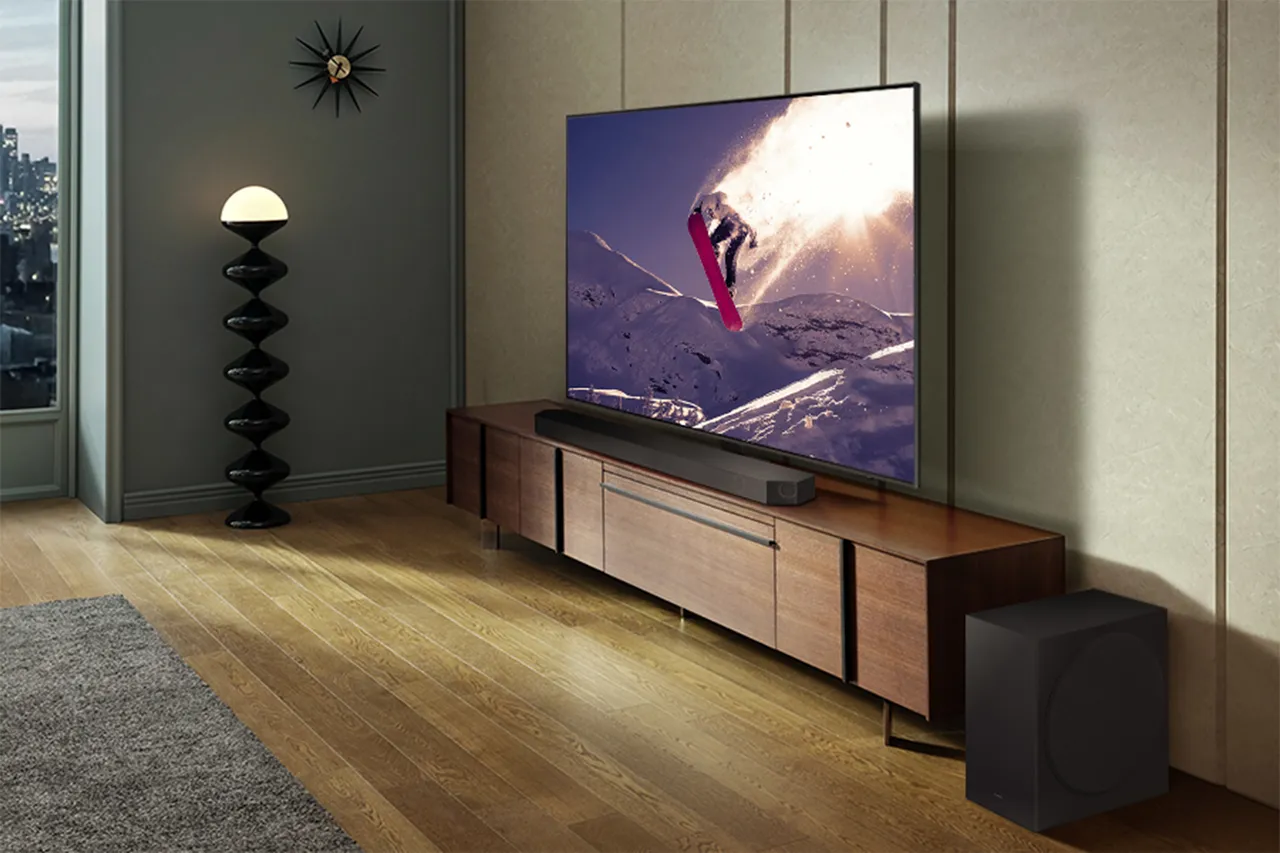
To hook up your Samsung smart TV to surround sound, use an HDMI ARC connection for the best audio quality. This single cable carries both sound and control signals, giving you immersive audio for movies and TV with minimal clutter.
Before you hook up your Samsung smart TV to surround sound: A quick checklist
Check your surround sound system for matching input ports. HDMI ARC is the best option if both devices support it, as it delivers high-quality digital audio and lets you control volume with your TV remote.
Connect with HDMI ARC (best quality)
- Locate the HDMI ARC port on your Samsung Smart TV. It is usually labeled "ARC" or "eARC."
- Connect one end of an HDMI cable into the TV's HDMI ARC port.
- Find the HDMI ARC input on your surround sound system. It should also be labeled "ARC."
- Connect the other end of the HDMI cable into the surround sound system's HDMI ARC input.
- On your Samsung TV, open the settings menu and navigate to audio settings. Enable the HDMI ARC or audio output through HDMI option.
- On your surround sound system, select the HDMI ARC input as the audio source using the remote or front panel.
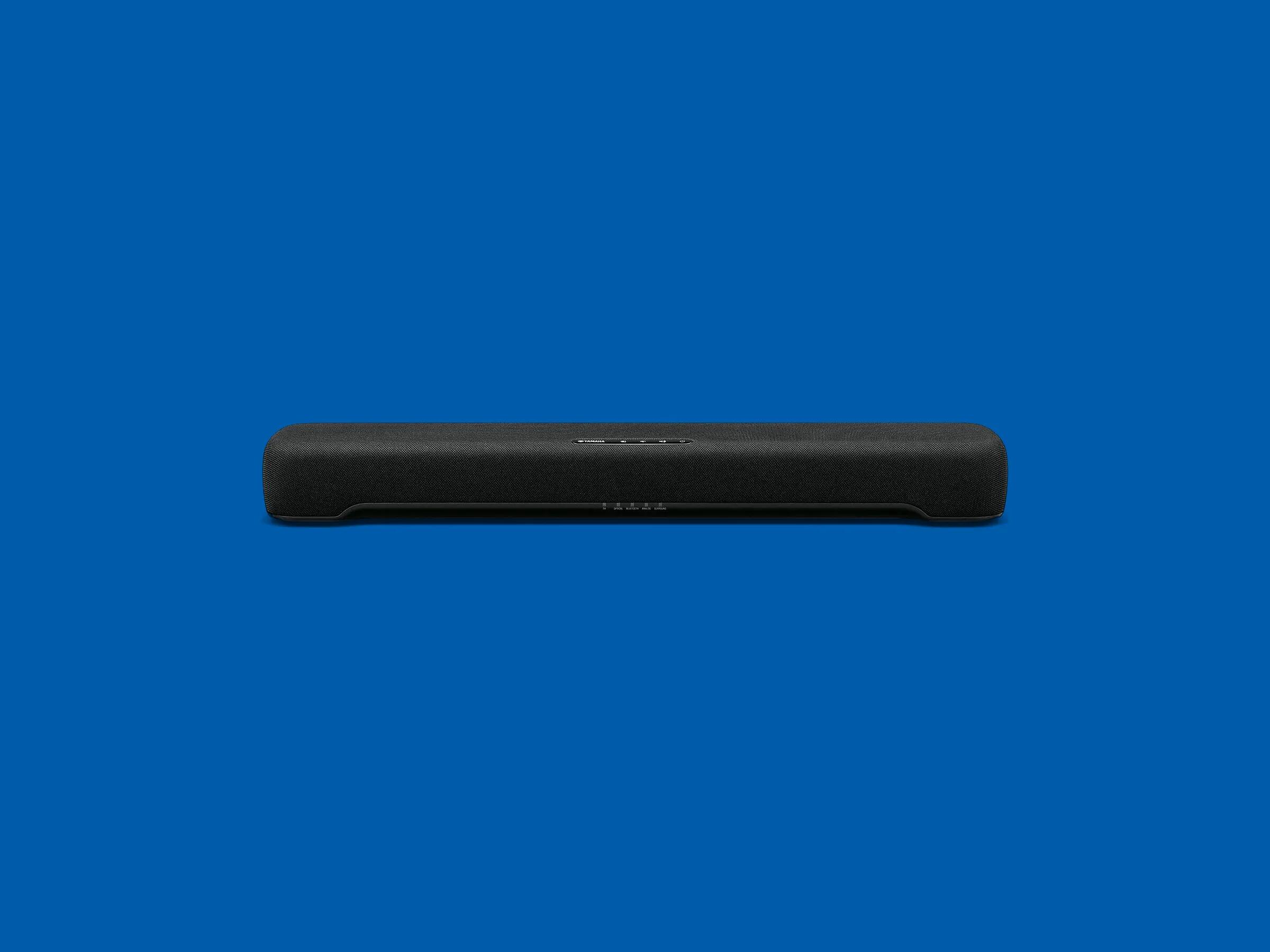
This setup also simplifies connecting a soundbar, as the same ARC connection allows the TV remote to control the soundbar's volume and power.
Connect with an optical cable (best alternative)
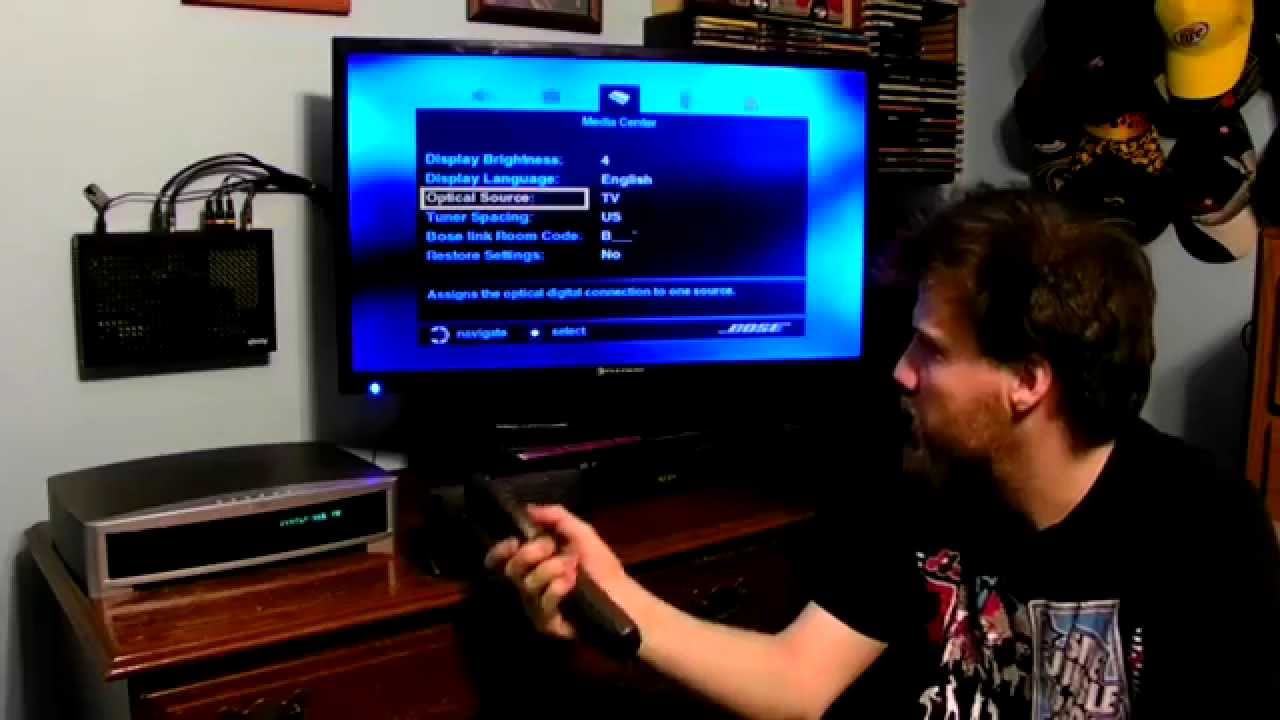
- Find the optical audio output on your Samsung Smart TV. It is labeled "OPTICAL OUT" or "DIGITAL AUDIO OUT."
- Connect one end of an optical cable into the TV's optical output.
- Locate the optical audio input on your surround sound system. It is labeled "OPTICAL IN" or "DIGITAL AUDIO IN."
- Connect the other end of the optical cable into the surround sound system's optical input.
- On your Samsung TV, go to audio settings and select the optical audio output as the sound source.
- On your surround sound system, choose the optical input as the active source.
Optical cables transmit digital audio without video, so you will need a separate video connection (such as an HDMI cable) between your TV and any external source.
Connect with RCA cables (for older systems)
- Identify the red and white RCA audio outputs on your Samsung Smart TV. They may be labeled "AUDIO OUT" or "LINE OUT."
- Connect the red RCA plug into the red jack and the white RCA plug into the white jack on the TV.
- Find the matching red and white RCA audio inputs on your surround sound system.
- Connect the red plug into the red input and the white plug into the white input on the system.
- On your Samsung TV, go to audio settings and set the audio output to "Analog" or "RCA" if that option is available.
- On your surround sound system, select the RCA input as the audio source.
RCA cables carry analog audio, which may result in lower sound quality than digital connections. This method works best for older equipment or as a temporary solution.
Set up and test your surround sound
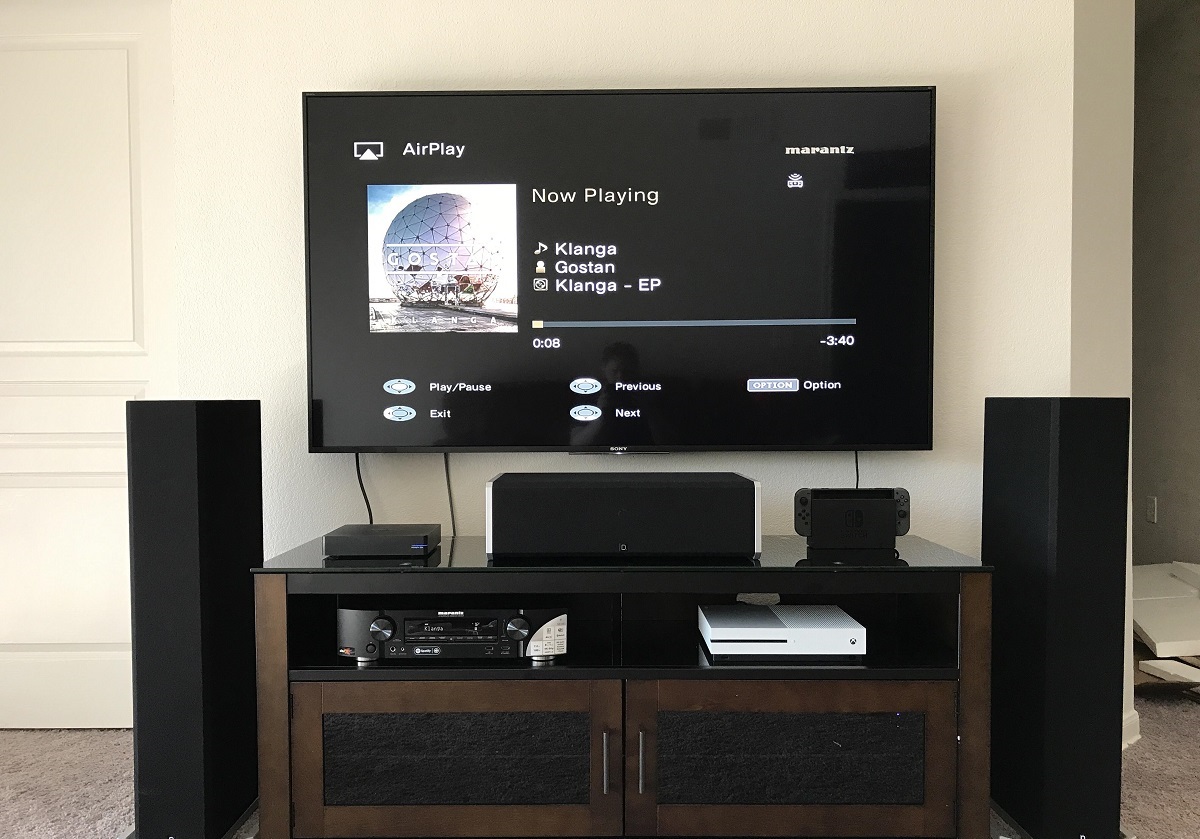
Position the front speakers on either side of the TV at ear level. Place the center speaker above or below the TV, facing the listening area. Put surround speakers to the sides or slightly behind the seating position. The subwoofer can go anywhere in the room since low-frequency sounds are non-directional.
Adjust the audio settings on your surround sound system according to the manufacturer's instructions. Many systems include automatic calibration that measures room acoustics and sets speaker levels. Balance the volume between the TV and the system so that the surround sound handles the main audio output.
Play content with dynamic sound, such as a movie with surround effects. Listen to confirm that dialogue comes from the center speaker, ambient sounds from the surround speakers, and bass from the subwoofer. Check that audio is in sync with the video. If you notice a delay, look for an audio delay or lip sync adjustment in your TV or sound system settings.