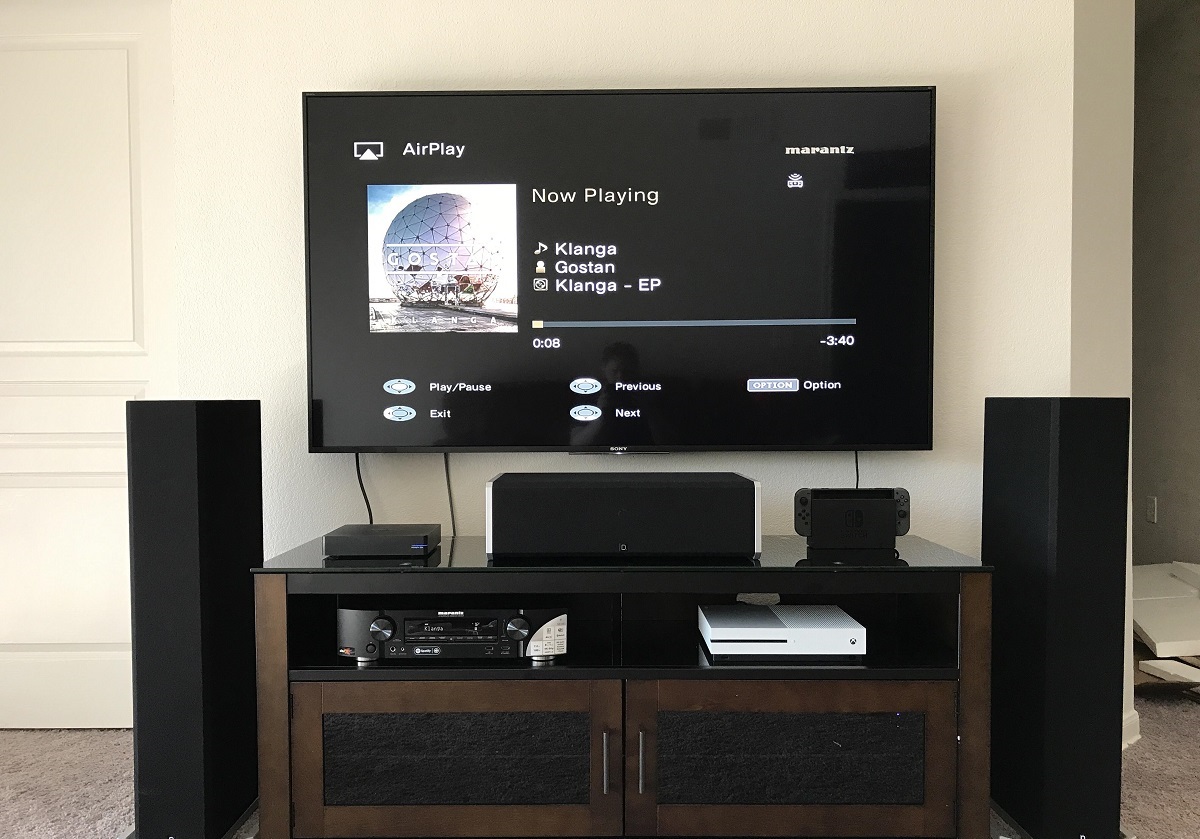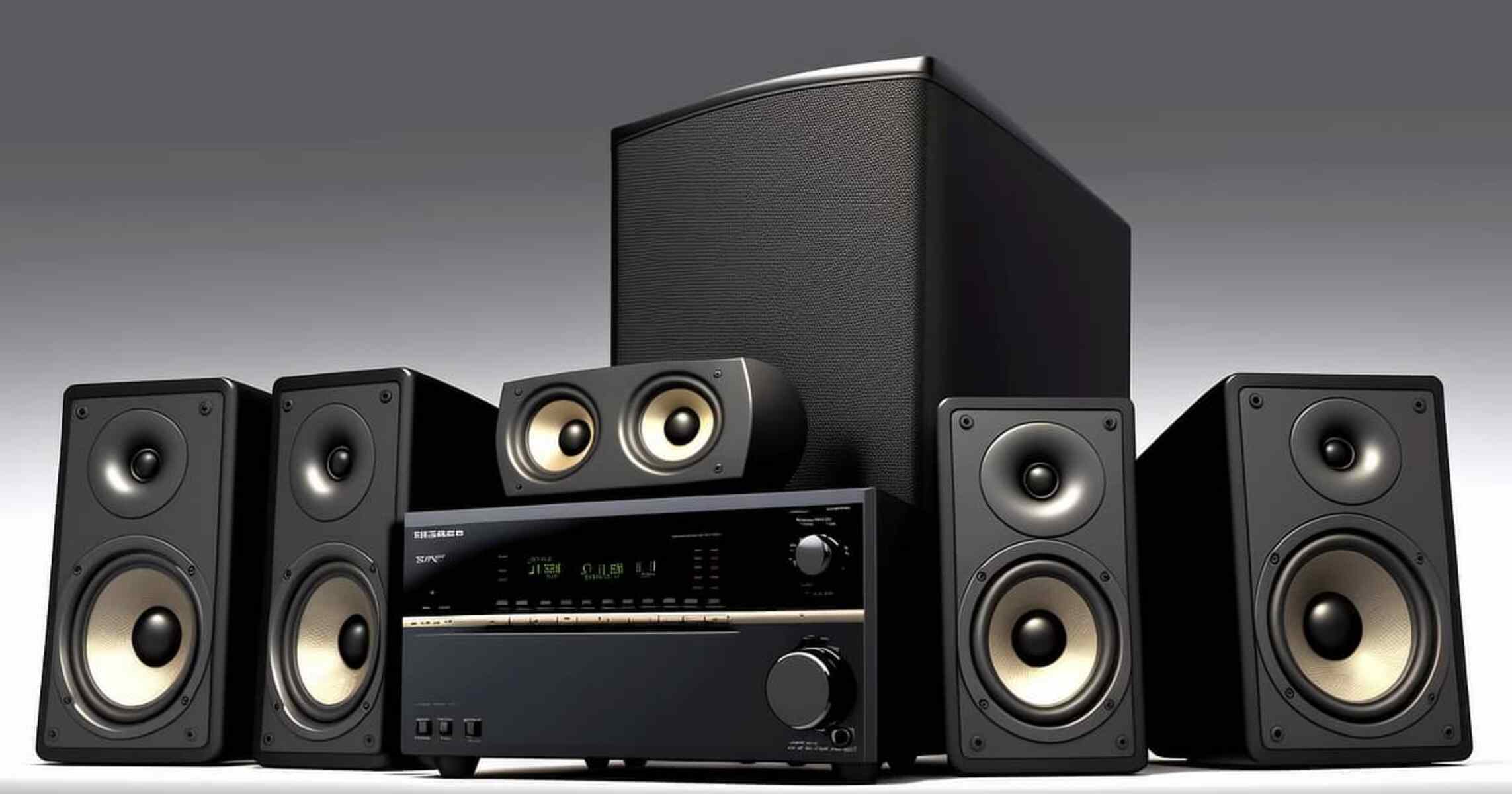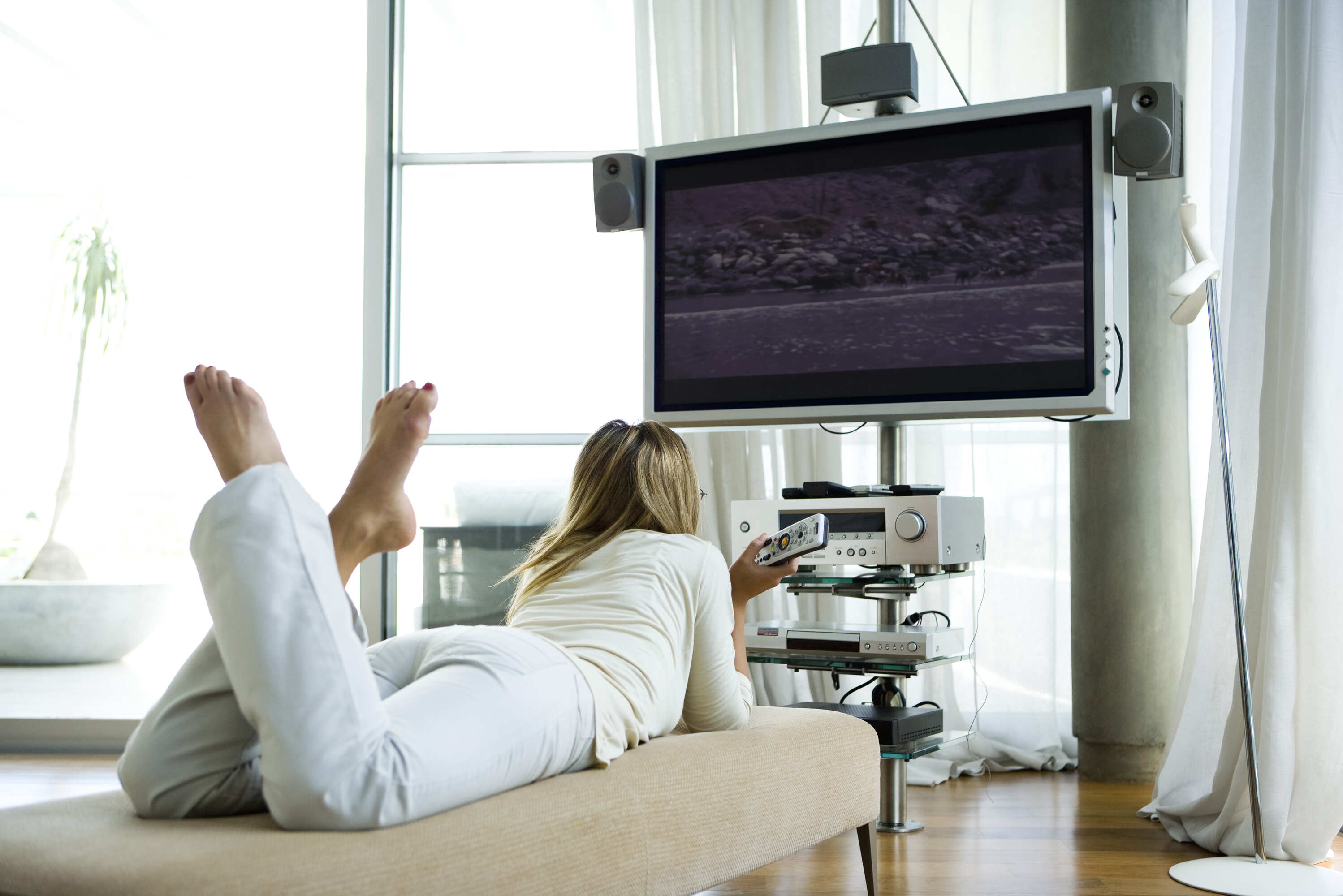
To hook up an old surround sound system to a newer TV, you need to identify the audio output ports on your TV and the audio input ports on your receiver, then choose the connection method that bridges them. This quick-start guide will walk you through every option, from the best HDMI ARC connection to using a digital-to-analog converter for legacy gear.
How to hook up an old surround sound system to a newer TV: A quick-start guide
Start by looking at the back or side of your TV. Common audio output ports include HDMI ARC, optical (TOSLINK), digital coaxial, analog RCA (red and white), or a 3.5mm headphone jack. Then check your old receiver's input ports, it may have HDMI, optical, coaxial, or RCA inputs. The correct connection path depends on which port types match between the two devices. If they share a port type, you can connect them directly. If not, you will need an adapter or converter.
The best way: HDMI ARC
If both your TV and your old receiver have an HDMI port labeled "ARC" or "eARC," this is the most straightforward method. HDMI ARC (Audio Return Channel) sends audio from the TV back to the receiver through a single HDMI cable, and it can carry surround sound formats like Dolby Digital.
- Connect an HDMI cable from the TV's HDMI IN (ARC/eARC) port to the receiver's HDMI OUT (ARC/eARC) port.
- On your TV, enable HDMI-CEC. This feature may be called Anynet+ (Samsung), Bravia Sync (Sony), Simplink (LG), or HDMI Control (Yamaha).
- Set the TV's Sound Output to "HDMI ARC" in the audio settings menu.
- On your receiver, select the HDMI input that corresponds to the ARC connection.
Once set up, the TV remote can control the receiver's volume, and audio from any TV source, including streaming apps, will play through your surround sound system. This method also simplifies connecting a soundbar if you ever upgrade, as the same HDMI ARC port handles two-way audio.
The reliable way: Optical or coaxial digital audio
When HDMI ARC is not an option, for example, if your old receiver lacks HDMI or the TV's ARC port is already in use, use a digital optical or coaxial cable. These connections deliver high-quality digital audio without the complexity of HDMI handshaking.
- Connect a TOSLINK optical cable from the TV's Digital Audio Out (Optical) to the receiver's Digital Audio In (Optical). Alternatively, use a digital coaxial cable from the TV's Digital Audio Out (Coaxial) to the receiver's Digital Audio In (Coaxial).
- On your TV, navigate to the sound settings and set the Sound Output to "Optical" or "Digital Audio Out."
- Set the Digital Output Audio Format to PCM. Some receivers can handle Dolby Digital, but PCM is the most universally compatible format for older gear.
- On your receiver, select the optical or coaxial input.
This setup works reliably for stereo and basic surround sound, though you may lose some advanced audio formats that require HDMI.
When your receiver only has analog RCA inputs
Many older receivers have only analog RCA inputs (red and white ports labeled AUX, CD, or DVD). If your TV has digital audio outputs (optical or coaxial) but no RCA outputs, you need a Digital-to-Analog Converter (DAC). This small box converts the digital signal from your TV into analog audio your receiver can understand.
- Connect an optical or coaxial cable from the TV's digital audio output to the DAC's input.
- Connect a standard RCA cable from the DAC's output to the receiver's RCA input (e.g., AUX or CD).
- Set the TV's audio output format to PCM (not Dolby Digital) because most basic DACs only decode PCM.
- Select the corresponding RCA input on your receiver.
If your TV has only a 3.5mm headphone jack and your receiver has only RCA inputs, use a 3.5mm stereo plug to RCA adapter cable. Plug the 3.5mm end into the TV's headphone jack and the RCA ends into the receiver. Note that this analog connection will output stereo only, not surround sound.
Adjusting TV audio settings for external speakers
After making the physical connections, finalize the setup in your TV's audio menu. Select the correct external speaker output, options may include "External Speakers," "Optical Audio," or "HDMI ARC." Some TV sound settings, such as "Expert Settings" on Samsung TVs, may be greyed out or unavailable when external speakers are selected as the primary audio output. This is normal; the TV is simply disabling internal audio processing that would conflict with your receiver. Ensure the TV's internal speakers are turned off to avoid echo or interference.
Troubleshooting common surround sound issues
If you hear no sound, first check that the receiver is set to the correct input source. Verify the TV's sound output is set to the external connection you used (HDMI ARC, optical, or RCA). For HDMI ARC, confirm that HDMI-CEC is enabled on the TV. If audio is out of sync (lip-sync), look for an "Audio Delay" or "Lip Sync" setting on your TV or receiver and adjust it until the sound matches the video. If you are not getting true surround sound, only stereo from all speakers, ensure the source content (movie, streaming app) is encoded with surround sound and that the TV's digital output format is set to Dolby Digital or Bitstream, not PCM. For optical or coaxial connections, PCM will limit you to stereo, so switch to Dolby Digital if your receiver supports it. Finally, if HDMI ARC remains unresponsive, try a different HDMI cable or a different HDMI port on the TV, and power-cycle both devices.
\nRelated reading: How Do I Hook Up My Samsung Smart TV To My Surround Sound and How To Connect A Soundbar To Roku Stick.