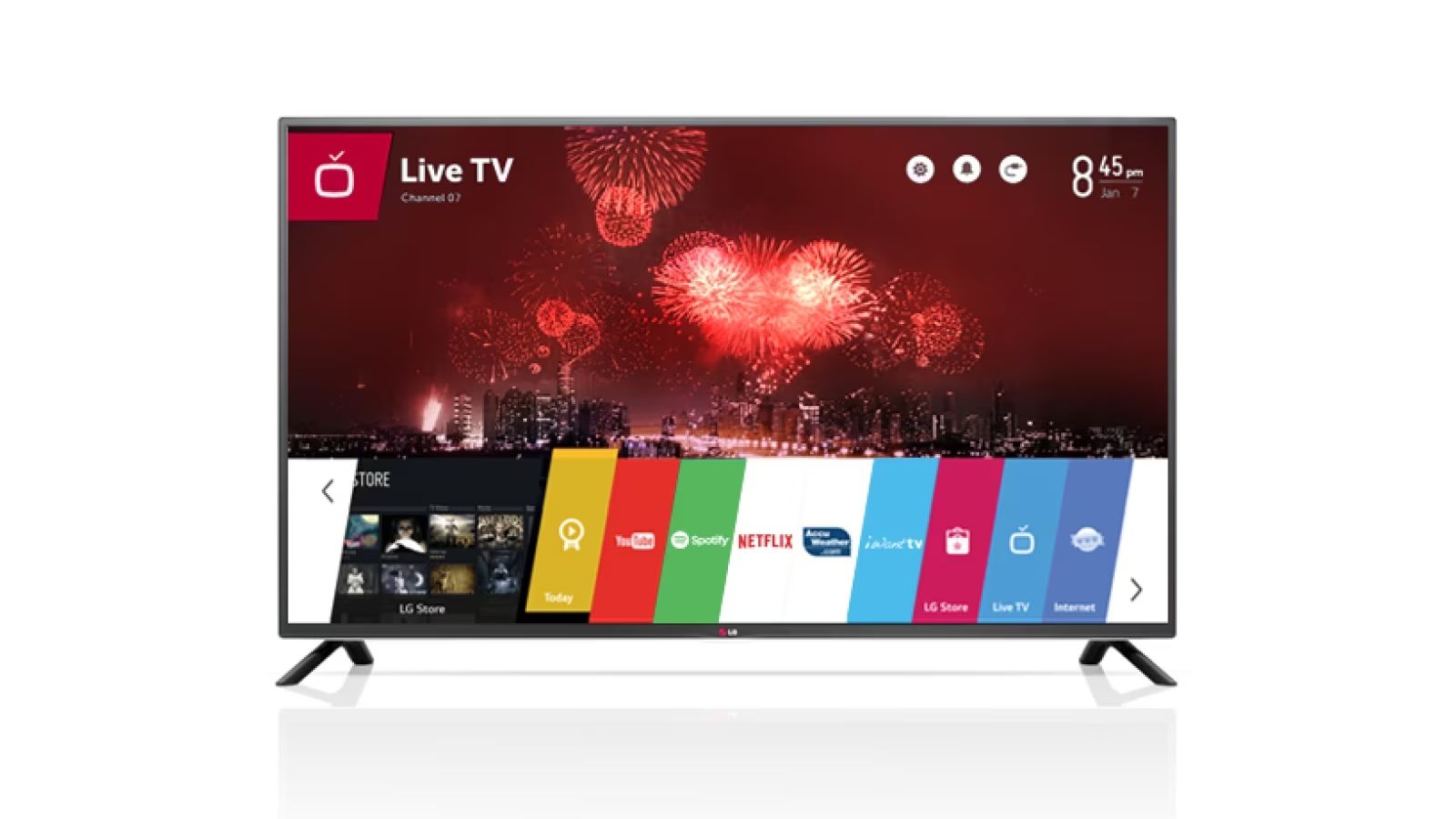
The simplest way to hook up a DVD player to an LG Smart TV is to use an HDMI cable, which carries both video and audio in one connection, then switch the TV to the matching input. If your DVD player is older and lacks HDMI, you can still hook up your DVD player to your smart TV using composite or component cables, though you will need to select a different input source.
Before you start: cables and ports you'll need
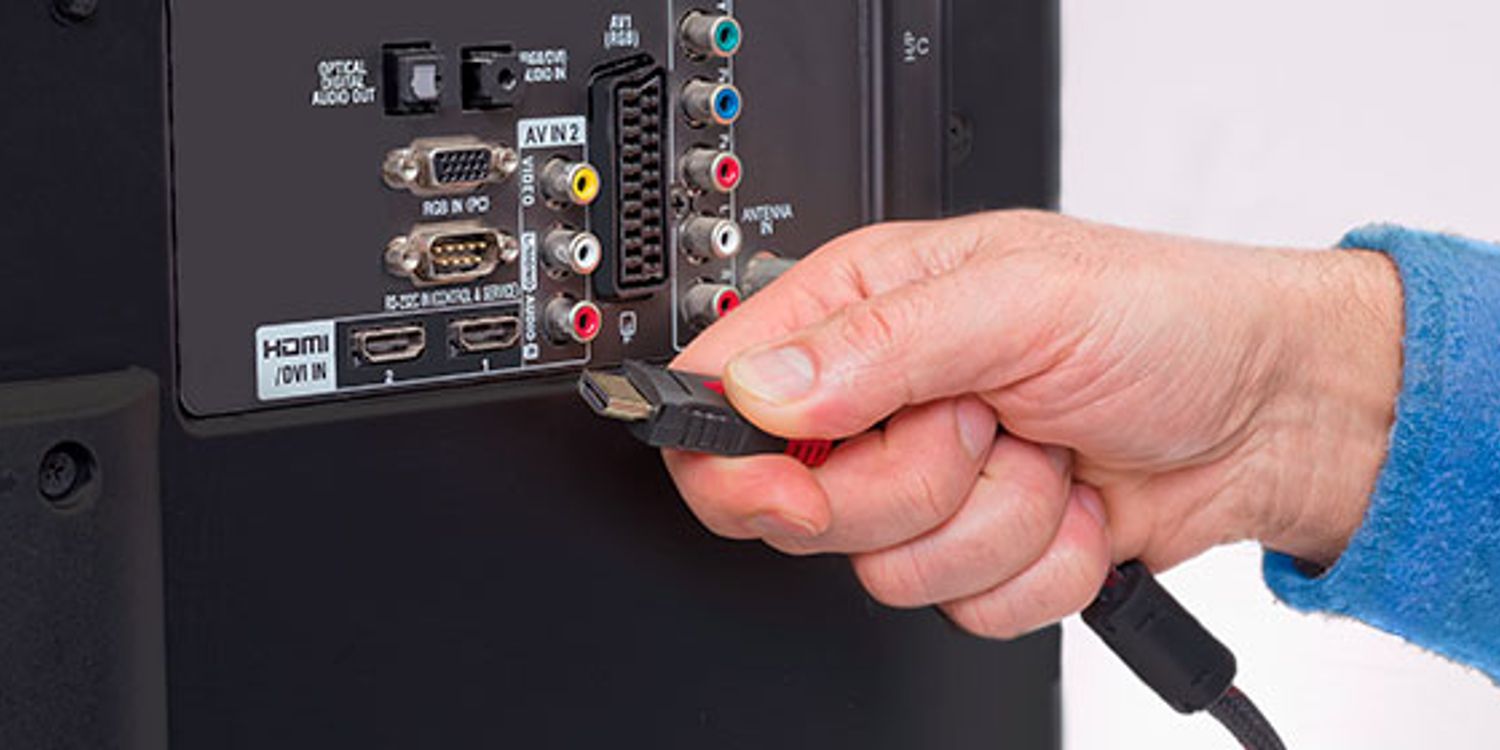
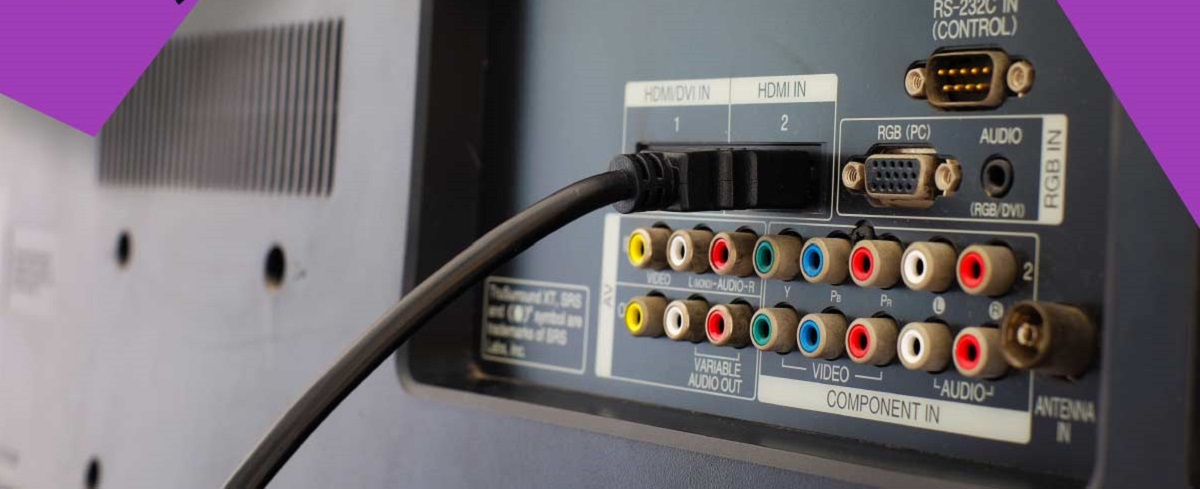
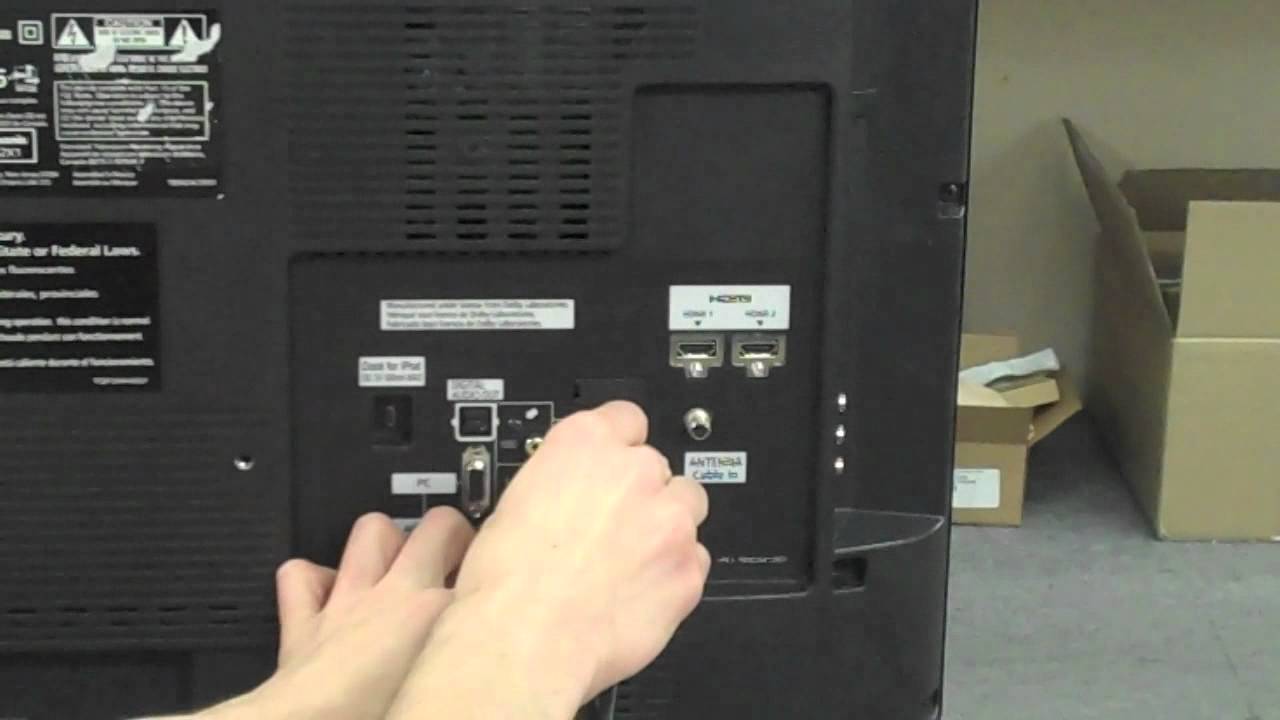
Check the back of your DVD player to identify which output ports it has. Most modern players include an HDMI output, which is a small, flat, rectangular port. Older models may have composite outputs, three round jacks colored yellow, white, and red, or component outputs, which are five round jacks colored green, blue, red, white, and red again. Look at the back of your LG Smart TV to confirm it has matching input ports. HDMI inputs are labeled "HDMI" with a number, while composite and component inputs are usually color-coded and labeled "AV IN" or "Component IN." If you’re also setting up over-the-air channels, you can hook up an antenna to a LG smart TV using the coaxial input nearby. Gather the correct cables before you begin, and make sure they are long enough to reach from the player to the TV without stretching.
Connect with HDMI (recommended for best quality)
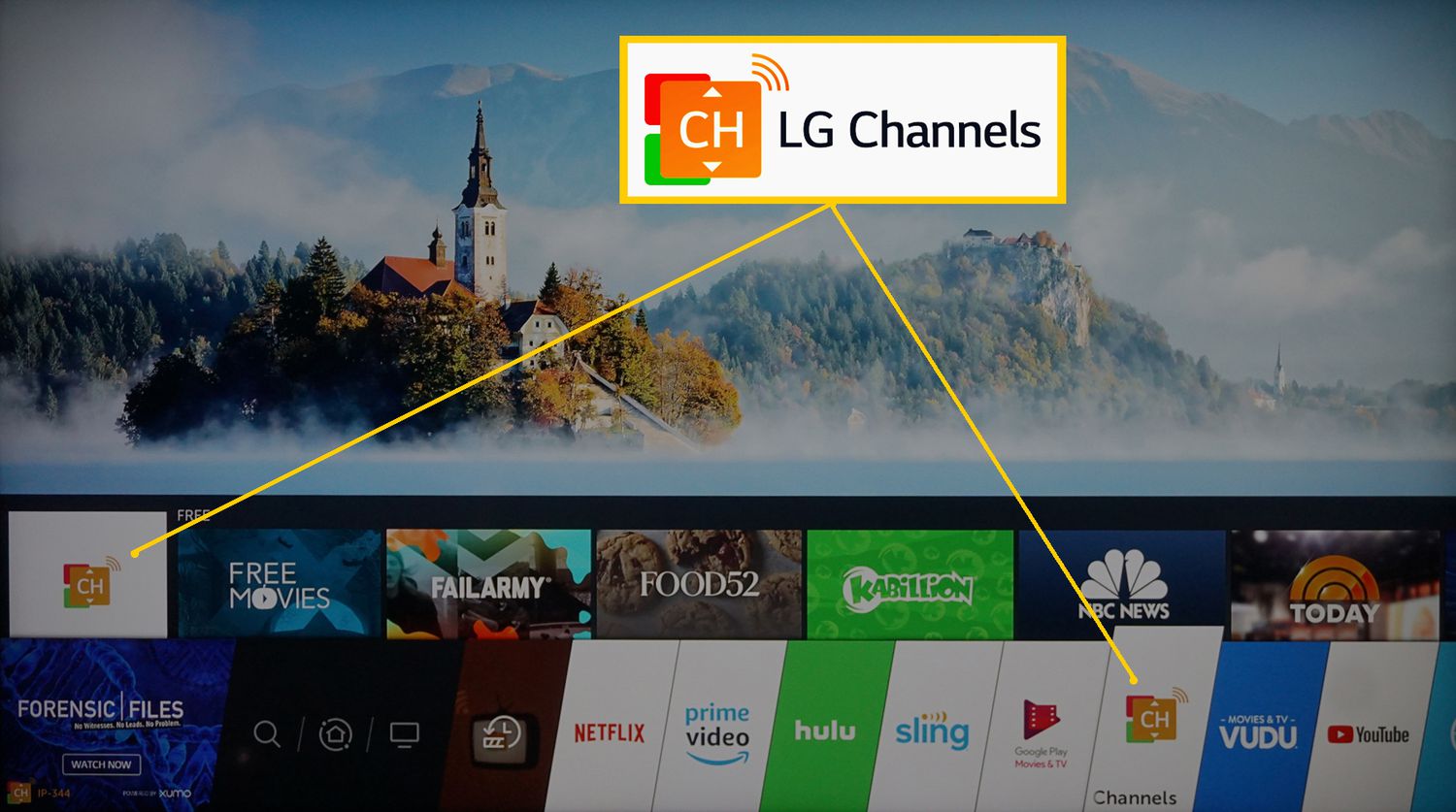
HDMI delivers the clearest picture and sound, and it is the only connection that carries both signals through a single cable. This is the fastest way to get your DVD player working on your LG TV, and it also gives you access to all the channels available on an LG smart TV without any extra audio wiring.
- Plug one end of the HDMI cable into the HDMI output port on your DVD player.
- Plug the other end of the HDMI cable into any HDMI input port on the back of your LG TV, for example, HDMI1.
- Power on both the DVD player and the LG TV.
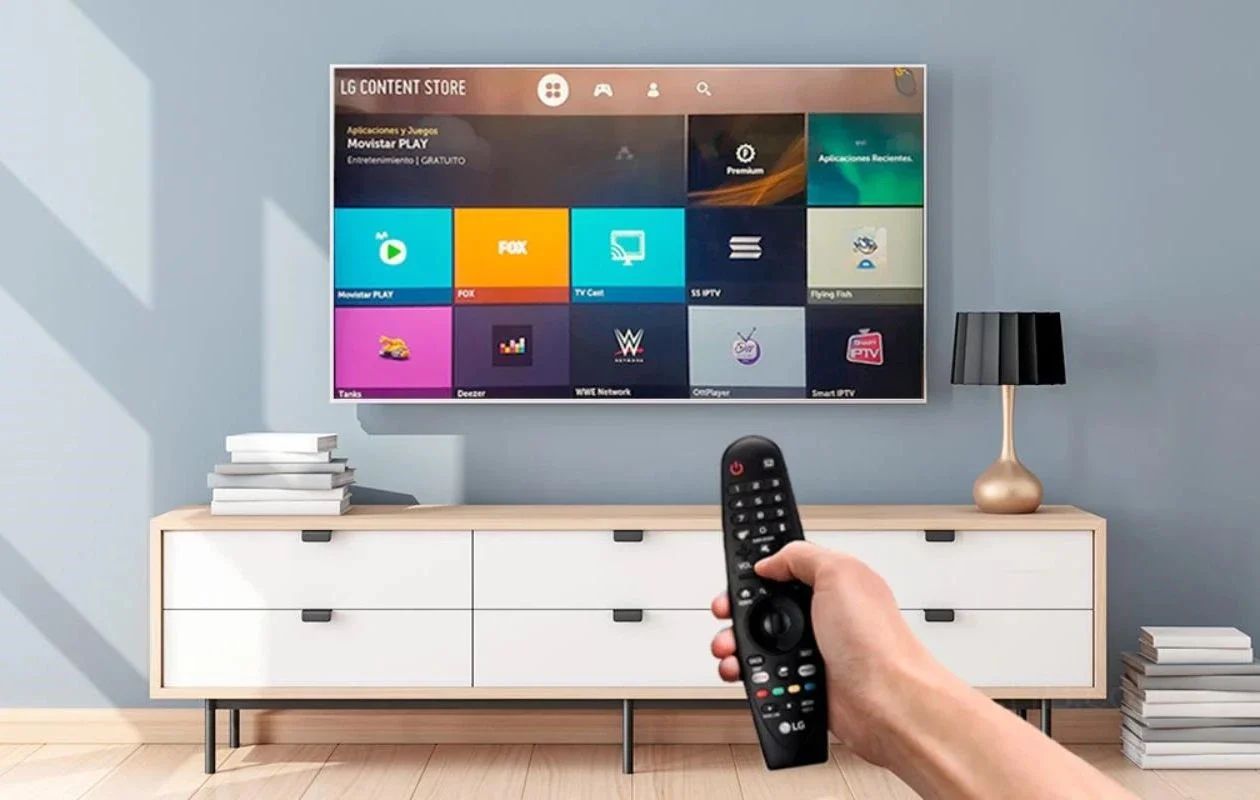
- Press the "External Input" button (or "Input" or "Source" button) on your TV remote, then select the HDMI port you used from the input list that appears on the screen.
Connect with Composite (AV) cables (older DVD players)
If your DVD player only has composite outputs, use the yellow, white, and red cables. This connection provides standard-definition video and stereo audio, which is fine for older DVDs but not as sharp as HDMI. You can only use one analog cable type at a time, so if you plug in composite cables, do not also connect component cables.
- Plug the yellow cable into the video output port (yellow) on the back of your DVD player.
- Plug the white cable into the audio left output port (white) on the DVD player.
- Plug the red cable into the audio right output port (red) on the DVD player.
- Plug the other ends of the yellow, white, and red cables into the matching color-coded AV input ports (IN) on the back of your LG TV.
- Power on both devices.
- Press the "External Input" button on the remote, then select "External Input" or "AV" from the input list.
Connect with Component cables (high-quality analog)
Component cables offer better picture quality than composite because they split the video signal into three separate channels. This is a good fallback if your DVD player supports component output but not HDMI. Remember that only one Component/Composite cable can be used at a time, so choose either the three-cable composite set or the five-cable component set, not both.
- Plug the green, blue, and red video cables into the Component video output ports on your DVD player.
- Plug the white and red audio cables into the Component audio output ports on the DVD player.
- Plug the other end of each cable into the Component input ports with matching colors on the back of your LG TV.
- Power on both devices.
- Press the "External Input" button on the remote, then select "Component" from the input list.
Test playback and troubleshoot common issues
Insert a DVD into the player and press Play on the DVD remote. You should see the movie on the TV screen with sound. If there is no picture, first check that every cable is pushed in firmly at both ends, loose connections are the most common cause of a blank screen. Confirm that the DVD player is powered on and that the TV is set to the correct input; for example, if you plugged into HDMI1, you must select HDMI1, not HDMI2. If you still see nothing, try a different DVD to rule out a disc problem. For ongoing convenience, you can rename the input so it is easier to find next time: press the Home button on your LG remote, locate the Settings icon in the top-right of the screen, and change the label for the input you are using. If you ever need to adjust audio output, press Home, go to Settings, choose Advanced, then Sound, and select Sound Out to pick Optical or HDMI (ARC) if your setup supports it. This connection guide was created for all models, so images or content may differ from your specific product, but the steps above work for any standard DVD player and LG Smart TV combination.