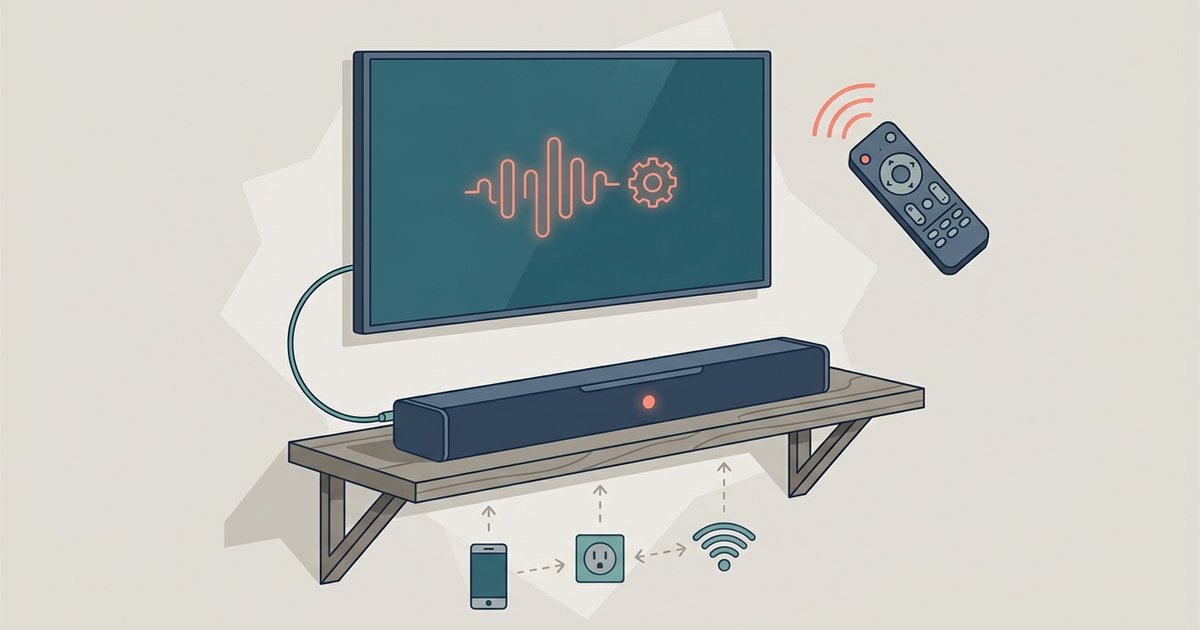
Start here: match your ports and cables to connect a soundbar
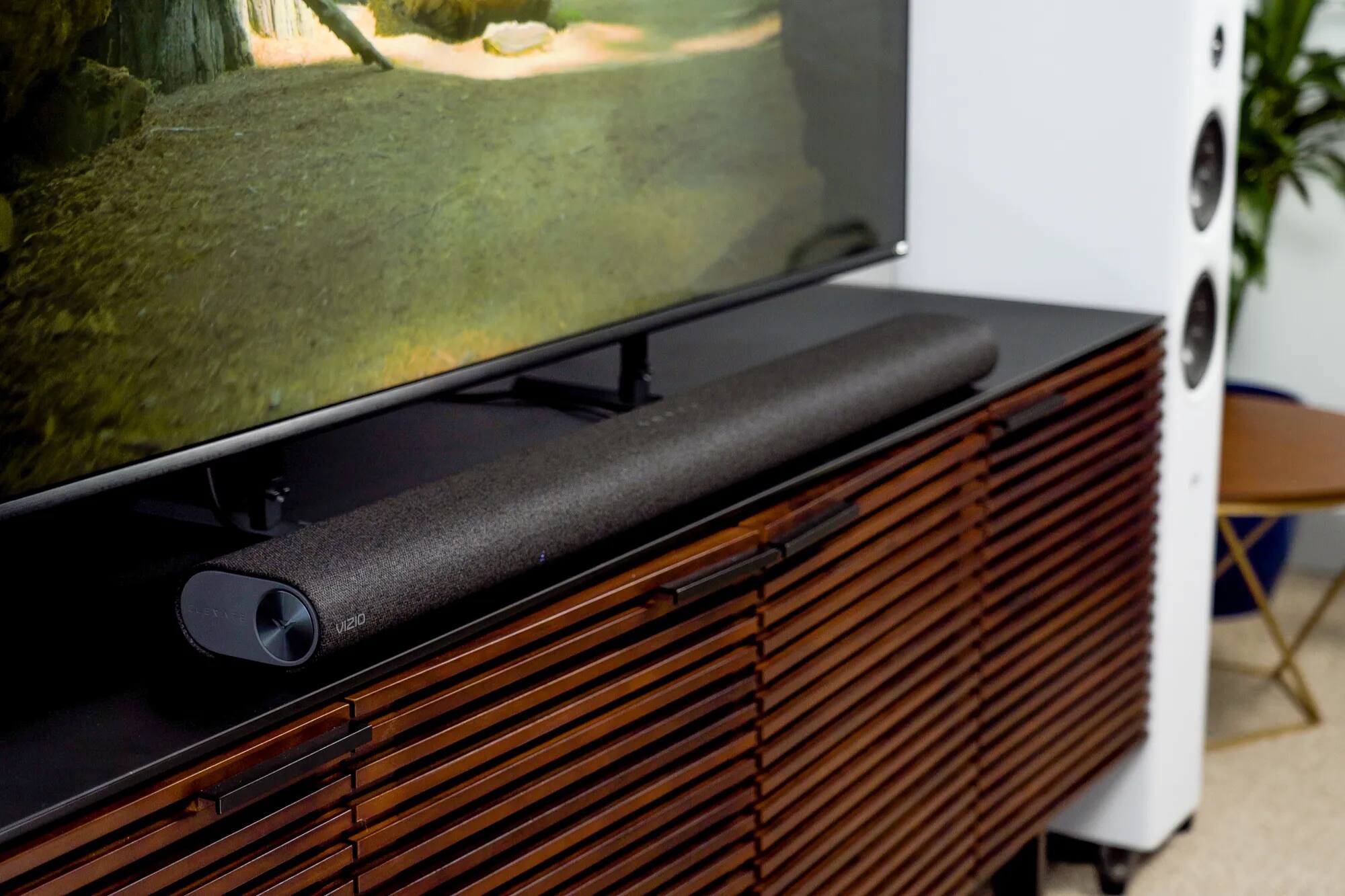
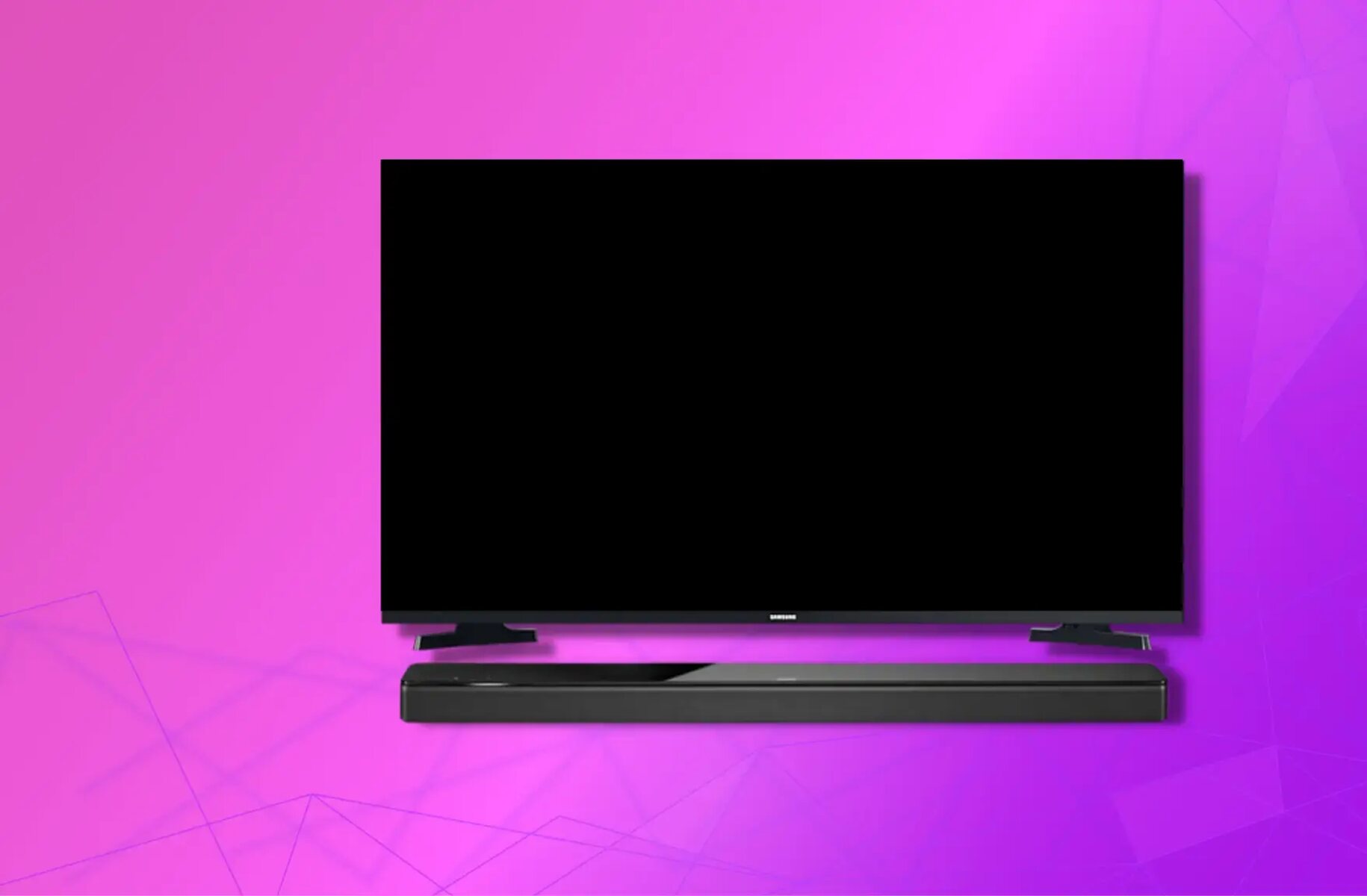
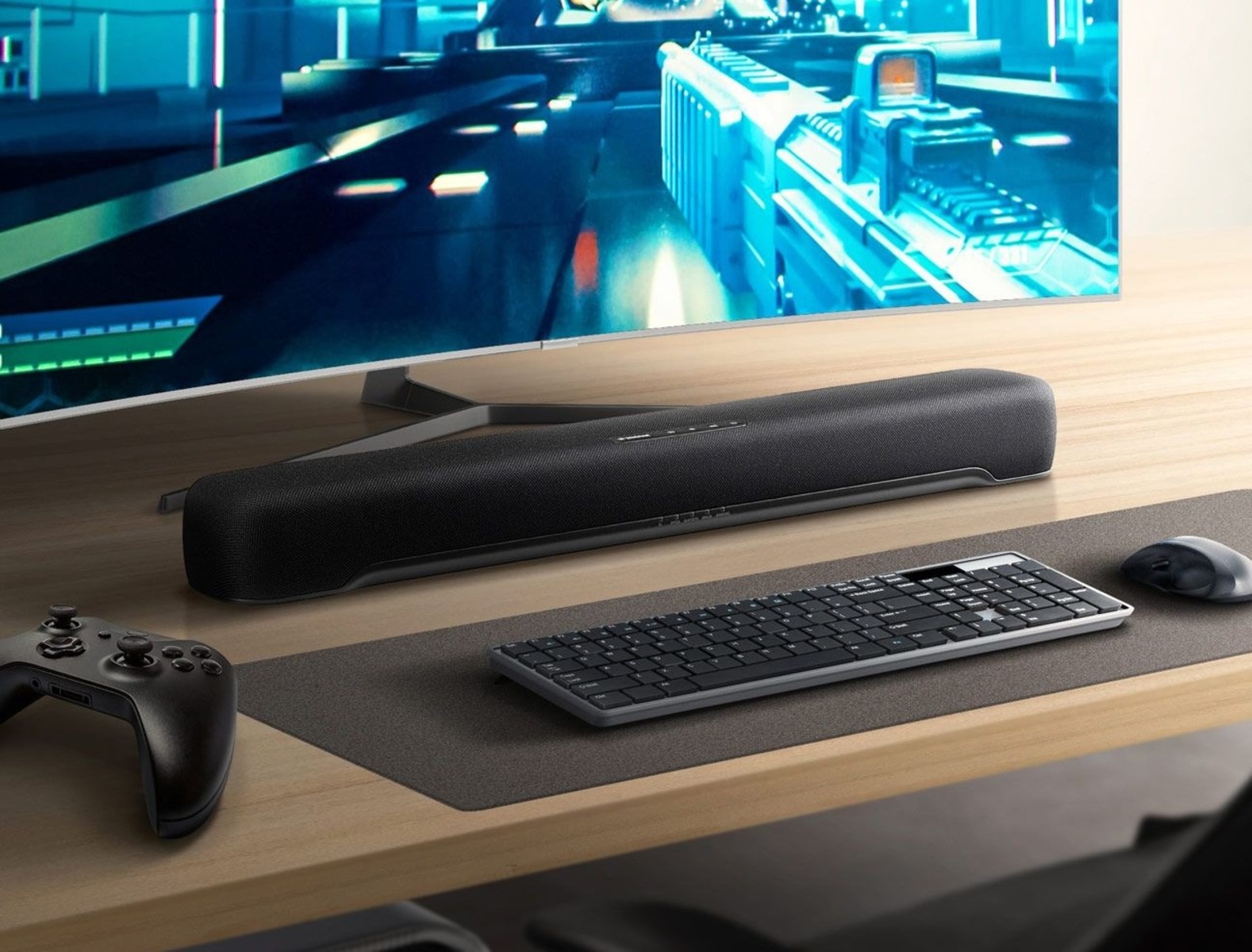
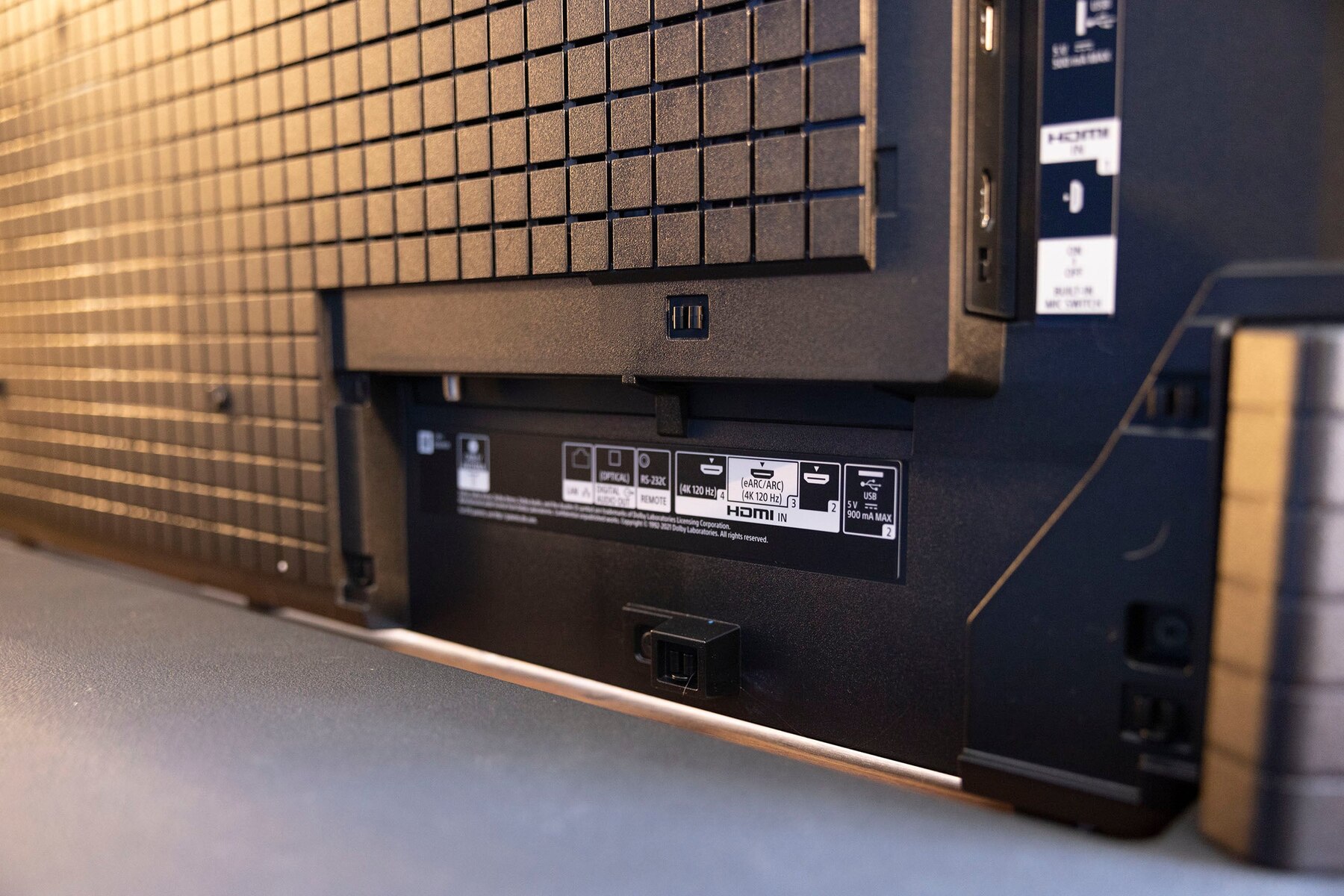
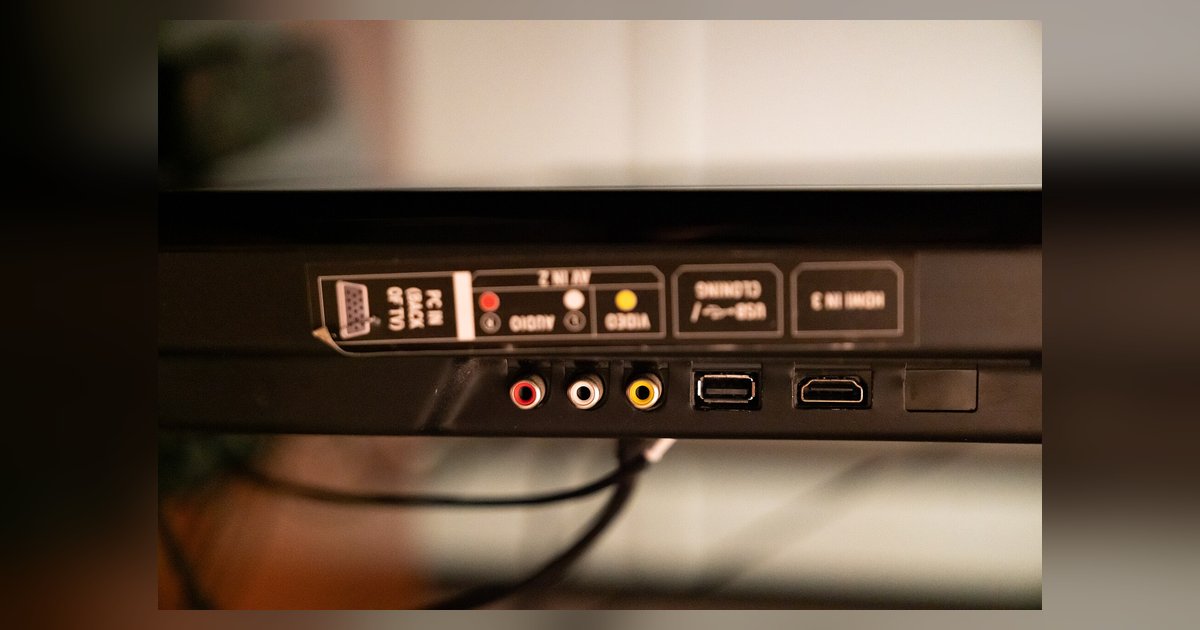
To connect a soundbar, start by looking at the ports on the back of your TV and the input panel of your soundbar. The most common connection is HDMI. You need to use a High Speed HDMI cable and match the ARC or eARC labels. Look for a port labeled "HDMI ARC" or "eARC" on both devices. If you see those labels, a single HDMI cable will carry audio from the TV to the soundbar. It will also let your TV’s remote control the volume. If neither device has an ARC-labeled port, you will need a TOSLINK cable or a 3.5mm auxiliary cable instead. For example, if you want to connect soundbar to TV without HDMI ARC, a TOSLINK cable is the most reliable alternative. Just remember that TOSLINK cables cannot carry volume control signals. You will have to use the soundbar’s own remote or app. Similarly, if you are trying to connect smart TV to amplifier without HDMI, you would use the same digital audio output. You will lose the ability to send surround sound formats like Dolby Digital Plus. On the computer side, if you need to connect soundbar to PC with HDMI, you can often plug directly into the PC’s HDMI output. Make sure your soundbar is set to the correct input source. For older setups, you might need to fix a broken optical port on a Vizio TV. In that case, a digital-to-analog converter can reroute audio through the TV’s headphone jack. And if you are hoping to get Dolby Atmos from a Vizio TV optical output, keep in mind that the fiber-optic link lacks the bandwidth for Atmos. You would need an HDMI connection for that format.
Connect a soundbar directly to your TV
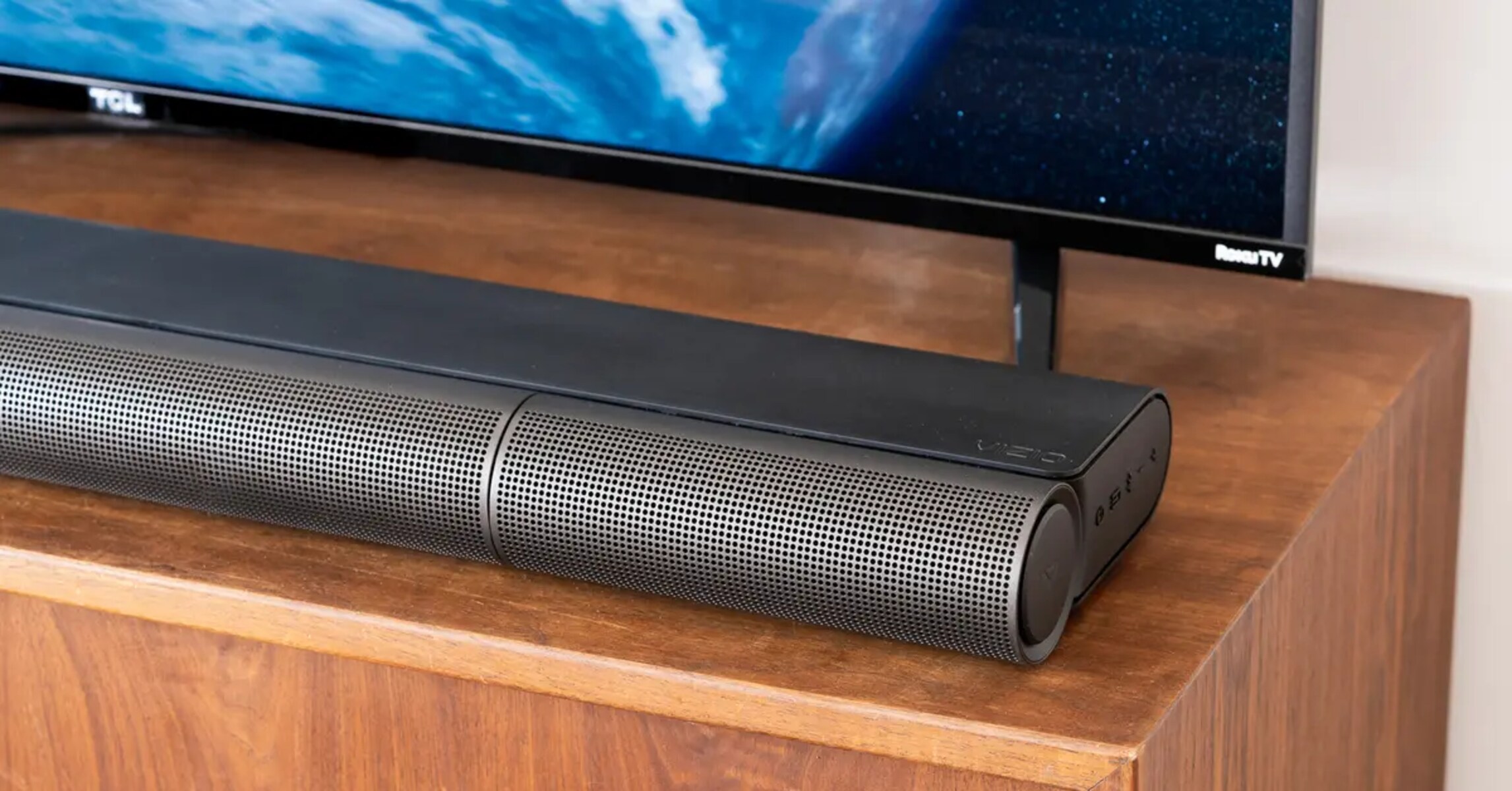
Start by locating the HDMI ports on your TV and soundbar. The key is to use the port labeled HDMI ARC or eARC on both devices. This single cable carries audio from the TV to the soundbar. It also allows your TV remote to control the soundbar’s volume. If your TV lacks an ARC port, you can fall back on a digital optical audio cable. That choice means you will lose the ability to adjust volume with the TV remote. Plug one end of the HDMI cable into the soundbar’s HDMI OUT (TV ARC/eARC) port. Plug the other end into the TV’s HDMI ARC port. Then, on the TV, navigate to the audio settings. Set the output to HDMI ARC or external speakers. You may also need to enable HDMI-CEC on the TV. This feature is often called something like “Anynet+” on Samsung or “Bravia Sync” on Sony. Once connected, test by playing content and adjusting the volume with your TV remote. If no sound comes out, double-check that the soundbar is set to the HDMI input. Make sure it is not on the wireless pairing mode or the fiber-optic input. A common oversight is plugging into a standard HDMI port instead of the ARC-specific one. That mismatch causes the audio to fail entirely. For example, you may want to connect a surround sound system to a Vizio smart TV to achieve true multi-speaker immersion, or to connect bose soundbar to Samsung TV for seamless brand compatibility. You might also need to connect old bose system to smart TV to modernize legacy audio gear, or to connect an onn soundbar to Roku TV for a budget-friendly upgrade. Similarly, you can connect onn soundbar to Vizio TV to pair affordable hardware, or connect a soundbar to Vizio TV for a straightforward audio boost. Finally, you may want to connect bose soundbar to LG TV to integrate premium sound with LG’s interface. Then follow the same core steps described above.
Hook up a full surround sound or older stereo system
Even if your soundbar is your primary speaker, you might still want to bring older gear into the mix. To hook up an old surround sound system to a newer TV, you typically need a TOSLINK or analog audio output on the TV, since older receivers lack HDMI ARC. Run a fiber-optic cable from the TV’s output to the receiver’s digital input. Then set the receiver to that input. Your soundbar can stay connected for everyday TV audio. The receiver handles the legacy speakers for movie nights. If you own a Samsung TV and a vintage amplifier, you might wonder how to hook up my Samsung smart TV to my surround sound; the simplest path is using the TV’s 3.5mm headphone jack or RCA analog outputs (if present) into the amp’s auxiliary input. Keep the TV’s audio output set to “external speakers” and the soundbar on the appropriate input mode. This layered approach lets you toggle between modern convenience and the fuller sound of older multi-speaker setups without swapping cables. Just confirm your TV has the necessary analog or digital audio port before buying adapters. Most confusion stems from assuming all TVs still include those legacy jacks.
Add a streaming stick or player to your audio setup
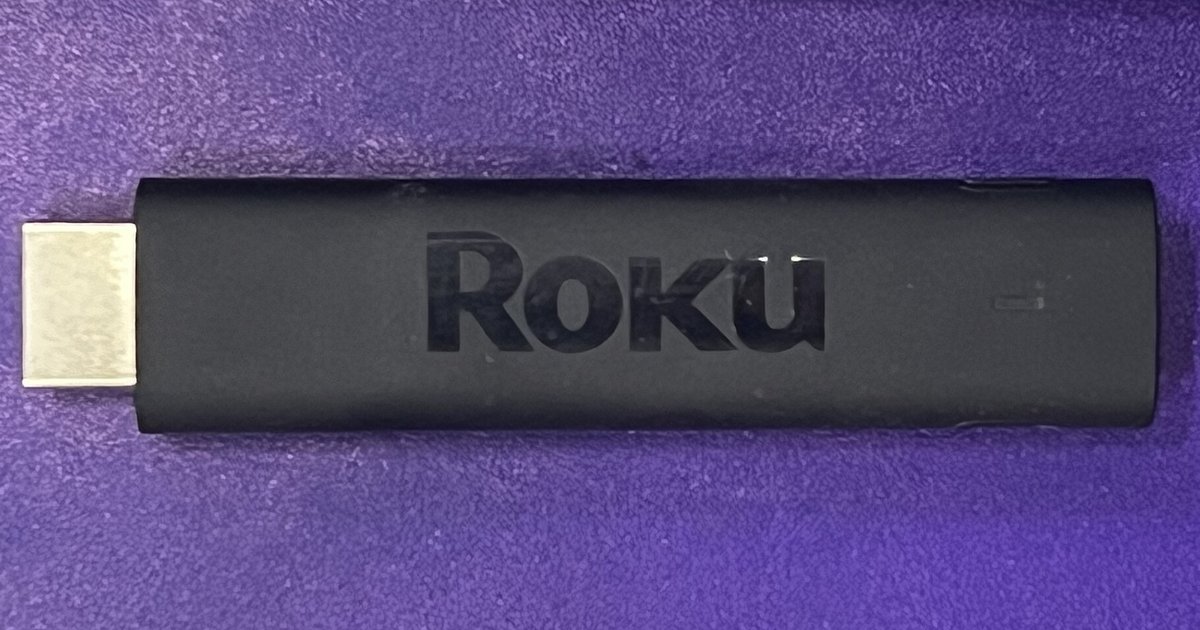
To route audio from a streaming stick through your soundbar or surround system, start by plugging the device into an available HDMI input on the soundbar itself, not the TV, then connect the soundbar's HDMI OUT (ARC/eARC) port to your TV's HDMI ARC/eARC port. This keeps the audio path direct and avoids the common pitfall of mismatched ports. If your soundbar lacks an extra HDMI input, you can connect a soundbar to Roku stick by plugging the stick into your TV’s HDMI port. Then run an HDMI cable from the soundbar's HDMI OUT (ARC/eARC) port to the TV's ARC/eARC port. This single cable carries the audio from the TV back to the soundbar. It also allows your TV remote to control volume. If you’re trying to make my Roku work with my surround sound system and the audio seems silent or out of sync, check that your TV’s audio output setting is switched to “HDMI ARC” or “External Speakers” rather than “TV Speakers.” Many streaming sticks default to stereo output. You may need to dig into the stick’s audio settings and select “Dolby Digital” or “Passthrough” to get full surround sound from your soundbar. This direct HDMI routing is the only method that preserves synchronized audio with the picture on screen, a result that competing guides often fail to guarantee when they suggest daisy-chaining through older television ports.
Pair a subwoofer with your soundbar
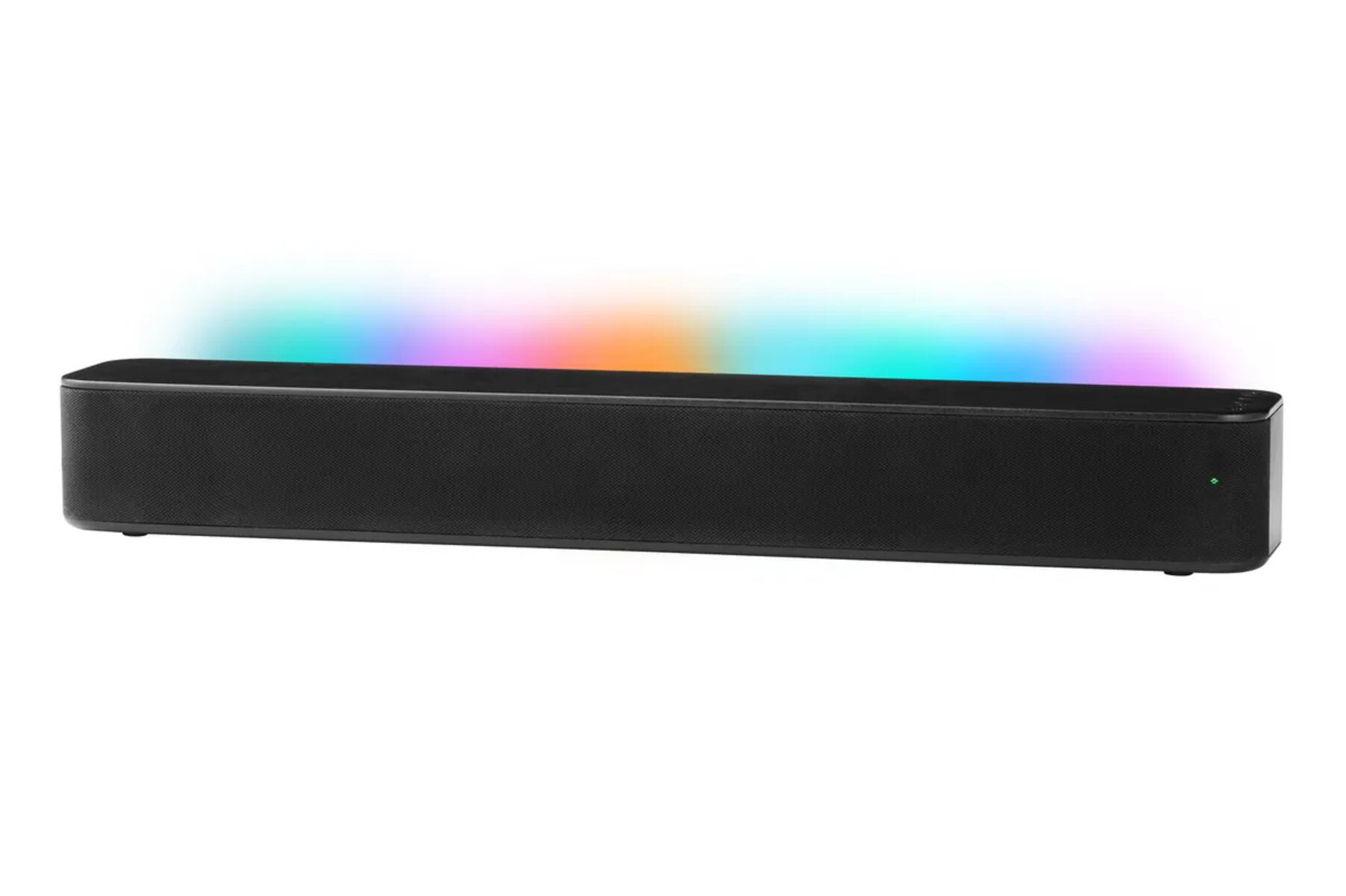
Most soundbars ship as a complete system, but the subwoofer usually arrives in a separate box and needs to be linked before it will produce any bass. The process is nearly always automatic. Plug both the soundbar and the subwoofer into power, then press and hold the pairing button on the back of the subwoofer until its LED blinks rapidly. This button is often labeled "PAIR" or "ID SET". The soundbar should detect the signal and the LED will turn solid, confirming the connection. If nothing happens, check that no other wireless devices are sitting directly between the two units. Metal shelving or a thick TV cabinet can block the radio signal. For specific brand instructions, you might need to pair a TCL soundbar to a subwoofer, which typically uses the same button-hold method. Once linked, the subwoofer will handle all low frequencies automatically. You can adjust its volume level using the soundbar’s remote or app. Remember that the HDMI ARC/eARC port on your TV is the recommended port for connecting your soundbar to receive audio from the TV.
Control your soundbar with a TV or universal remote
If you want to ditch the second remote, start by checking if your TV supports HDMI ARC or eARC. When that single cable handles both audio and power commands, you can often program a Roku remote to a soundbar directly through the TV's CEC settings, letting one clicker manage everything. For LG owners, the process is similar: you can control a soundbar with an LG TV remote by enabling SIMPLINK (HDMI-CEC) in the TV's menu. This automatically pairs the volume and power functions over the HDMI connection. Bose users should look for a different route. You typically need to connect a TV remote to a Bose soundbar using the manufacturer's recommended method, rather than relying on CEC alone.
Beyond these brand-specific steps, many households own a secondary remote that they want to consolidate into one device. Whether you have a universal clicker from your cable box, a spare TV remote, or a dedicated soundbar controller, the pairing process usually involves following the manufacturer's specific instructions for that remote. You will find a short list of separate pairing procedures for other common remotes. These cover how to pair a Vizio remote to a soundbar, how to pair a Samsung TV remote to a soundbar, how to pair a DIRECTV remote to a soundbar, and how to pair an LG subwoofer with a soundbar. Each follows a similar pattern of entering a code or pressing a specific sequence. Scan that list for the exact remote you hold, then follow the steps that match your hardware.
Stream music to your soundbar over Bluetooth
Start by putting your soundbar into pairing mode for wireless audio, usually a dedicated button on the remote or a long press on the source button until the indicator light flashes. On your phone or tablet, open the wireless settings and select the soundbar from the list of available devices. If you own a Sonos soundbar, the process works differently: to connect Sonos soundbar to Bluetooth you must first set it up over Wi-Fi using the Sonos app. For Bose models, you can typically put the soundbar into pairing mode; then you connect to bose soundbar via Bluetooth from your phone's settings screen, and the pairing remains stored for future use. Once paired, you can control volume directly from your phone or tablet, though the soundbar's remote will also work. Remember that wireless streaming lags slightly behind video. If you notice lip-sync issues, the soundbar may offer a delay adjustment in its settings menu. You can also simply use it for music listening, where timing is far less critical.