To delete photos from your phone but not Google Photos, use the "Free up space" feature in the Google Photos app for bulk removal, or the "Delete from device" option for individual photos. Both methods safely remove local copies while keeping your cloud backups intact.
How to delete photos from phone but not Google Photos safely
The goal is simple: free up storage space on your phone by removing local copies of photos that are already backed up to Google Photos. There are two safe, official ways to do this. The "Free up space" feature handles multiple backed-up photos at once, while the "Delete from device" option lets you remove individual photos one at a time. Both methods ensure your cloud copies remain untouched, but if you later need to delete all Google photos from the cloud itself, that requires a completely different process.
The critical warning: Avoid the trash icon in Google Photos
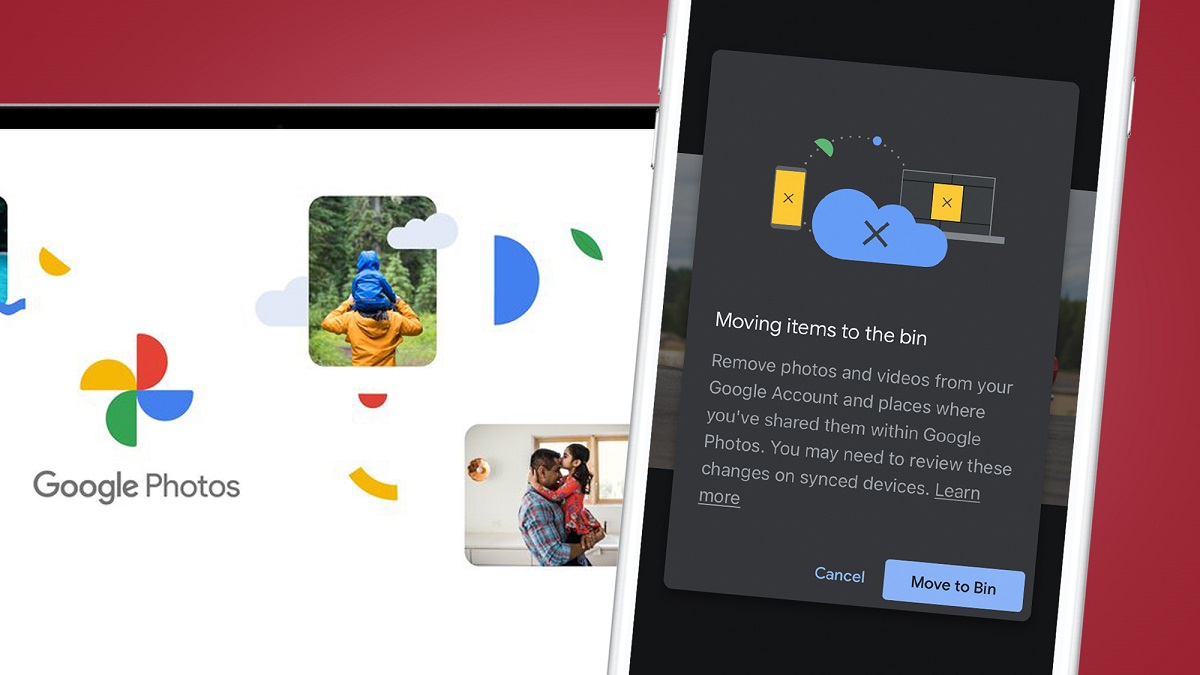
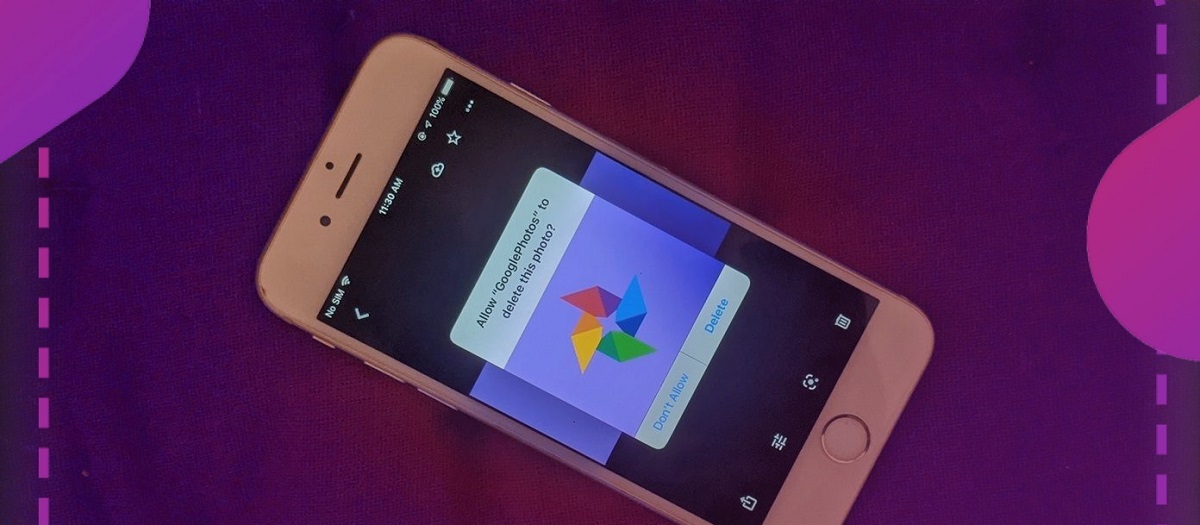
Do not use the trashcan icon in the Google Photos app to delete photos. If you tap that icon while backup is turned on, it deletes the photo from both your device and your Google Photos cloud account. This is the most common and dangerous mistake people make. The trash icon removes your photos everywhere, not just from your phone. Always use the specific options described below to keep your cloud copies safe.
Method 1: Use 'Free up space' to bulk-delete backed-up photos
This is the quickest way to delete many photos from your phone at once. It works on both Android and iOS, but only for photos that are already successfully backed up to Google Photos. If a photo hasn't finished backing up, it will not be removed.
- Open the Google Photos app on your phone.
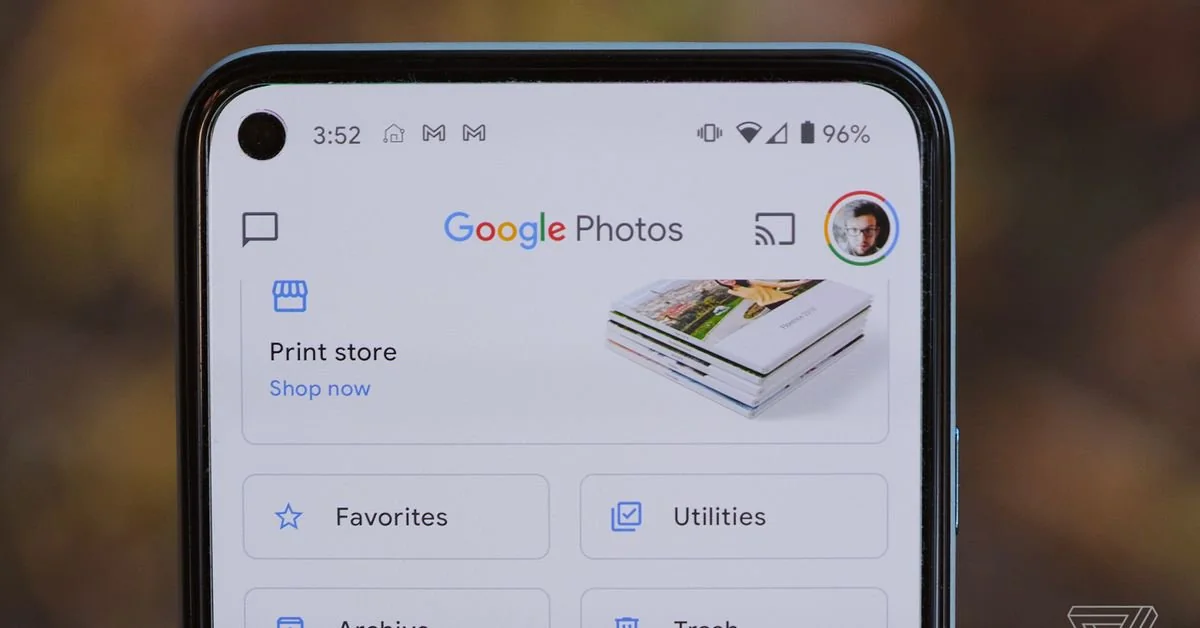
- Tap your account profile photo or initial in the top-right corner.
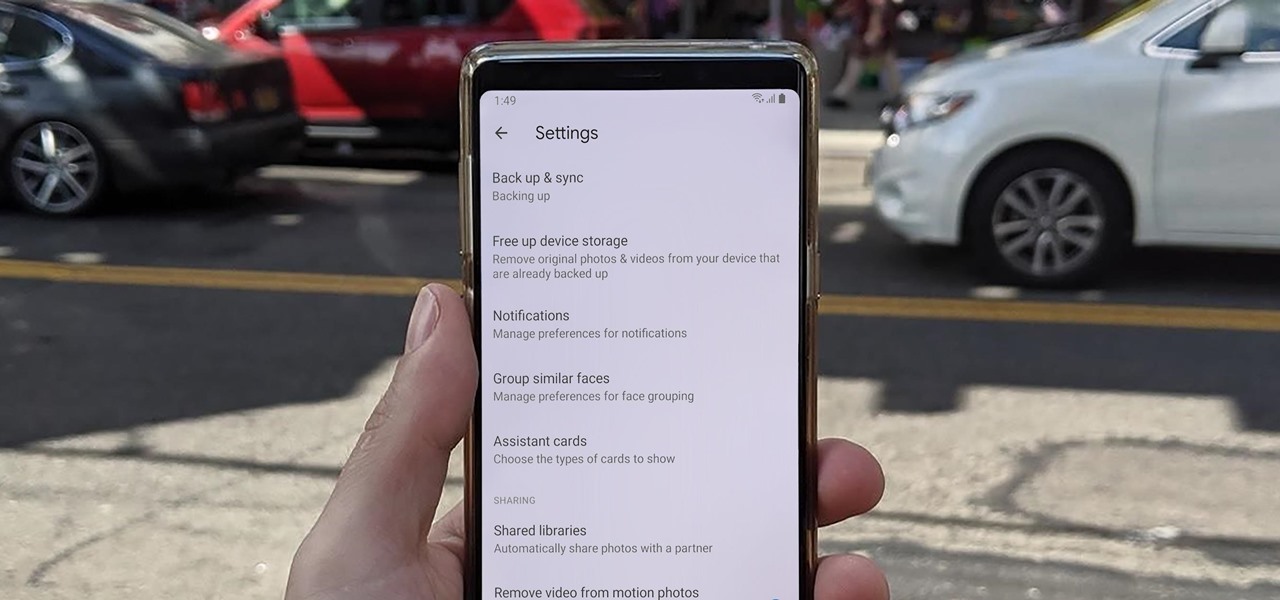
- Tap "Free up space on this device."
- Review the number of items shown, then tap "Free up [number] from device" or "Delete [number] items from this device" to confirm.
After this, the local copies of those backed-up photos are gone from your phone. You can still see them in the Google Photos app and on photos.google.com because the cloud copies remain.
Method 2: Use 'Delete from device' for individual photos
If you only want to remove a single photo from your phone while keeping it in Google Photos, this is the precise method.
- Open the Google Photos app and select the photo you want to delete.
- Swipe up on the screen, or tap the three-dot menu (More options) in the top-right corner.
- Tap "Delete from device."
The photo is now removed from your phone's local storage but remains safely in your Google Photos cloud account. This option is ideal when you want to clean up specific images without affecting the rest of your library.
Extra step for iPhone and iPad users
After using either "Free up space" or "Delete from device" in the Google Photos app on an iPhone or iPad, you must also clear the "Recently Deleted" album in the Apple Photos app. Google Photos removes the local copy, but iOS moves it to a temporary "Recently Deleted" folder where it still takes up space. To fully free up that storage:
- Open the native Apple Photos app on your iPhone or iPad.
- Tap "Albums" at the bottom, then scroll down to find "Recently Deleted."
- Tap "Select" in the top-right, then tap "Delete All" to permanently remove those photos from your device.
Skipping this step means the photos remain on your phone's storage, defeating the purpose of freeing up space.
Alternative method: Use a file manager app
You can also delete photos directly from your phone's local storage folders using a file manager app like Files by Google. This method bypasses Google Photos entirely, so it never touches your cloud backups.
- Open the Files by Google app (or another file explorer).
- Navigate to the folder where your photos are stored, typically "Pictures" or "DCIM."
- Select the photos you want to delete.
- Tap the delete icon or option.
Because you are deleting files from your device's file system rather than through Google Photos, the cloud copies remain completely unaffected. This is useful if you want to organize Google Photos by removing duplicates or low-quality images from your phone without touching the organized cloud library.
Automate the process with Smart Storage on Pixel phones
If you own a Pixel phone, you can set up automatic cleanup. The "Smart Storage" option in Files by Google automatically deletes backed-up photos from your device when they are older than 60 days, or when your device storage drops below 25%. This runs in the background, so you never have to manually delete photos again. To enable it, open Files by Google, tap the menu, go to "Settings," and turn on "Smart Storage." Your cloud copies in Google Photos remain safe while your phone stays clutter-free.