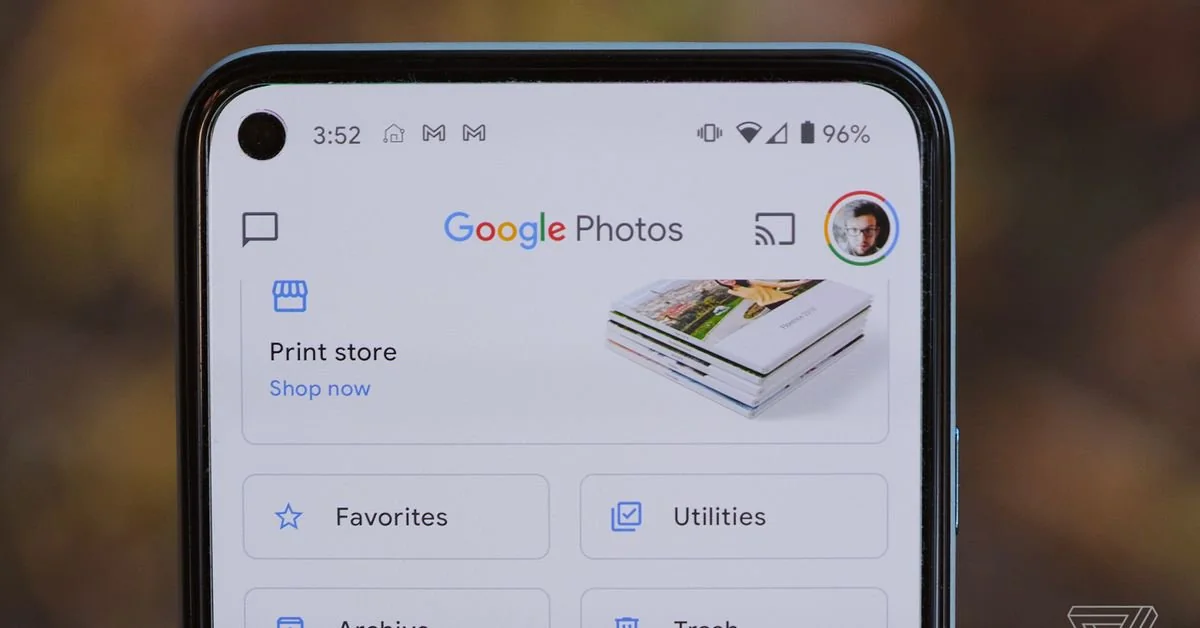
To remove backed up photos from Google Photos, you need to decide whether you want to delete them from the cloud only or from both the cloud and your device. This distinction is critical because the method you choose determines whether your local copies survive the cleanup.
What happens when you remove backed up photos from Google Photos
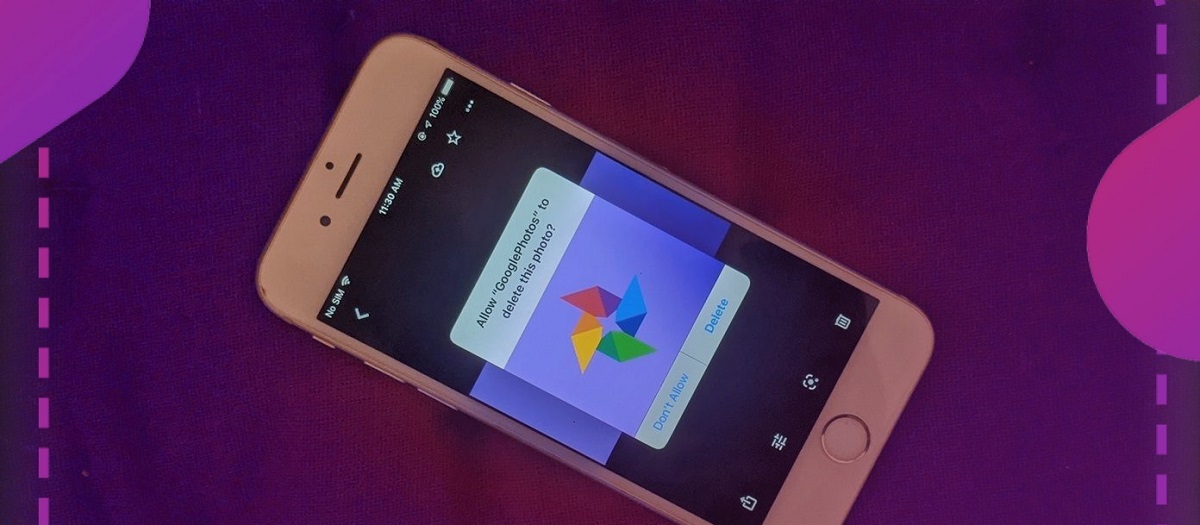
When you delete a photo from the Google Photos app with Backup & sync turned on, it is removed from your Google Account (the cloud), your phone's local storage, and any other synced devices. This synced deletion behavior means that a single delete action can wipe a photo from everywhere it exists. However, you have two distinct goals: you may want to free up Google account storage by removing photos from the cloud only, or you may want to erase a photo entirely from all devices. Each goal requires a different approach.
How to remove backed up photos from the cloud but keep them on your phone
To remove all backed-up photos and videos from Google Photos but not from your device, use the "Undo backup for this device" option. This feature deletes every photo from the Google Photos cloud that was backed up from that specific device, leaving the local copies untouched. Before using this option, turn off Backup & sync on all devices where you want the photos to remain. Then, in the Google Photos app, tap your Profile picture or Initial, go to Photos settings, then Backup, scroll down, and tap "Undo backup for this device." Check the box next to "I understand my photos and videos from this device will be deleted from Google Photos," and then tap "Delete Google Photos backup." This method is ideal when you want a clean slate in the cloud without losing anything on your phone.
How to delete selected photos from Google Photos and all devices
To delete individual or multiple photos from Google Photos and every synced device, work directly from the main Google Photos feed. Select the photos you want to remove, then tap the trash icon. This action moves them to the Trash (or Bin) and removes them from the cloud, your phone, and any other synced places. Deleted photos and videos are moved to the Trash, where they remain for 30 days before being permanently deleted. During that window, you can restore them if needed, but if you’ve already emptied the trash or lost files from a memory card, you may need to restore deleted pictures from digital camera storage using specialized recovery software. This is the standard method when you want a photo gone from everywhere.
How to free up phone space without deleting cloud backups
If your phone is running low on storage but you want to keep your cloud backups intact, use the "Delete from device" option. Select a photo, tap the three dots (More), and choose "Delete from device." This removes only the local copy from your device, preserving the cloud backup. For bulk local deletion, the "Free up space" feature in Google Photos removes local copies of backed-up photos from your device while keeping them in the cloud. This is the safest way to reclaim phone storage without losing any cloud data.
Important notes on Google Photos trash and permanent deletion
Items in the Google Photos trash are permanently deleted after 30 days. Manually emptying the Trash will permanently delete all items immediately, making them unrecoverable. Once permanently deleted, photos and videos cannot be restored. Also be aware that if you are inactive in Google Photos for two years or more, your content may be deleted. Understanding these policies helps you manage your library confidently and avoid accidental loss. If you want to hide photos from your main view without deleting them, you can archive them, they remain searchable and stay in any albums they were added to. For ongoing library management, you may also want to organize Google Photos into albums or folders to keep everything easy to find. And if your goal is to delete photos from your phone but not Google Photos, the "Delete from device" option or the "Free up space" tool are your best choices, as they remove local copies while preserving your cloud backups.