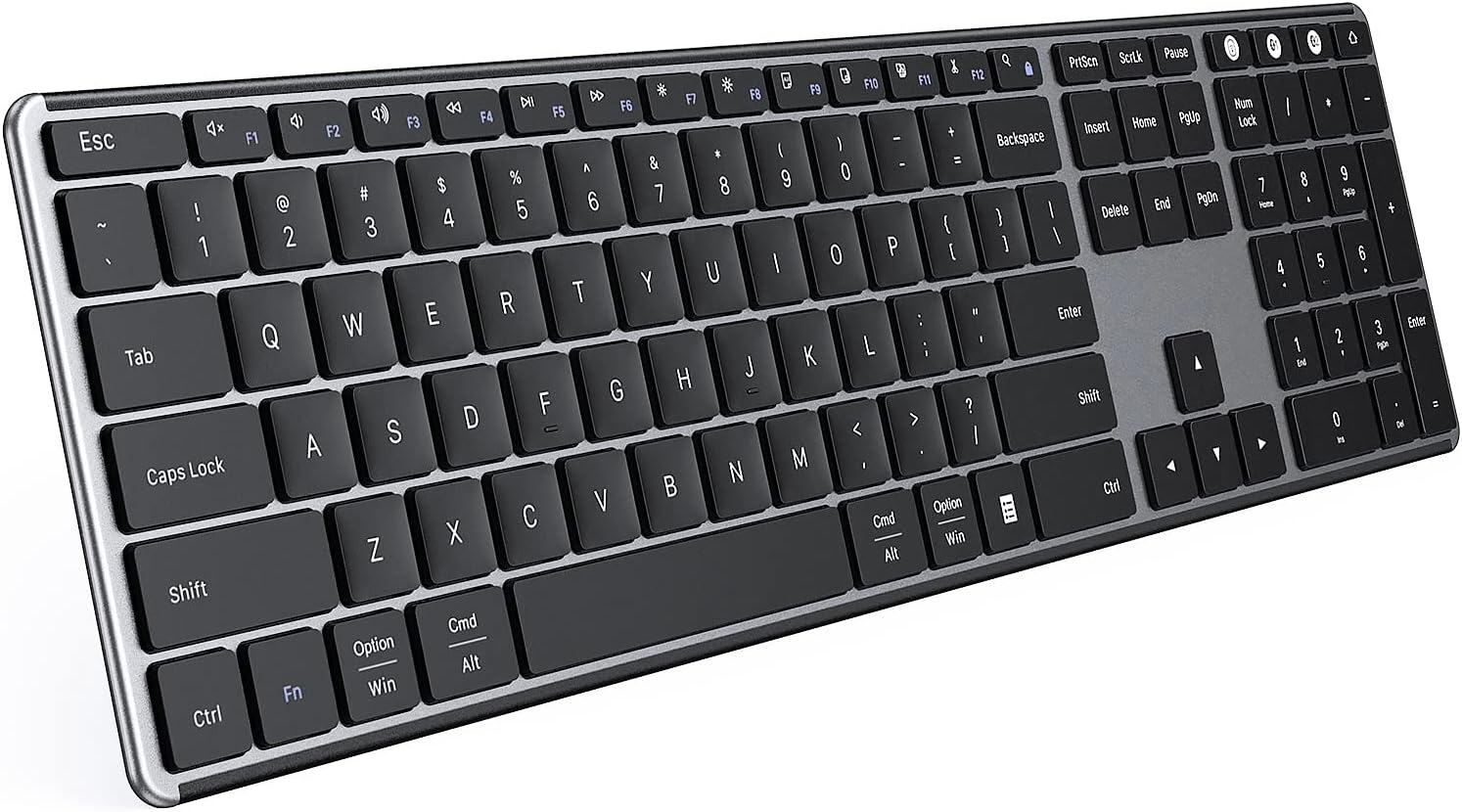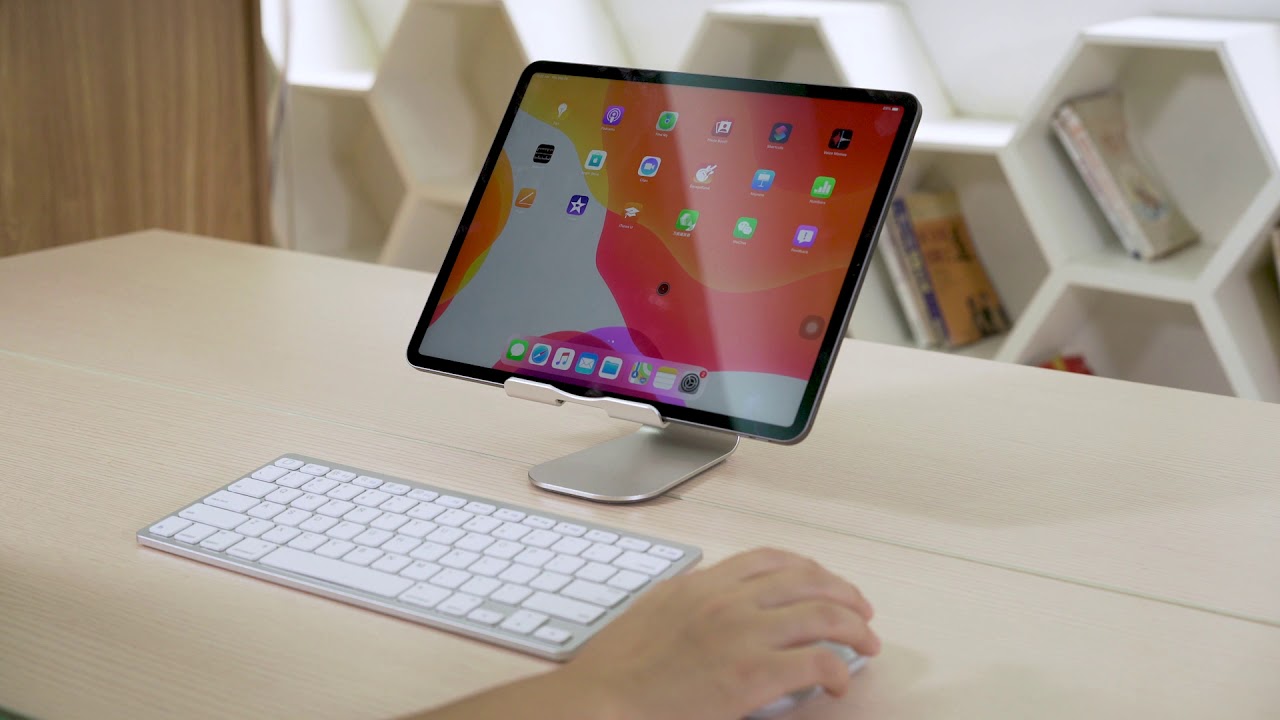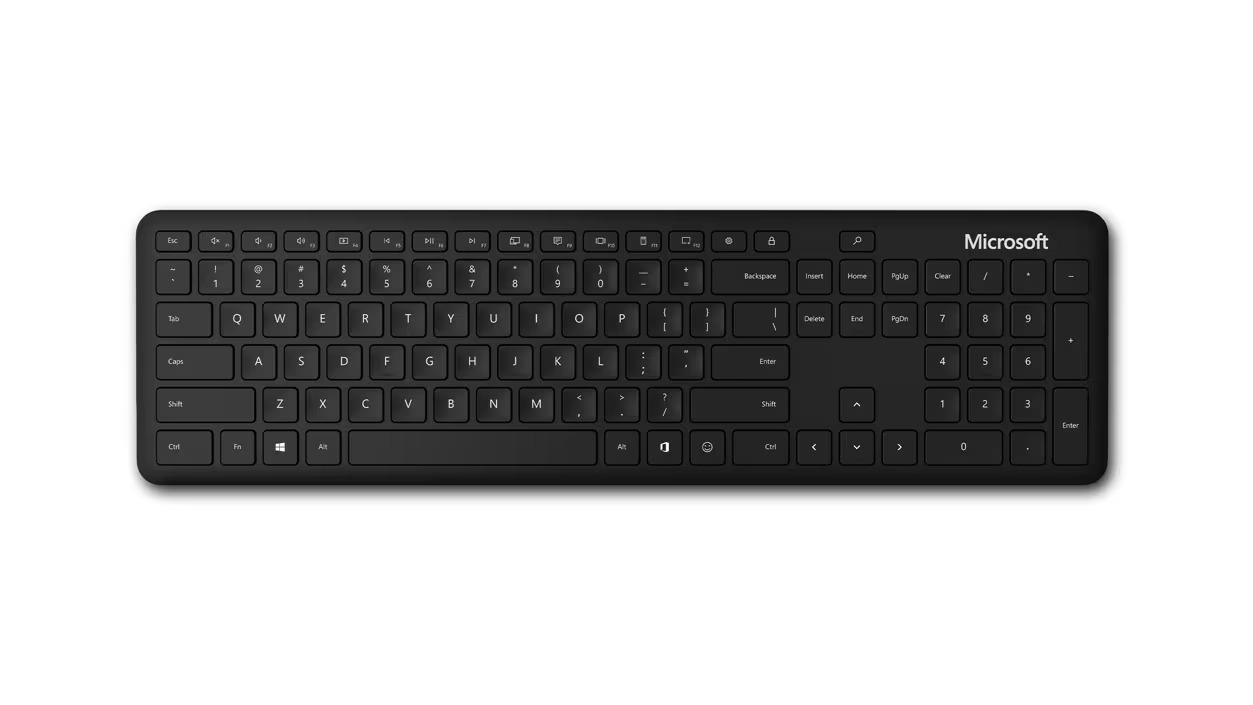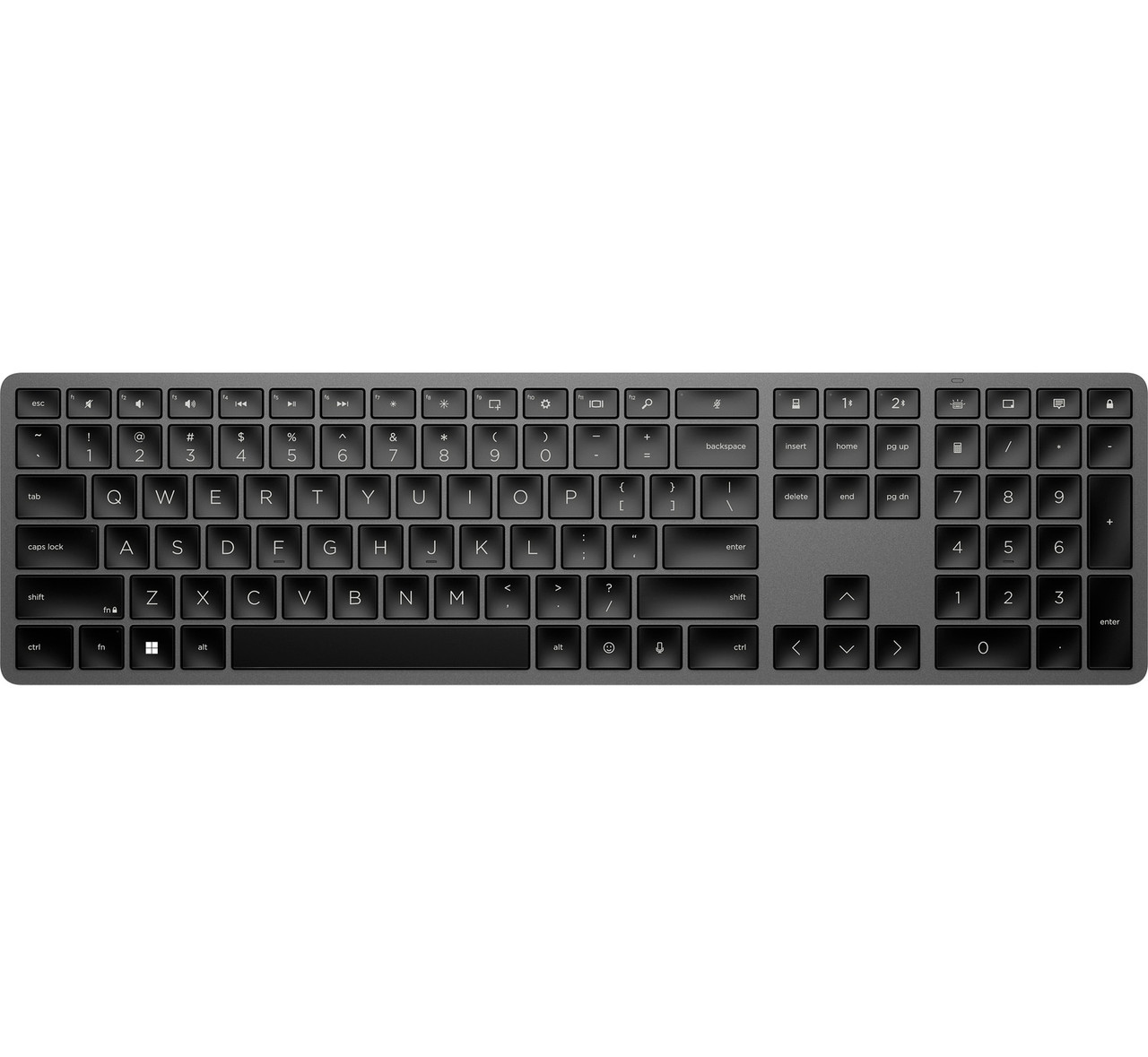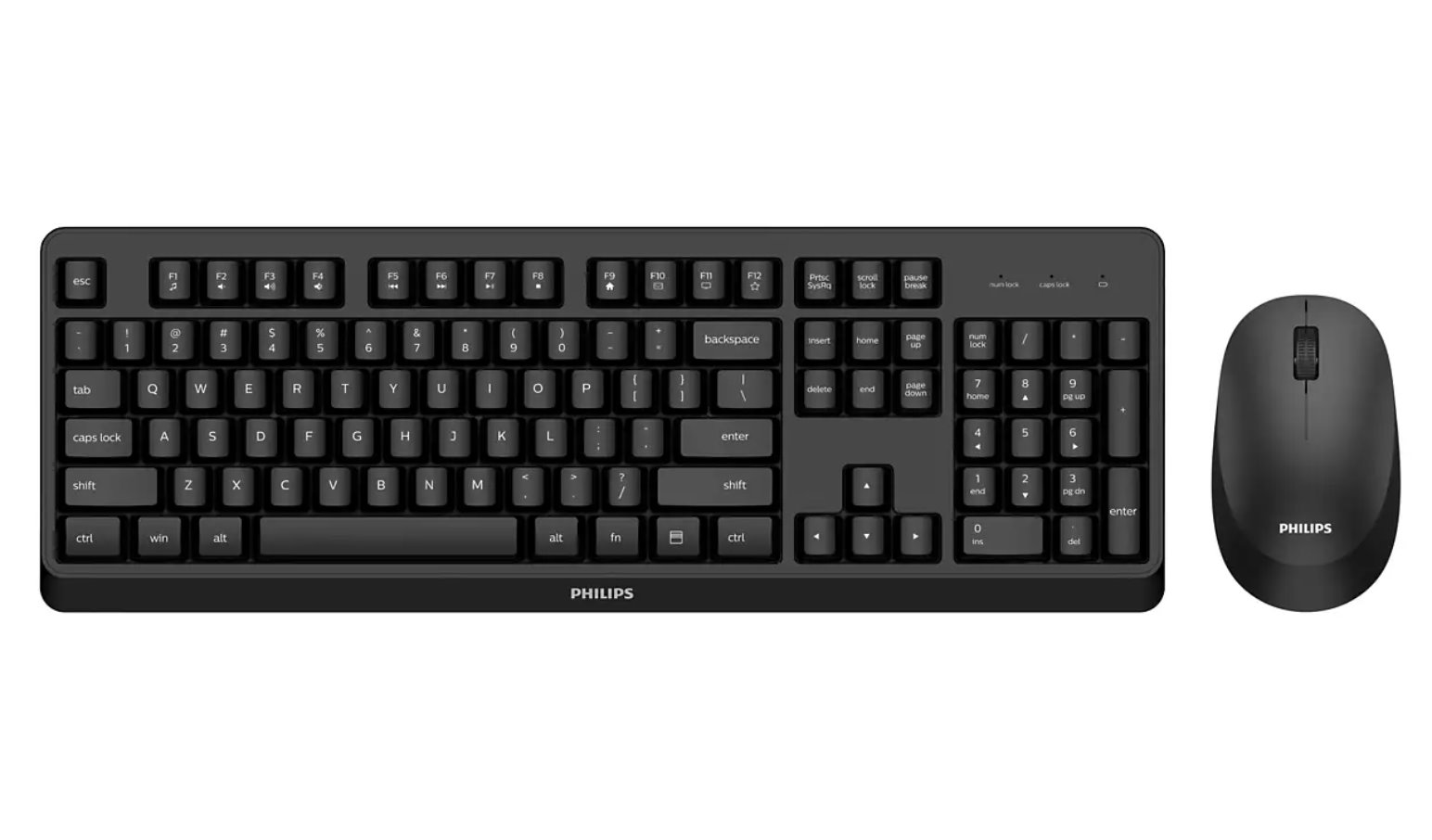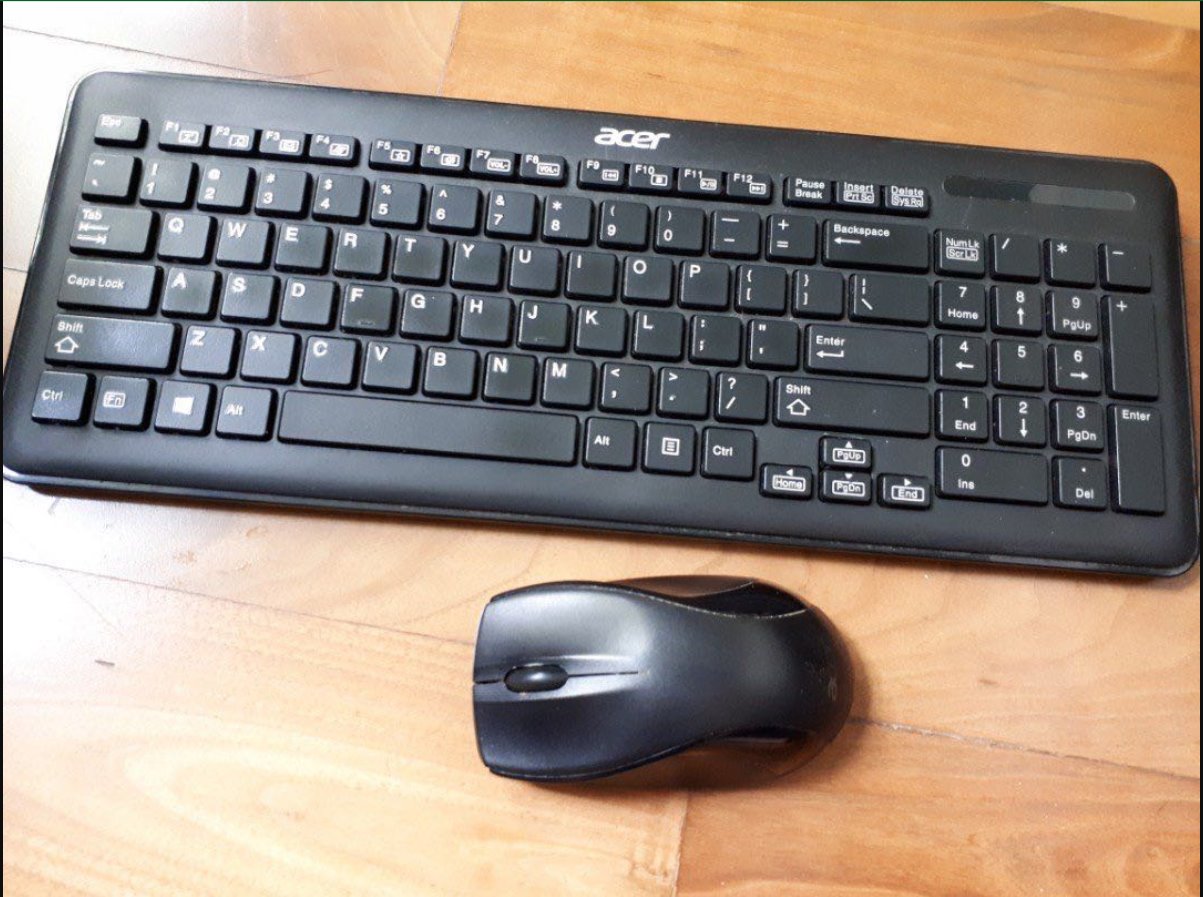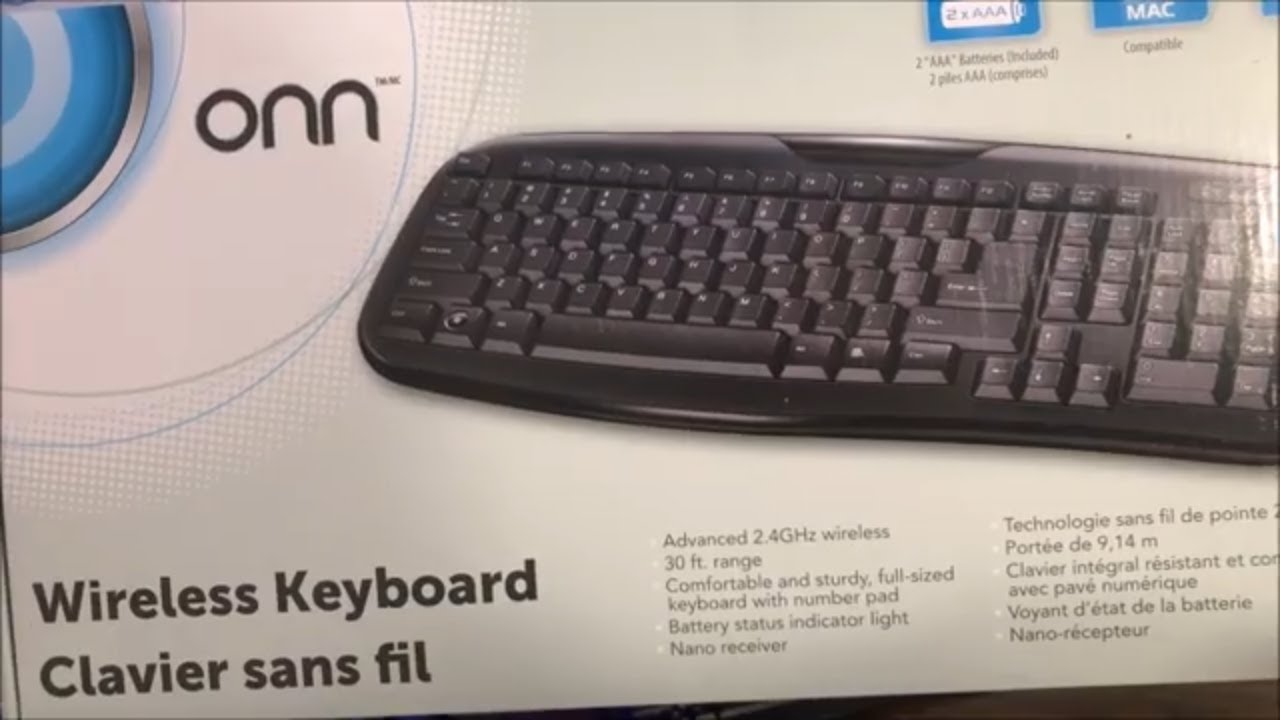
To connect an Onn wireless keyboard, you have two straightforward options: plug in the included 2.4GHz USB nano receiver for instant plug-and-play, or pair it via Bluetooth on devices without a USB port. If you’ve lost that receiver, you can still connect Logitech wireless keyboard k270 without receiver using a similar Bluetooth workaround. The method you choose depends on your device, both work with Windows, Mac, Chrome OS, Android, and iOS, so you can quickly get typing without extra software.
How to connect Onn wireless keyboard: two easy methods
Onn wireless keyboards are designed for flexibility, offering a 2.4GHz USB nano receiver for traditional computers and Bluetooth for tablets, phones, or laptops without USB-A ports. Both methods are reliable, but the USB receiver is the most direct, just plug it in and start typing. Bluetooth, on the other hand, lets you switch between multiple devices without unplugging anything. Whichever you choose, the setup takes under a minute once you know the steps.
Install batteries and power on the keyboard
Before any connection attempt, make sure the keyboard has power. Flip the keyboard over and slide the battery cover open, it’s usually on the underside. Insert two AAA batteries, matching the + and, symbols inside the compartment, then snap the cover back on. Locate the power switch (typically on the top edge or side) and slide it to the “on” position. You should see a small LED light up briefly, confirming the keyboard is ready. If the LED doesn’t turn on, double-check the battery polarity or try fresh batteries.
Method 1: Connect using the 2.4GHz USB nano receiver
This is the fastest way to connect the keyboard to a computer. The USB nano receiver is often tucked inside the battery compartment, remove it if it’s stored there. Plug the receiver into any available USB port on your Windows, Mac, or Chrome OS device. Turn on the keyboard using its power switch, and within seconds, the keyboard should work automatically. This is a plug-and-play wireless keyboard, so there’s no driver installation or pairing code needed. If you’ve lost the original receiver, you may need to connect a Logitech wireless keyboard to a different receiver using its dedicated software. If it doesn’t respond immediately, try a different USB port or restart your computer.
Where to find the USB receiver
If you don’t see the receiver, check the battery compartment again, many Onn models store it in a small slot next to the batteries. Some newer versions may have it in a separate plastic holder in the box. Once plugged in, the keyboard and receiver communicate instantly, so you can start typing right away.
Method 2: Connect using Bluetooth
For devices without a USB port, like tablets, phones, or ultra-thin laptops, Bluetooth is your go-to. First, enable Bluetooth on your device by going to Settings > Bluetooth (on Windows, it’s Settings > Devices > Bluetooth & other devices; on macOS, open System Settings and click Bluetooth). Turn on the keyboard’s power switch. Then, put the keyboard into pairing mode by pressing and holding the “Connect” button (often on the side or bottom) or the dedicated Easy-switch key until the LED starts flashing, this means it’s discoverable. On your device, click “Add Bluetooth or other device” (Windows) or just wait for the keyboard to appear in the list. Select “Onn Wireless Keyboard” or a similar name like “BT5.1 Keyboard” from the available devices. If prompted, enter the on-screen passcode using the keyboard and press Enter. The LED will stop flashing and glow solid, confirming the connection.
Bluetooth pairing on specific systems
On Windows, go to Start > Settings > Devices > Bluetooth & other devices, then click “Add Bluetooth or other device” and choose Bluetooth. On a Mac, open System Settings > Bluetooth and wait for the keyboard to show up. For Android or iOS, just open the Bluetooth settings and tap the keyboard name when it appears. The process is the same across all platforms, just make sure the keyboard is in pairing mode with the LED blinking.
Pairing multi-device keyboards and switching connections
If your Onn keyboard has Easy-switch keys (usually labeled 1, 2, and 3), you can connect up to three different devices simultaneously. Press and hold an Easy-switch key to enter pairing mode for that channel, then pair it with a device via Bluetooth or the USB receiver. To switch between devices, just tap the corresponding Easy-switch key, the LED will blink briefly and then connect to the chosen device. For example, you could have the USB receiver plugged into your desktop (channel 1), Bluetooth paired to your laptop (channel 2), and another Bluetooth connection to your phone (channel 3). This makes it easy to move between work and personal devices without re-pairing.
Troubleshooting connection issues
If your keyboard stops working or won’t connect, start by checking the battery, a blinking LED often means low power, so replace the batteries or charge the keyboard if it has a built-in battery. Keep the keyboard within 30 feet (10 meters) of the receiver or device; walls and metal objects can interfere with the signal. Try power cycling both the keyboard and your device: turn off the keyboard, restart your computer or phone, then turn the keyboard back on. For Bluetooth connections, make sure the keyboard is in pairing mode (LED flashing) and that your device’s Bluetooth is on. If using the USB receiver, unplug it and plug it back in, or try a different USB port. For multi-device keyboards, verify you’re on the correct channel by pressing the Easy-switch key for the device you want to use. If you’re still stuck, consult the user manual that came with the keyboard, it often has model-specific tips.