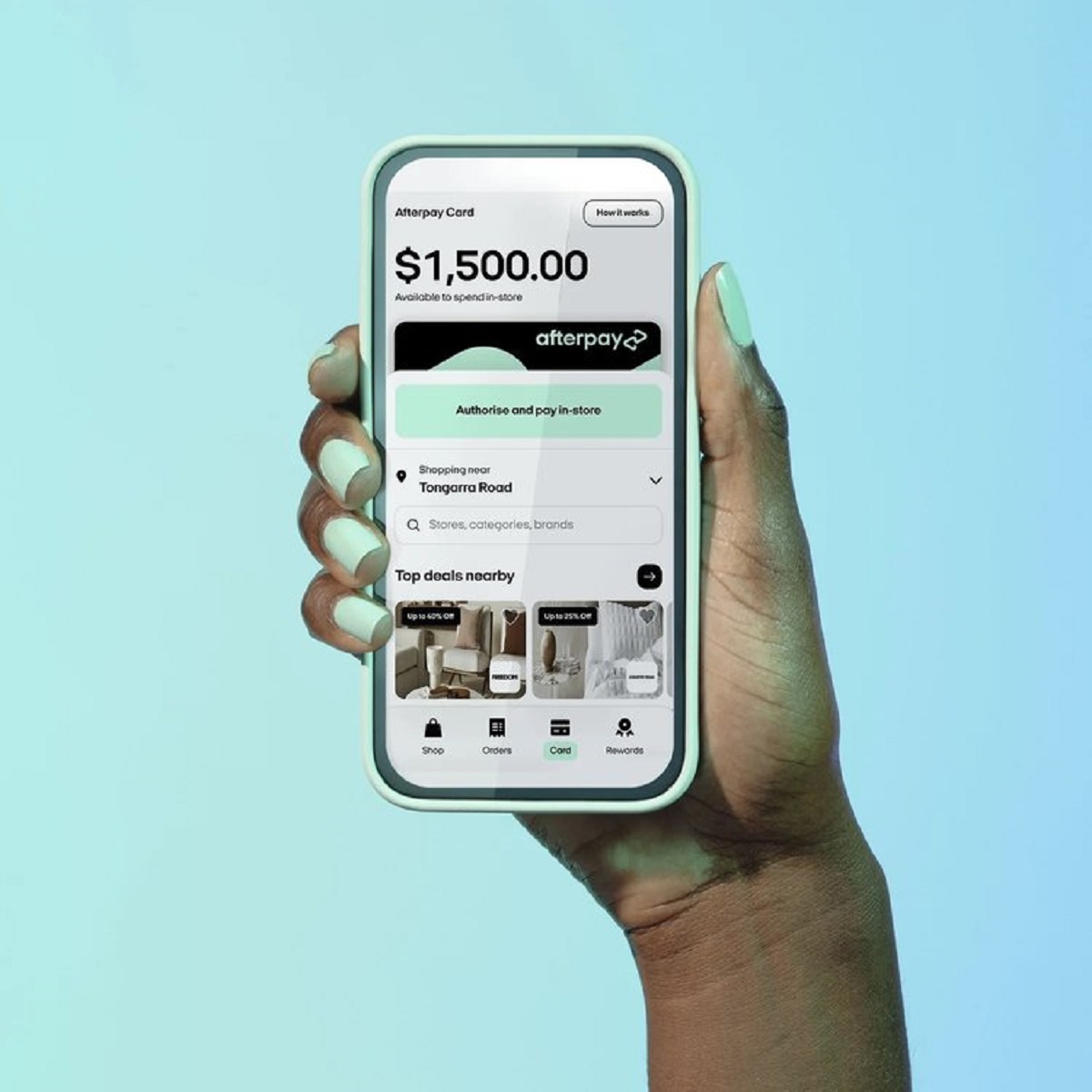
To add Afterpay to your wallet, you first generate the Afterpay Card inside the Afterpay mobile app, then add that virtual card to Apple Pay, Google Pay, or Samsung Pay for contactless in-store payments.
What is the Afterpay card for your wallet?
The Afterpay Card is a virtual card created within the Afterpay app. It is not a physical piece of plastic; instead, it exists as a digital token that you transfer into your phone's built-in wallet. Once it is inside Apple Wallet, Google Wallet, or Samsung Wallet, you can tap your phone on any contactless payment terminal to pay for items in-store using your Afterpay installment plan, and you can also use Afterpay on Cash App for online purchases where that payment method is accepted. This replaces the old barcode method, which is no longer accepted anywhere.
Before you add Afterpay to your wallet
Before you can add the Afterpay Card to your digital wallet, you need a few things in place. You must have an active Afterpay account with a linked debit or credit card. Your phone must be eligible for Apple Pay, Google Pay, or Samsung Pay, and its NFC (Near Field Communication) setting must be turned on. Eligibility for the in-store card feature itself is not automatic; Afterpay looks at your ID verification status, how long you have been a customer, and your repayment history. New customers may start with a lower spending limit for in-store use, which can increase over time with good payment behavior. Afterpay may also run a soft credit check, which does not affect your credit score, to decide if you can use the card in stores.
How to add Afterpay to Apple Wallet
- Open the Afterpay app on your iPhone.
- Go to the "Card" tab or the in-store card section.
- Select the Afterpay Card option.
- Tap "Add to Apple Wallet."
- Follow the Apple Wallet setup prompts that appear on your screen.
- Complete any SMS verification code that is sent to your phone.
Once you finish these steps, the Afterpay Card will appear inside your Apple Wallet, ready for tap-and-pay use.
How to add Afterpay to Google Wallet
- Open the Afterpay app on your Android device.
- Tap "In-Store."
- Tap "pay in store."
- Tap "setup the card."
- Finally, tap "add to wallet."
After you confirm the verification, the Afterpay Card will be available in your Google Wallet, and you can use it for contactless payments wherever Google Pay is accepted.
How to use the Afterpay card in stores
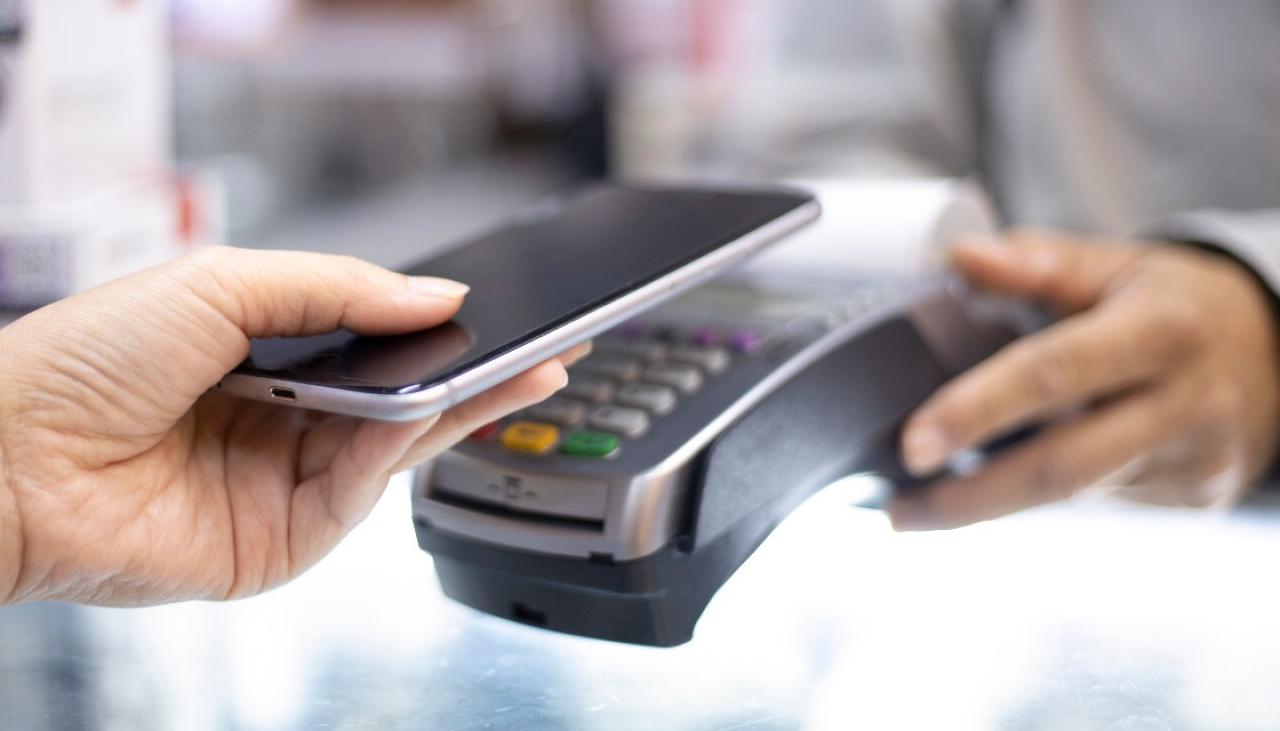
Using the Afterpay Card in a physical store is straightforward. Open your digital wallet, select the Afterpay Card, and hold your phone near the payment terminal until you see a checkmark or hear a confirmation beep. The Afterpay Card does not have a PIN or a CVV number. This will allow the transaction to go through without any additional code. The card works at any retailer that has a contactless payment terminal, but it is specifically designed for stores that accept Afterpay as a payment partner, giving you the same installment flexibility you get online.
What is Afterpay Plus?
Afterpay Plus is an invitation-only subscription service that provides an upgraded digital card. If you are eligible and receive an invitation, the Afterpay Plus card replaces your standard Afterpay Card. Instead of being limited to partner merchants, this card works almost anywhere that Apple Pay, Google Pay, or Samsung Pay is accepted, for a monthly fee. It is currently available only to existing customers who meet specific eligibility criteria set by Afterpay.
When you set up the Afterpay Card, you may wonder how to get a virtual card on Afterpay. The answer is simple: the Afterpay Card itself is that virtual card, generated inside the app. Some users also ask how to see my Afterpay card number, but because the card has no visible card number, PIN, or CVV for security, you cannot look up a traditional card number anywhere in the app or wallet. The entire system is designed around tokenized, contactless payments rather than manual card entry.
For the wider topic, see stores that accept Afterpay.