To change subtitles size on Netflix, open your account settings in a web browser, select your profile, and adjust the Subtitle Appearance options, this syncs the new size across every device you use with that profile. The same settings are available directly in the Netflix app on your TV, streaming device, or mobile phone, so you can pick the method that fits how you watch. If you plan to watch offline, you can also change Netflix download settings to make sure downloaded subtitles match your new preferences. If the text still looks blurry after resizing, you may need to change quality on Netflix to ensure a sharper stream.
Change subtitles size on Netflix through your account
The most reliable way to change subtitles size on Netflix is through the account settings on a web browser. This method works for any profile on your account, and the changes you make automatically apply to every device where you’re signed in with that profile, smart TVs, streaming sticks, game consoles, tablets, and phones included. It’s the best option if you want consistent subtitle sizing everywhere without repeating steps on each device.
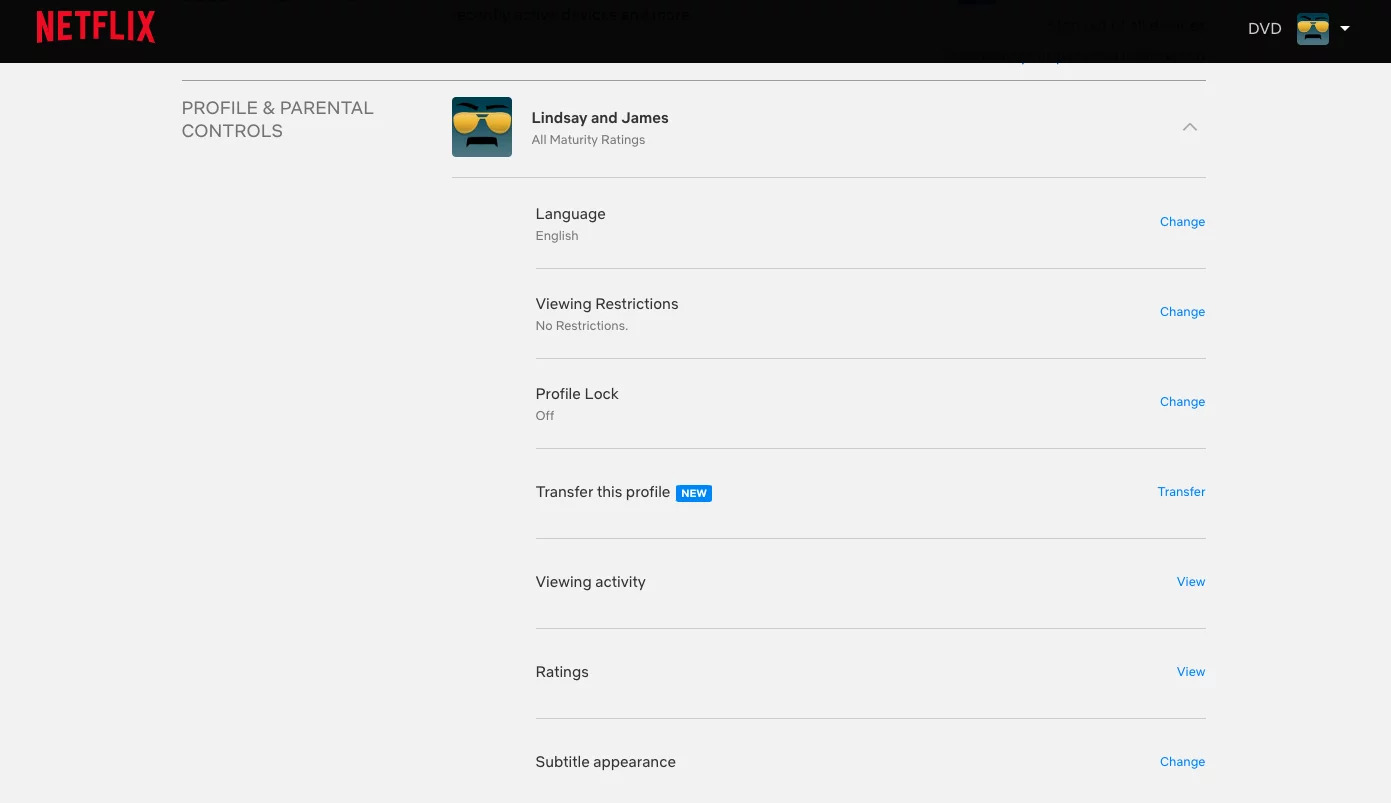
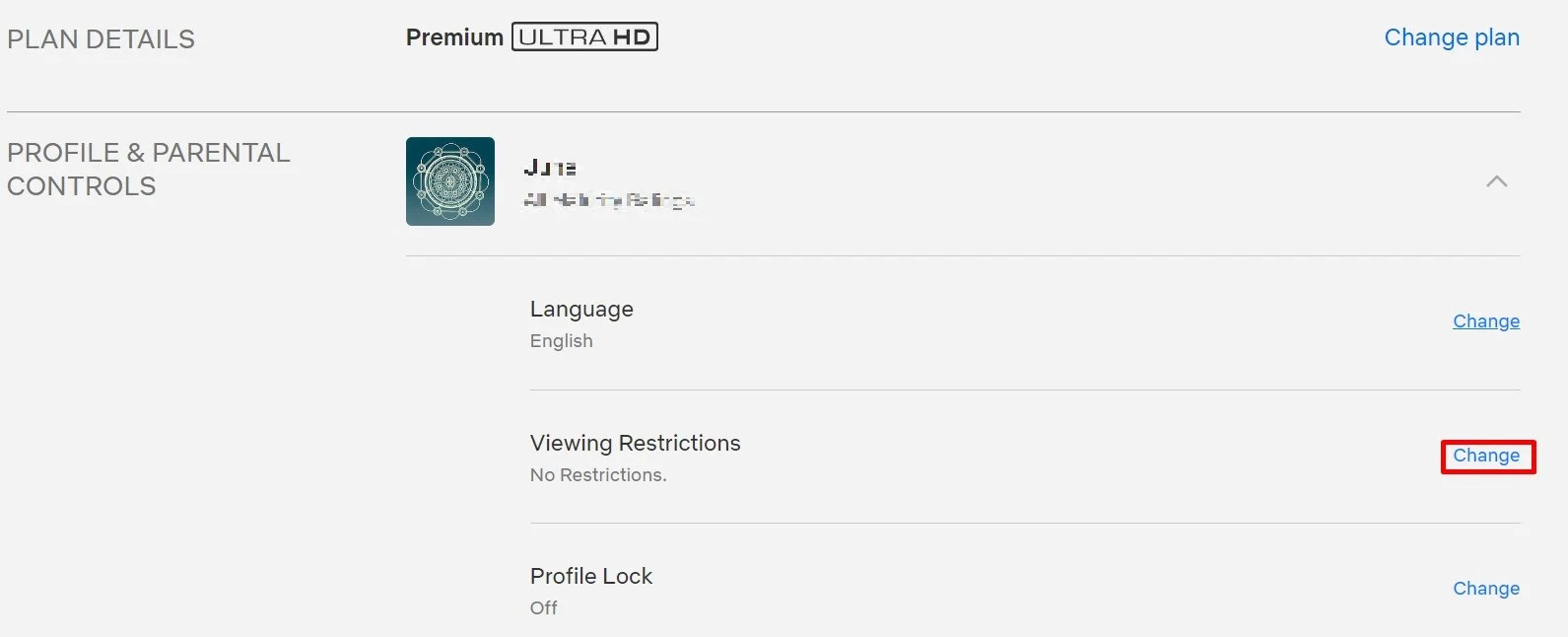
To get started, open your preferred web browser and go to Netflix.com. Log in with your account credentials, then hover over your profile icon in the top-right corner and select “Account” from the dropdown menu. Scroll down to the “Profile & Parental Controls” section and click on the profile you want to edit. Next to “Subtitle appearance,” click “Change.”
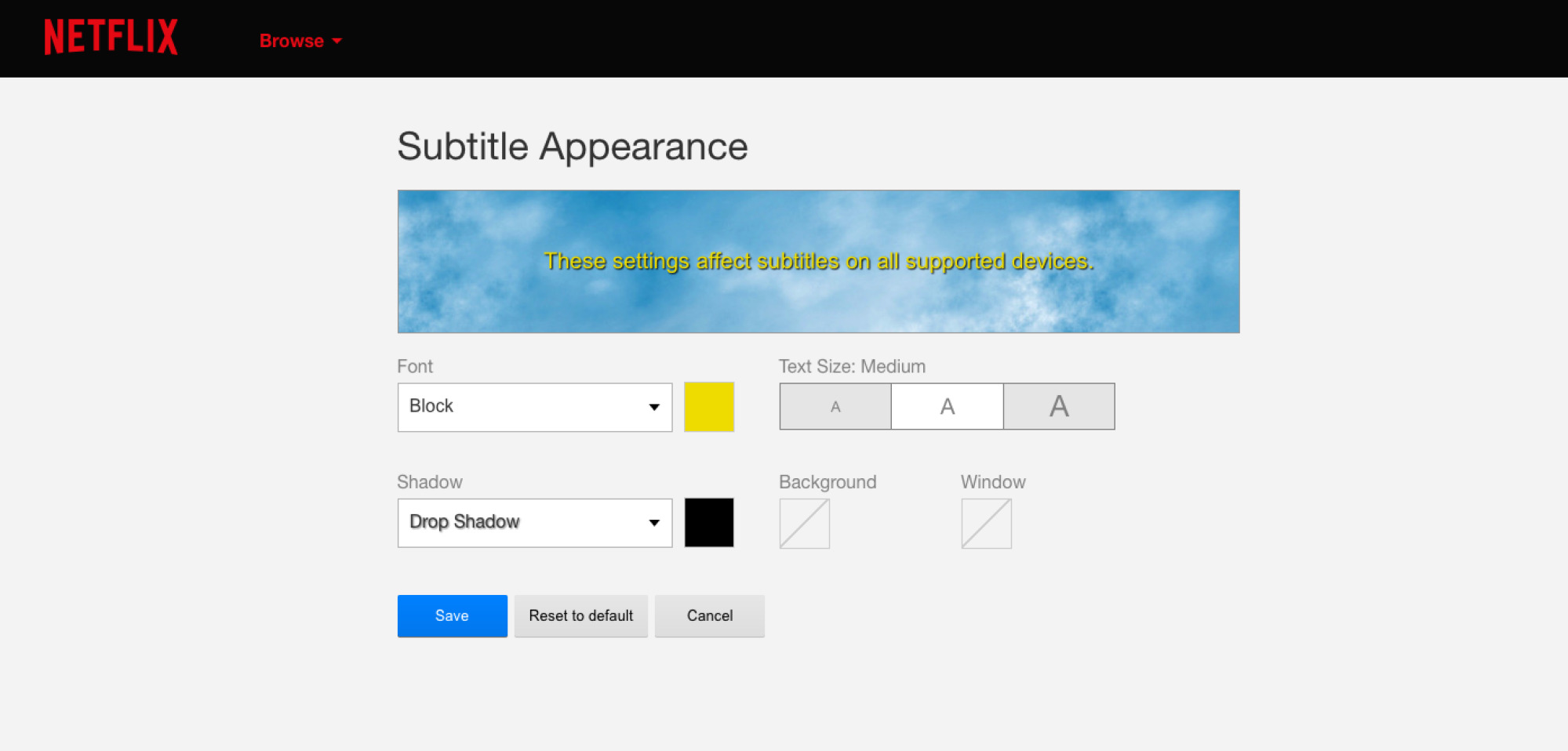
In the Subtitle Appearance settings, you’ll see a dropdown for font size with options like Small, Medium, and Large. You can also adjust the font style, shadow, and background color to improve readability further. Once you’ve made your selections, click “Save” to apply the changes. From that point on, any title you play with subtitles on that profile will display at your chosen size.
If you have multiple profiles on your account, remember that these settings are profile-specific. Each person who uses your Netflix account can set their own subtitle size without affecting anyone else’s preferences.
How to apply changes on your TV or streaming device
If you made your subtitle size changes in a web browser but your TV or streaming device doesn’t show them right away, you’ll need to reload the Netflix app to pull the updated settings. On your TV, open the Netflix app, go to “Settings,” then select “Get Help,” and choose “Reload.” This forces the app to refresh its connection to your account and pick up the new subtitle appearance settings. After the reload, start any title and the subtitles should appear at the size you selected.
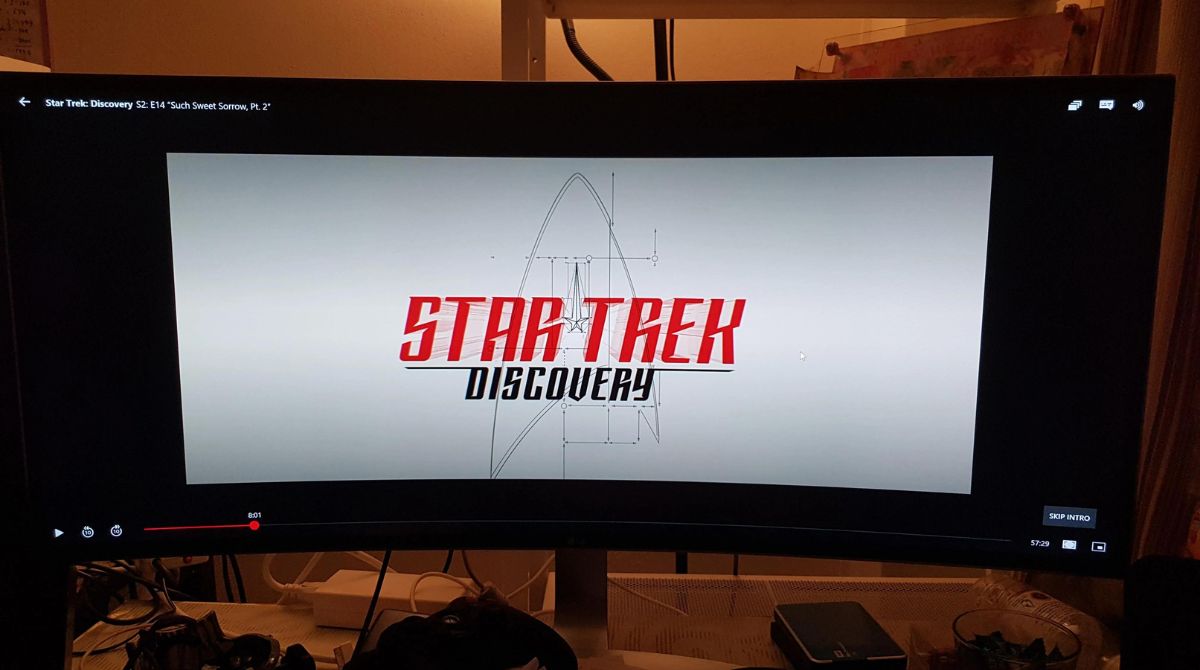
You can also adjust subtitle size directly on your TV or streaming device without touching a web browser. Start playing any movie or show, then pause it. Look for the “Settings” gear icon in the player controls and select it. From there, you’ll find subtitle appearance options, including font size. Choose the size that works for you, and the change applies immediately to that profile.
Keep in mind that connected TV devices sometimes offer fewer subtitle customization options than a web browser. On many smart TVs and streaming sticks, you may only be able to change font size and shadow style, while the full range of font choices and background colors remains available only through the account settings on a computer or phone.
Adjusting subtitle size directly on mobile
If you mostly watch Netflix on your Android phone or iOS device, you can change subtitle size right in the app without needing a computer. Open the Netflix app and tap “My Netflix” at the bottom of the screen. Then tap your profile name at the top, select “Manage Profiles,” and choose the profile you want to adjust. Tap “Subtitle Appearance” to open the same settings you’d see on the web, font size, font style, shadow, and background color are all available here.
This mobile method matches the web browser options exactly, so you get the full range of customization. Pick your preferred subtitle size, and the app saves it automatically to your profile. The next time you play a title, the subtitles will use your new settings. This is especially handy if you’re traveling or watching on a tablet and want to tweak readability on the fly.
Just like the web method, mobile subtitle changes are tied to the specific profile you edited. If you share your account with family or friends, each person can set their own subtitle size on their own device, and those preferences will follow them across all their devices.
Choosing the right subtitle settings for you
When you change subtitles size on Netflix, think about what makes text easiest for you to read. Larger font sizes help if you’re watching from a distance or have vision challenges, while smaller sizes keep subtitles less intrusive during action scenes. Beyond size, you can also adjust the shadow, a subtle drop shadow improves contrast against bright backgrounds, and the background color, which adds a solid box behind the text for maximum legibility.
On a TV, you might find the direct in-player options limited compared to the web or mobile app. If you want the full range of subtitle appearance controls, set them through your account on a browser or the mobile app, then reload the Netflix app on your TV to sync the changes. This way, you get consistent, comfortable subtitles no matter where you watch.
Remember that subtitle settings are profile-specific, so if you’re setting up a profile for a child or someone who needs larger text, you can customize it individually without altering your own viewing experience. The same logic applies if you prefer small, unobtrusive subtitles while someone else in your household wants them big and bold. Once you’ve made your choices, just save and start watching, your subtitles will match your preferences every time.