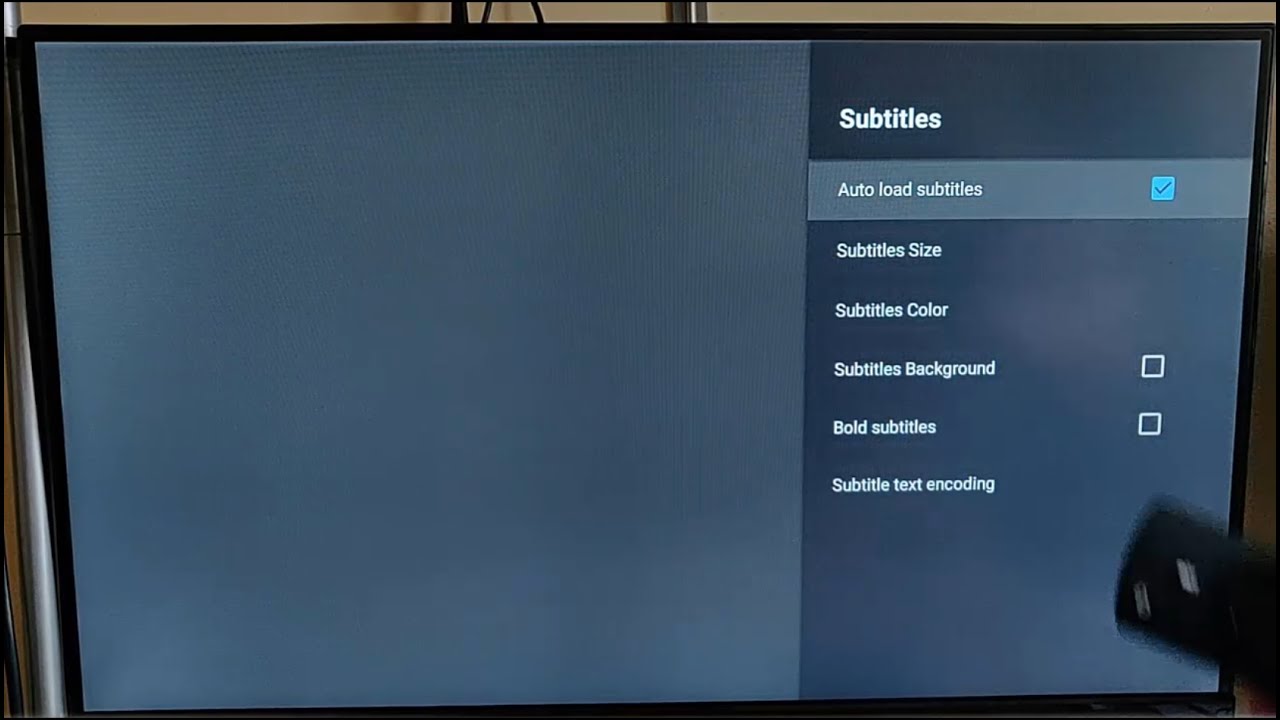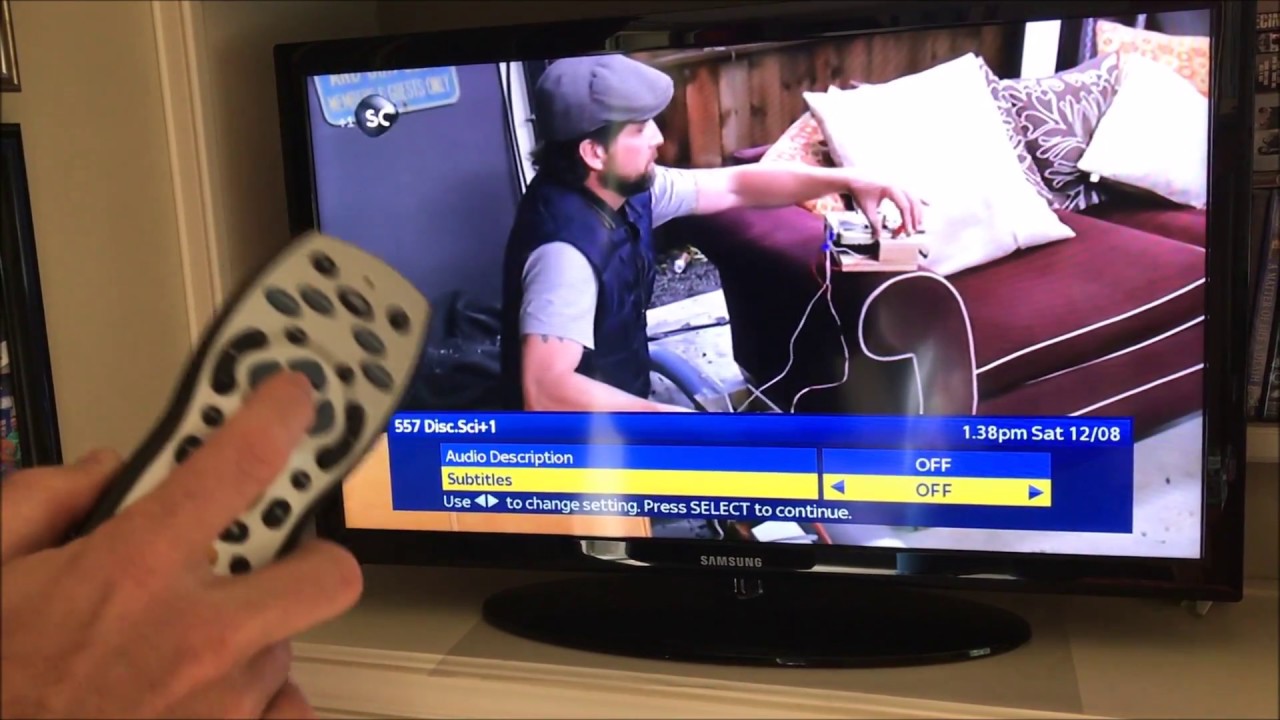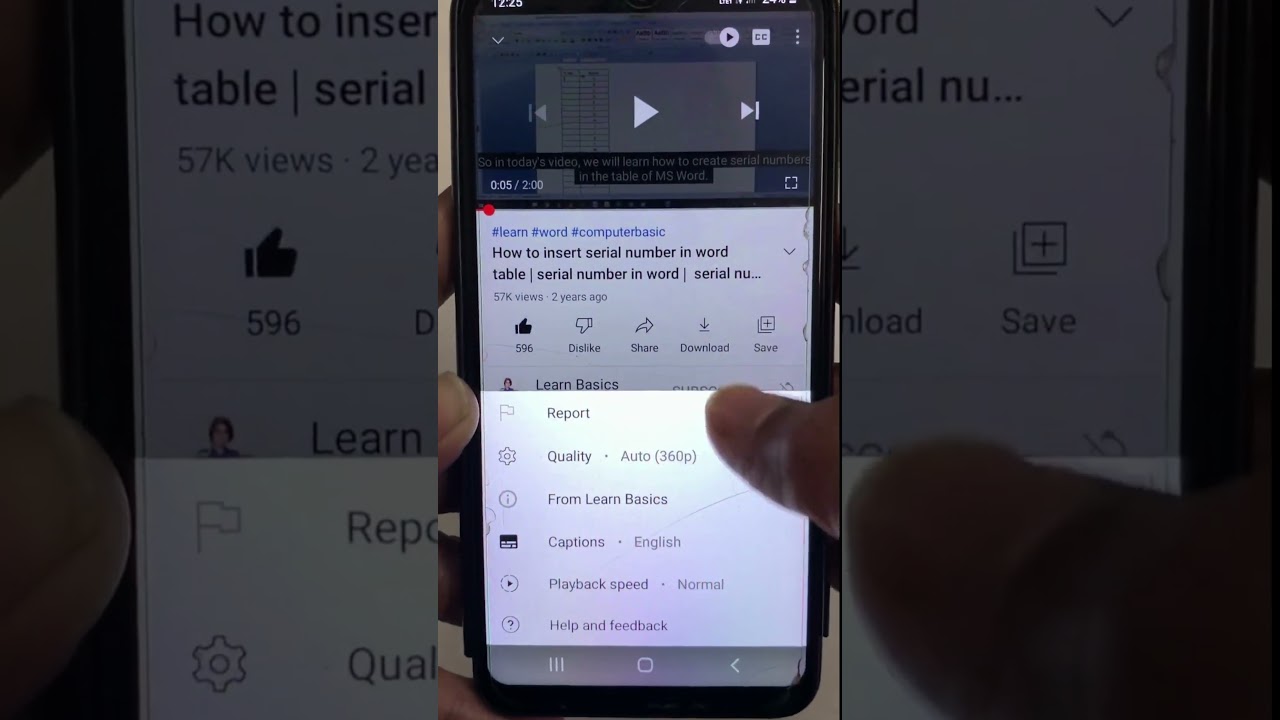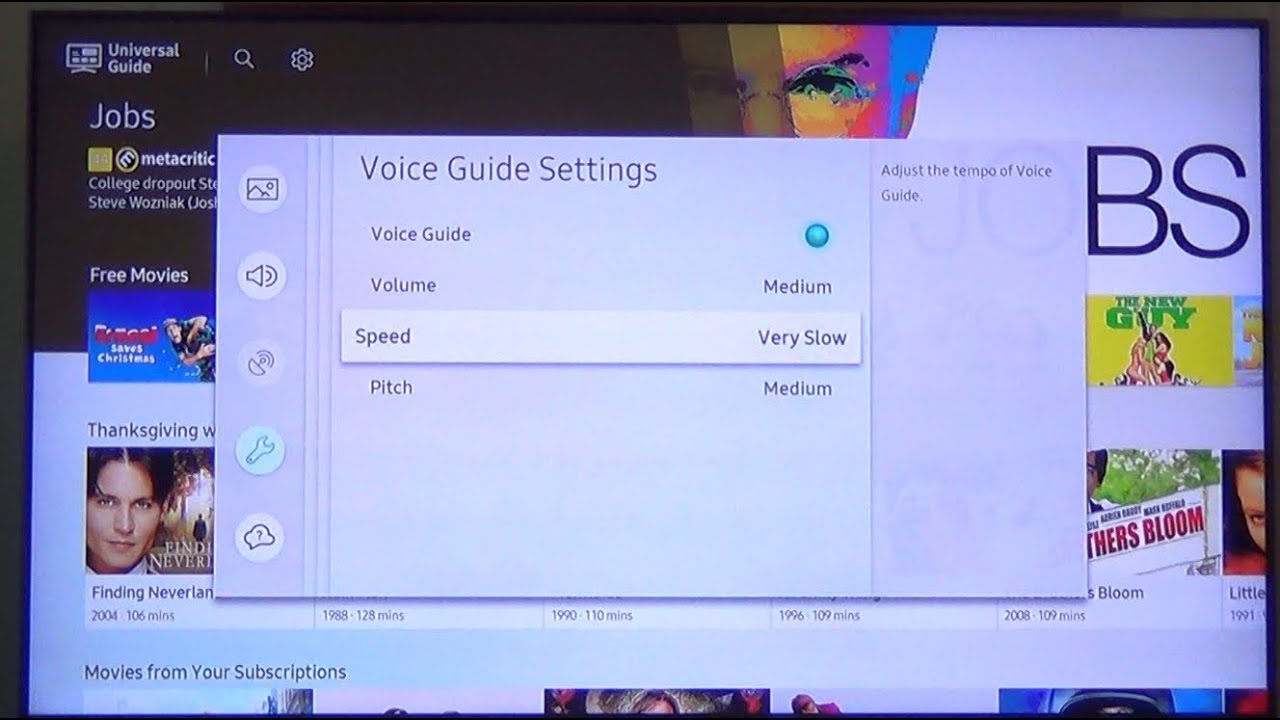
You can change subtitle appearance in your TV's Accessibility or General settings menu, but many streaming apps also have their own in-app subtitle settings that may override the TV's preferences. Look for 'Subtitle Settings' or 'Caption Preferences' to adjust text size, color, and background opacity.
Why the subtitle settings TV apps offer won't work
Look for ‘Subtitle Settings’ or ‘Caption Preferences’ to adjust text size, color, and background opacity. In-app font or background choices within Netflix, Hulu, or other apps may override the TV's system-level control, depending on the app and TV model. However, many streaming apps have their own subtitle settings that can override the TV's style.
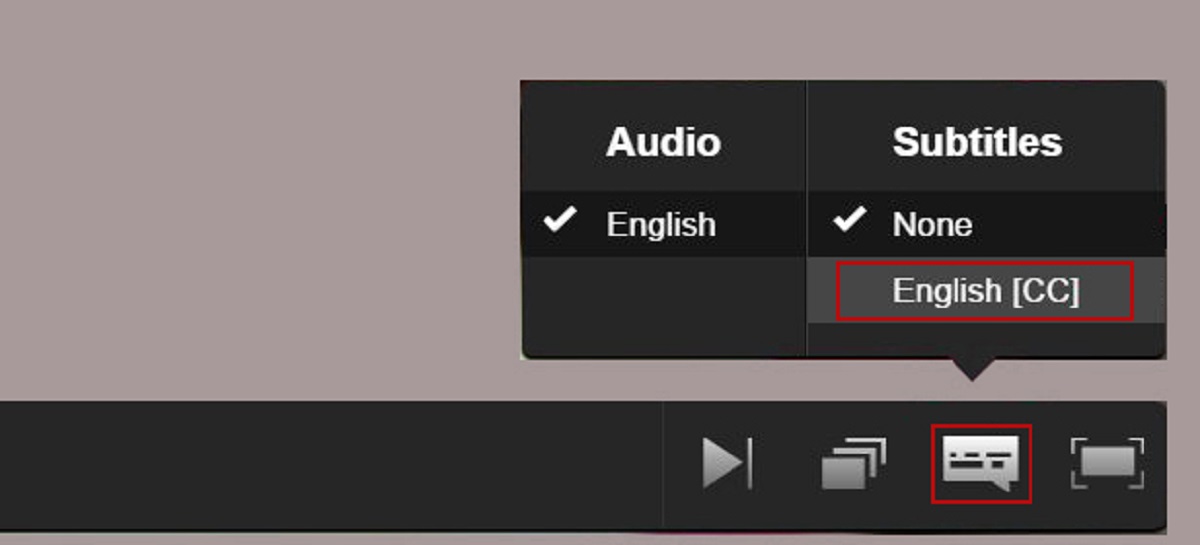
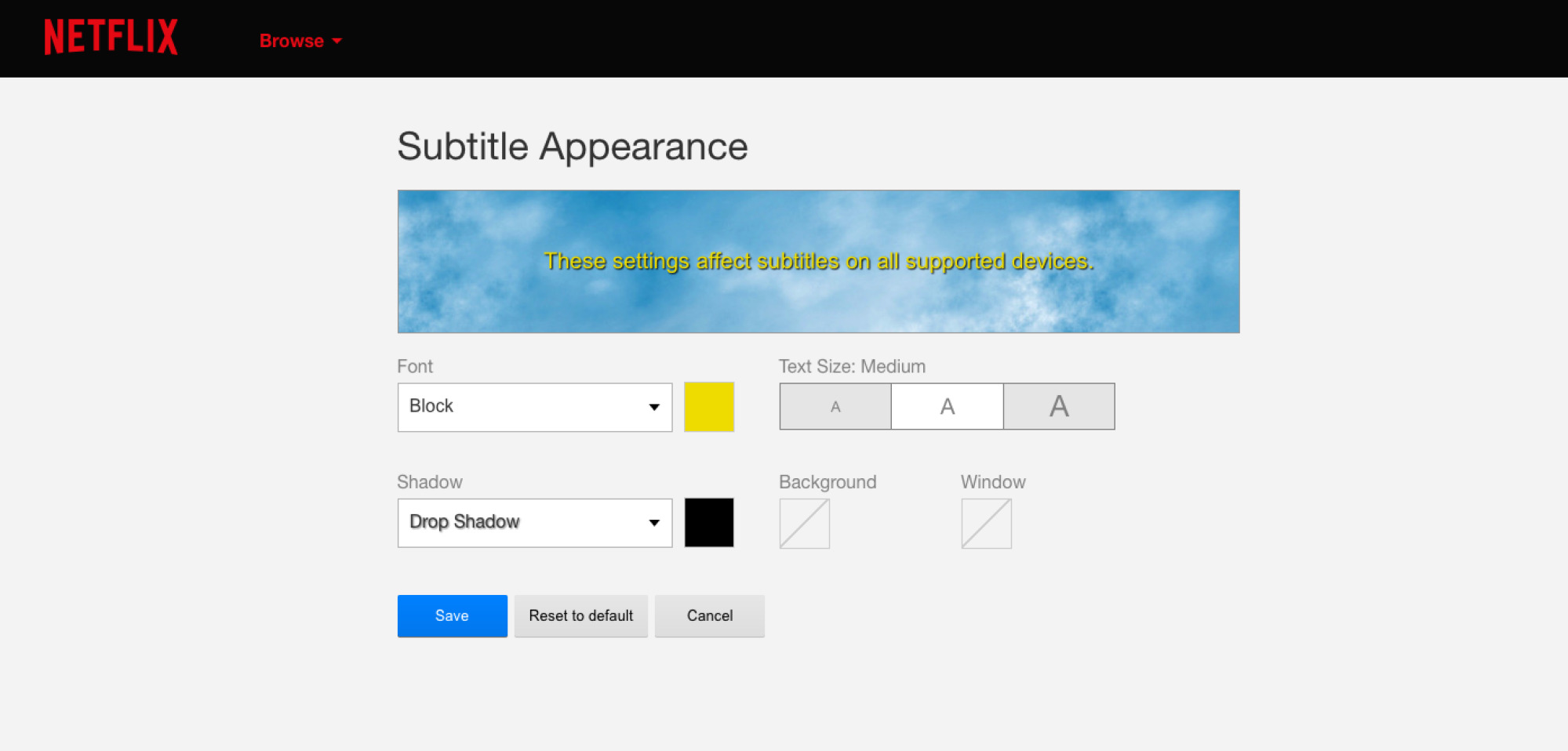
The common mistake of looking inside a streaming app’s playback menu for subtitle styling is understandable. Netflix, for example, does offer a handful of text size and color options under its own “Audio & Subtitles” menu. However, those adjustments only apply to the app’s own interface. They may override the TV's subtitle renderer when system-level preferences are active. On some smart TVs, enabling subtitles from the remote's "CC" button or the TV's main accessibility toggle may cause the app to defer to the TV's subtitle engine, but many apps can still override this with their own settings. Changing the font to yellow or adding a background inside the app may work if the app's settings override the TV's preferences. The TV may draw the text using its own rules, but some apps can override this with their own subtitle rendering. To force a solid background and larger letters, you may need to adjust both the TV's own subtitle controls and the per-app settings, as app settings can override the TV's preferences.
Finding the right menu on your TV
The exact path to the system accessibility or subtitle controls varies by brand, but the goal is always the same. Locate “Subtitle Settings” or “Caption Preferences” under the TV’s main configuration. On a Samsung TV, press the Home button, go to Settings > General > Accessibility > Caption Settings. You can then change “Caption Style” to “Custom” to adjust font size, color, and background opacity. On an LG TV, navigate to Settings > All Settings > Accessibility > Subtitle. There you can modify “Font Size” and “Background” to a solid, opaque color. This is the same path you would use to turn on subtitles on LG smart TV. For a Sony TV (Android TV), go to Settings > Device Preferences (or System on some models) > Accessibility > Captions. Enable “Custom” under “Caption Style” to set a white text with black background. On a TCL TV running Roku TV, press the Home button, select Settings > Accessibility > Caption style (or Captions if Accessibility is not listed). Then choose "Caption style" and pick "Custom" to increase font size and set a solid background. This is exactly how you put subtitles on TCL smart TV. On older sets, the menu might be labeled “Closed Caption” instead of “Subtitle,” but the font and background controls live in the same Accessibility branch.
When the background still won't appear
The failure case where changing the background opacity does nothing is frustrating, but it usually has two causes. First, the content itself may use “burned-in” subtitles. This text is permanently part of the video image, like forced subtitles for foreign dialogue on a Blu-ray or streaming movie. In that case, no TV setting can add a background because the text is not a separate subtitle track. It’s part of the picture. Second, the specific streaming device overrides the TV’s subtitle styling. If you are using an external device like a Roku stick, Apple TV, or Fire TV, those devices have their own subtitle controls that must be adjusted separately. The TV only governs its built-in tuner and apps. To check, press the remote’s “Caption” or “CC” button and look for a “Device” vs. “TV” toggle. If you see that the subtitles remain transparent despite your TV adjustments, you need to change the subtitle preferences on the device itself, not the TV. And if you ever need to hide them completely, the quickest method is to press the remote’s “CC” button or go back into the Accessibility menu to get subtitles off my TV, rather than hunting through app menus.
Only the TV’s own system-level subtitle engine can guarantee a solid, opaque background across every app and input, so for more guidance on the full process, see how to turn on subtitles correctly.