Recording TV shows on your TV
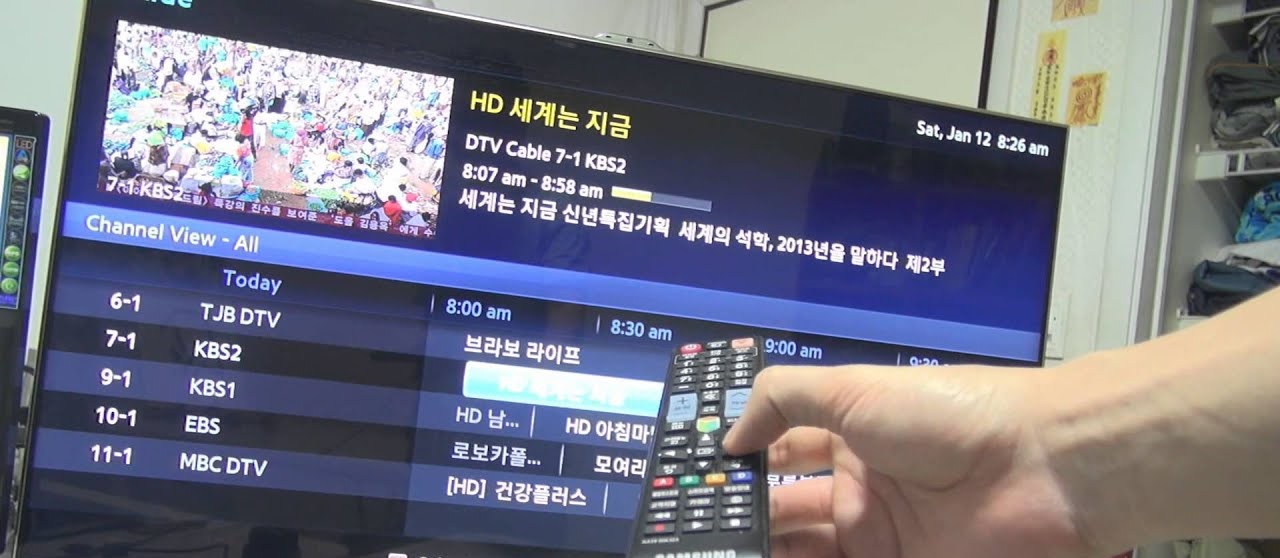
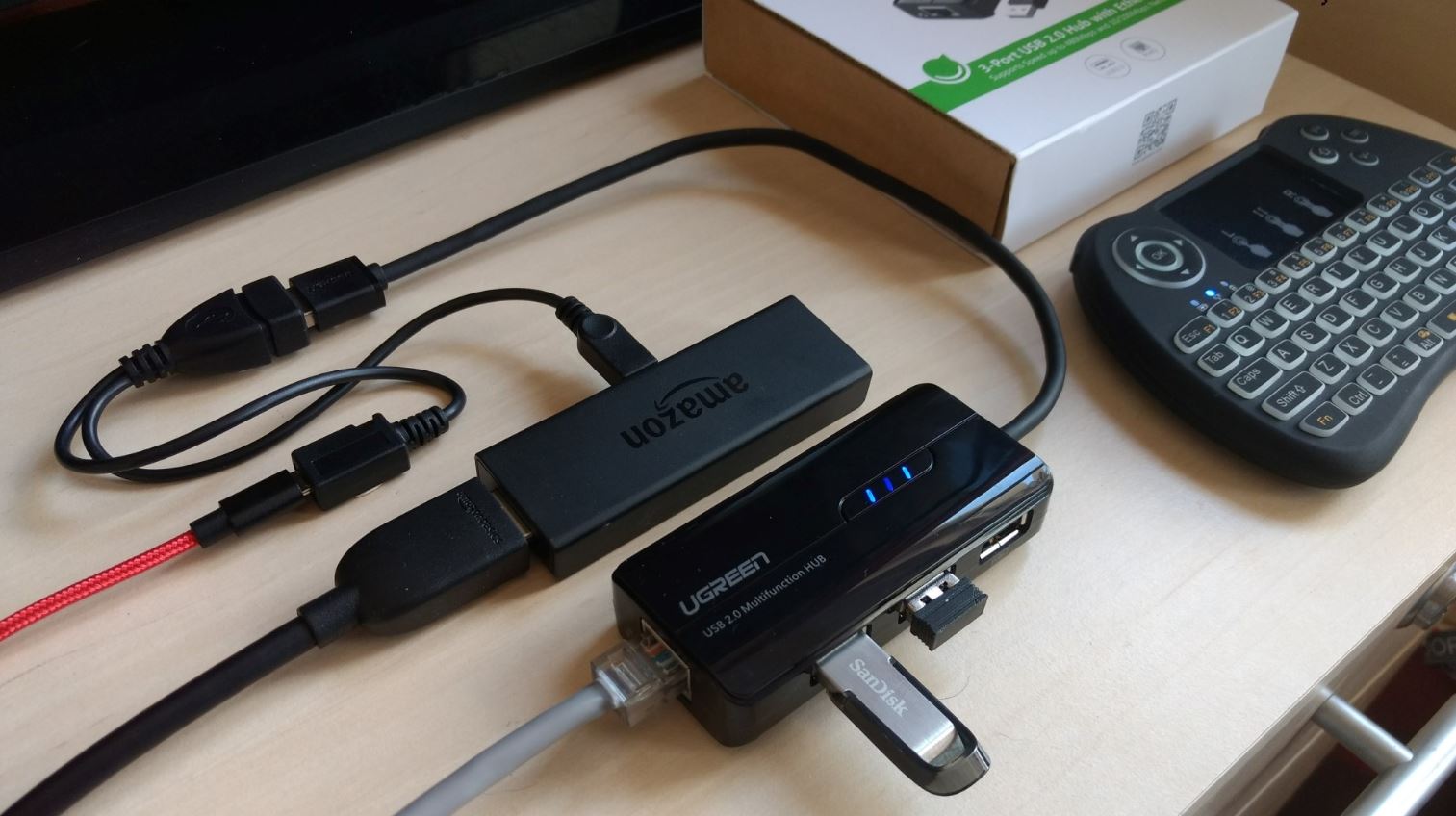
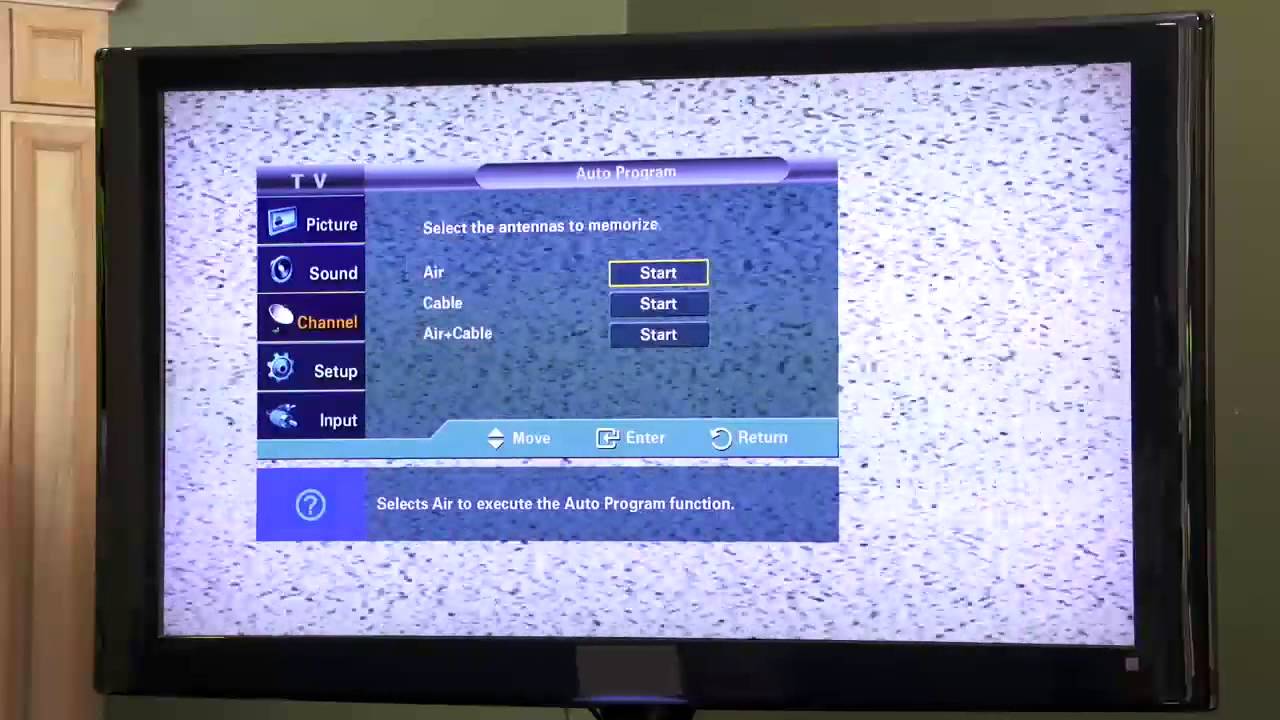
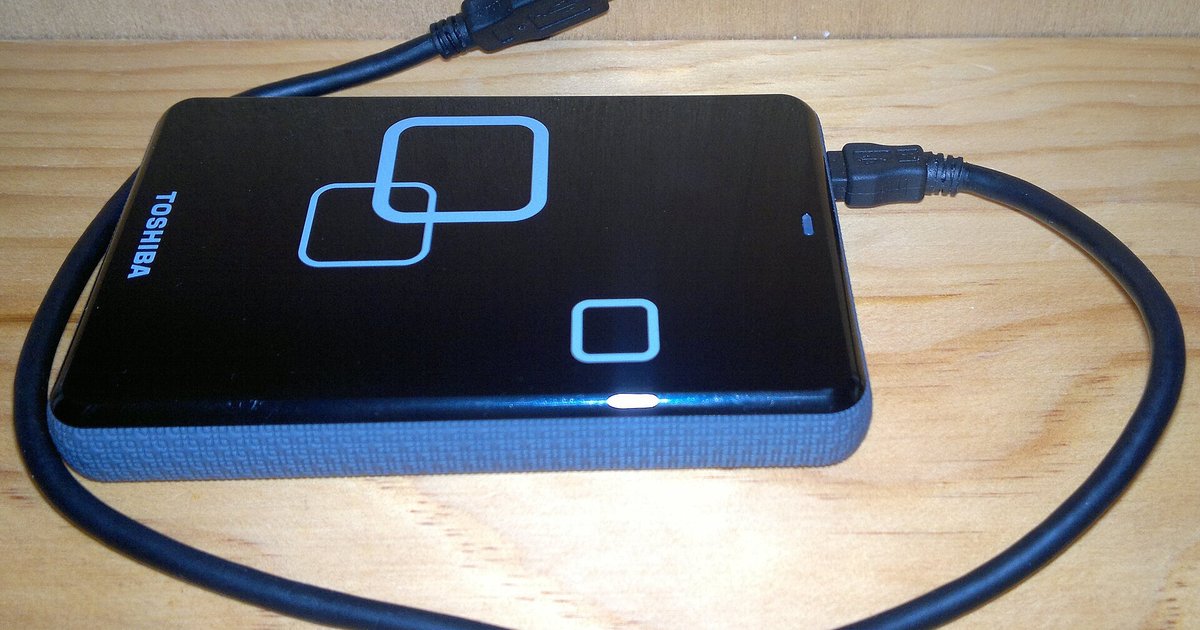
If you want to record TV shows without a separate DVR box, start by checking what your specific model actually supports. Many smart TVs have a USB port that can be used for media playback, and on models with a built-in tuner it may also support recording. The exception is when the TV includes a built-in digital tuner, usually labelled "ATSC" or "DVB-T2". To record over-the-air broadcasts, you may need to plug in a properly formatted USB flash drive or external hard drive. Then use the TV's EPG (electronic program guide) to schedule a recording. For example, you can follow the steps to record programs on Samsung smart TV, but only if that model has the necessary tuner and software support. If you are using a streaming device like a Firestick, the process is different. The device itself lacks a tuner, so you would need a separate USB capture device and an app to record from Firestick to external hard drive. Many users ask how to record TV shows on my smart TV, and the honest answer is that without a cloud DVR subscription or an add-on tuner, the built-in features are often limited. Always test with a short recording first to confirm the TV actually writes to the drive before you rely on it for a full season.
Connecting a DVR to your setup
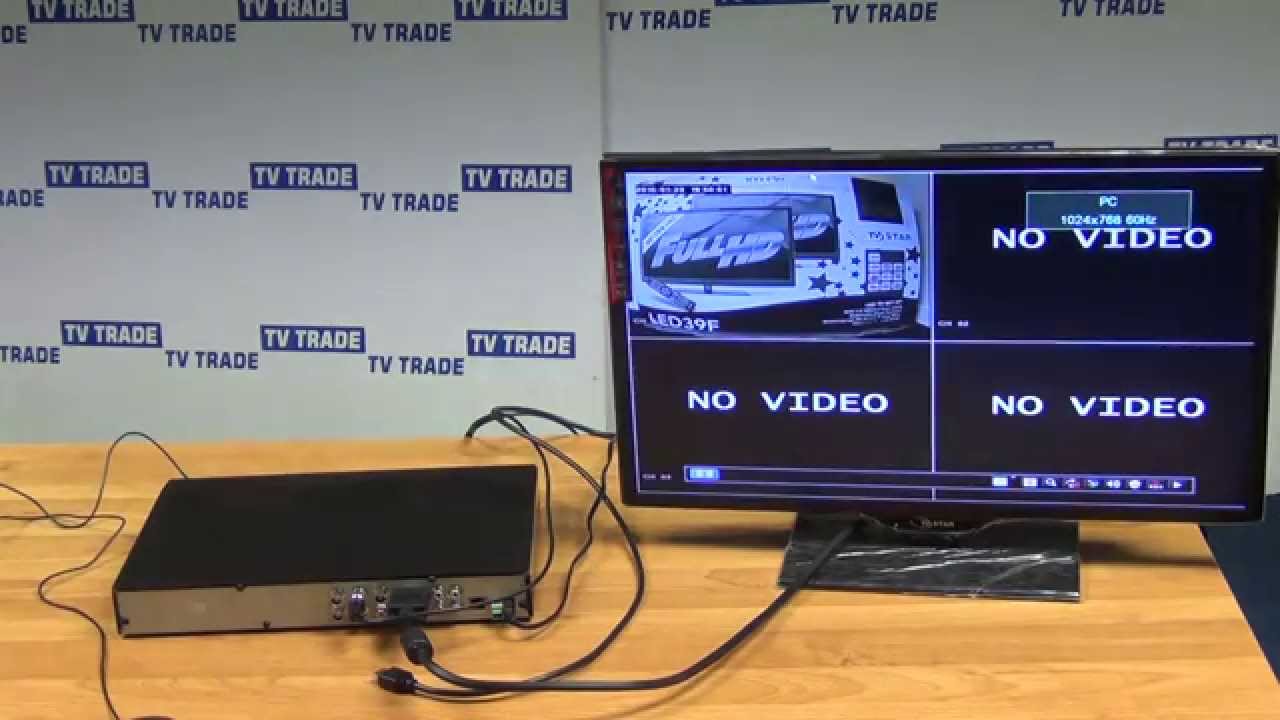
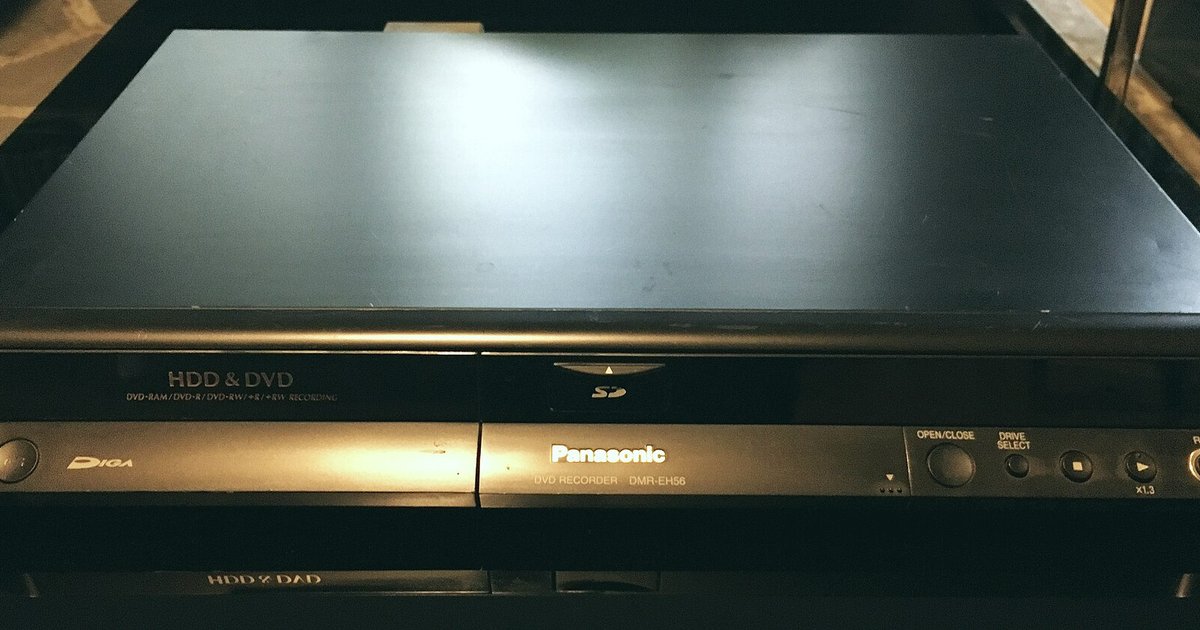
Start by locating the HDMI port on your television. Most smart TVs have at least two. Plug one end of an HDMI cable into the DVR’s output and the other into the TV. If your DVR is older and lacks HDMI, use component or composite cables, matching the colored plugs to the corresponding inputs. Once the physical connection is secure, switch your TV’s input source to the correct HDMI channel. You will see the DVR’s menu appear. Now, to understand what you can actually do with your recordings later, you need to know a critical limitation. The file format DIRECTV uses for exported recordings is typically a proprietary container that standard media players cannot read. This means you cannot simply drag a file to your laptop and play it. If you are considering saving space by moving shows off the box, be aware of another restriction. Transferring DIRECTV recordings to a hard drive reduce video quality in most cases because the DVR must re-encode the stream in real time during the transfer. To connect dvr to smart TV properly, also check whether your TV supports HDCP (High-bandwidth Digital Content Protection). Without it, the picture may stay black. Finally, remember that rented DVRs often lock exported files to the original account, so moving them to a computer may not work at all without a third-party capture device.
Moving recordings off your DVR
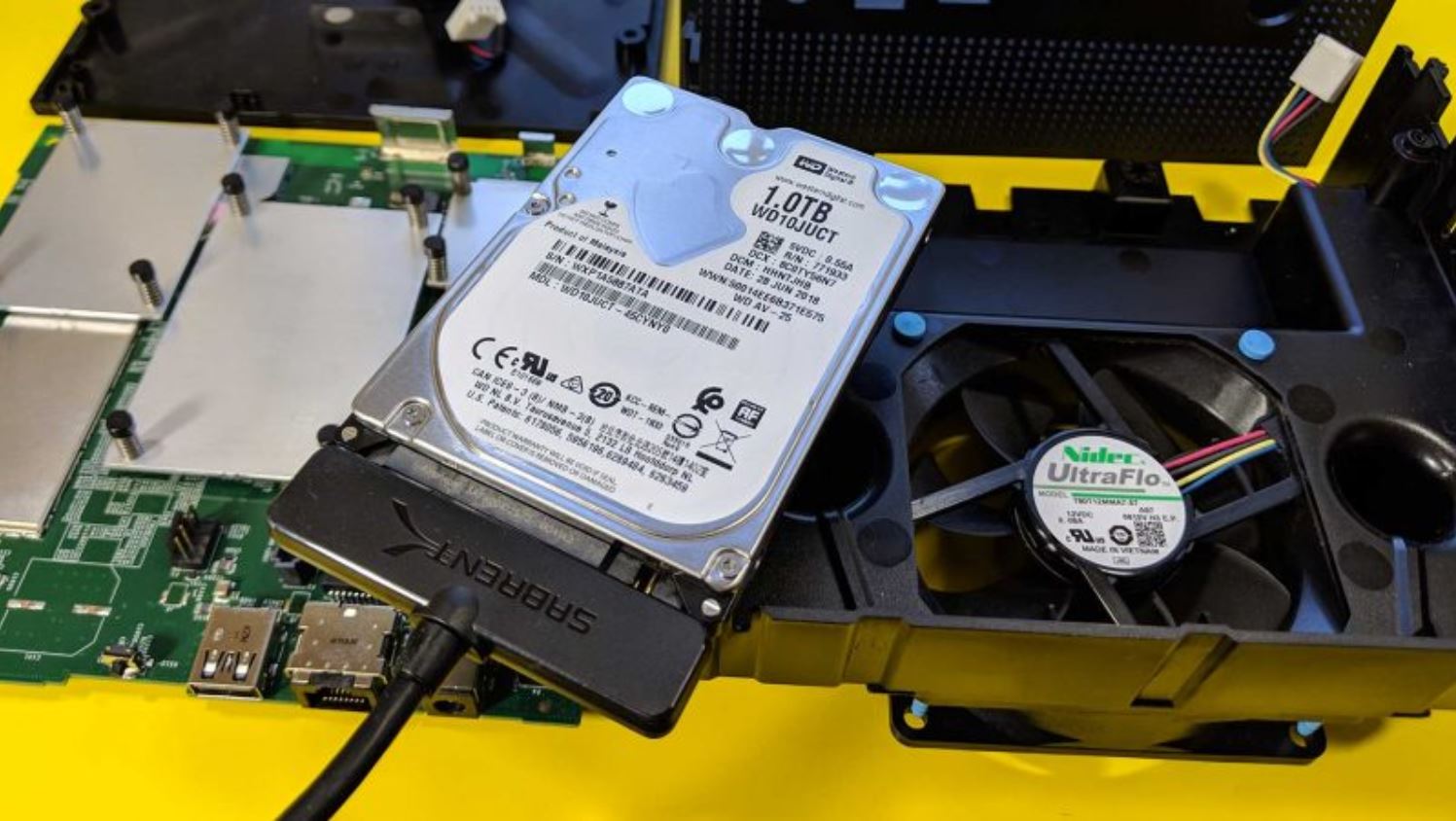
If you want to keep a recording beyond your DVR's storage limits or watch it on another device, your options depend heavily on your equipment. For some cable and satellite boxes, you cannot simply plug in a USB drive and copy files. The port may be disabled for recording transfers on some models. If you use a TiVo or a compatible over‑the‑air DVR, the process may be more straightforward, but you may still need to format the drive to the correct file system first. For those with a satellite receiver, the steps to transfer recorded shows from DIRECTV dvr to external hard drive may be restrictive. Some models may block direct USB copying, and a workaround involves playing the show in real time and capturing the output, which takes as long as the program itself. A more general approach that may work across several brands is to learn how to transfer dvr recordings to external hard drive, which could involve connecting a compatible drive via USB and using the DVR’s menu to move or copy files, though always check your specific model’s manual first. If you are looking to take your content with you on a laptop or tablet, you might instead need to know how to download recordings from DIRECTV dvr, which may require a subscription to their streaming app or a separate network‑connected device that can stream and record simultaneously. In many cases, remember that some smart TVs treat their USB port as a playback‑only input, so the DVR itself may need to handle the export.