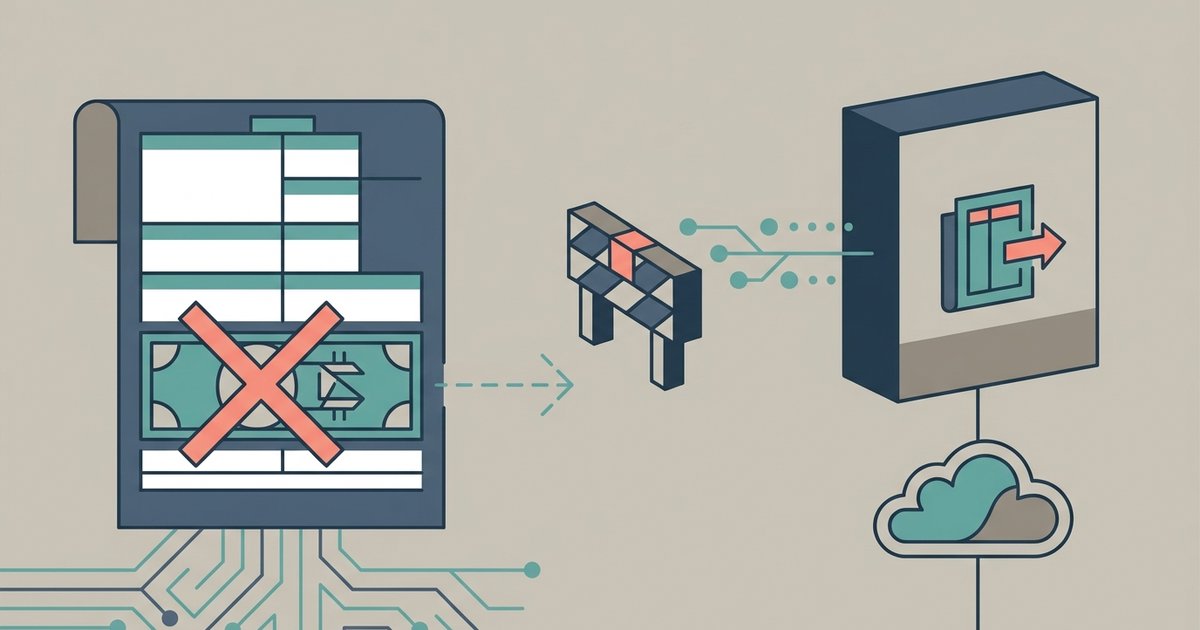
QuickBooks Desktop 1099-NEC mapping is controlled by how you map your expense accounts to 1099 boxes, not the vendor record. Open your chart of accounts and ensure each expense account is mapped to the correct 1099 box, or set it to not report on 1099s. This stops non-wage payments like gift cards from flowing to the 1099-NEC. Editing the vendor record alone will not fix this. The software ignores vendor-level 1099 settings when a specific item has a tax-tracking type that maps to Box 1.
How the item tax-tracking type controls 1099-NEC mapping
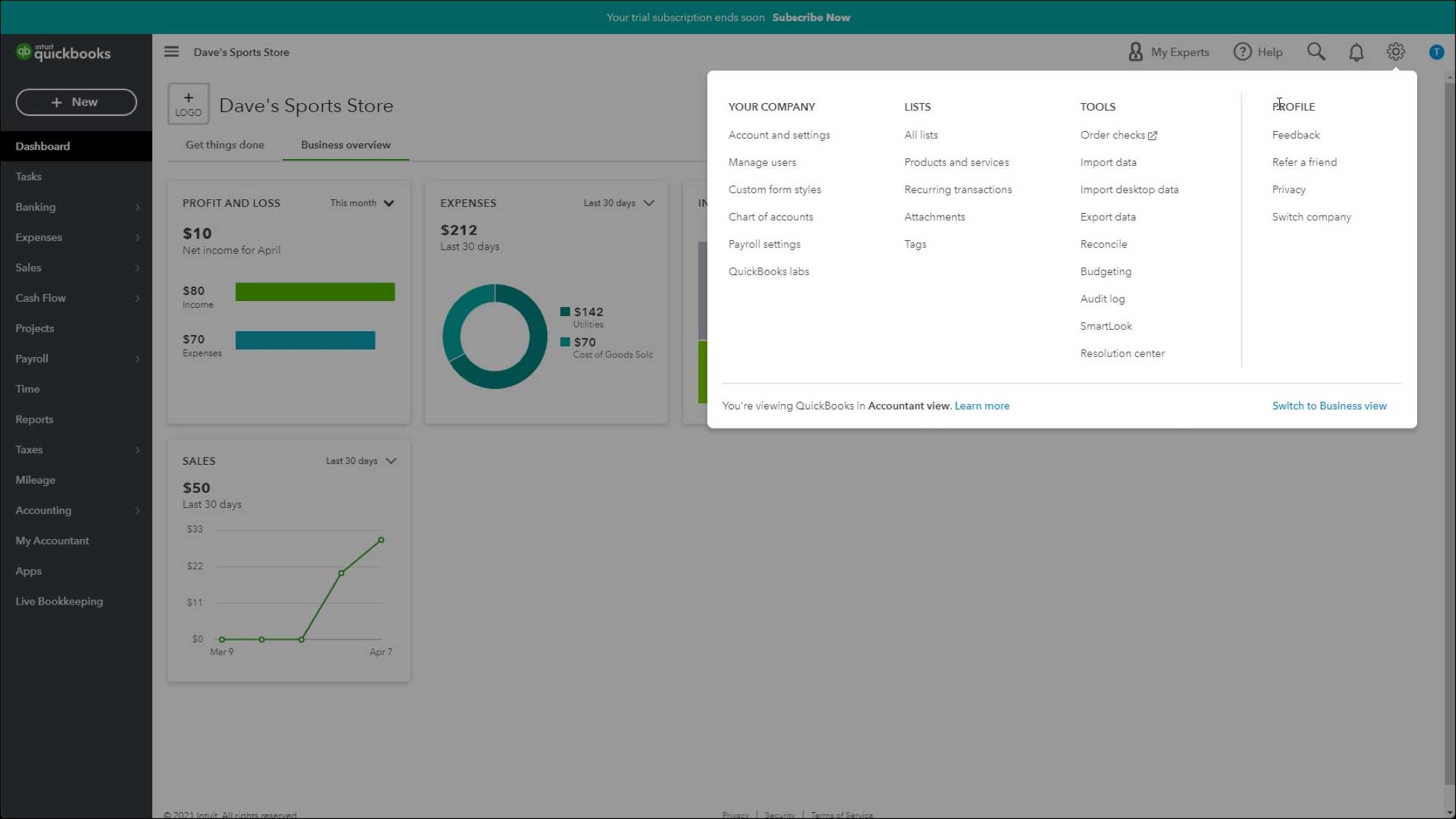
Go to Edit > Preferences > Tax:1099 > Company Preferences tab, and click the link to map accounts for Form 1099-NEC and Form 1099-MISC. The account mapping you set in the 1099 Wizard or Preferences directly determines which 1099 form box the payment amount lands in. For example, find your expense account for gift card purchases. If it is mapped to Box 1 for 1099-NEC in the account mapping settings, every payment using that account will automatically populate Box 1. This happens regardless of what you set on the vendor’s Tax Settings tab. The vendor-level “Eligible for 1099” checkbox only controls whether a vendor appears on the form at all. It does not override the account’s mapping. To understand how to undo accidental mapping changes on items, you can consult the hub for this topic: What Does Revert Mean In Quickbooks. But here, the fix is simpler: you change the tax-tracking type, not revert a previous action.
Changing the mapping on existing items
Go to Edit > Preferences > Tax:1099 > Company Preferences tab, click the mapping link, find the mis-mapped account, and change its 1099 box assignment to the correct one or remove it from 1099 reporting. This change applies only to transactions created after you save the item. It does not retroactively fix 1099 forms you have already filed. For those, you must issue corrected forms to the affected vendors. This ensures you are using the correct item mappings from the start. For any payments you cannot properly categorize with existing accounts, create a new expense account and map it to the correct 1099 box or exclude it from 1099 reporting. Reassign future payments to that new account.
The gift card trap and other common mis-mapped items
Gift cards, merchandise reimbursements, and rebates are classic examples of non-wage payments that default to 1099-NEC mappings. QuickBooks Desktop may map certain expense accounts to 1099-NEC Box 1 by default unless you tell it otherwise. When you create a new expense account, check its 1099 mapping in the 1099 Wizard or Preferences. This causes gift cards to appear in Box 1 even when the vendor is a plumber or a retail store. Other common culprits include expense accounts named “Supplies,” “Reimbursement,” or “Shipping,” if you accidentally mapped them to a 1099 box. To audit your Item list, run a 1099 report by going to Reports, then Vendors, then 1099 Report. Review the amounts for each vendor. Then, review your account mappings in the 1099 Wizard or Preferences for accounts mapped to Box 1 or Box 3. Change them to not report on 1099s as described above. For employee-specific non-wage payments, you need to categorize employee gifts in quickbooks separately, using payroll or other non-1099 accounts. Finally, if you need to adjust global defaults, check the settings in quickbooks desktop under Edit, then Preferences, then 1099. Remember that item-level mappings always take precedence over any preference setting.
Unlike other guides that tell you to start on the vendor record, this page shows you that the vendor screen is powerless against a single item’s tax-tracking type, and the fix lives entirely inside the Item List. For a deeper understanding of how these choices interact with your broader workflow, explore the QuickBooks Desktop settings that govern both transactions and tax reporting.