When your stylus starts missing strokes, feeling rough on the screen, or leaving visible flat spots, it’s time to replace stylus tip. A worn tip doesn’t just hurt accuracy, it can also scratch your display, so swapping it out restores both precision and protection. Even a passive stylus wear and failure can degrade your experience over time. Below are the exact steps for the three most common active stylus models.
When to replace your stylus tip
Check your tip regularly for these three signs that it’s worn and needs replacing:
- Loss of precision: Lines look wobbly, letters skip, or taps land off-target.
- Visible wear: The tip looks flattened, rough, discolored, or has a shiny patch from friction.
- Screen scratching risk: If you hear a scraping sound or see fine scratches on your display, the tip has worn through its protective layer.
Ignoring these signs makes every drawing, note, or navigation harder and can permanently damage your screen. Replacing the tip early is a five-minute fix that keeps your stylus working like new.
How to replace an Apple Pencil tip
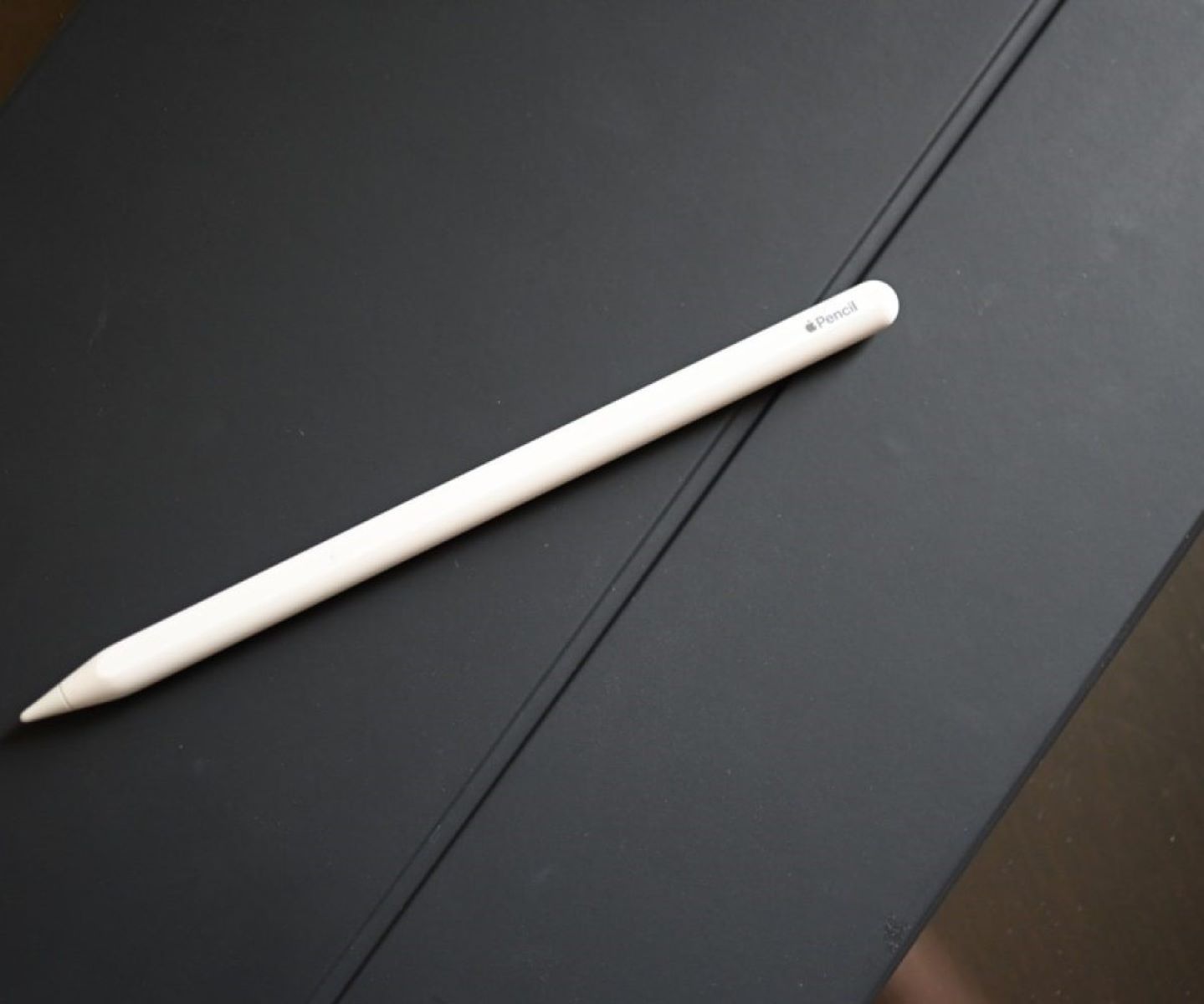
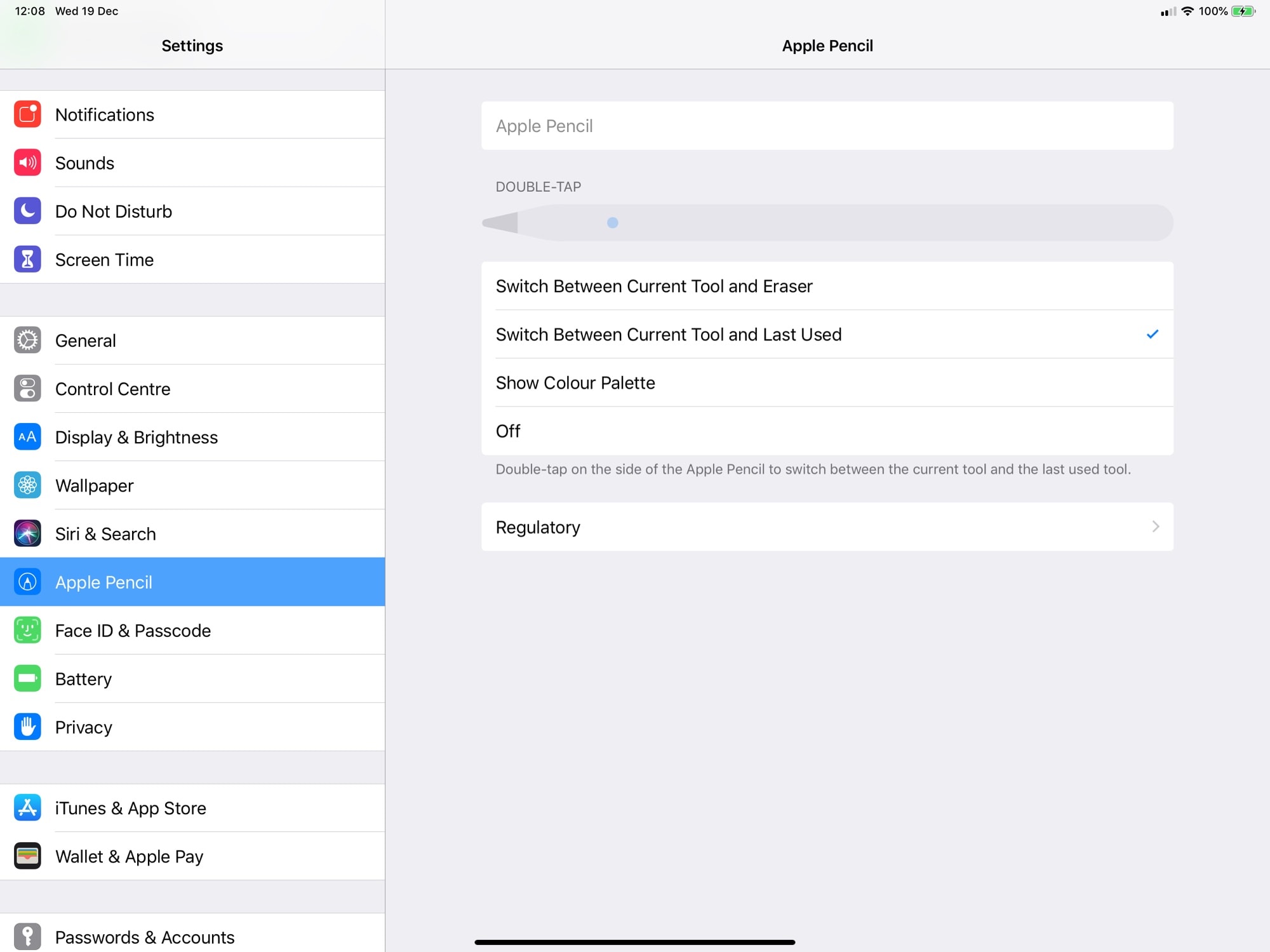
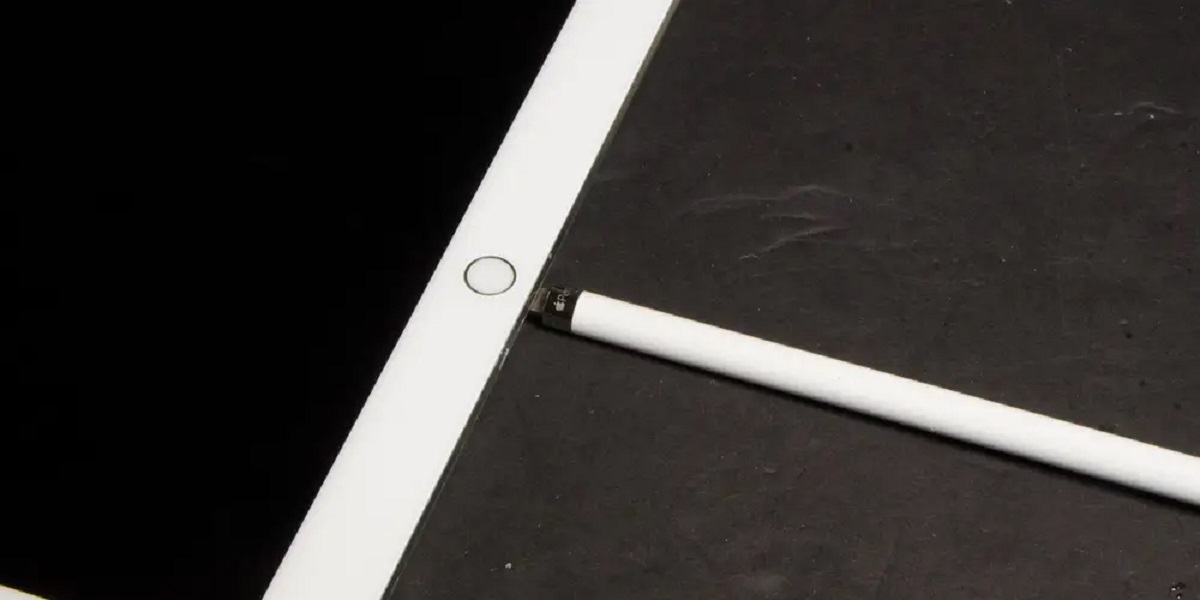
Apple Pencil tips are designed for easy user replacement, no tools needed. This works for both the 1st and 2nd generation Apple Pencil.
- Grip the worn tip firmly between your fingers.
- Unscrew it counterclockwise (turn left) until it comes off completely.
- Thread the new tip onto the pencil clockwise (turn right) until it is snug. Do not overtighten, just firm hand pressure is enough.
Replacement tips come in a 4-pack from Apple’s website, Apple Stores, or major retailers like Best Buy and Amazon. Always buy genuine Apple tips to ensure a proper fit and pressure sensitivity.
How to replace a Microsoft Surface Pen tip
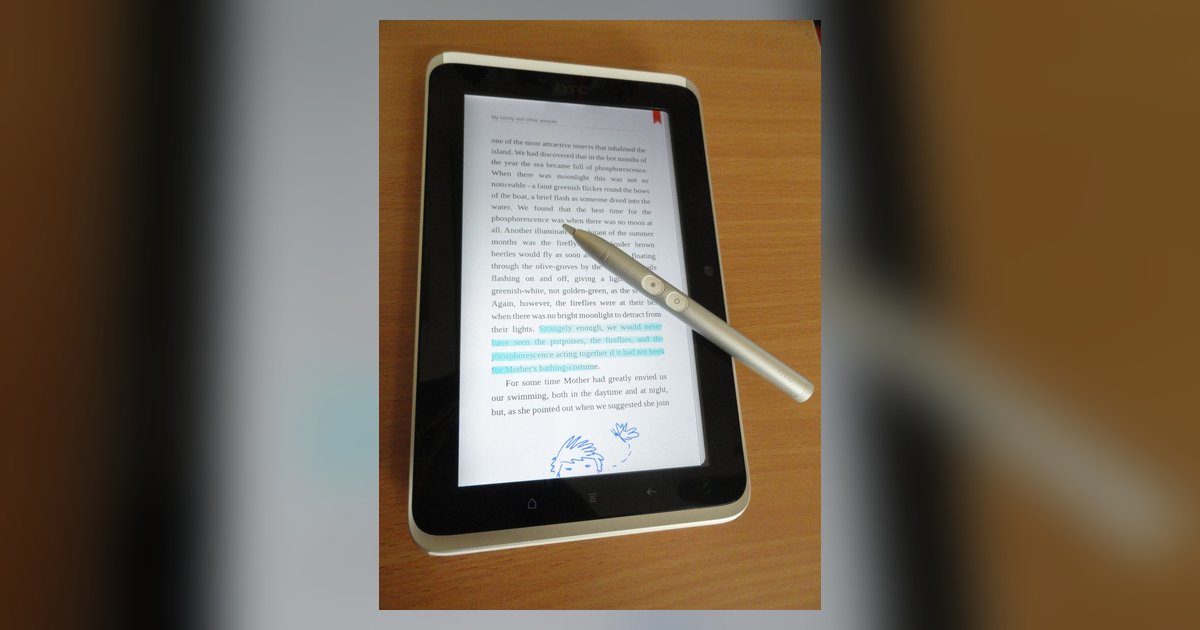
Surface Pen tips use a push-and-pull mechanism rather than threads. This applies to Surface Pen models with no clip, a single button on the flat edge, and the Surface Slim Pen.
- Use tweezers or a similar small tool to grip the old tip firmly.
- Pull and slide the tip out until it is entirely removed from the pen.
- Take the replacement tip and insert its thinnest part into the pen opening.
- Push the tip in until it locks into place with a click or firm seating.
Critical warning: Microsoft states that excessive removal and reinsertion cycles, 500 or more, can damage internal parts and lead to inking failures. These failures are not covered under the product warranty. So replace the tip only when needed, and avoid repeatedly testing removal.
How to replace a Samsung S Pen nib
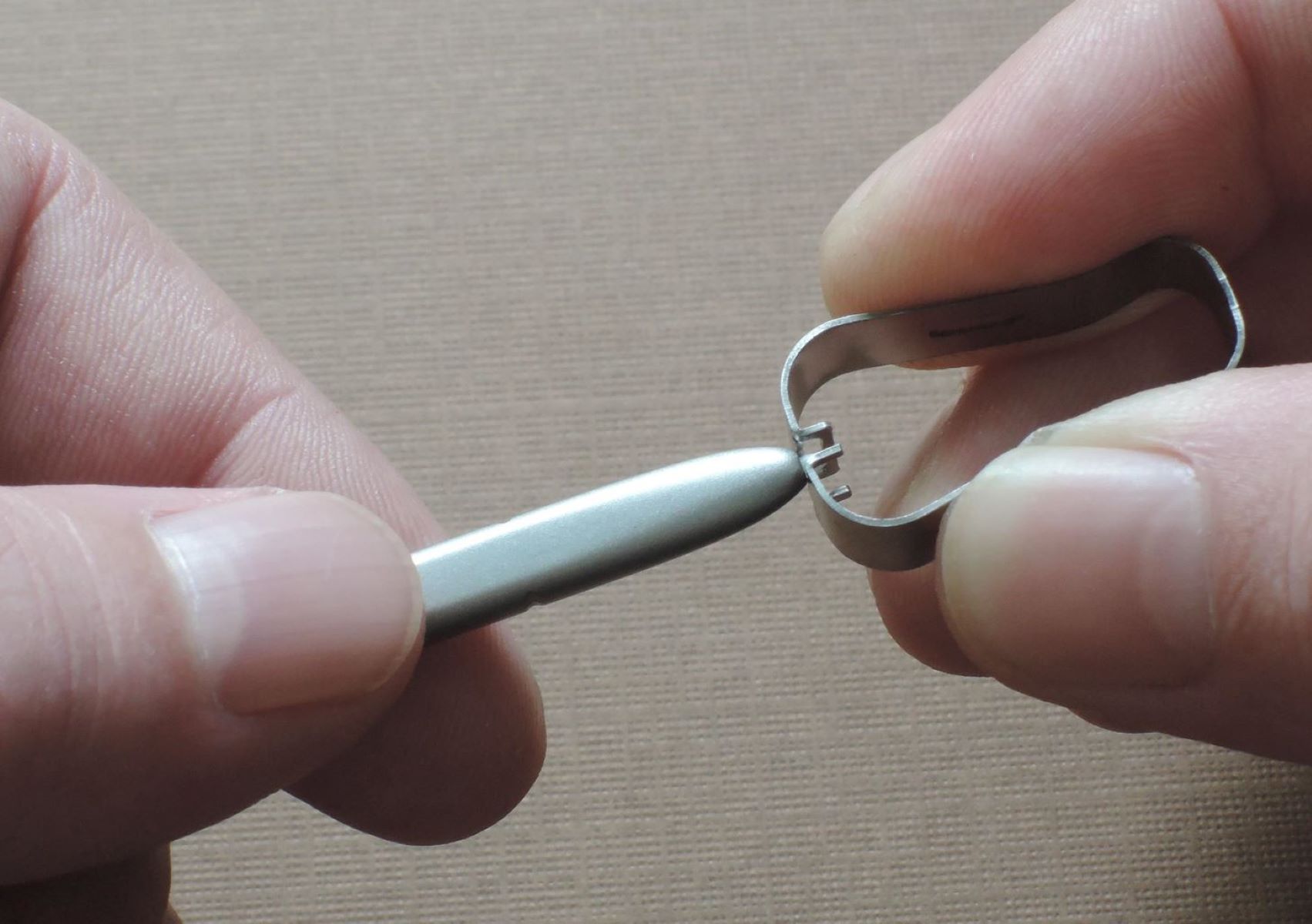
Samsung includes a pair of tweezers with most S Pen devices specifically for nib replacement. The S Pen uses a friction-fit nib that pulls straight out.
- Firmly hold the old nib with the provided tweezers.
- Gently pull the nib straight out of the S Pen. Do not twist or yank.
- Take the new nib and insert it the correct way, the sharp end goes in first, not the round end.
- Push the nib in gently until it locks into place. You should feel it seat firmly.
Three things will damage your S Pen: reusing old nibs, pressing the nib excessively when inserting, and inserting the round end of the nib. Any of these can cause the S Pen to malfunction or break. Always use a fresh nib from the replacement pack and insert it with light, steady pressure.
Post-replacement check and care
After installing the new tip, test it on your device screen. Draw a few lines, write a sentence, and tap small buttons. The tip should feel stable, no wobble, and your input should register accurately at the exact point of contact. If you notice any looseness, remove the tip and reseat it following the steps above.
For stylus models not covered here, always check the manufacturer’s guide for your specific device. Some third-party styluses use proprietary tips or require different removal methods. When in doubt, consult the official documentation before forcing anything. If you find yourself without a replacement tip, you can explore tablet stylus alternatives for temporary touchscreen navigation. A proper replacement takes less than a minute and keeps your stylus, and your screen, in top condition for connecting and using a stylus pen.