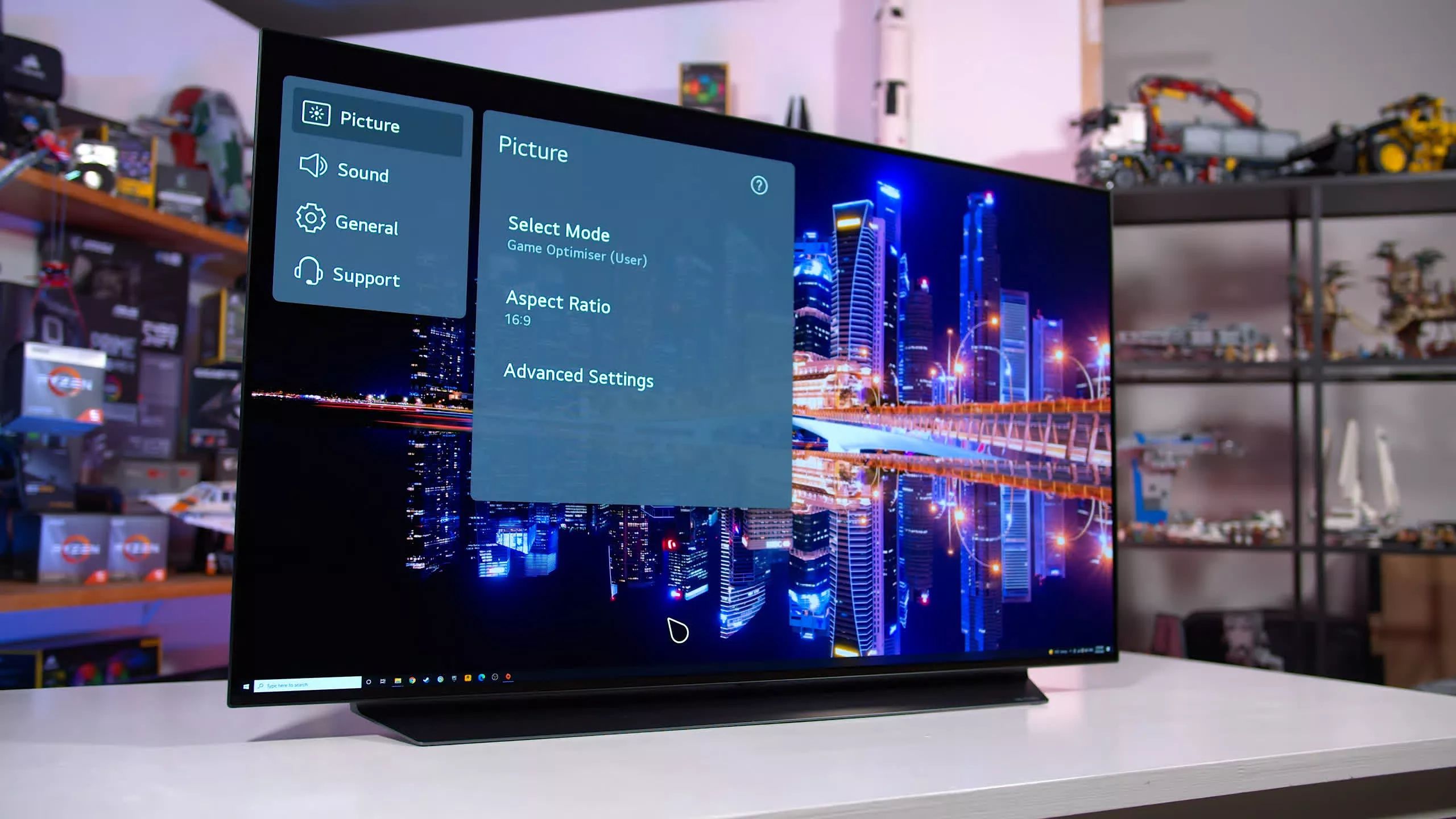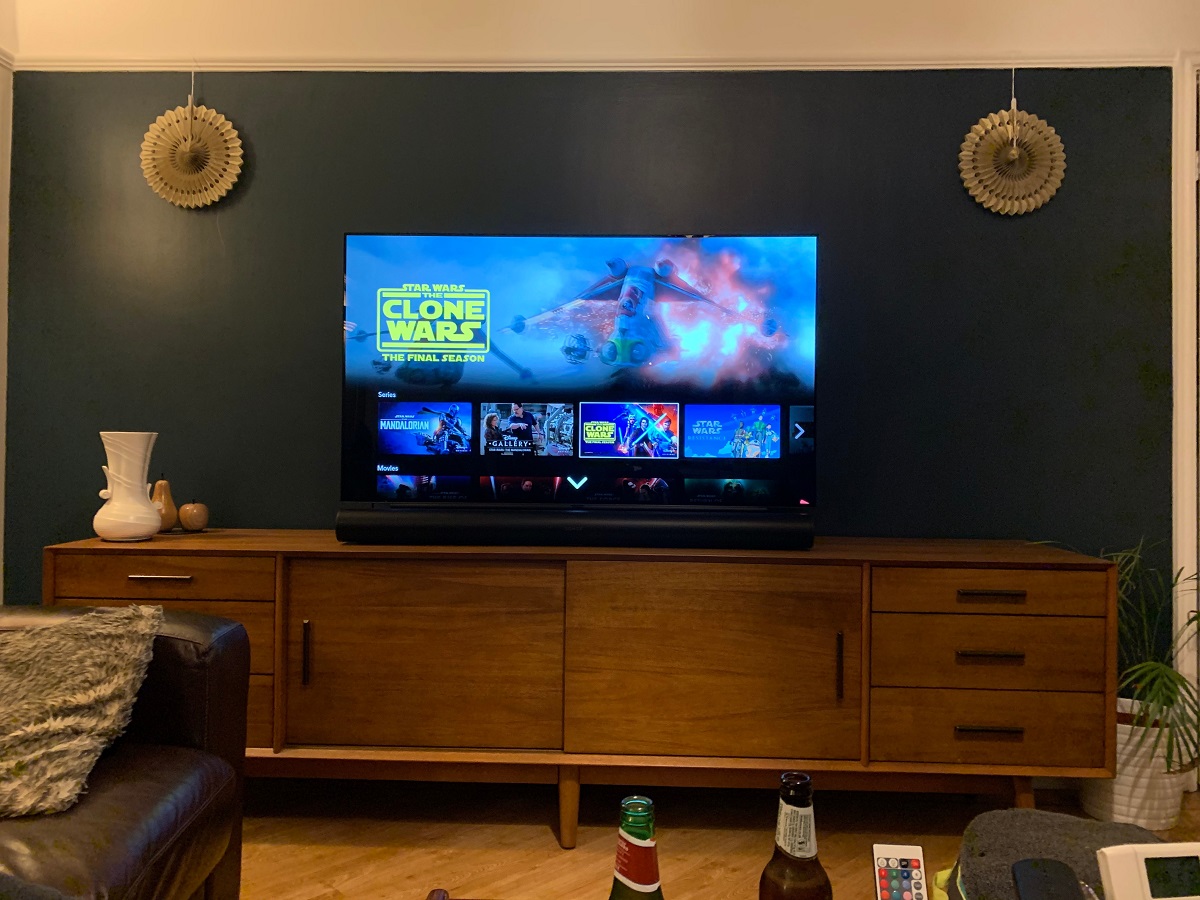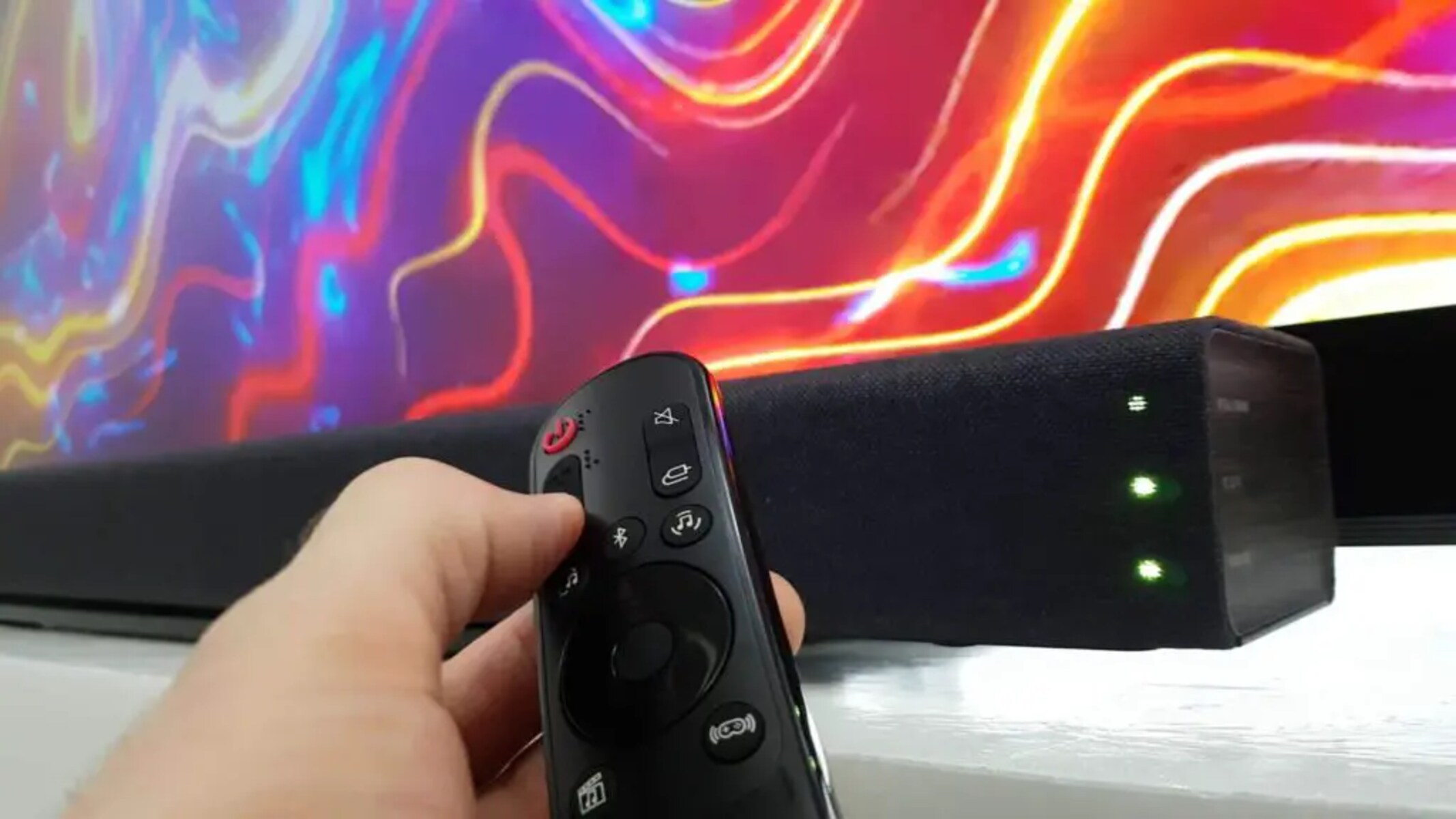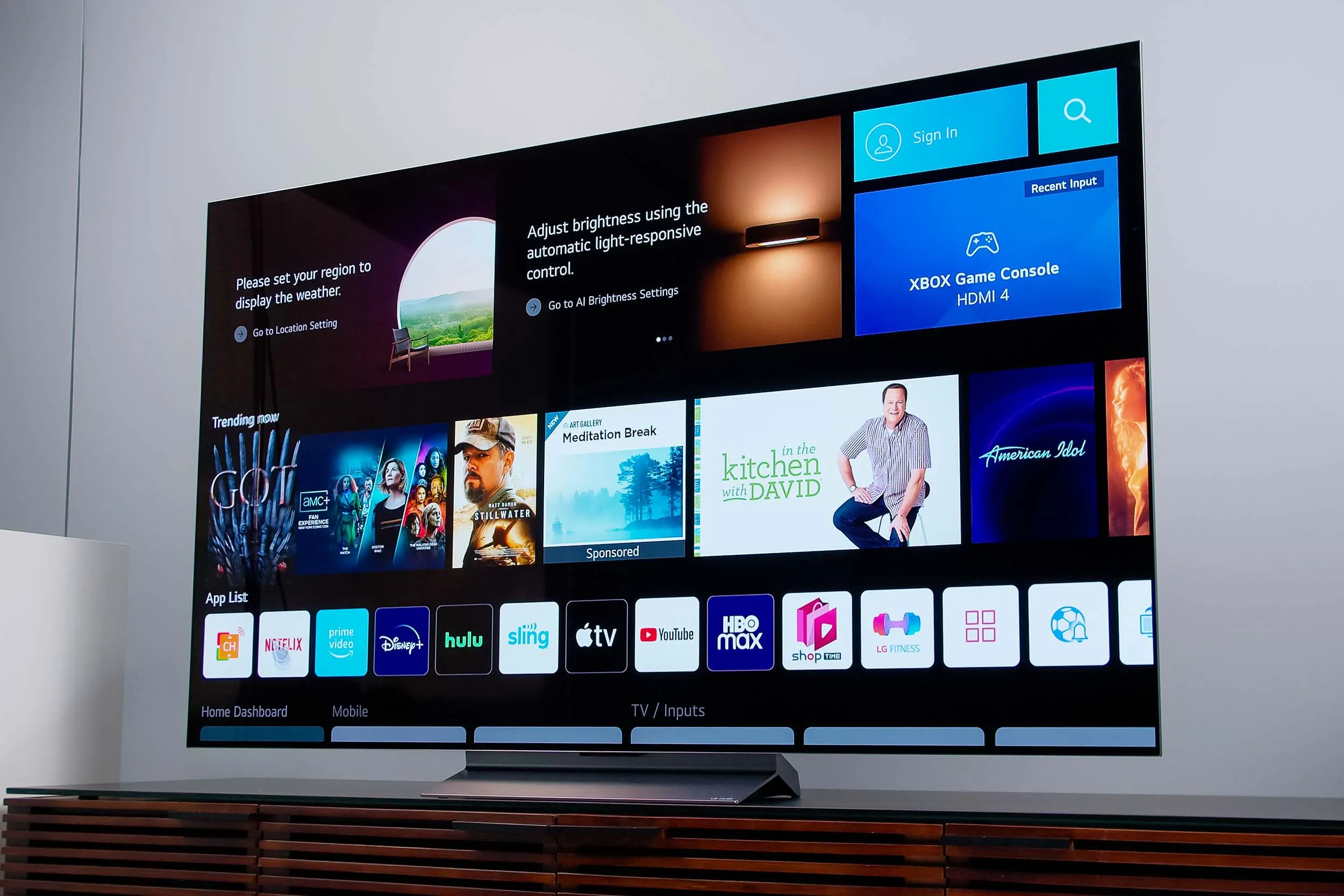
To adjust sound on your LG OLED TV, press the Settings (gear icon) button on your remote control, then select the volume or sound options from the Quick Settings menu. For full control over all audio features, open the Quick Settings menu and choose "All Settings" to access the complete sound configuration panel, where you might also schedule maintenance like an LG OLED TV pixel refresh duration.
Adjusting the volume and choosing a sound mode
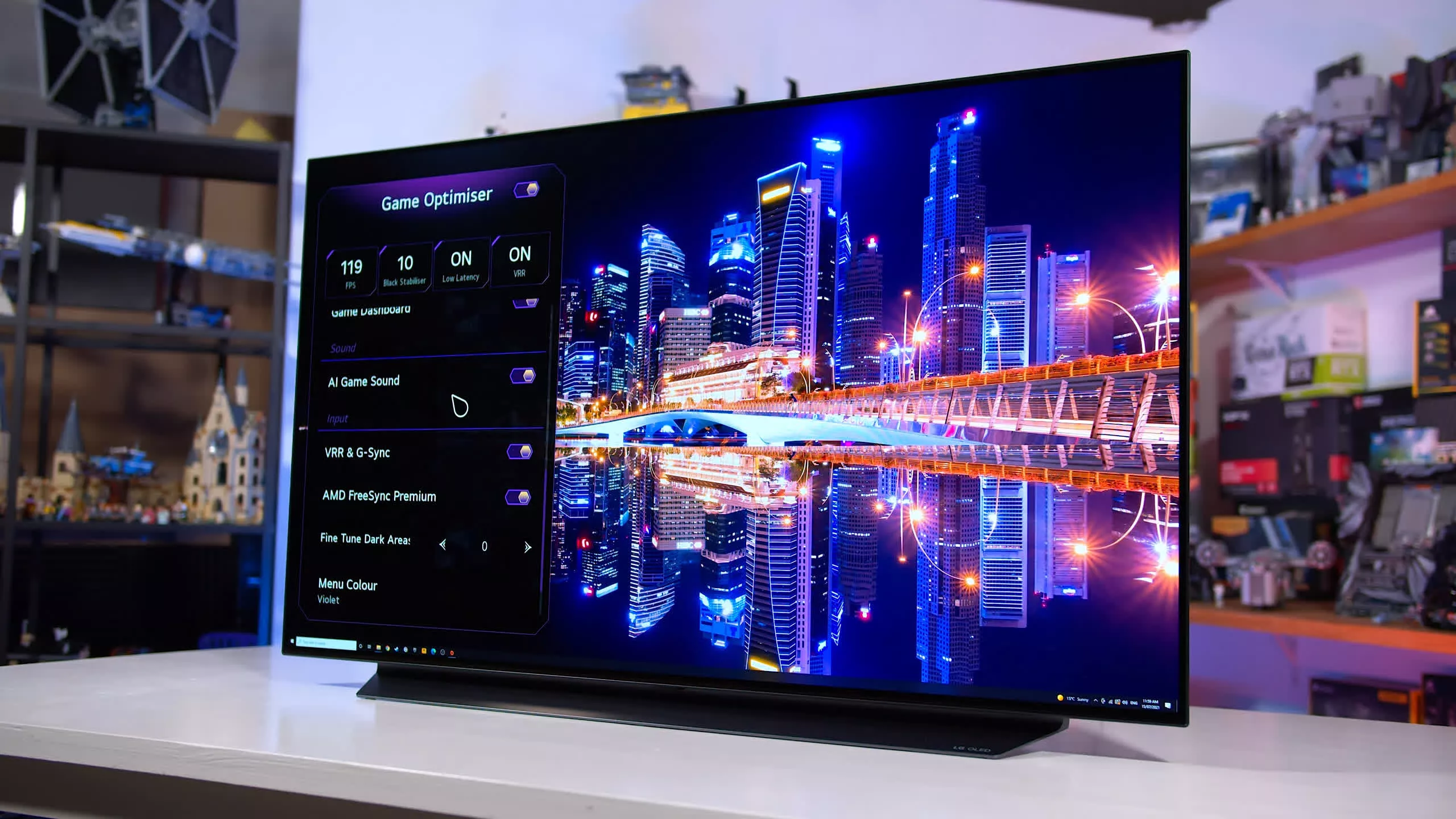
The most immediate way to control audio is using the volume up and down buttons on your remote. For a more tailored listening experience, LG OLED TVs offer preset Sound Modes that optimize audio for different content types. To change the Sound Mode, navigate to "Sound" and then select "Sound Mode" from the "All Settings" menu. Available modes include Standard, Cinema, Sports, Music, Clear Voice Pro, and Game Optimizer. Standard provides balanced audio for everyday viewing, while Cinema enhances dynamics and spatial effects for movies. Sports mode amplifies crowd noise for a live-event feel, and Game Optimizer reduces input lag and emphasizes positional audio for gaming. Experiment with these presets to match your content and personal preference.
Enabling AI Sound Pro for automatic optimization
If you prefer the TV to handle audio adjustments automatically, AI Sound Pro uses deep learning to analyze content genre and optimize sound in real time, providing realistic surround effects without manual intervention. To enable AI Sound Pro, go to "All Settings" → "General" → "AI Services" → "AI Sound Pro" and set it to "On." When AI Sound Pro is enabled, manual Sound Mode adjustments are automatically disabled as the TV takes over optimization. This feature is ideal for viewers who want a set-and-forget solution that adapts to whatever they are watching, from dialogue-heavy dramas to action-packed blockbusters.
Switching the sound out to external speakers
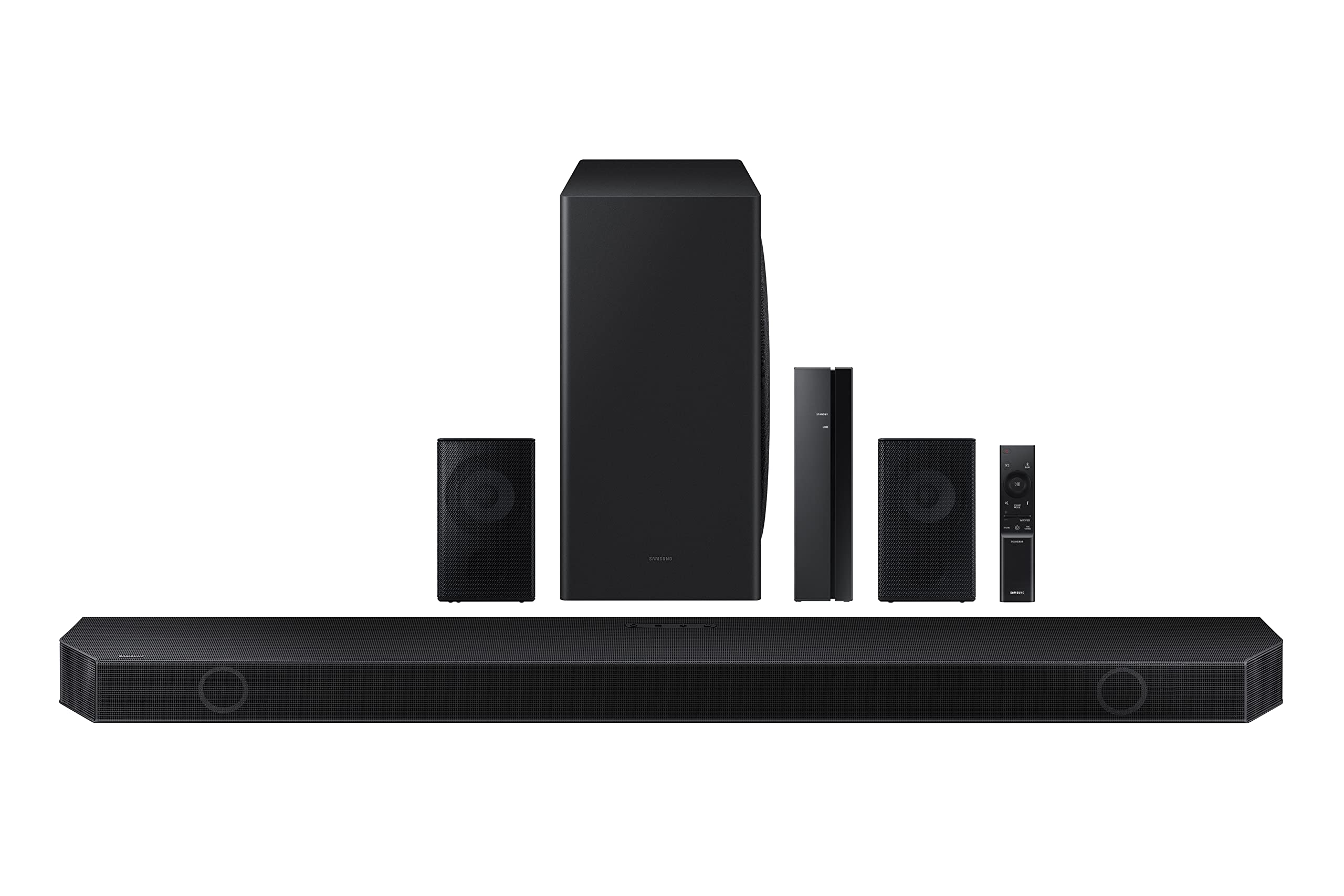
To route audio to a soundbar, home theater system, or headphones, use the Sound Out menu. Navigate to "All Settings" → "Sound" → "Sound Out" and select between "TV Internal Speaker," "Use Wired Speaker" (for optical or HDMI ARC), or "Use Wireless Speaker" (for Bluetooth). For external wired speakers, select "Optical Digital Audio Output" or "HDMI/ARC" under "Sound Out" and choose "PCM" for simple stereo systems or "Auto" for Dolby 5.1 systems. Note that current LG Televisions do not support DTS Audio output, so if your external device relies on DTS, you may need to adjust its settings or choose a different audio format. If you own a compatible soundbar, "Sound Mode Sharing" allows the soundbar to share the TV's sound mode, but this requires the soundbar to support the feature and is generally available on webOS 22 (2022 models) and later. This integration ensures consistent audio processing between the TV and external speakers.
Customizing audio with equalizer and virtual surround
For fine-grained control over tonal balance, the Equalizer lets you adjust bass, midrange, and treble frequencies. Access it from the Sound settings menu and move the sliders to emphasize or reduce specific ranges, boost bass for action scenes or raise midrange for clearer vocals. To create a wider, more immersive soundstage from the TV's built-in speakers, toggle Virtual Surround on. This feature simulates a multi-channel audio setup, adding depth and spatial cues that make sound feel like it is coming from multiple directions. While not a replacement for a dedicated surround system, it is a useful enhancement for everyday viewing without additional hardware.
Enabling Dolby Atmos for immersive audio
If your LG OLED TV supports Dolby Atmos, enabling this feature delivers a three-dimensional sound experience by placing audio objects in a virtual 3D space. To activate it, go to the Sound or Audio settings in the "All Settings" menu and turn on Dolby Atmos. For the effect to work, you must play content that is encoded with Dolby Atmos audio, streaming services like Netflix, Disney+, and Amazon Prime Video offer select titles with Atmos support. Once enabled and paired with compatible content, the TV reproduces overhead and directional sounds that make scenes feel more realistic. Note that Dolby Atmos may require an HDMI ARC or eARC connection to a compatible soundbar or AV receiver for full effect, though some built-in speaker configurations can also simulate the experience, especially after you install LG OLED TV stand to ensure the TV’s speakers are properly positioned.
Troubleshooting no sound or audio issues
If you encounter no sound or low volume, start by checking the TV's mute status and volume level, as well as the volume of any connected external devices like set-top boxes. Verify that audio cables are securely connected and that the correct Sound Out option is selected. For persistent problems, run the built-in diagnostic tool. On older webOS versions, find "Sound Test" under "All Settings" → "Sound" → "Sound Test." On newer webOS versions, navigate to "All Settings" → "General" → "OLED Care" → "Device Self Care" → "Sound Self-Diagnosis." This test plays a tone through the speakers to confirm whether the hardware is functioning correctly. If the test reveals no issue, the problem likely lies with the source content or external connections. For audio delay or lip-sync issues, look for an "Audio Delay" or "Lip Sync" adjustment in the Sound settings. If problems persist after these checks, consult your TV's user manual or contact LG support for model-specific guidance. Understanding your LG OLED TV settings thoroughly will help you resolve most audio problems quickly and get back to enjoying your content.