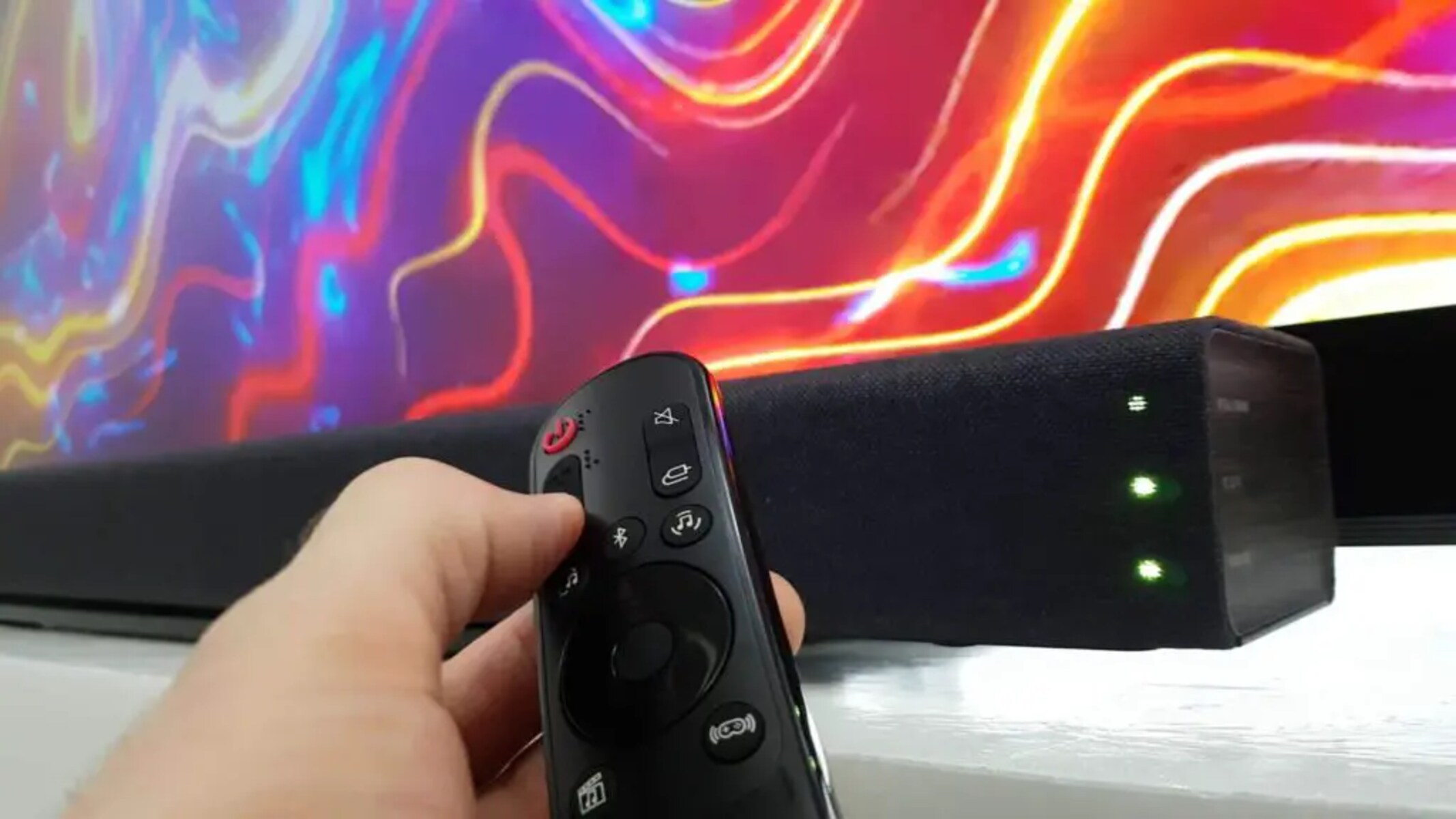
To control a soundbar with an LG TV remote, you need to enable HDMI-CEC (called SIMPLINK on LG TVs) or set up the Magic Remote as a universal remote. These two methods let you adjust volume and power without juggling multiple remotes, starting with connecting a soundbar to your TV via HDMI ARC/eARC or optical cable.
How to control a soundbar with an LG TV remote: First steps
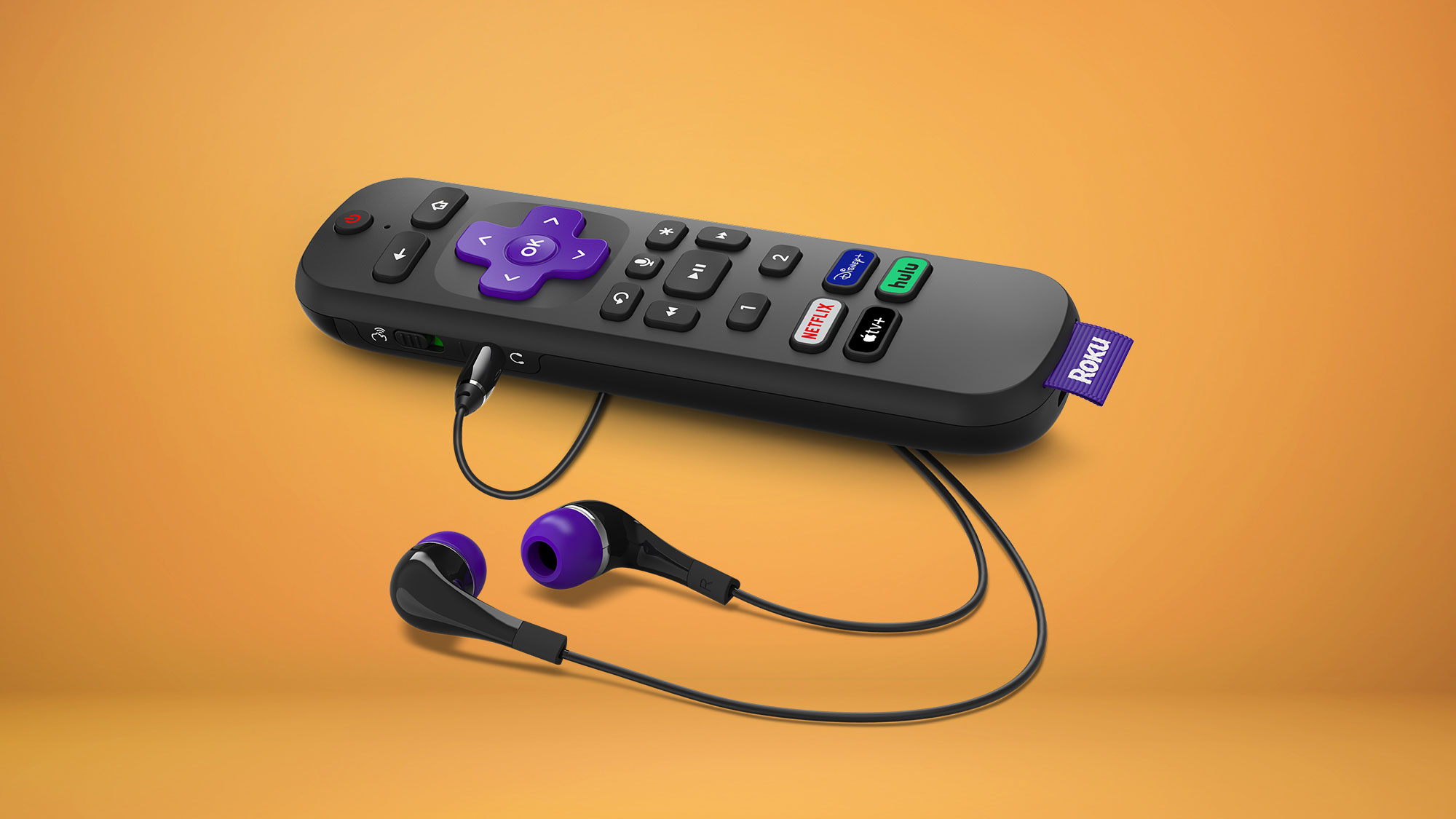
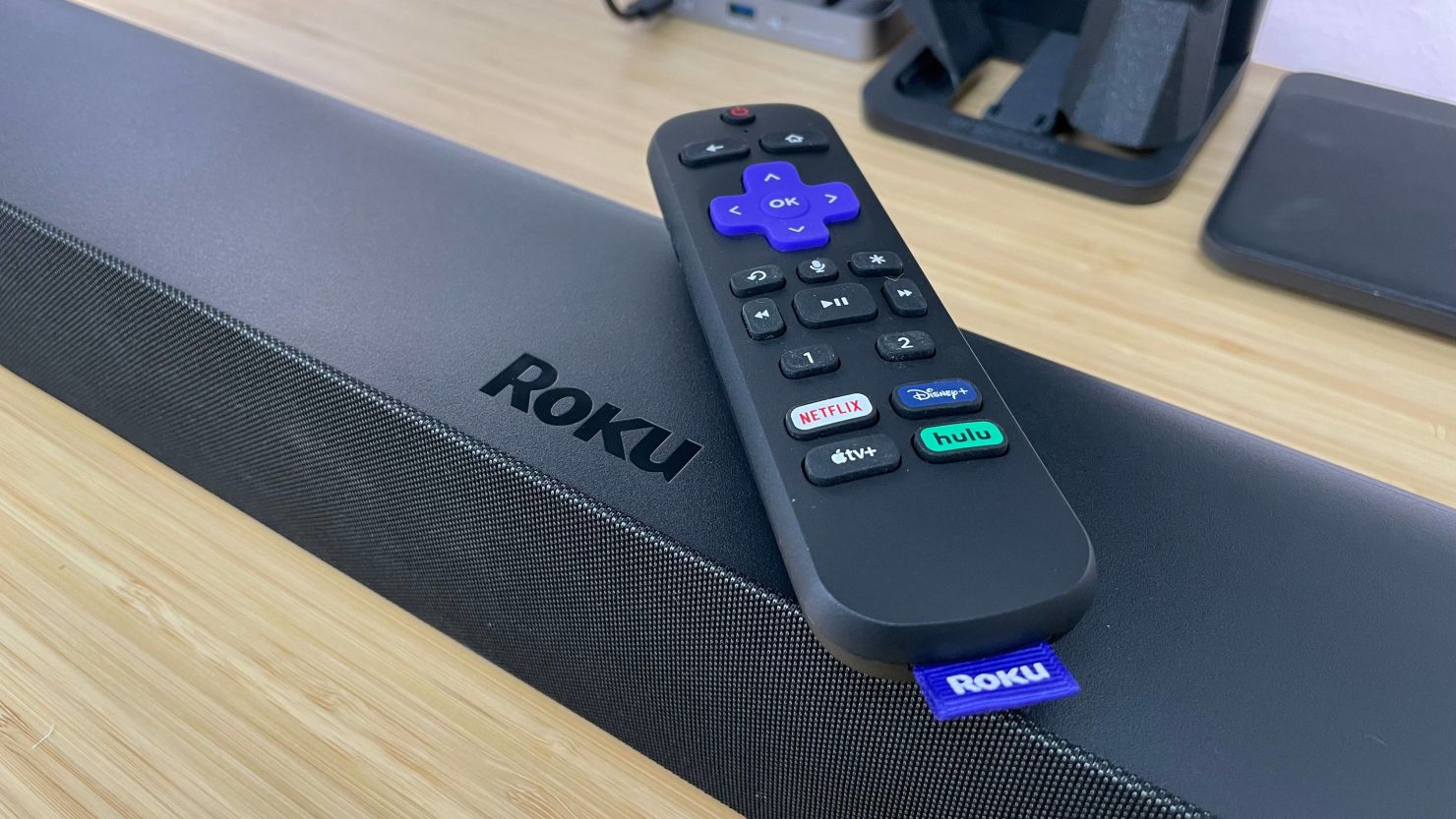
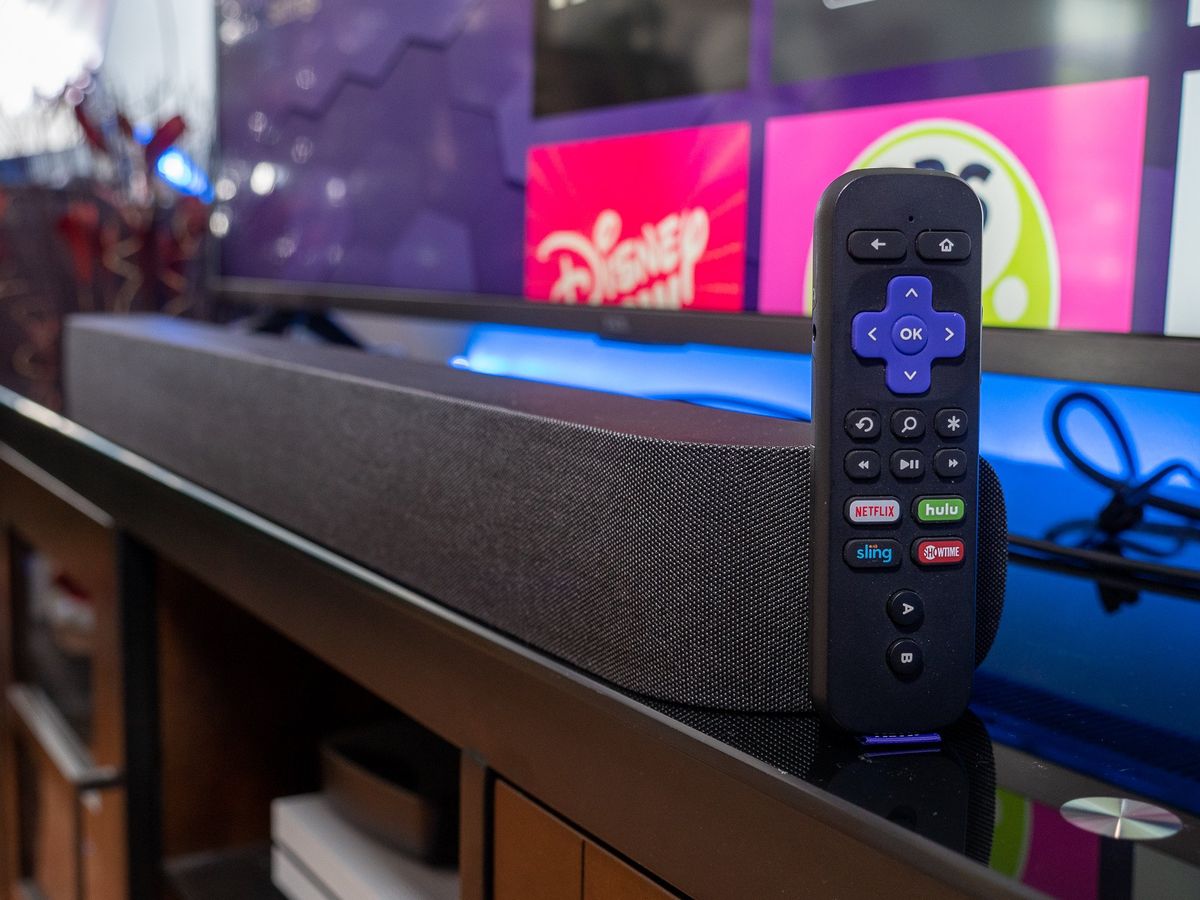
Two primary methods exist for controlling a soundbar with your LG TV remote: using HDMI-CEC (SIMPLINK) for basic power and volume control, or configuring the LG Magic Remote as a universal remote for full functionality. Both methods begin with physically connecting your soundbar to the TV. For HDMI control, plug the soundbar into the TV's HDMI port labeled ARC or eARC using a High-Speed HDMI cable that supports CEC. If your soundbar lacks HDMI-ARC, you can program a Roku remote to a soundbar as an alternative control method. Ensure both devices are powered on before proceeding.
Enable SIMPLINK (HDMI-CEC) on your LG TV
This critical, often-missed step turns on LG's HDMI-CEC feature, SIMPLINK, which allows basic control over HDMI-connected devices. Press the Settings button on your remote, go to [All Settings], then [Connection], and set [Auto Device Setup] to On. Alternatively, locate the SIMPLINK settings in your TV's user manual and enable it there. With SIMPLINK active, your LG TV remote can control the soundbar's power on/off, volume, and mute functions over the HDMI connection.
Set the soundbar as your TV's audio output
Press the Settings button on your remote, navigate to [All Settings], then [Sound], and select [Sound Out]. For HDMI-connected soundbars, choose the HDMI ARC or eARC option. For optical connections, change the setting to [Optical Out Device]. Always ensure the soundbar itself is set to the correct input function (e.g., HDMI, Optical, or Bluetooth) to receive audio from the TV. This step routes all TV audio through the soundbar and enables remote control. If you later want to fine-tune dialogue or night listening, adaptive sound on a Samsung soundbar adjusts audio modes automatically based on content.
Set up the LG Magic Remote as a universal remote
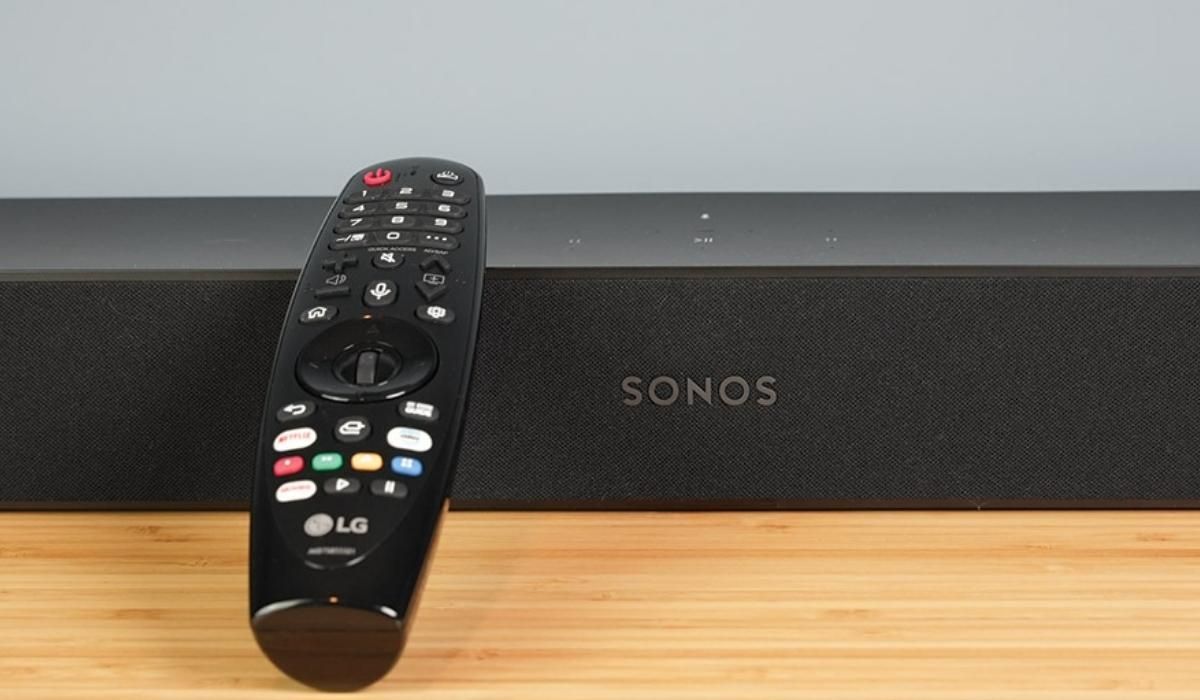
For full remote functionality beyond basic volume and power, use the Device Connector app on webOS. Press the [Home] button on the Magic Remote, launch the [Device Connector] menu, select [Sound Bar], then choose your connection method (HDMI, Optical, or Bluetooth). Follow the on-screen instructions to select the soundbar's manufacturer and model. This configures the Magic Remote to control additional features like input switching or sound modes, depending on your soundbar's capabilities.
Adjust volume and power with your LG TV remote
After setup, test the connection by pressing the volume up or down buttons on your LG TV remote, the soundbar's volume should change. The power button should also turn the soundbar on and off in sync with the TV. If you used SIMPLINK, these functions work automatically once enabled. If you used the universal remote setup, the Magic Remote now controls the soundbar directly. Confirm the soundbar responds consistently by adjusting volume through a full range and toggling power.
Troubleshooting common soundbar control issues
If volume control is unresponsive, first check that SIMPLINK is enabled in the TV's Connection settings. Re-run the Device Connector to re-pair the soundbar with the Magic Remote. If the soundbar volume is too loud at startup, disable the LG Sound Sync feature on the TV, reduce the actual TV sound volume, or both. For optical connections, ensure the TV's Sound Out is set to [Optical Out Device] and the soundbar is on the correct optical input. If problems persist, verify the HDMI cable supports CEC and is plugged into the ARC-labeled port.