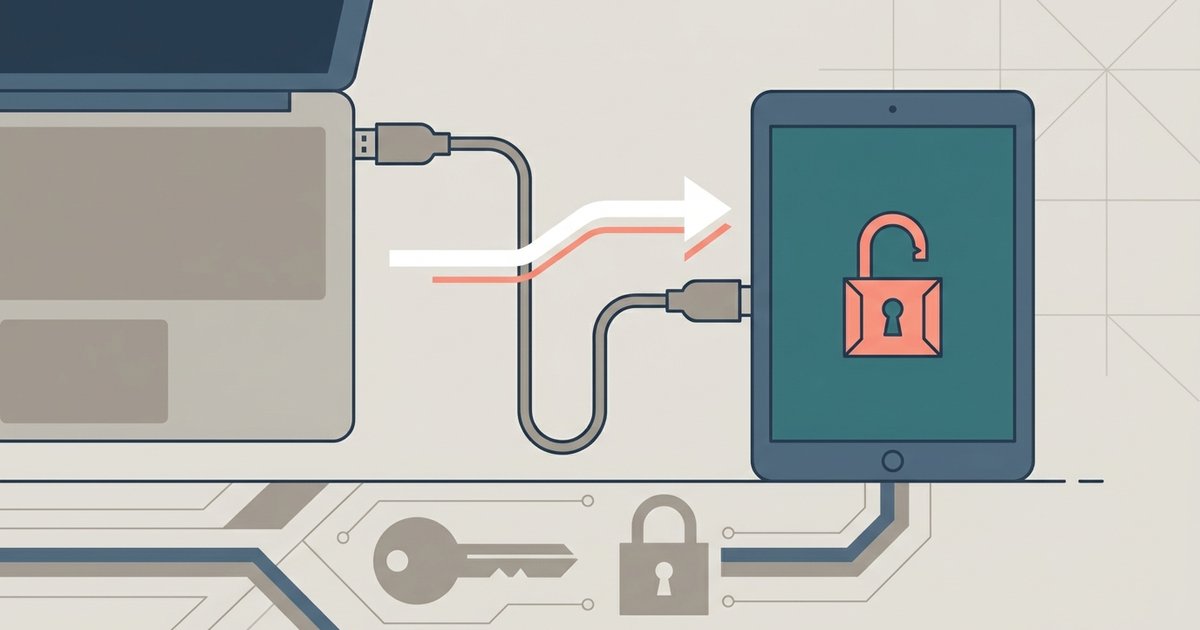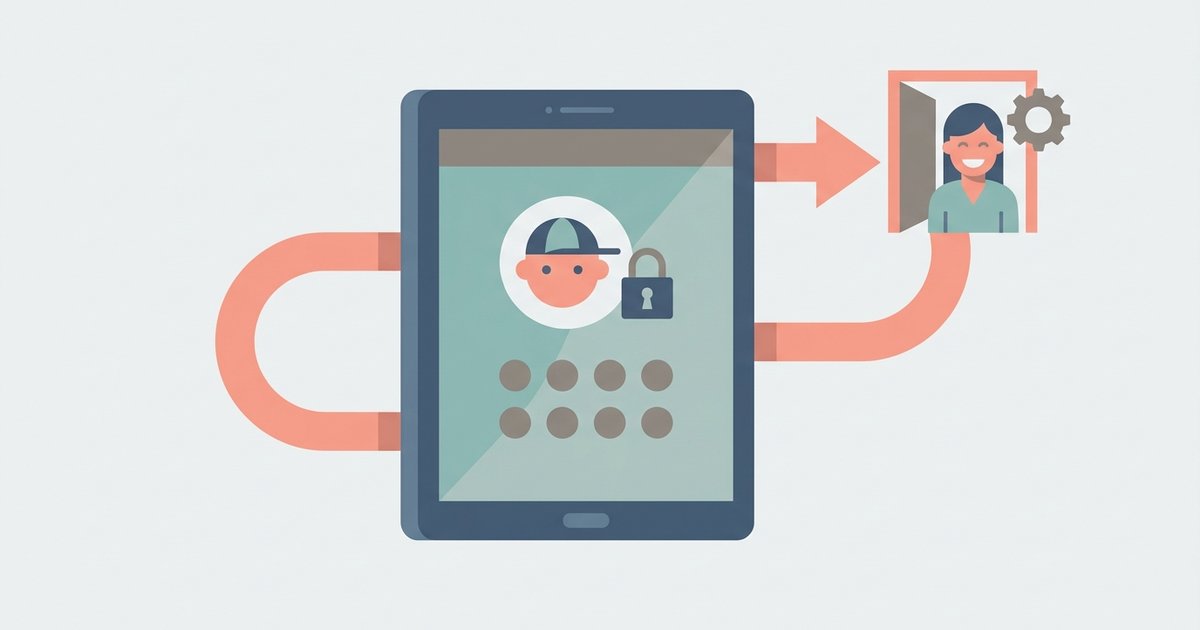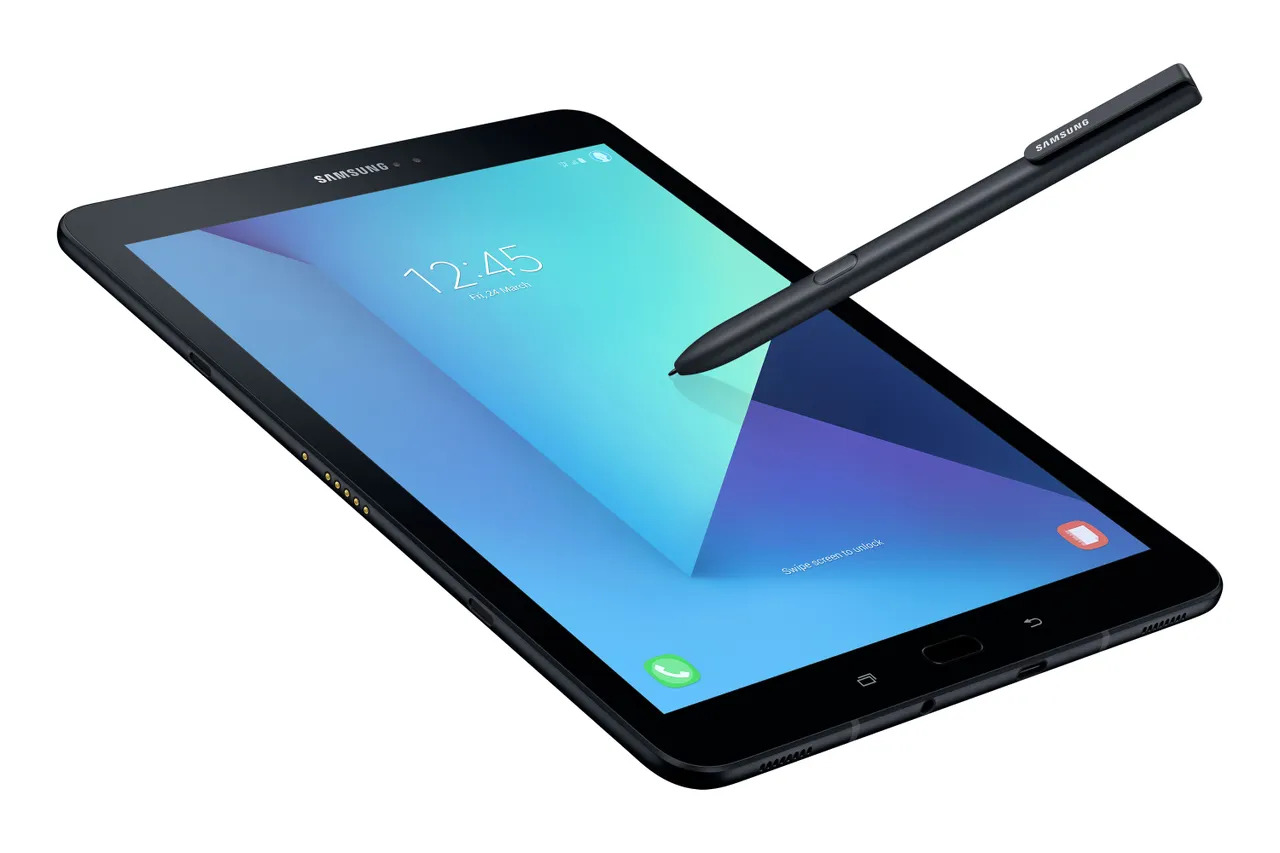
To unlock a Samsung tablet, simply wake the screen and enter your existing PIN, pattern, or password. If you’re locked out because you forgot it, your next best options are the on-screen “Forgot” button, Samsung SmartThings Find, or a factory reset from Recovery Mode, but before you wipe your data, you can unlock a Samsung tablet when you forgot the pattern without a full reset. If a work or school profile is blocking access, you may need to remove soti mobicontrol from Samsung tablet first. This guide covers every method, from the quickest normal unlock to the last-resort reset, so you can get back into your device as fast as possible.
How to unlock a Samsung tablet: The normal way
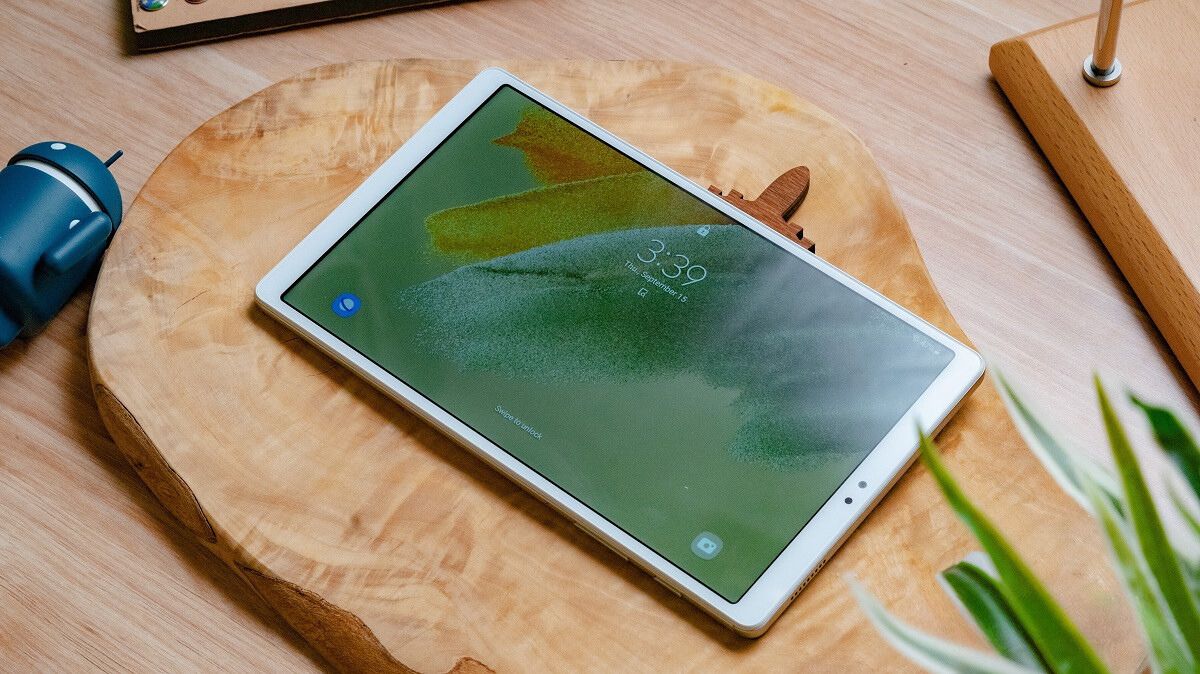
The most straightforward way to unlock a Samsung tablet is to press the power or home button to wake the display, then swipe up and enter the pattern, PIN, or password you set during initial setup. If you have biometric unlock enabled (fingerprint or face recognition), you can use that instead. This method works instantly for anyone who remembers their credentials, no extra steps, no data loss, just immediate access. If you’re reading this because you *don’t* remember your lock, skip ahead to the recovery options below.
Forgot your PIN, pattern, or password? Use these immediate on-screen options
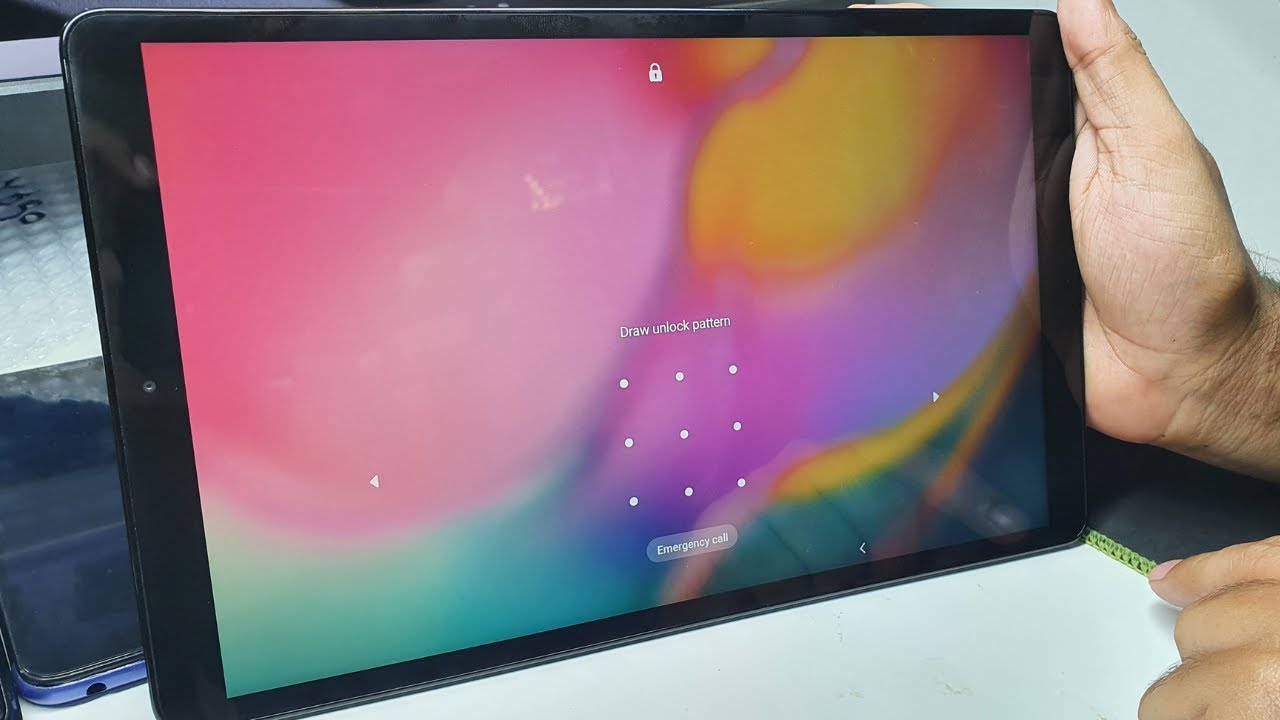
When you enter the wrong lock multiple times, Samsung tablets typically display a “Forgot” button on the lock screen. Tapping it lets you verify your Google account credentials (the Gmail address and password linked to the tablet). Once verified, you can set a new lock and regain access, this is the classic method for unlocking a locked tablet when you’ve forgotten your credentials. Note that this requires an active internet connection, and it works on most Samsung tablets running older One UI versions.
If you recently changed your PIN, pattern, or password and then forgot the new one, this option appears after several failed attempts. It lets you enter the *previous* lock method within 72 hours of the change. This is perfect for those moments when you just updated your lock and immediately forgot it, no Google account needed, just your old credentials.
Unlock your tablet remotely with Samsung SmartThings Find
If the on-screen options fail or you can’t remember your Google password, Samsung’s remote unlock service is your next best bet. To use it, your tablet must be powered on, connected to the internet (Wi-Fi or mobile data), and have “Remote unlock” enabled in its settings *before* it became locked. You can check this by going to Settings > Biometrics and security > Find My Mobile and turning on the “Remote unlock” switch. If you never enabled this, skip to the factory reset section below.
Assuming it’s enabled, here’s how to unlock remotely:
- Open a web browser on any device (phone, computer, or another tablet).
- Go to smartthingsfind.samsung.com.
- Sign in with the same Samsung account that’s linked to your locked tablet.
- Select your tablet from the list of registered devices.
- Click the “Unlock” option and confirm.
Within seconds, your tablet will receive the unlock signal and bypass the lock screen. This method is ideal if you have access to your Samsung account but not the device itself. Just remember: if you didn’t pre-enable “Remote unlock,” this won’t work, so always set it up in advance on any tablet you own.
Last resort: Factory reset your Samsung tablet from Recovery Mode
When every other method fails, a factory reset is the ultimate fallback. This completely erases all data, apps, photos, settings, everything, and returns the tablet to its out-of-box state. It’s the only way to hard reset Samsung tablet without password when you’re locked out and have no other recovery options. Before you proceed, understand that this is irreversible: any files stored locally will be gone forever. If you have a backup, now’s the time to make sure it’s safe.
To perform the reset:
- Power off the tablet completely.
- Press and hold the Volume Up and Power buttons simultaneously until the Samsung logo appears, then release.
- Use the volume keys to navigate the Recovery Mode menu.
- Select “Wipe data/factory reset” (or similar wording like “Delete all user data”).
- Press the Power button to confirm, then select “Yes” when prompted.
- Wait for the process to finish, then choose “Reboot system now.”
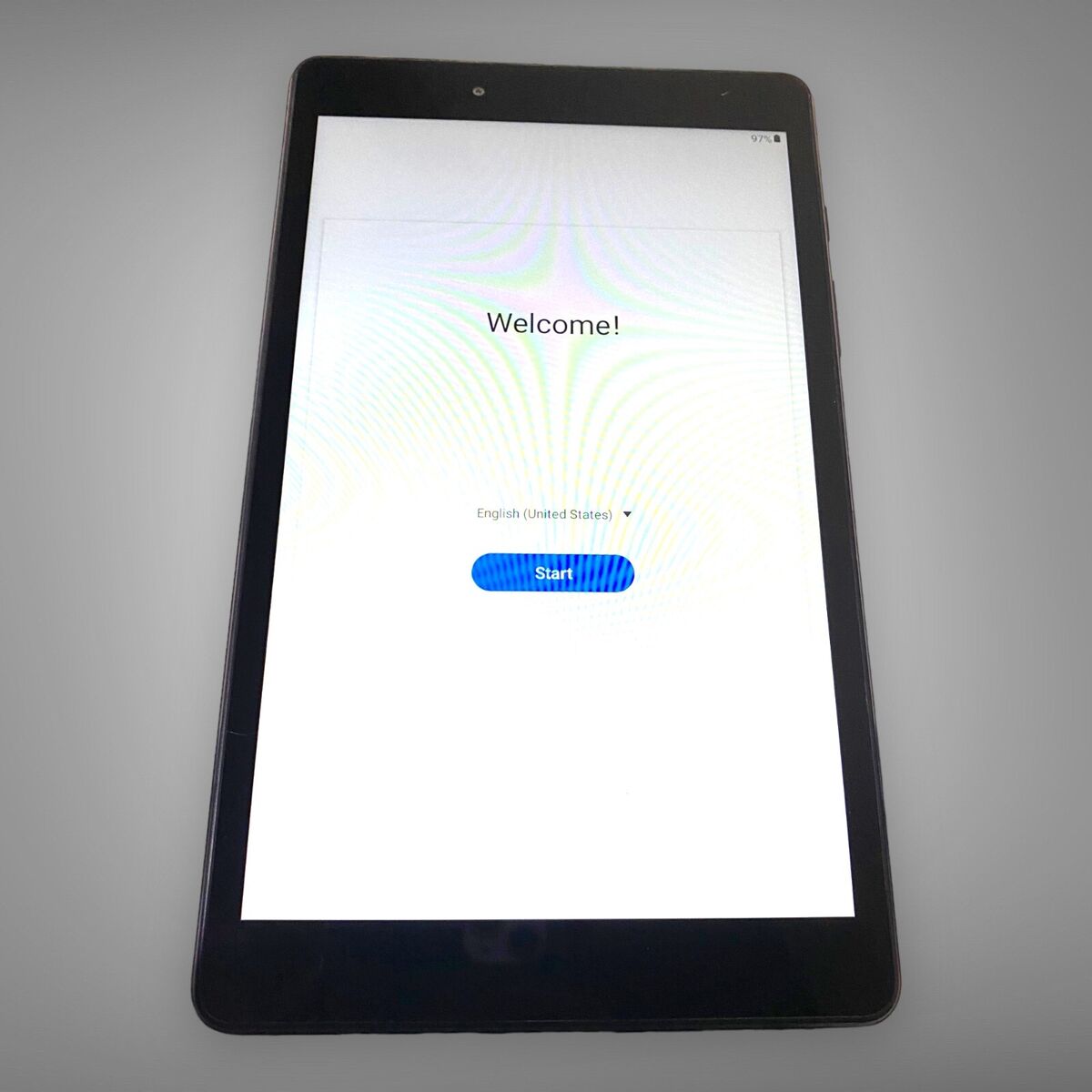
After the reboot, you’ll see the initial setup screen. But here’s the critical catch: if Factory Reset Protection (FRP) is enabled, you’ll need to sign in with the Google account that was previously linked to the tablet. Without those credentials, you’ll be stuck at the verification screen, this is a security feature designed to prevent thieves from using stolen devices. If you’re the original owner and remember the Google account, you’re fine. If not, you’ll need the next step.
For those who hit the FRP wall, check out our full guide on how to bypass Google account verification after reset, it walks you through the legitimate workarounds to regain access to your own device without losing your data permanently.
Still locked out? Contact Samsung for help
If you’ve tried everything, on-screen options, SmartThings Find, and factory reset, and you’re still locked out (especially due to FRP or a forgotten Google account), your final option is to contact Samsung directly. Visit a Samsung Service Center or reach out to Samsung Support, and they can assist with unlocking your tablet. Be prepared to provide proof of purchase (like a receipt or invoice) to verify you’re the rightful owner. This is the most reliable last resort for stubborn lockouts, and Samsung’s technicians have specialized tools to resolve issues that consumer methods can’t touch.
For the wider topic, see unlocking a locked tablet.