Change the overall resize chrome window size
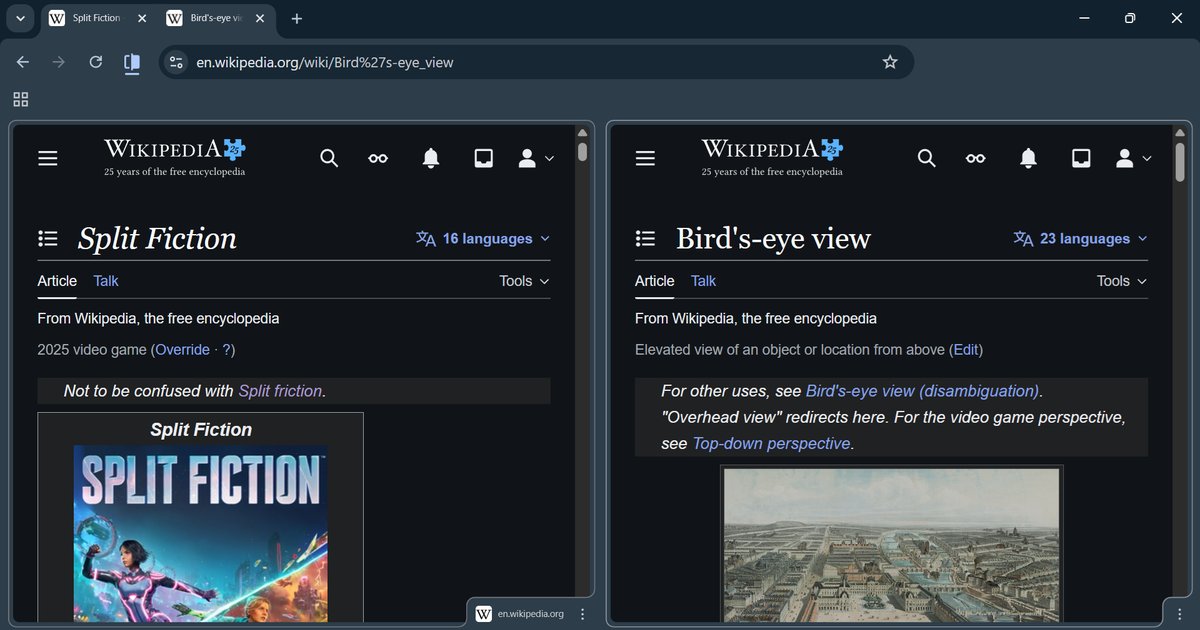
To resize Chrome window dimensions, start by dragging any edge or corner of the Chrome frame until the window is as large or small as you need. For a more precise approach, you can use your operating system's window snapping features, such as dragging the window to the screen edge or using keyboard shortcuts. If you prefer keyboard shortcuts, press Alt + Space to open the window menu, where you can use the arrow keys to adjust browser window size manually before pressing Enter. On a Mac, you can hold the Option key while clicking the green full-screen button to zoom the window to a larger size without entering full-screen mode. You can also resize the Google Chrome window by using the Windows key + left or right arrow for snapping, or Windows key + up arrow to maximize. Remember that these methods change the outer window dimensions only. The content inside, including tabs and bookmarks, will scale with the system display setting rather than a Chrome-specific zoom control.
Make tabs and toolbars readable
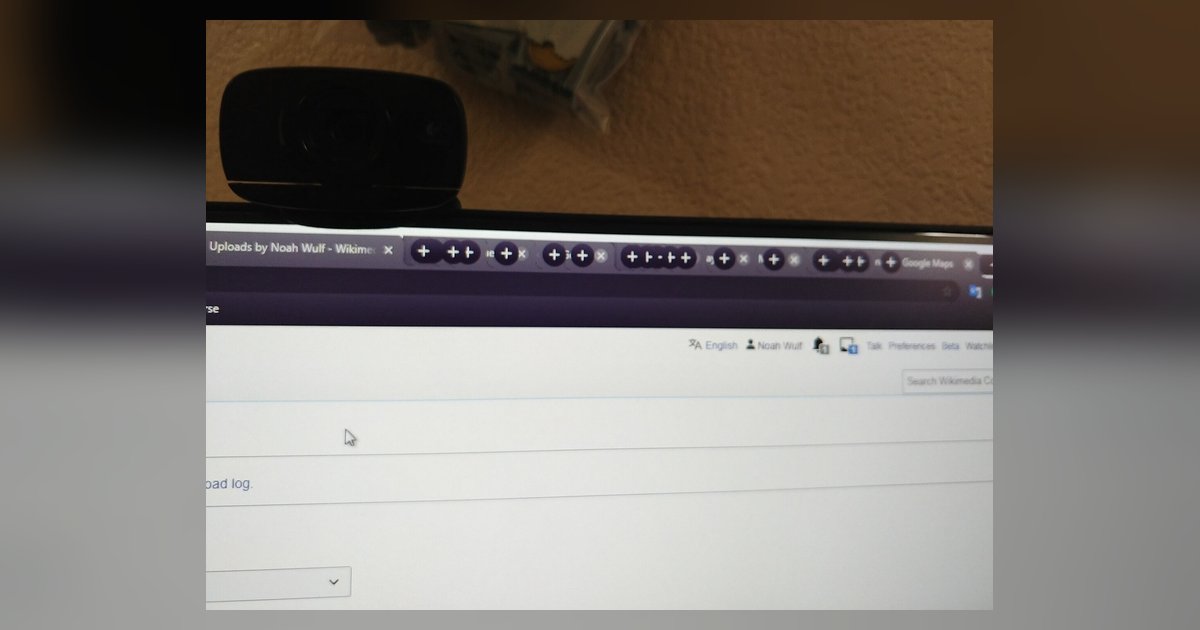
If you are using a high-resolution monitor, you might find that Chrome’s tab titles, bookmarks bar text, and toolbar labels appear uncomfortably small. Chrome does not offer a built-in zoom option for the browser chrome itself. The most reliable way to enlarge these elements is through your operating system’s display scaling settings. On Windows, go to Display Settings and increase the scaling percentage. A common starting point is 125% or 150%. On macOS, adjust the resolution in System Settings to a scaled option that makes text larger. For a more targeted approach, you can change font size in bookmarks toolbar in Chrome. That process often requires workarounds like editing system fonts rather than a simple toggle. If you are running an older or experimental version of Chrome, you might find relief by checking whether the Chrome touch UI layout flag in 2024 still functions on your specific build. This flag can enlarge tabs and toolbars, but it is not guaranteed to persist across updates. Similarly, a Chrome tabs too small on 4K monitor fix will return community tweaks. Be aware that most flag-based solutions are temporary and may disappear after a version update. Always verify your Chrome version before relying on any experimental flag.
Enlarge the tabs themselves
If your tabs feel cramped and hard to click, the most reliable path is to adjust your operating system's display scaling rather than hunting for a hidden Chrome toggle. On Windows, go to Settings > System > Display and increase the scaling percentage. This will enlarge everything, including the tab strip, without requiring any experimental flags. On a Mac, go to System Settings > Displays and choose a larger text option. You can also try a less stable approach. Type chrome://flags into the address bar, search for "tab scroll" or "touch layout," and enable flags like #scrollable-tab-strip or #top-chrome-touch-ui. These flags can directly increase tab size in Google Chrome, but they are experimental and may disappear after an update, so check your version first. A third workaround is to reduce the number of open tabs. Fewer tabs means each one gets more horizontal space, which indirectly helps you make my tabs bigger in Google Chrome without digging into settings. There is no reliable built-in way to change tab dimensions without scaling the entire screen, though some temporary, experimental flags may offer limited options. None of these methods are perfect, but they give you practical options when the default tab size feels too small.