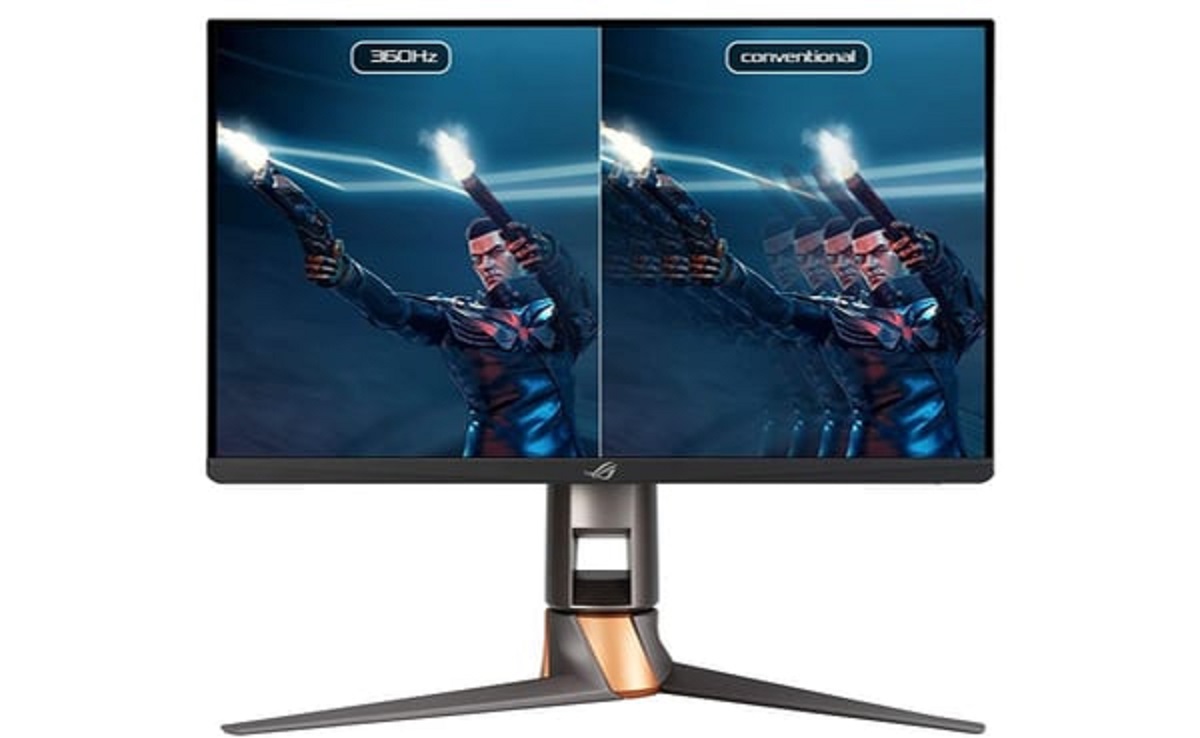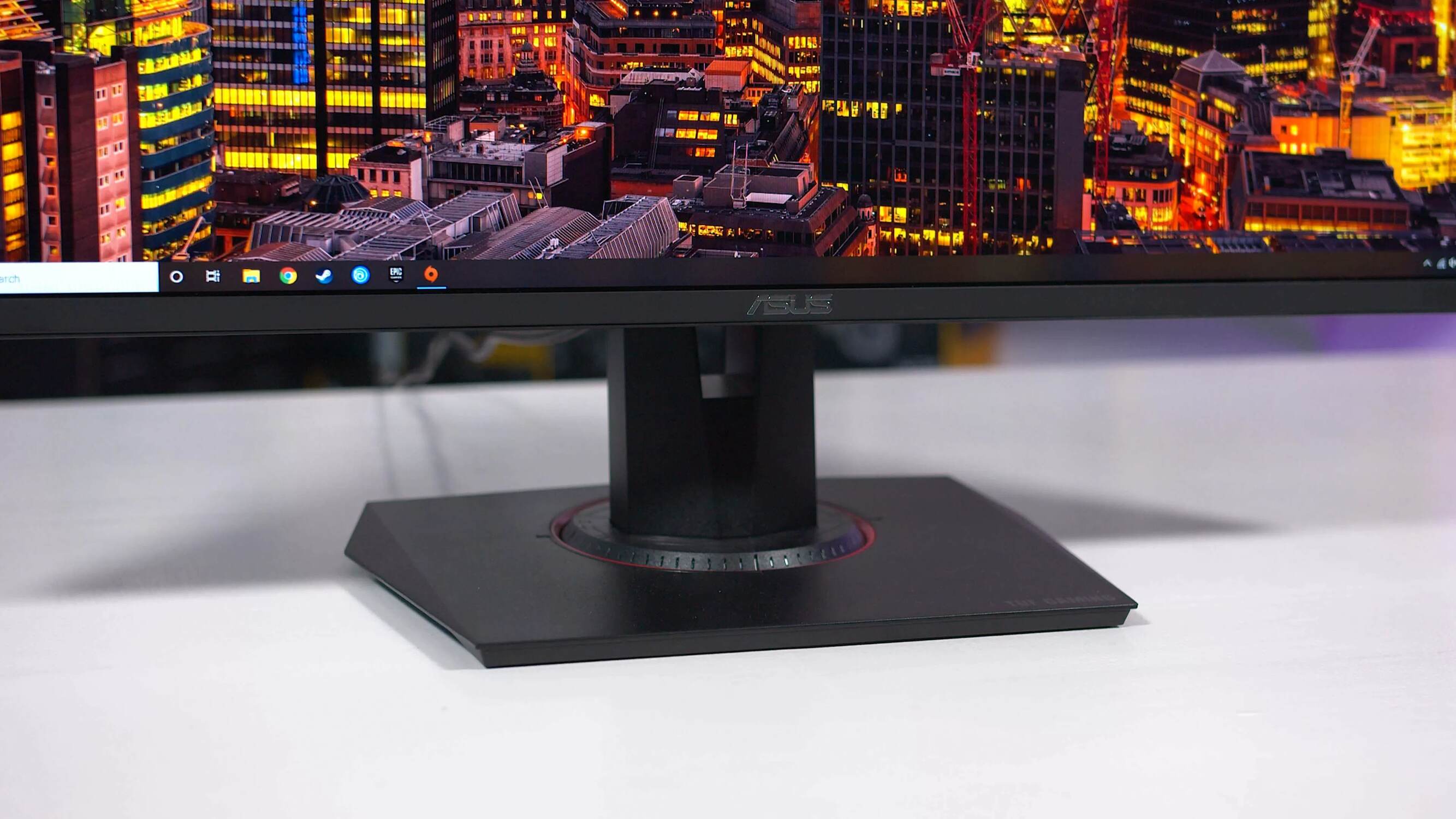
To turn down volume on ASUS TUF Gaming Monitor, use the monitor's On-Screen Display (OSD) menu: press the 5-way joystick or dedicated menu button on the back or bottom of the display, navigate to System Setup, then Sound, and lower the Volume slider. This direct hardware control works regardless of what your PC or game is doing, so it is the most reliable way to reduce the built-in speaker output.
How to turn down volume on ASUS TUF Gaming Monitor using the OSD
The OSD menu is the primary, verified method for adjusting the monitor's own speaker volume. It takes about ten seconds once you know the path.
- Press the 5-way joystick or the dedicated menu button on the back or bottom edge of your ASUS TUF Gaming Monitor. This opens the OSD overlay.
- Push the joystick up, down, left, or right (or use the directional buttons) to move through the main menu items until you highlight "System Setup."
- Press the joystick in to select System Setup.
- Scroll to "Sound" and select it.
- Find "Volume" in the Sound submenu.
- Move the joystick or press the directional down button to decrease the volume slider to your desired level.
- Press the joystick in again or wait a few seconds to save and exit the OSD.
If the OSD does not show a Sound or Volume entry, your specific TUF model may not have built-in speakers, or the menu path could be labeled differently (for example, "Audio" instead of "Sound"). Check the quick start guide that came with the monitor for the exact menu tree on your model.
Using ASUS DisplayWidget Center to change volume from your PC
If you prefer using a mouse over the physical joystick, ASUS offers an official utility called DisplayWidget Center for many TUF Gaming monitors. This software mirrors the OSD controls on your Windows desktop, letting you adjust speaker volume without touching the monitor. Once installed, open the app, select the volume slider in the main panel, and drag it down. On supported models, DisplayWidget Center also includes Smart Voice Control, so you can say a command to lower the volume hands-free. Note that this utility is model-dependent; if your monitor does not list DisplayWidget Center on its support page, stick with the OSD joystick method.
Before you start: built-in speakers and model differences
Volume control via the OSD only works on ASUS TUF Gaming Monitors that actually include built-in stereo speakers. Many TUF models do, but some budget or ultra-thin variants omit them entirely, if your monitor has no speaker grilles and no audio output option in the OSD, there is nothing to turn down on the monitor itself. Also, the exact menu path can vary slightly by model: newer TUF displays may place Sound directly under the main menu, while older ones bury it inside System Setup. The verified path above (System Setup → Sound → Volume) covers the majority of TUF models, but if you do not see "System Setup," look for a gear icon or a "Sound" entry at the top level. When in doubt, press and hold the joystick for a few seconds to see if a shortcut to audio settings appears.
How system volume and game settings differ from your monitor's volume
Your monitor's hardware volume is a separate layer from Windows and game volume sliders. The OSD Volume setting controls the amplifier inside the monitor that feeds its built-in speakers. Windows volume, on the other hand, controls the digital audio signal sent to the monitor over HDMI or DisplayPort, lowering the Windows slider reduces the signal before it reaches the monitor's amplifier. Game settings work similarly: most titles have their own master volume, music, and SFX sliders that adjust the mix inside the game engine before Windows even sees it. For the fastest PC-level control, use your keyboard's dedicated volume keys (usually labeled with speaker icons in the function row) or the Fn+volume key combination if your keyboard lacks dedicated keys. These shortcuts adjust the Windows system volume, which is handy for quick changes during gameplay, but they do not touch the monitor's own speaker volume. If you want to fully mute the monitor's built-in speakers while keeping your PC audio intact, you can lower the OSD Volume to zero, or, on many models, use the OSD's mute toggle, which is part of the same Sound menu and is useful for turning speaker mode on and off without losing your preferred volume level.
\nRelated reading: How To Turn Up Volume On Wireless Earbuds and How To Turn Up Volume On JBL Wireless Earbuds.