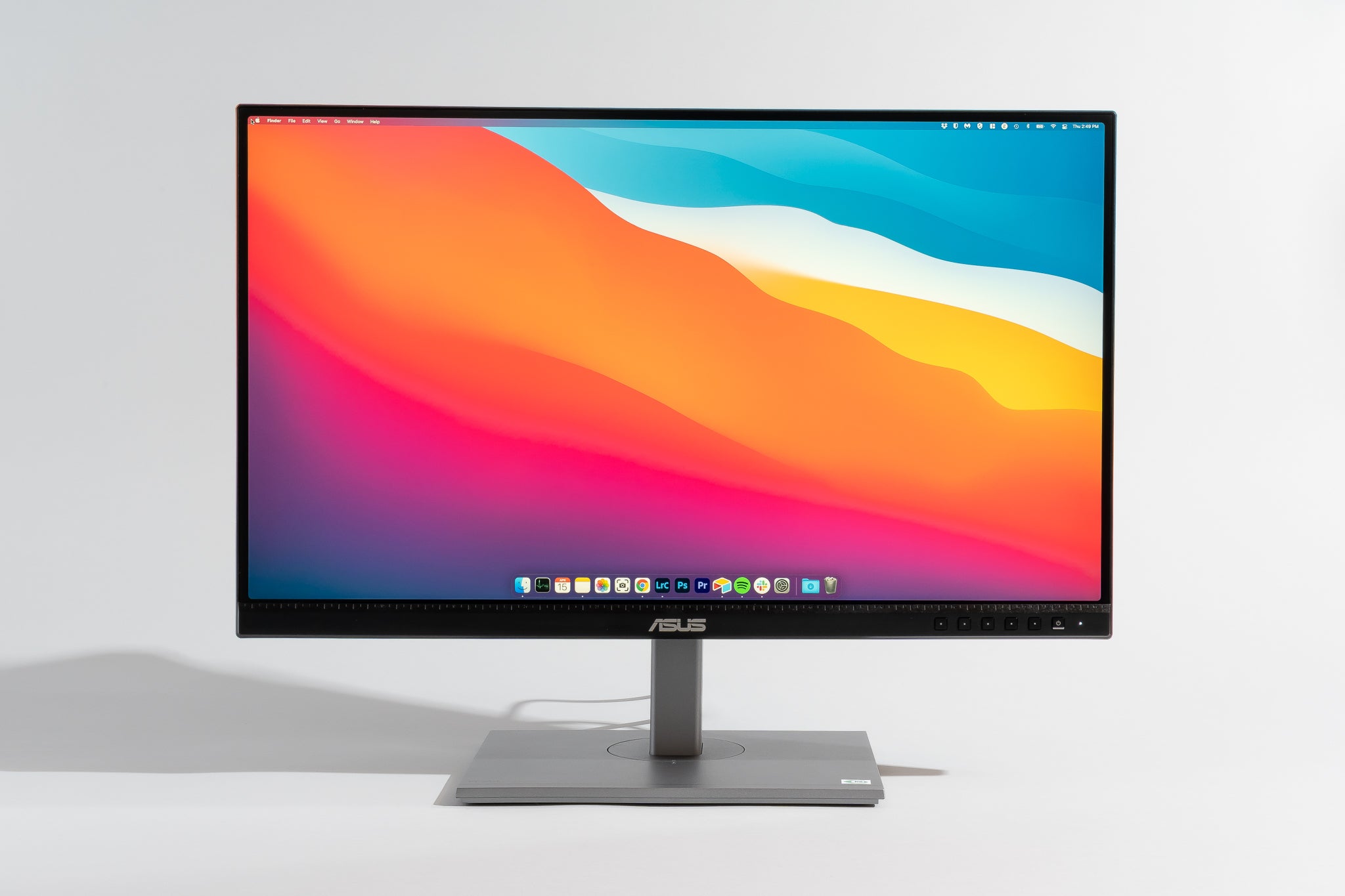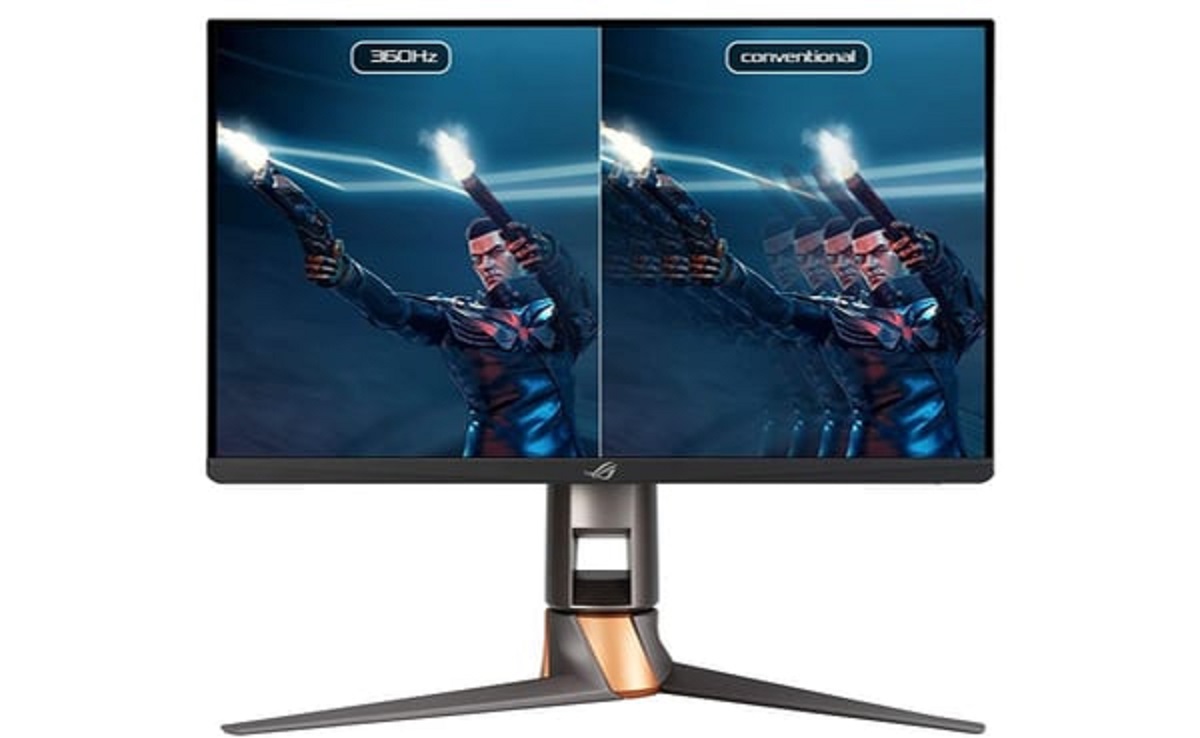
Hz in a monitor stands for Hertz, and it measures the monitor's refresh rate, the number of times per second the screen updates the image. A 60Hz monitor refreshes 60 times per second, while a 144Hz monitor refreshes 144 times per second, directly determining how smooth motion appears on your display.
What is Hz in a monitor?
Hz, or Hertz, in a monitor refers to its refresh rate, which is the number of times per second the display updates the image on the screen. For example, a 60Hz monitor updates the screen 60 times per second, while a 144Hz monitor updates it 144 times per second. This is a fixed hardware capability of the monitor itself, not to be confused with frames per second (FPS), which is generated by your computer's graphics card and processor. The refresh rate dictates the maximum number of distinct images your monitor can show each second, forming the foundation for all visual smoothness you experience.
Why does a higher Hz matter?
A higher refresh rate generally results in smoother visuals, reduced motion blur, and a more fluid experience, especially with fast-moving content. For gaming, higher refresh rates can reduce input lag and screen tearing, providing a competitive edge and more responsive gameplay. Beyond gaming, higher refresh rates can also make everyday tasks like scrolling and using a digital pen feel more fluid and may reduce eye strain and fatigue. You want a higher Hz because it transforms choppy, blurry motion into crisp, continuous movement, making both work and play feel more natural and less tiring on your eyes.
Refresh rate vs. frame rate: what's the difference?
Refresh rate (Hz) is a monitor's capability to display frames, while Frame Rate (FPS) is how many frames your computer's graphics processing unit (GPU) and central processing unit (CPU) produce per second. Think of the refresh rate as the monitor's maximum speed limit for showing images, and the frame rate as how fast your computer can actually send those images. Conversely, a 144Hz monitor cannot show more smoothness than the FPS your computer can deliver.
What Hz do you actually need?
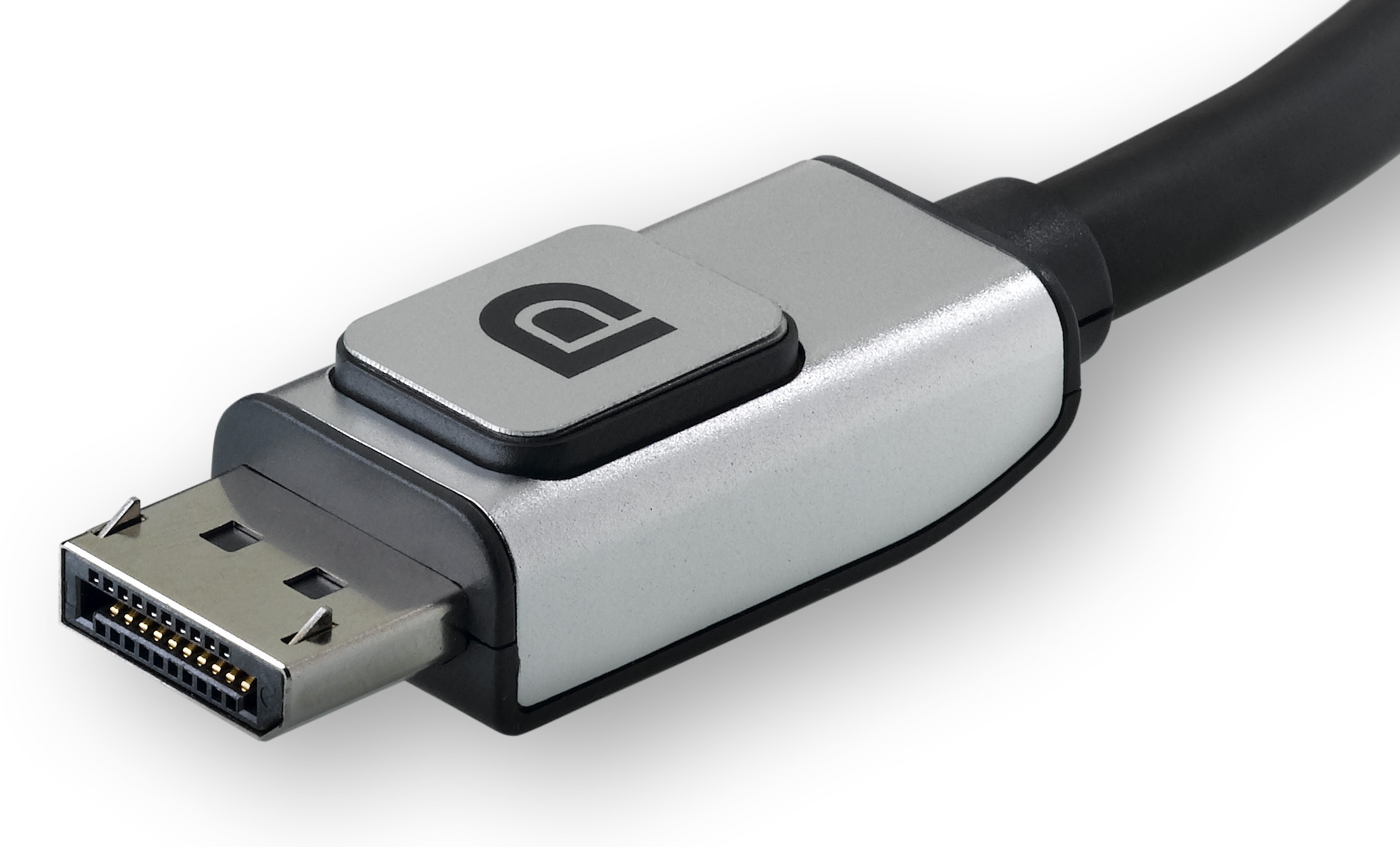
Choosing the right refresh rate depends entirely on your use case. For office work, web browsing, and general productivity, a 60Hz monitor is perfectly sufficient and cost-effective. For casual gaming and multimedia, 75Hz or 120Hz offers a noticeable improvement in smoothness. For competitive gaming where split-second reactions matter, 144Hz has become the standard, with 240Hz or higher providing an edge for professional esports players. However, you must ensure your hardware can support your chosen refresh rate. The maximum refresh rate supported depends on the monitor, graphics hardware, and the type and version of the display cable used. A 144Hz monitor is wasted if your GPU can only produce 60 FPS in your favorite games, or if you are using an older HDMI cable that caps at 60Hz.
How to check and change your monitor's Hz
To change the refresh rate in Windows 11: Go to Start > Settings > System > Display > Advanced display, then select your display and choose a rate from the "Choose a refresh rate" dropdown. To change the refresh rate in Windows 10: Right-click on the desktop, select "Display settings," then scroll down to "Advanced display settings" (or "Display adapter properties" then "Monitor" tab) and choose a rate from the "Refresh rate" dropdown. To change the refresh rate in macOS: Go to Apple menu > System Settings (or System Preferences) > Displays, then click the "Refresh Rate" pop-up menu and choose a rate. On some older macOS versions or specific models, holding the Option key while clicking "Scaled" under the 'Display' tab may be necessary to reveal "Refresh Rate" options. If your monitor's on-screen menu is locked or the option is grayed out, you may need to change Hz on LG ultragear gaming monitor directly through its hardware controls first. Windows 11 includes Dynamic Refresh Rate (DRR), which automatically adjusts the refresh rate based on current activity to balance smoothness and battery life, if supported by the hardware. This feature lets you enjoy high Hz when gaming or scrolling, then automatically drops to a lower rate for static tasks like reading to save power.
\nRelated reading: How To Turn On Acer Monitor and How To Remove Stand From Samsung Monitor.