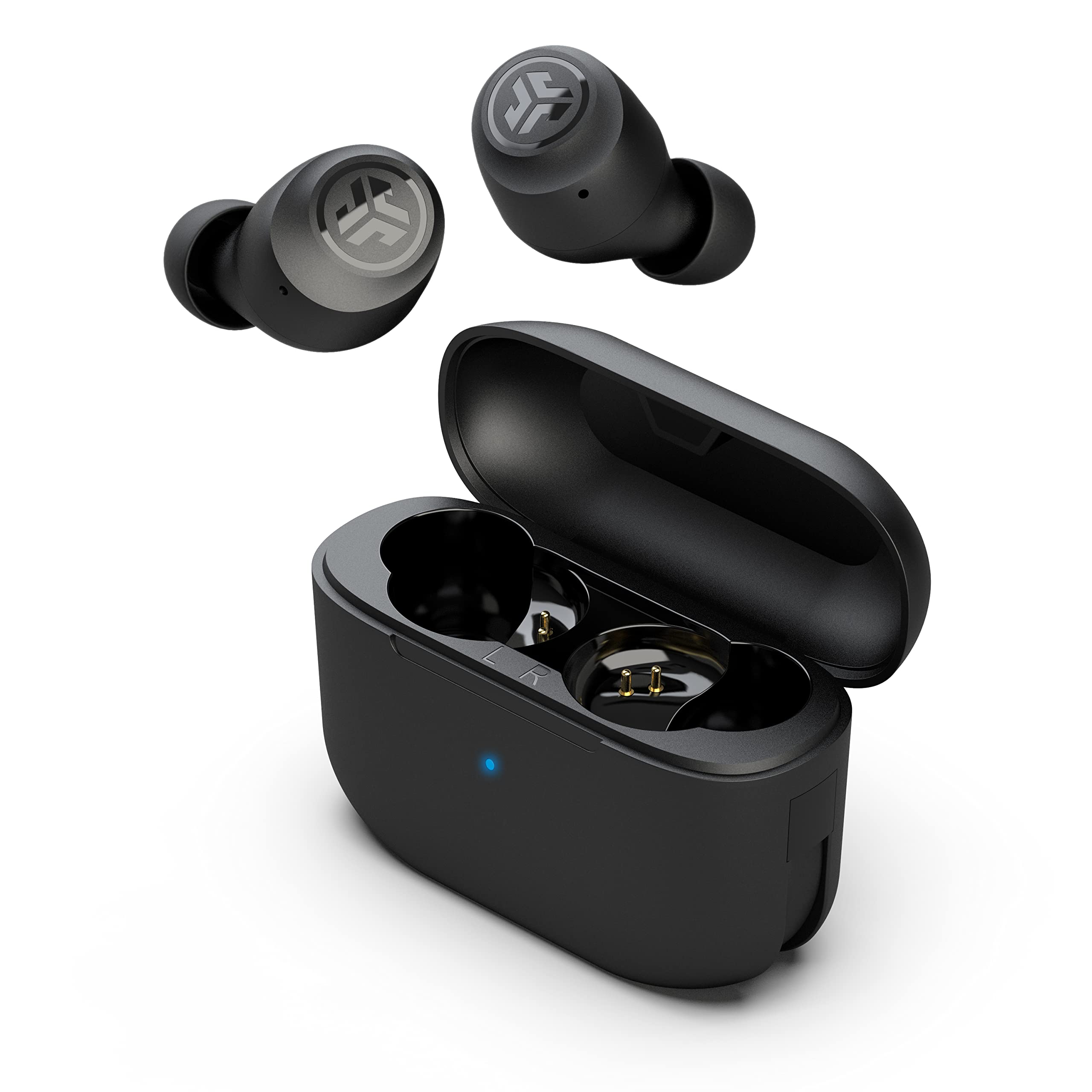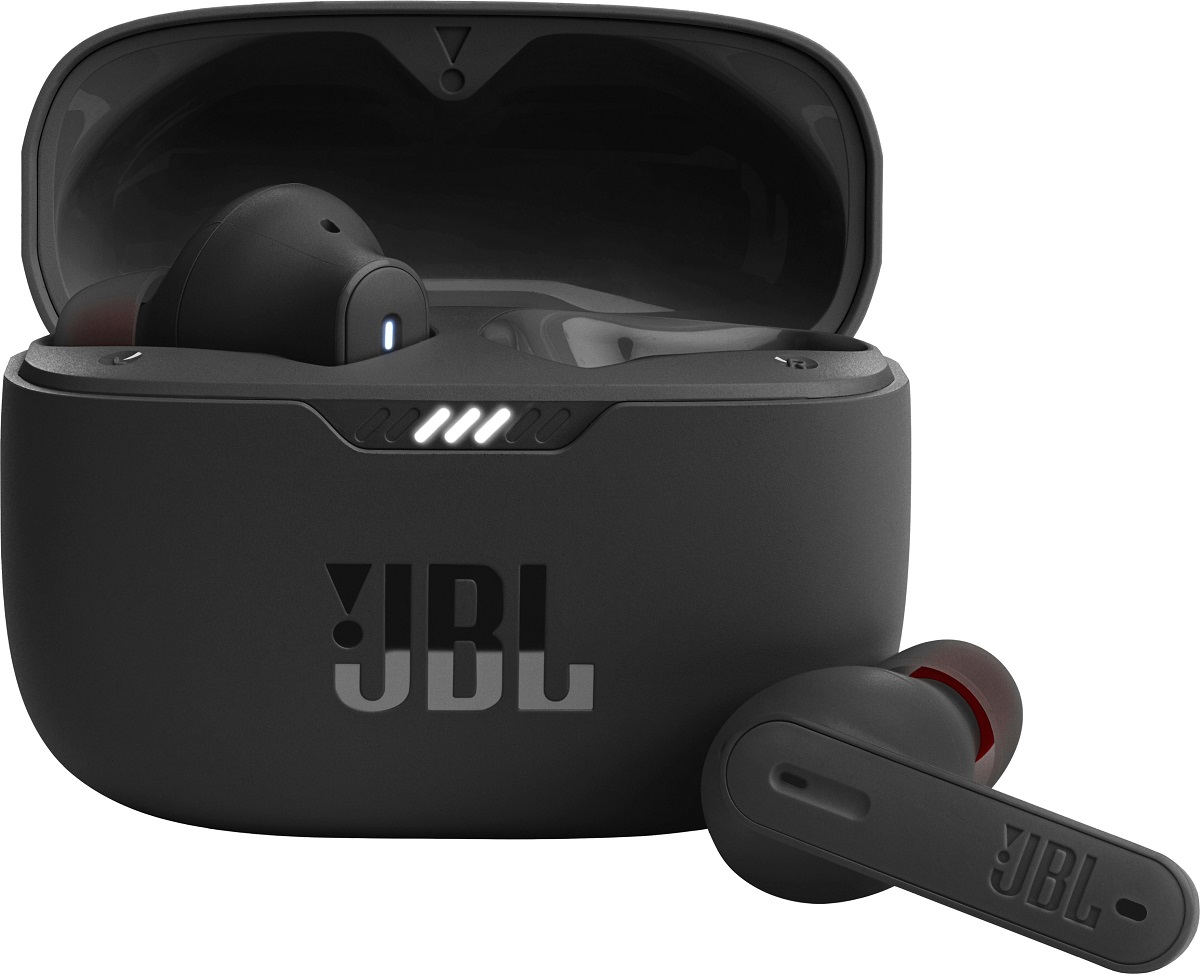
To turn up volume on JBL wireless earbuds, you must first identify your specific model, as control methods vary between touch-sensitive surfaces, physical buttons, and app-based customization. Below, find your earbud type for the exact steps to increase the volume.
Models with touch-sensitive volume control
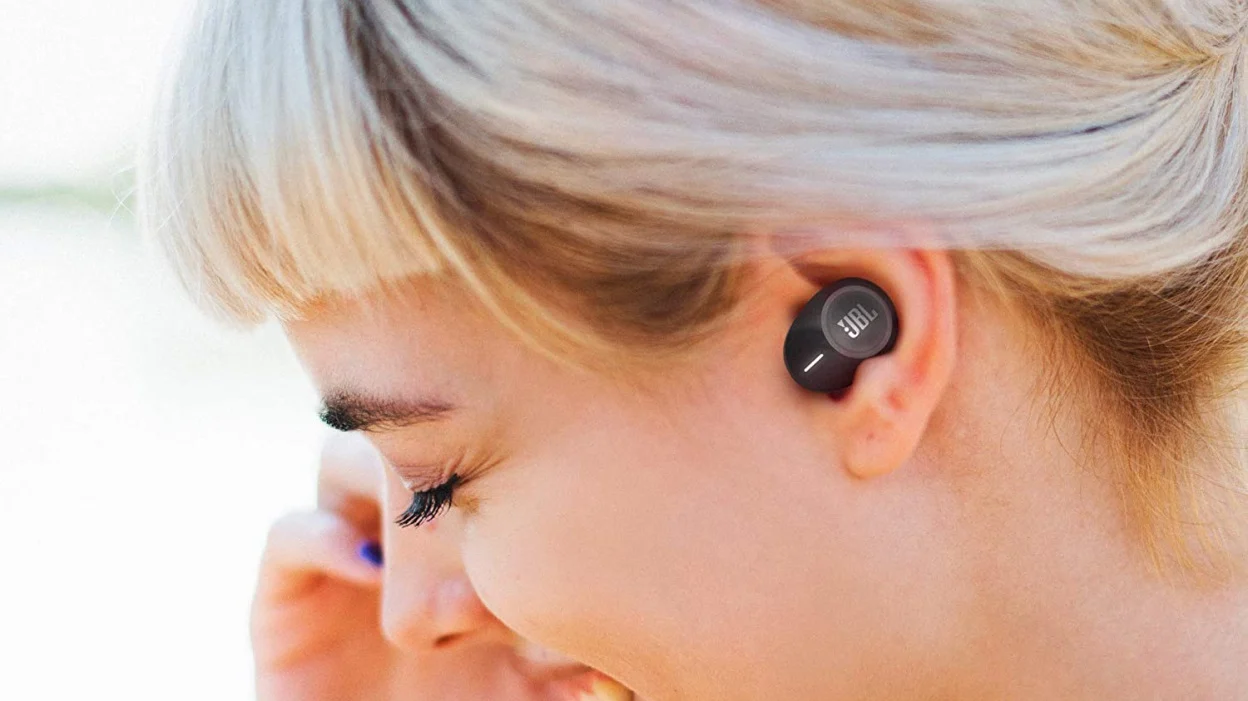
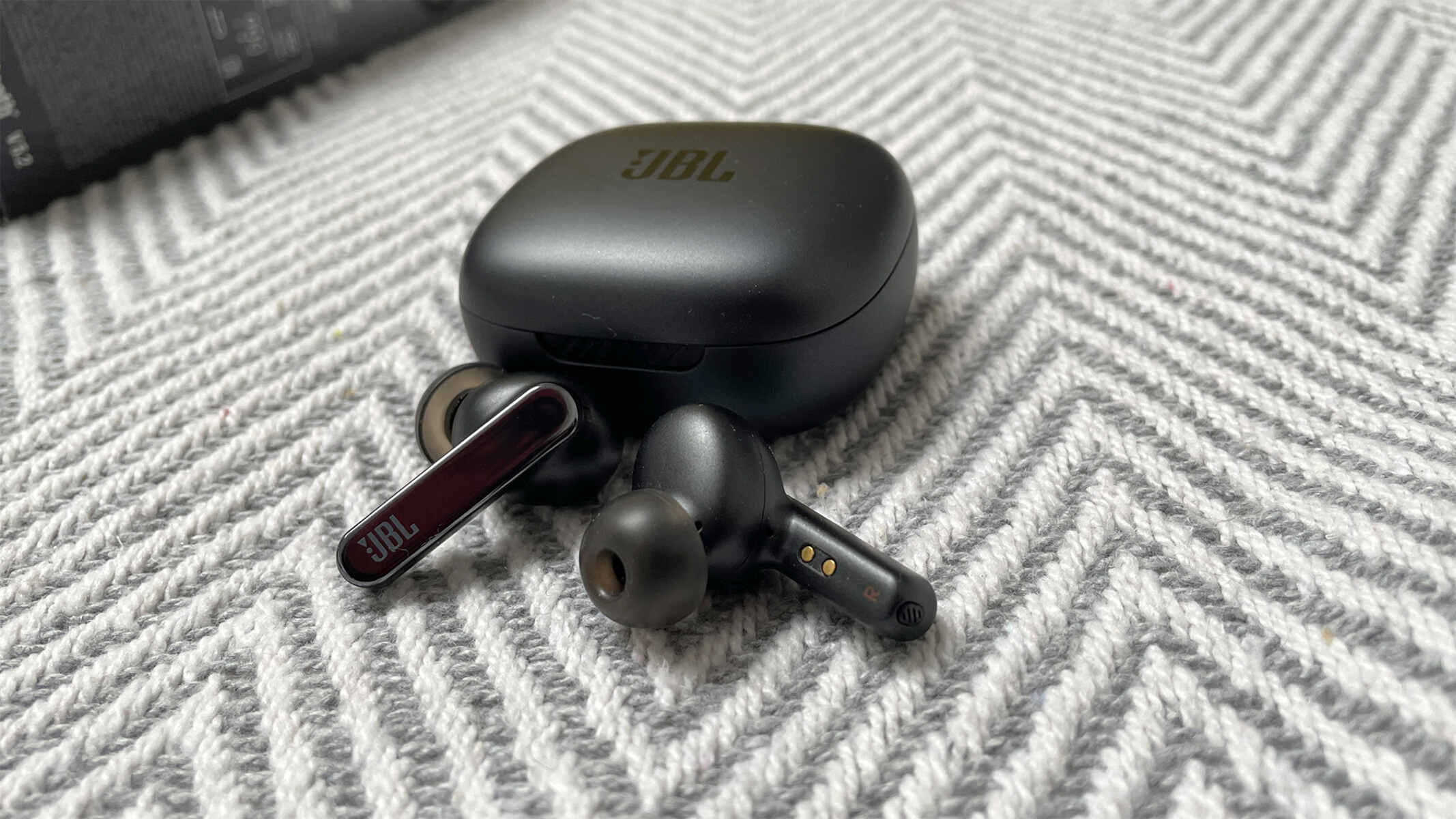
For JBL Endurance Series earbuds, including the JBL Endurance JUMP, SPRINT, PEAK, and DIVE, volume is controlled by a touch-sensitive ridge on the right earbud. To increase the volume, simply swipe your finger upward along the ridges located above the JBL logo on the right earbud. To decrease the volume, swipe downward along the same ridges.
Models with physical button controls
Many JBL wireless earbuds feature dedicated physical volume buttons. These are typically marked with a “+” symbol for volume up and a “-” symbol for volume down. The buttons are usually located on the outer edge or side of one earbud. Press the “+” button to increase the volume and the “-” button to lower it.
Customizing volume with the JBL Headphones app
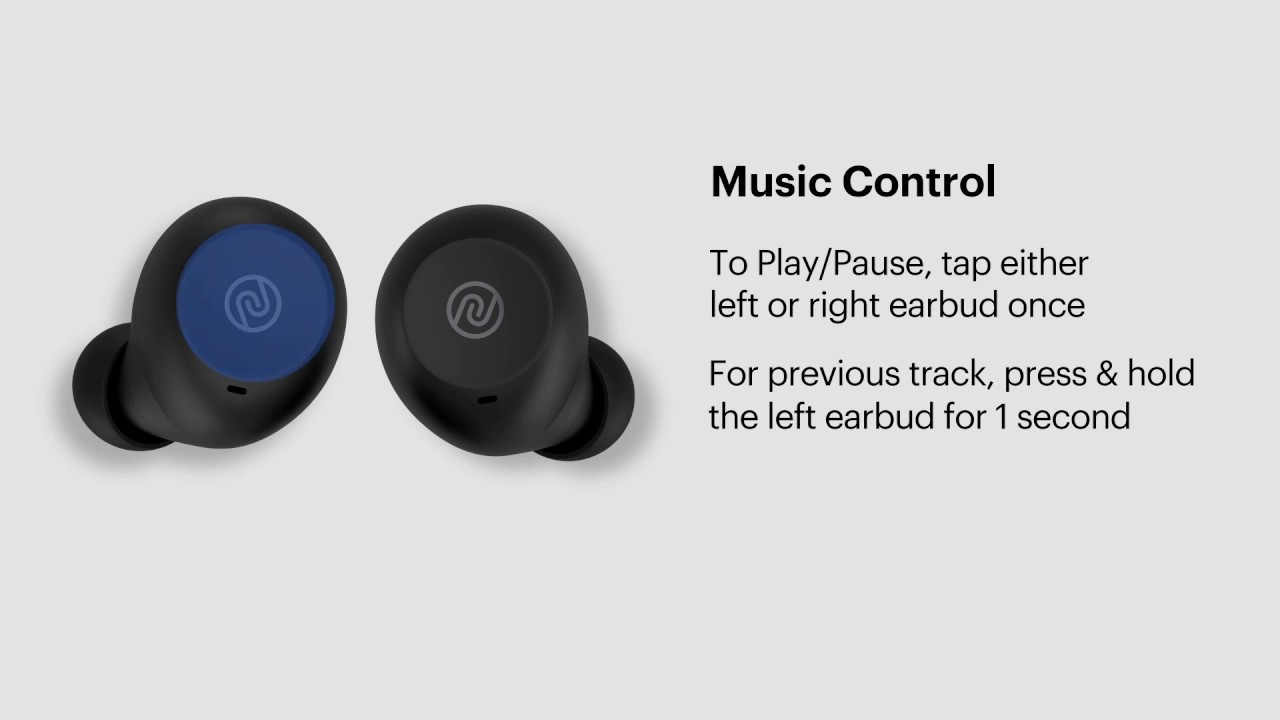
Many JBL wireless earbuds allow volume control to be customized through the JBL Headphones app. Within the app, you can assign volume control to tap, double-tap, triple-tap, or tap-and-hold gestures on either the left or right earbud. This is useful if you prefer a different gesture than the default, or if your model lacks dedicated volume buttons.
Models without on-earbud volume control
Some JBL wireless earbud models do not feature volume control directly on the earbuds. For these models, you must manually control the volume from your connected phone, tablet, or computer. The following popular models require this approach:
- JBL Tune 120TWS
- JBL Reflect Flow
- UA True Wireless Flash X
- JBL Endurance PEAK
- JBL Free X
- JBL Tune 125TWS
- JBL Tune 215TWS
- JBL Tune 115TWS
- JBL Free II
- JBL Tune 220TWS
- JBL Tune 225TWS
- Under Armour True Wireless Flash, Engineered by JBL
To turn up volume on JBL wireless earbuds from this list, use your device’s physical volume buttons or on-screen volume slider.
Special cases: Quantum TWS and Junior series
JBL Quantum TWS
For JBL Quantum TWS earbuds, volume adjustment is handled entirely from your connected device. Adjust the volume on your PC, Mac, or gaming console using the system’s volume controls.
JBL Junior series
For JBL Junior series headphones (JBL Junior 320BT, JBL Junior 320, JBL Junior 470NC), you can set a maximum volume limit using the JBL Safe Sound or Maximum Volume Limit settings. To turn up the volume within a safe range, access these settings and choose “Customize” to set levels to “Max,” “High,” “Mid,” or “Low.” Alternatively, selecting “Automatic” causes the headphones to monitor listening time and volume, adjusting when the hearing fatigue limit is reached.
Troubleshooting low volume on JBL earbuds
If you experience low volume or balance issues, start by cleaning your earbuds to remove dust and earwax, as buildup can muffle sound. Next, check the battery levels on both your earbuds and your connected device, since low battery can reduce output. Finally, re-pair the Bluetooth connection by forgetting the device in your phone’s Bluetooth settings and then following the steps to pair your JBL wireless earbuds again. If you need a refresher on the basics of how to use JBL wireless earbuds, refer to your model’s user manual for setup and daily operation.
\nRelated reading: How To Turn Up Volume On Wireless Earbuds.