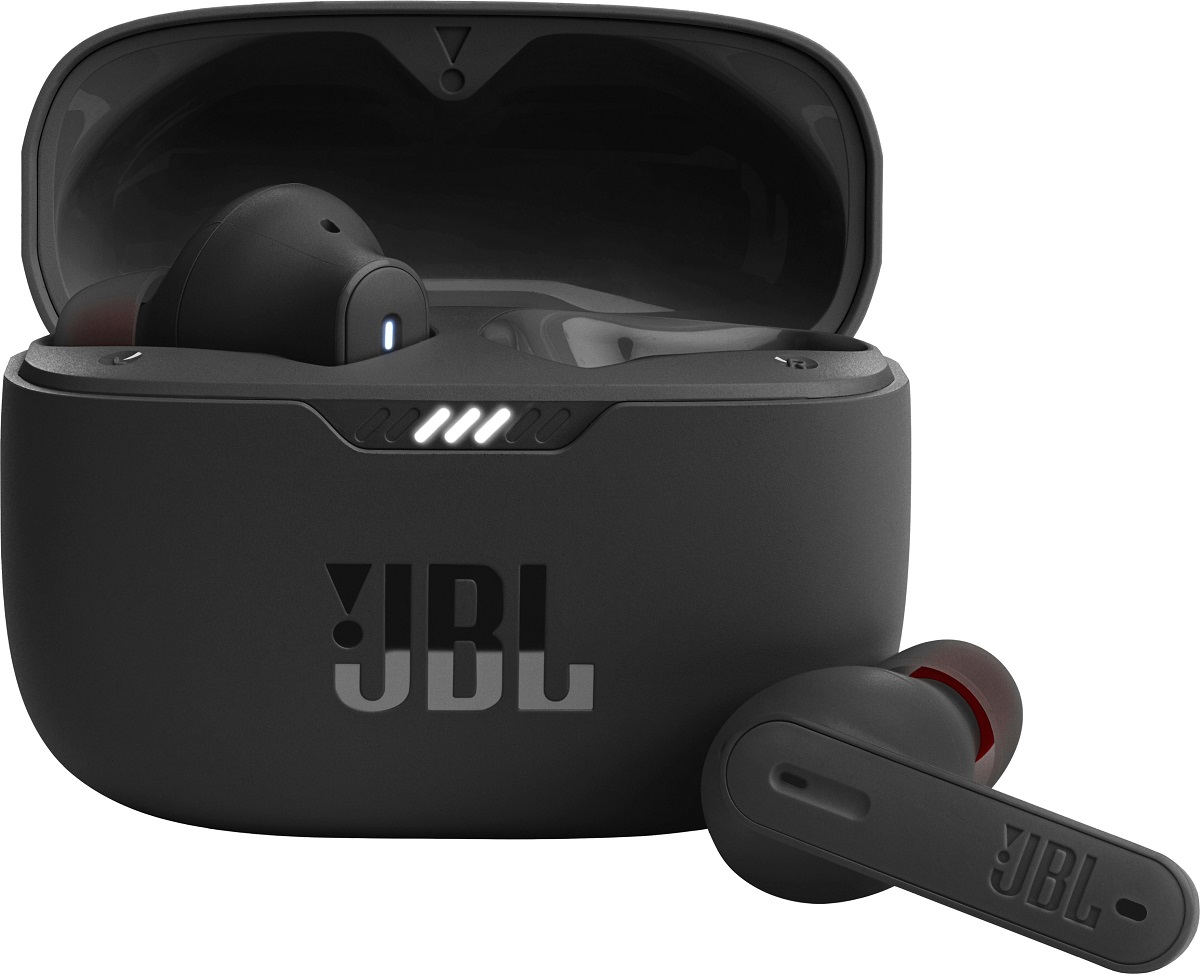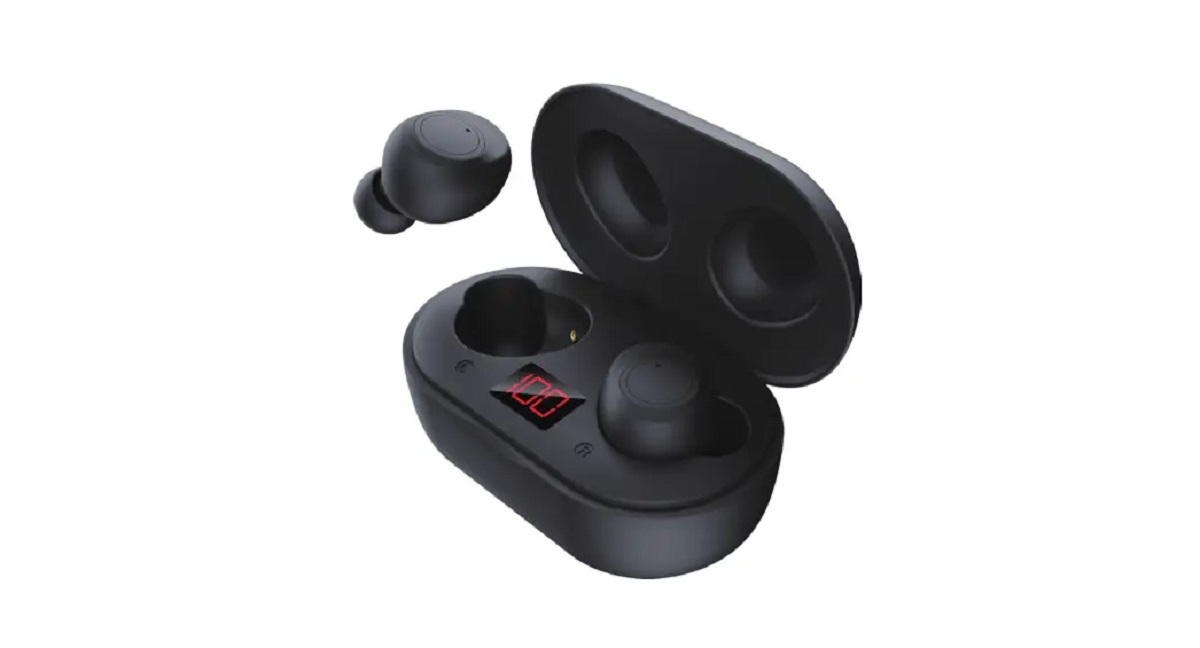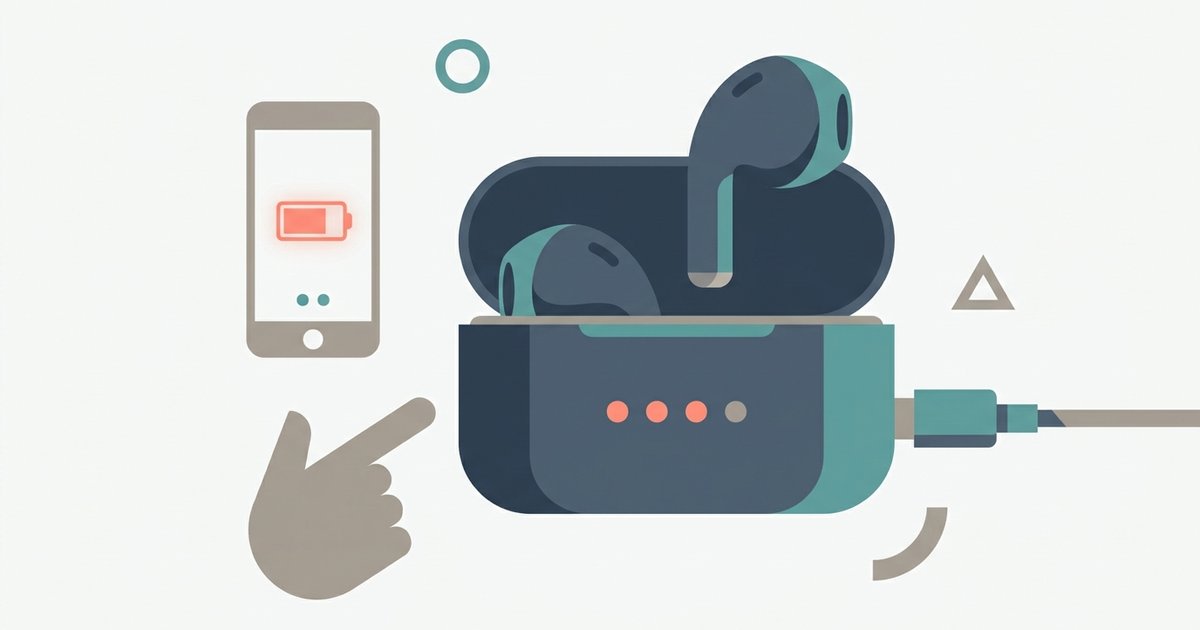
To check JBL earbuds battery quickly, open the charging case lid with the earbuds docked and look at the LED; a white or green light means a high charge, amber or yellow signals a medium charge, and red warns the battery is low. For exact individual percentages, open the JBL Headphones app on your connected phone and tap the “device” tab to see precise battery icons labeled “left,” “right,” and “case.”
Check battery using the charging case LED
The charging case for your JBL earbuds has a single LED on the front or inside the lid. This LED changes color to indicate the case’s overall battery level. When you open the lid with the earbuds docked, the LED blinks or glows steadily. A white or green light means the case has a high charge remaining. An amber or yellow light signals a medium charge level. A red light warns that the case has a low battery and needs charging soon. This LED does not show the individual battery percentage of the earbuds themselves, only the case’s reserve, but it gives you a reliable snapshot. If the LED does not light up at all when you open the lid, the case is likely completely drained. You should charge it for at least 10 minutes before checking again. To use JBL wireless earbuds effectively, you should get in the habit of glancing at this LED each time you remove or replace the buds, but first make sure you pair JBL wireless earbuds to your device.
Checking the JBL Headphones app
For exact battery percentages, open the JBL Headphones app on your phone while your earbuds are connected. The app is available for both iOS and Android. Once the app launches and detects your device, navigate to the main device screen to see the battery information. On the main device screen, you will see three battery icons, each showing a precise percentage number. The icons are labeled “Left,” “Right,” and “Case.” This is the only place where you can see the individual charge of each earbud. The left and right buds often drain at different rates depending on use. If you have previously paired your earbuds using the app, the battery info updates in real time every few seconds. The app also shows a low-battery warning when any component's charge is low.
When the battery level won't show
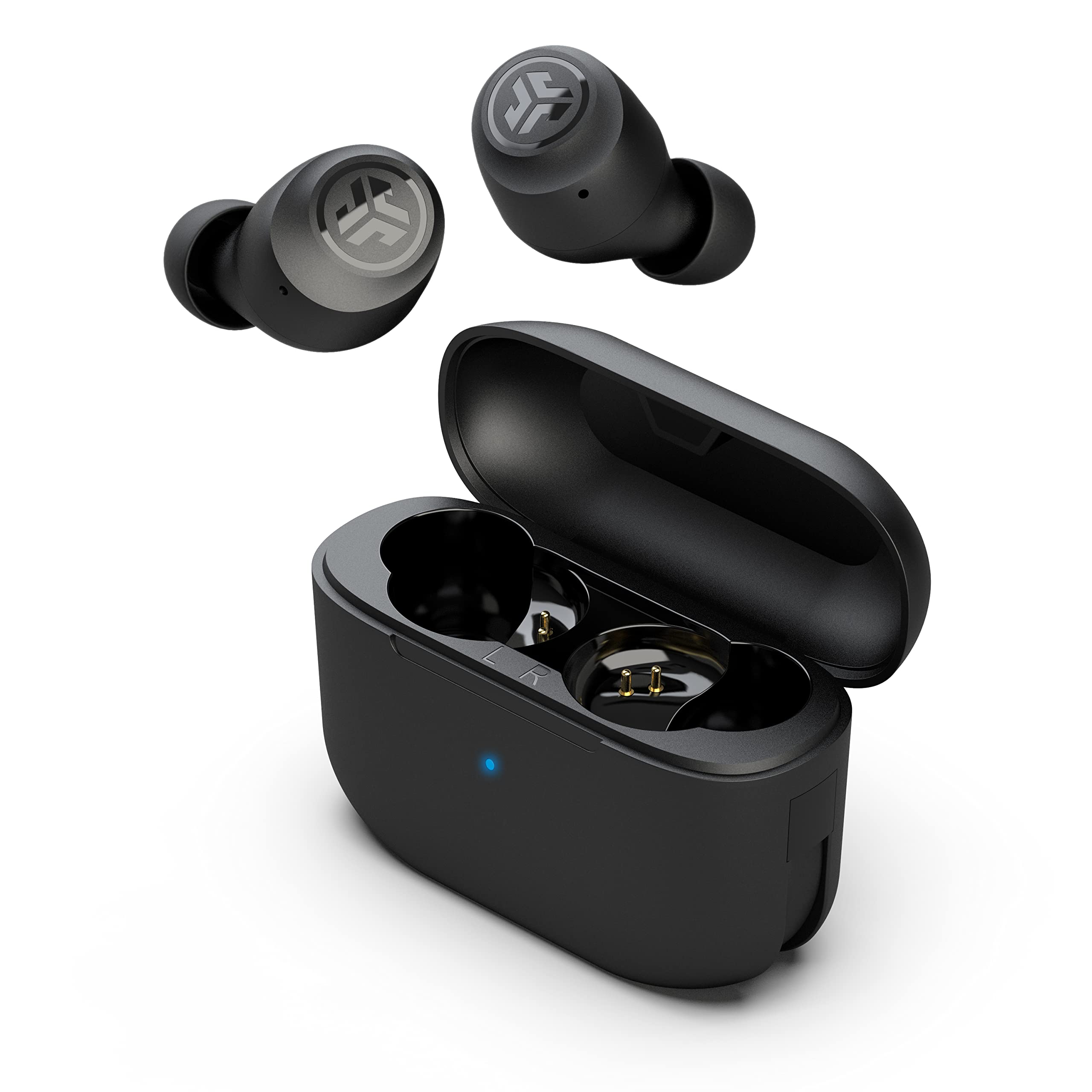
If the JBL Headphones app displays the wrong percentage or shows “0%” for a bud that you know has charge, start by force-closing the app and reopening it after 10 seconds. The most common fix is to go into your phone’s Bluetooth settings, forget the earbuds, and then re-pair them using the standard procedure. If the LED indicator on the case does not light up at all when you open the lid, check that the charging pins inside the case are clean and that the earbuds are seated correctly. A single misaligned bud can prevent the case from detecting them and thus prevent the LED from activating. For persistent issues, try resetting the earbuds according to the instructions for your specific model. If you need to connect two Bluetooth headphones to iPad and your JBL earbuds are one of them, the battery level in the app may still show correctly. However, the iPad’s native battery widget only shows the case’s approximate level, not the individual buds. Finally, if you are troubleshooting and accidentally try to pair a JLab model instead of your JBL earbuds, note that the JLab app uses a different interface and LED color scheme. Always confirm you are using the correct JBL Headphones app for your specific model, and if the audio is too faint to confirm a successful connection, you may need to turn up volume on JBL wireless earbuds directly on the buds themselves.
Most JBL wireless earbuds lack a physical battery indicator on the buds themselves, so these two methods are the standard ways to estimate or read the remaining power. The first method gives you a rough idea without needing a phone, while the second provides exact percentages for each earbud and the case.