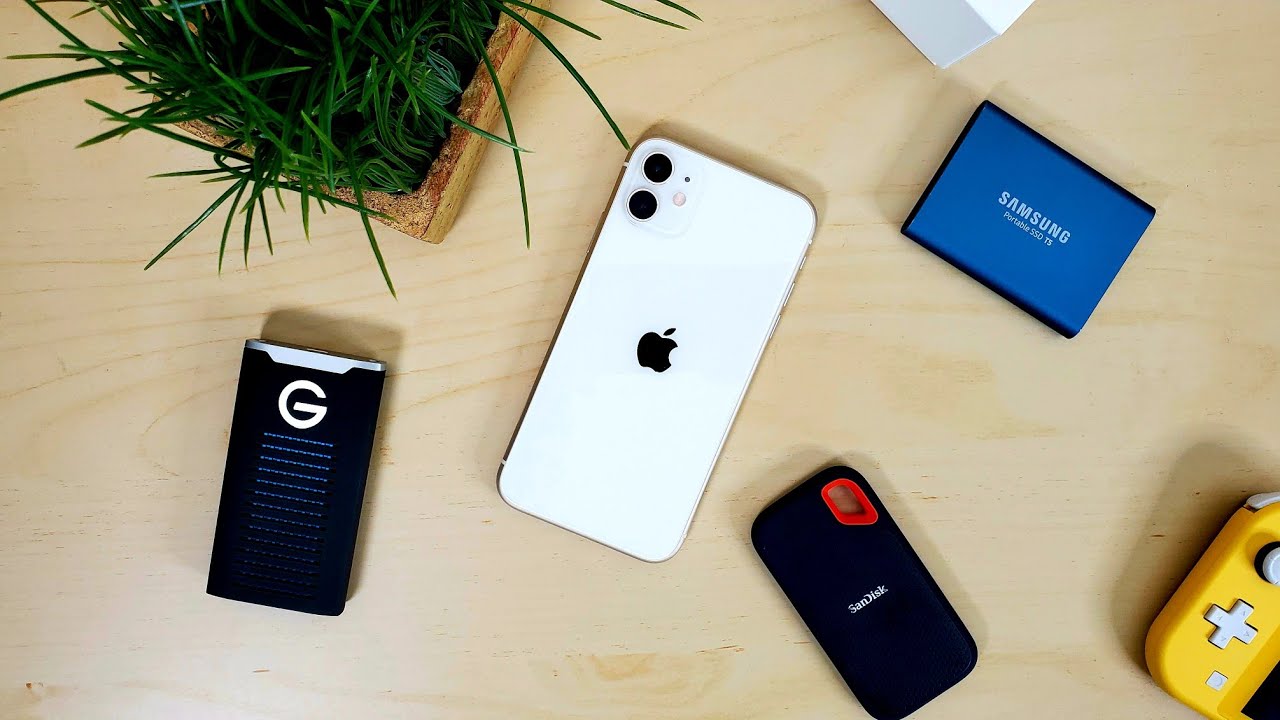
To use a SanDisk Extreme Portable SSD with iPhone, you need the correct cable and power setup for your specific iPhone model, which is determined by whether it has a USB-C or Lightning port. This guide covers everything from the initial connection to safely ejecting the drive, ensuring you can transfer, access, and manage files to free up iPhone storage or work with large media files like ProRes video.
What you need to use a SanDisk Extreme Portable SSD with iPhone
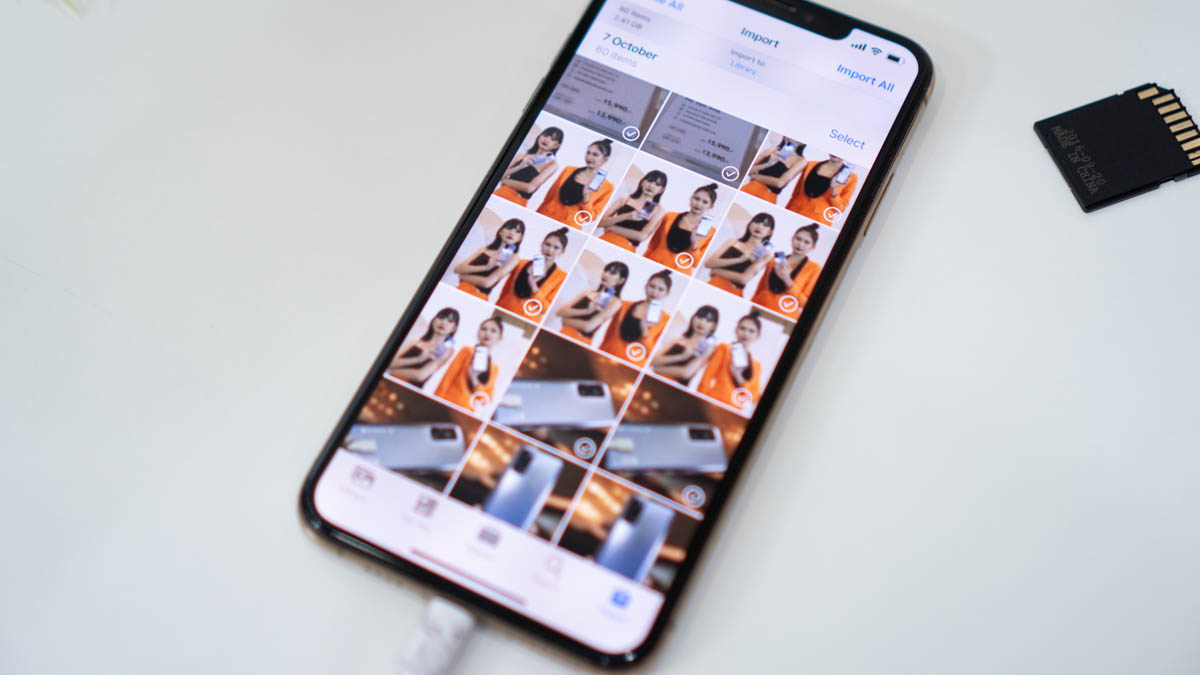
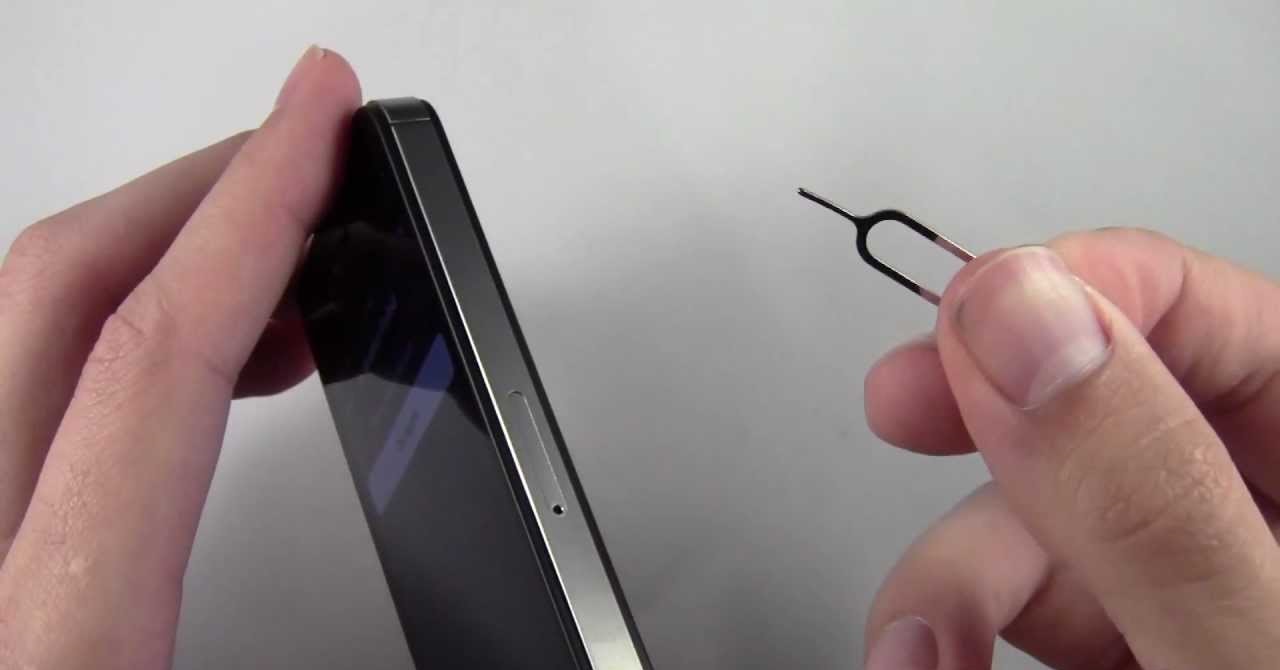
Your first step is to identify your iPhone model, as the connection method splits cleanly between USB-C and Lightning ports. For iPhone 15, 16, and 17 models with a USB-C port, you can connect the SanDisk Extreme Portable SSD directly using a USB-C cable. For older iPhones (iPhone 14 and earlier) with a Lightning port, you must use Apple's Lightning to USB 3 Camera Adapter. When using a Lightning-port iPhone, external power must be supplied to the setup, either by plugging a power source into the Lightning port of the adapter or by using a powered USB hub. Unlike a physical get sd card out of iPhone, which requires a SIM tray tool, this adapter simply clicks into the charging port. If you are pulling footage straight from a camera, you can also transfer video from sd card to iPhone using the same adapter before offloading to the SSD. Regardless of iPhone model, the SanDisk Extreme Portable SSD should be formatted with a compatible file system such as APFS, APFS (encrypted), macOS Extended (HFS+), exFAT (FAT64), or FAT32.
How to connect the SSD to a USB-C iPhone (iPhone 15, 16, 17)
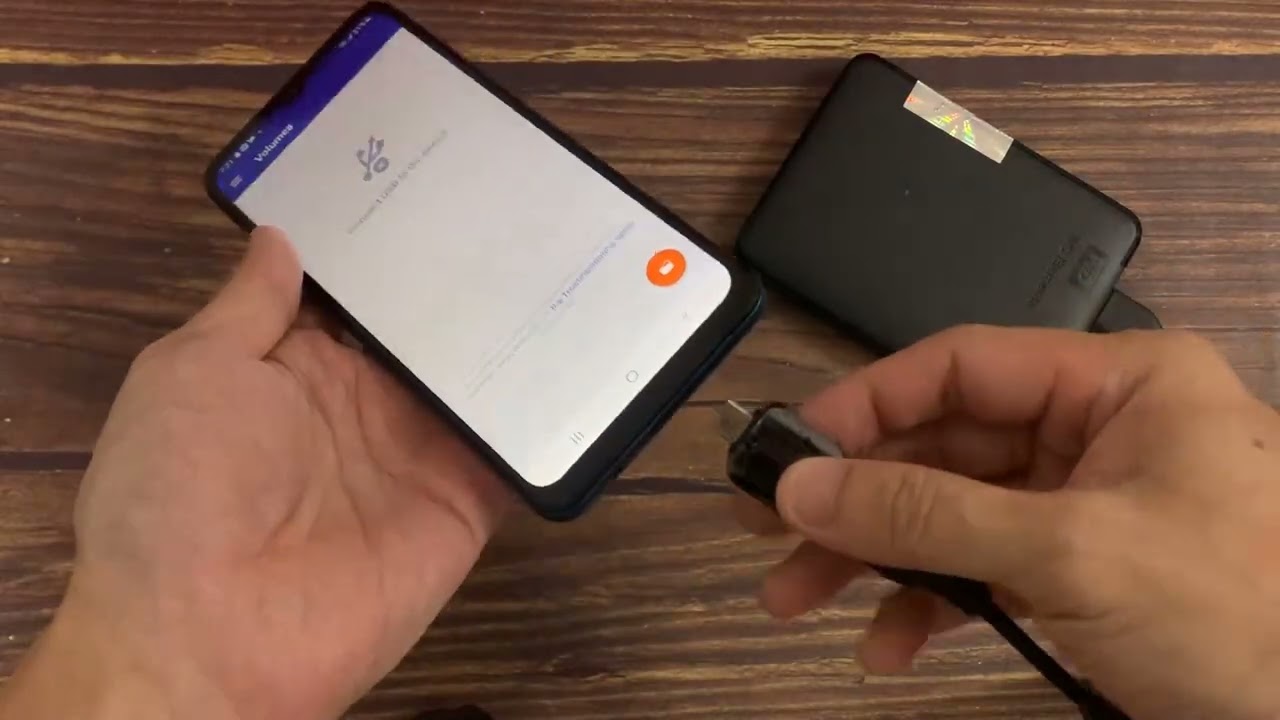
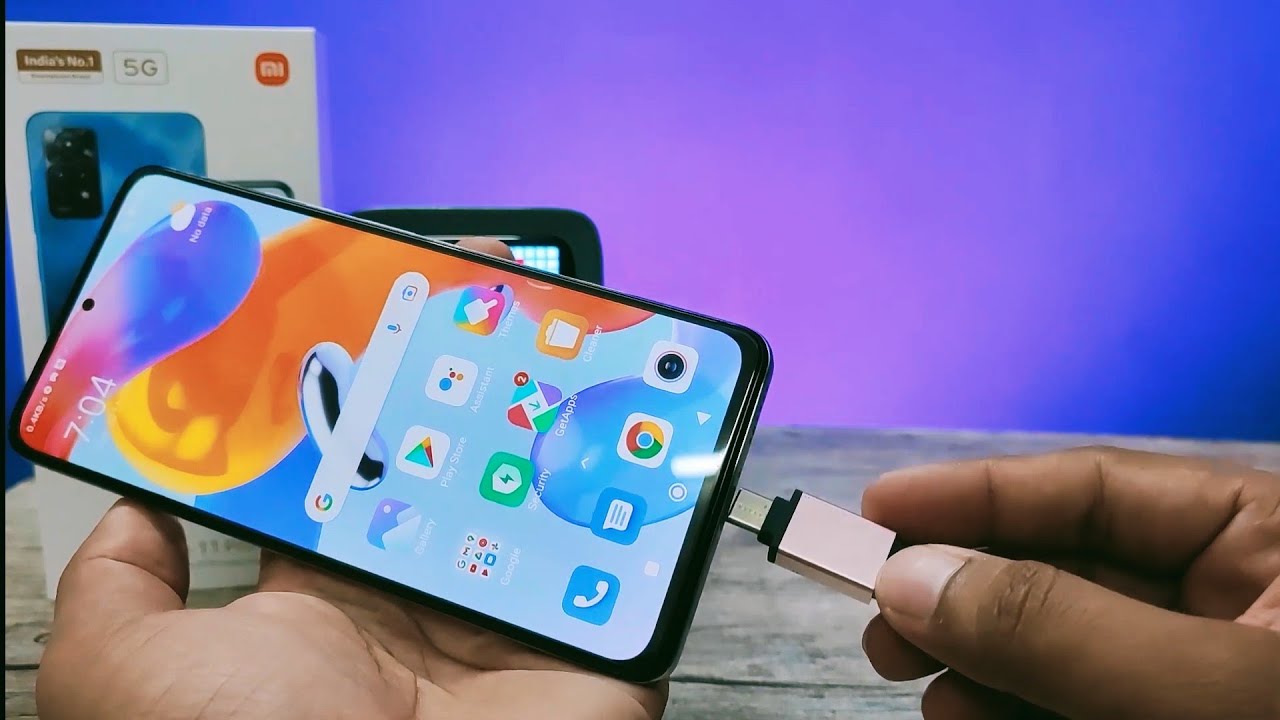
- Plug the USB-C end of your cable directly into the iPhone's USB-C port and the other end into the SanDisk Extreme Portable SSD.
- Your iPhone will display a prompt asking for permission to trust the device. Tap "Trust" to proceed.
- USB-C iPhones can output up to 4.5 watts of power, which is generally sufficient for many SSDs, but a powered USB hub might still be beneficial for power-hungry drives or sustained high-performance tasks.
How to connect the SSD to a Lightning iPhone (iPhone 14 and earlier)
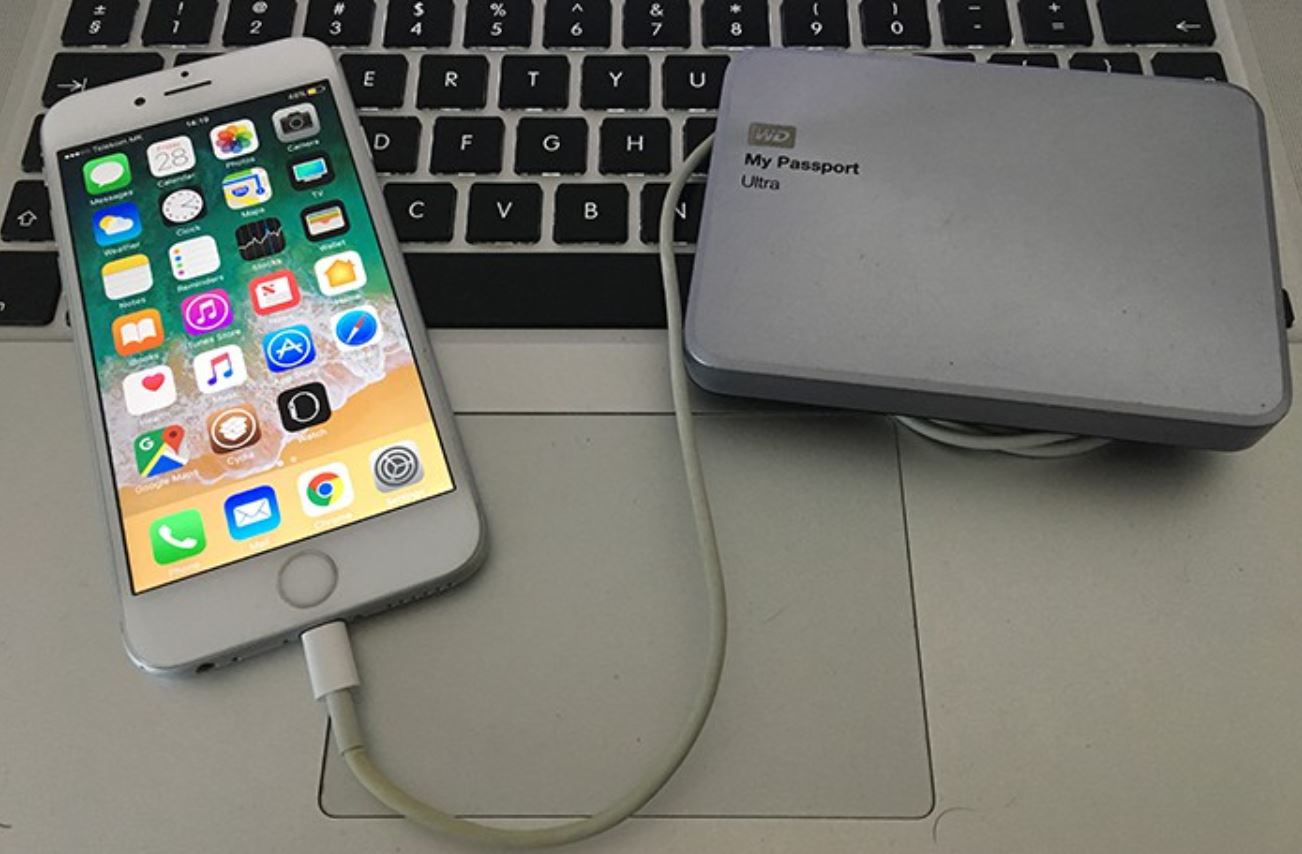
- Connect the Apple Lightning to USB 3 Camera Adapter to your iPhone's Lightning port.
- Plug the SanDisk Extreme Portable SSD into the adapter's USB-A port using a USB-A to USB-C cable.
- Connect an external power source to the Lightning port on the adapter. This step is mandatory because the Lightning port does not supply enough power to run the SSD reliably.
- Tap "Trust" when prompted on your iPhone.
How to access and manage your SSD files in the Files app
- Open the native "Files" app on your iPhone.
- Tap "Browse" at the bottom of the screen.
- Under the "Locations" section, locate and tap the name of your SanDisk Extreme Portable SSD.
- To transfer files, tap and hold a file or folder, select "Copy" (or "Cut" to move it), navigate to the destination folder on the SSD or iPhone, and tap "Paste." This basic copy/paste workflow lets you move files in either direction.
How to record ProRes video directly to the SanDisk Extreme Portable SSD
iPhone 15, 16, and 17 Pro/Pro Max models support direct ProRes video recording to external SSDs like the SanDisk Extreme Portable SSD via USB-C. This exclusive feature is a game-changer for videographers, as it allows you to capture high-quality ProRes footage without filling up your iPhone's internal storage. Once connected, the Camera app will automatically detect the SSD and let you record ProRes video directly to it.
How to safely eject your SanDisk Extreme Portable SSD
- Ensure all file transfers between your iPhone and the SSD are complete.
- Open the Files app and tap "Browse."
- Under "Locations," swipe left on the SanDisk Extreme Portable SSD name.
- Tap the red "Eject" button that appears.
- Wait for a notification confirming the drive is safely disconnected before physically unplugging it. This critical final step prevents data corruption.
Troubleshooting common SanDisk SSD and iPhone connection issues
If the drive does not show up in the Files app, first check the formatting, it must be exFAT, APFS, or another compatible file system. Ensure sufficient power is reaching the drive, especially with Lightning iPhones where the external power connection is mandatory. A known compatibility conflict exists with older SanDisk Extreme Pro SSDs and the iPhone 15 Pro Max, where some users have reported incomplete write tests and system freezes, suggesting potential limitations with high data transfer speeds on those specific models. If you encounter this, try a different SSD model or a powered USB hub to stabilize the connection.