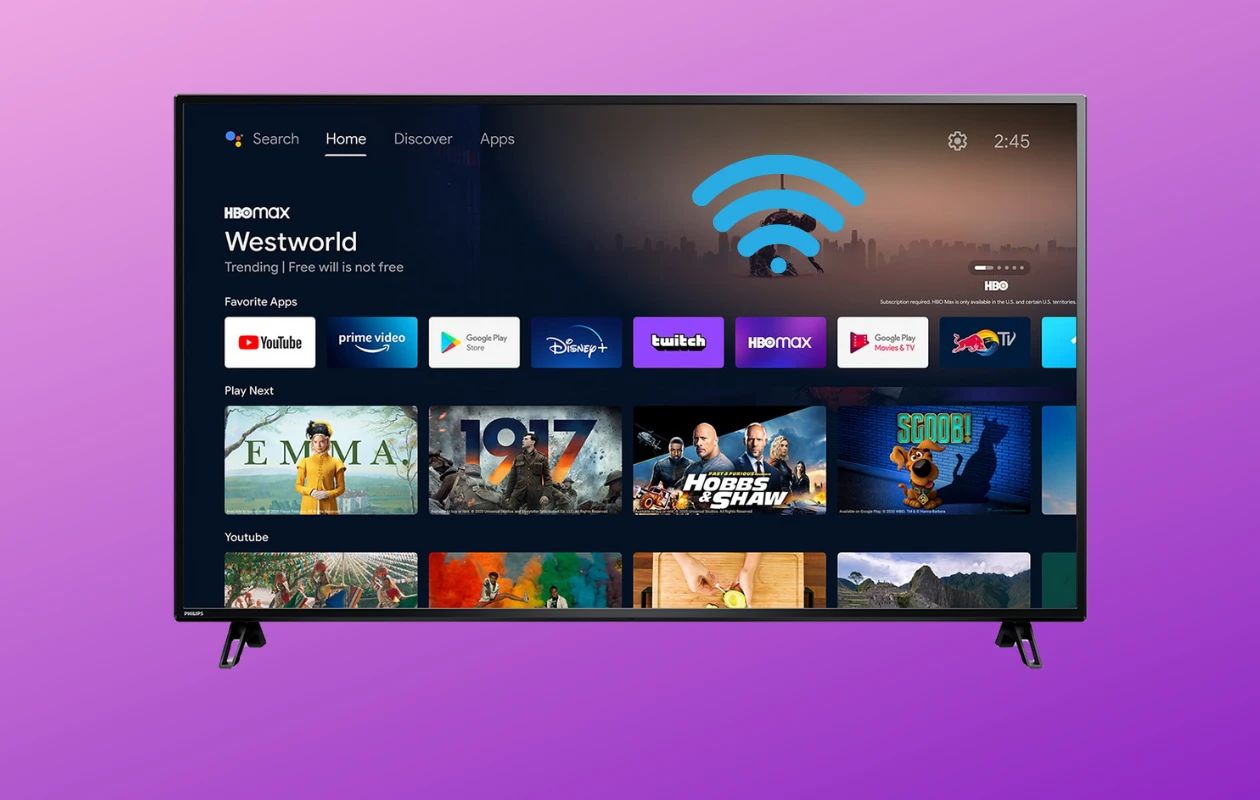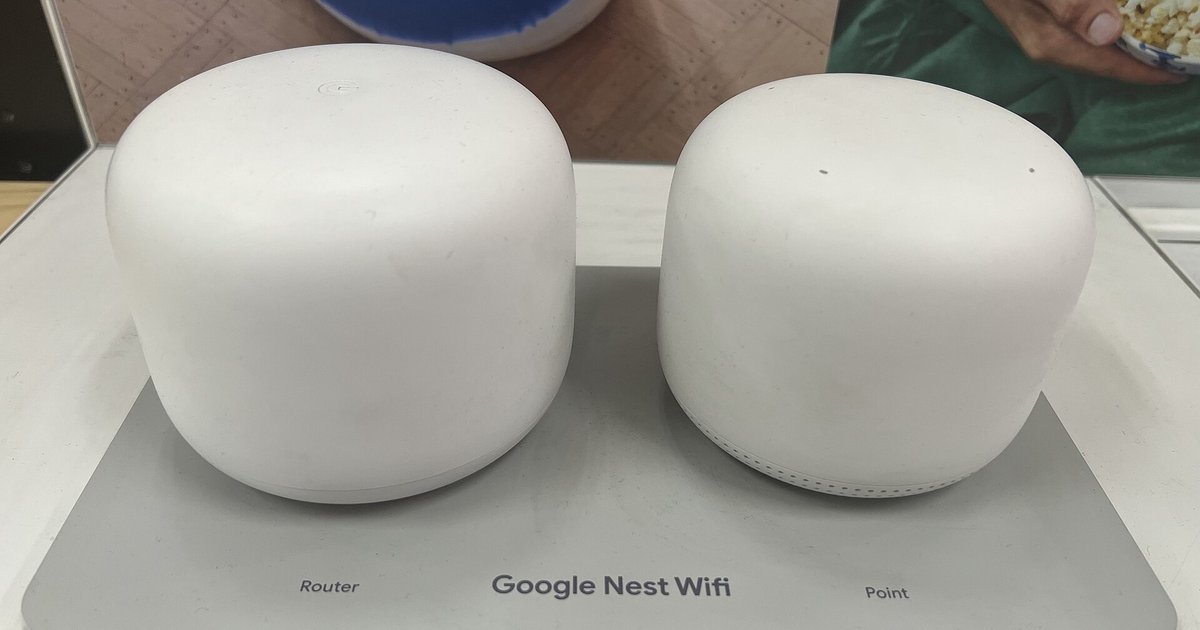
To connect a PC to Wi-Fi without an Ethernet cable, your computer needs a wireless network adapter, hardware that receives radio signals from a router. This guide covers the exact steps for Windows 11, Windows 10, and macOS, plus fixes if no networks appear or the connection fails.
Check for a wireless adapter to connect PC to wifi
Before you can connect, confirm your PC has a wireless adapter. On Windows, open Device Manager by typing "device manager" into the Start search box. Expand "Network adapters" and look for an adapter with "wireless" or "Wi-Fi" in its name. Most laptops and tablets already have one built in, but many desktop PCs require an external USB adapter to receive signals.
Step 2: Connect to a Wi-Fi network on Windows 11 or 10
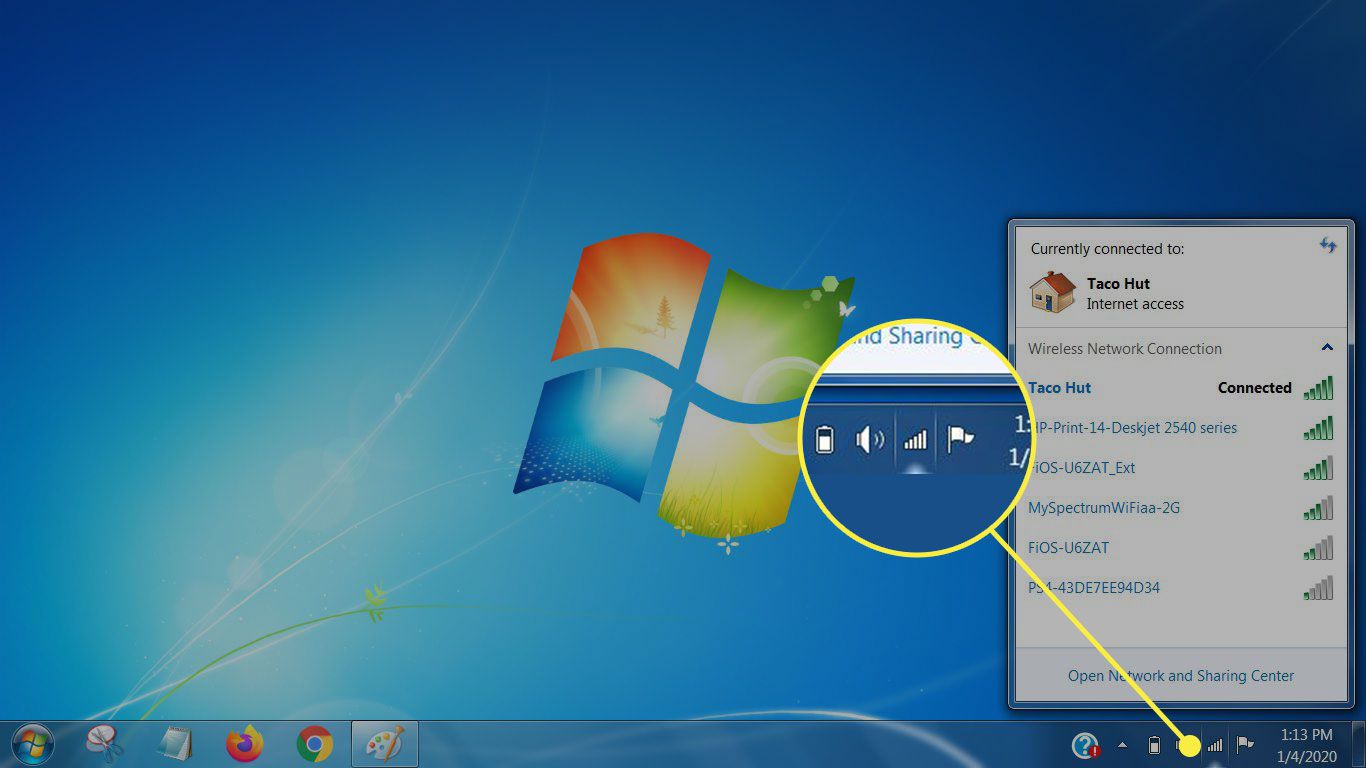
- Windows 11: Select the Network, Sound, or Battery icons on the taskbar to open Quick Settings. Choose "Manage Wi-Fi connections," pick your network from the list, and click "Connect." Enter the network password if prompted.
- Windows 10: Click the Network icon on the taskbar. Select the Wi-Fi network you want, check "Connect automatically" if you'd like, then click "Connect." Type the network security key (password) when asked.
Step 3: Connect to a Wi-Fi network on a Mac
- Click the Wi-Fi status menu in the menu bar. Choose the network you want to join, enter the password if requested, then click "Join."
- For macOS Ventura or later, you can also go to System Settings, click "Wi-Fi" in the sidebar, move the pointer over the network name, and click "Connect."
Step 4: Troubleshoot common connection problems
No networks appearing
If no Wi-Fi networks show up, check for a physical switch or function key on your laptop that turns Wi-Fi on. You might need to reinstall the Wi-Fi adapter drivers, download them from the manufacturer's website on another device, transfer via USB, and install. If you have a mobile phone with a data plan that includes a mobile hotspot, you can use it to temporarily connect your Windows device to the internet.
Weak signal
Move closer to the router. Thick walls, other electronics, or distance can weaken the signal.
Incorrect password
Passwords are case-sensitive. Double-check the network security key, or look on the back of your router for the default password label.
Connecting to a hidden network
Windows 11: Go to Settings > Network & internet > Wi-Fi > Manage known networks, choose "Add network," and enter the network name (SSID), security type, and security key.
Mac: Click the Wi-Fi status menu, click "Other Networks," then click "Other" at the bottom. Enter the network name, select the security type, and provide any other required information before clicking "Join."
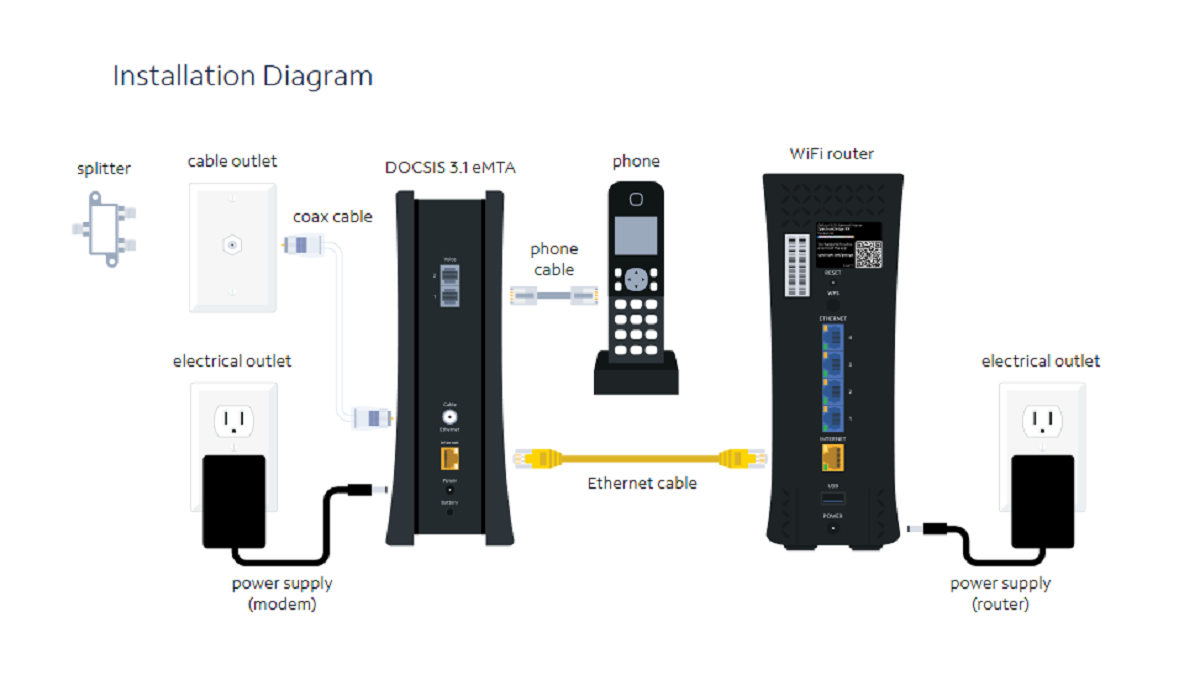
Restart the modem and router
Restarting your modem and Wi-Fi router can help establish a new connection to your internet service provider.
If you need to connect a computer to wifi but still have a wired setup, you can unplug Ethernet cable once the wireless connection is active.
\nRelated reading: How To Connect Wifi Extender To Router Without Wps.