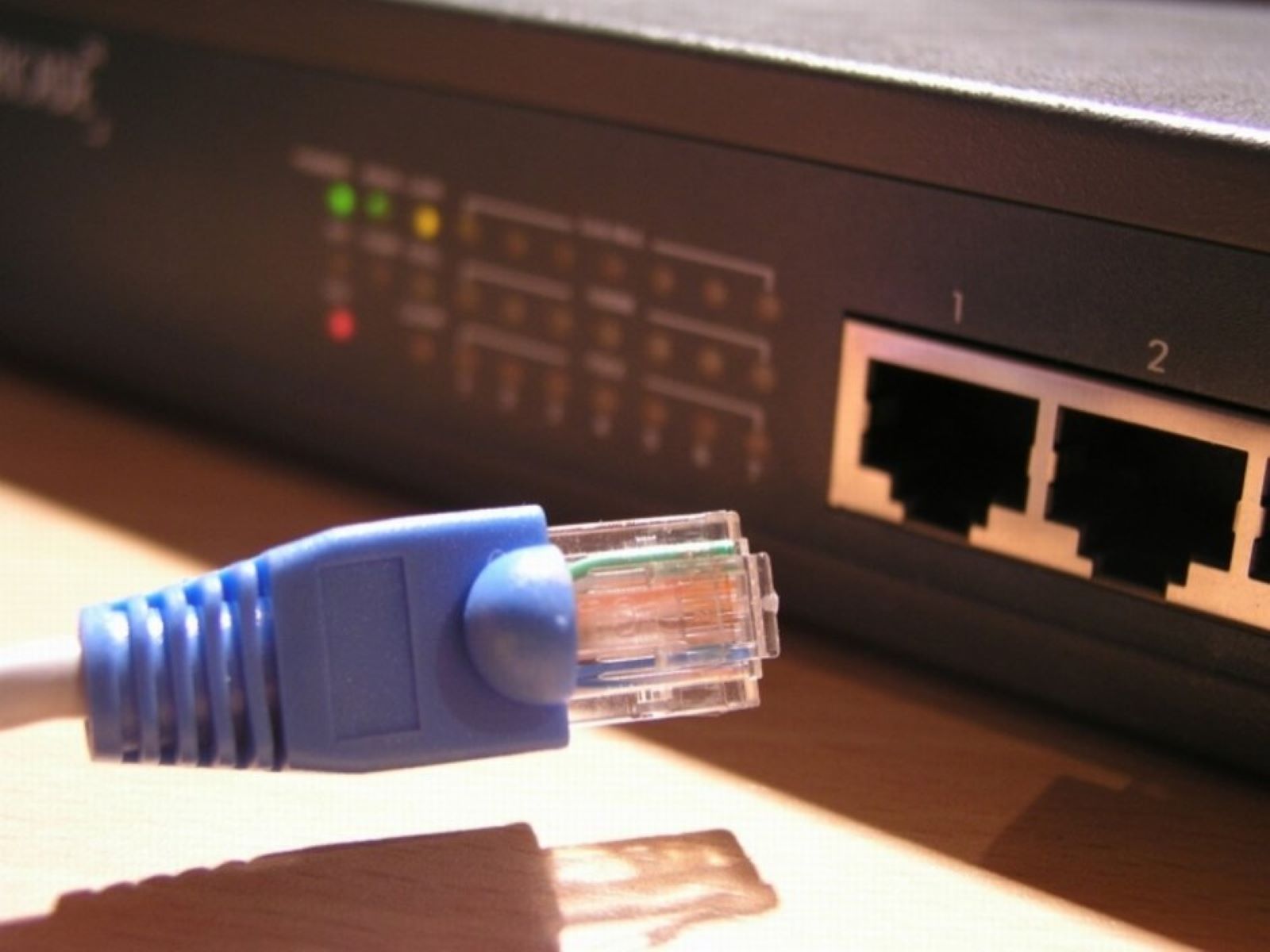
Before you unplug the cable
Before you unplug Ethernet cable, take a moment to check whether the connection problem is actually the cable itself. A loose jack or a disabled network adapter can mimic a dead connection. Try reseating the cable gently and restarting your device first. If that doesn't work, you need to tell if your Ethernet cable is bad by inspecting it for bent pins, cuts, or kinks along the length. Even a partially damaged cable can cause intermittent drops. A thorough visual check saves you from unnecessary yanking. You should also tell what kind of Ethernet cable you have by looking for printed text on the jacket. This text helps you know its rated speed and whether it's worth keeping. If you need to replace it, you can tell what cat Ethernet cable the old one was. That makes buying a compatible replacement straightforward. And if you're considering an upgrade, it helps to understand the difference between cat6 and cat8 Ethernet cable. This is especially true for short runs where the higher shielding of Cat8 might not matter. Most importantly, never just pull. Press down on the tab on the plug firmly before sliding it out. You risk snapping off the clip inside the port otherwise. That tiny piece of plastic can ruin your connection and force you to replace the whole port.
- the 'Network Cable Unplugged' error after reconnecting — Why does my computer still say 'Network Cable Unplugged' after I reconnect?
How to safely disconnect
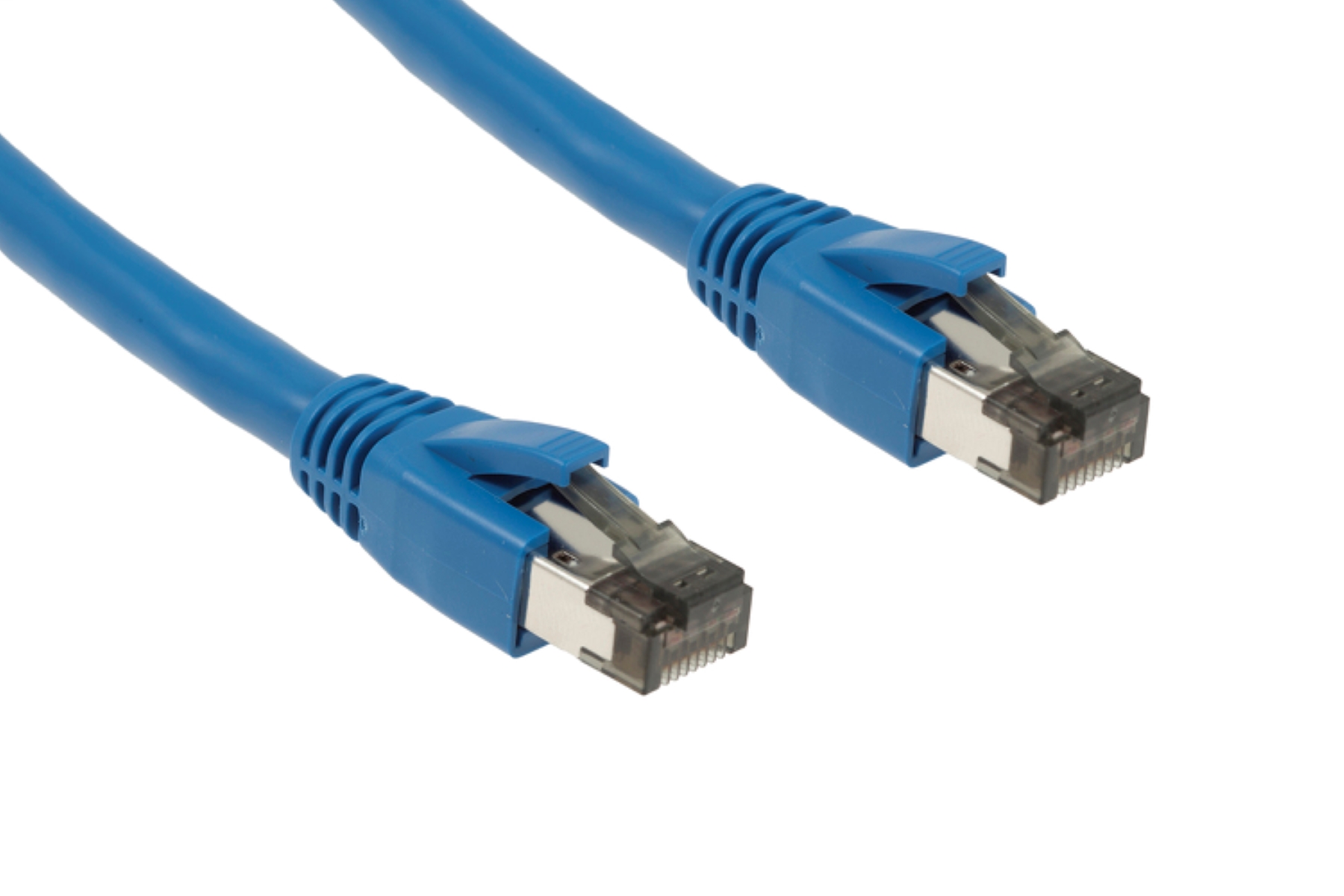
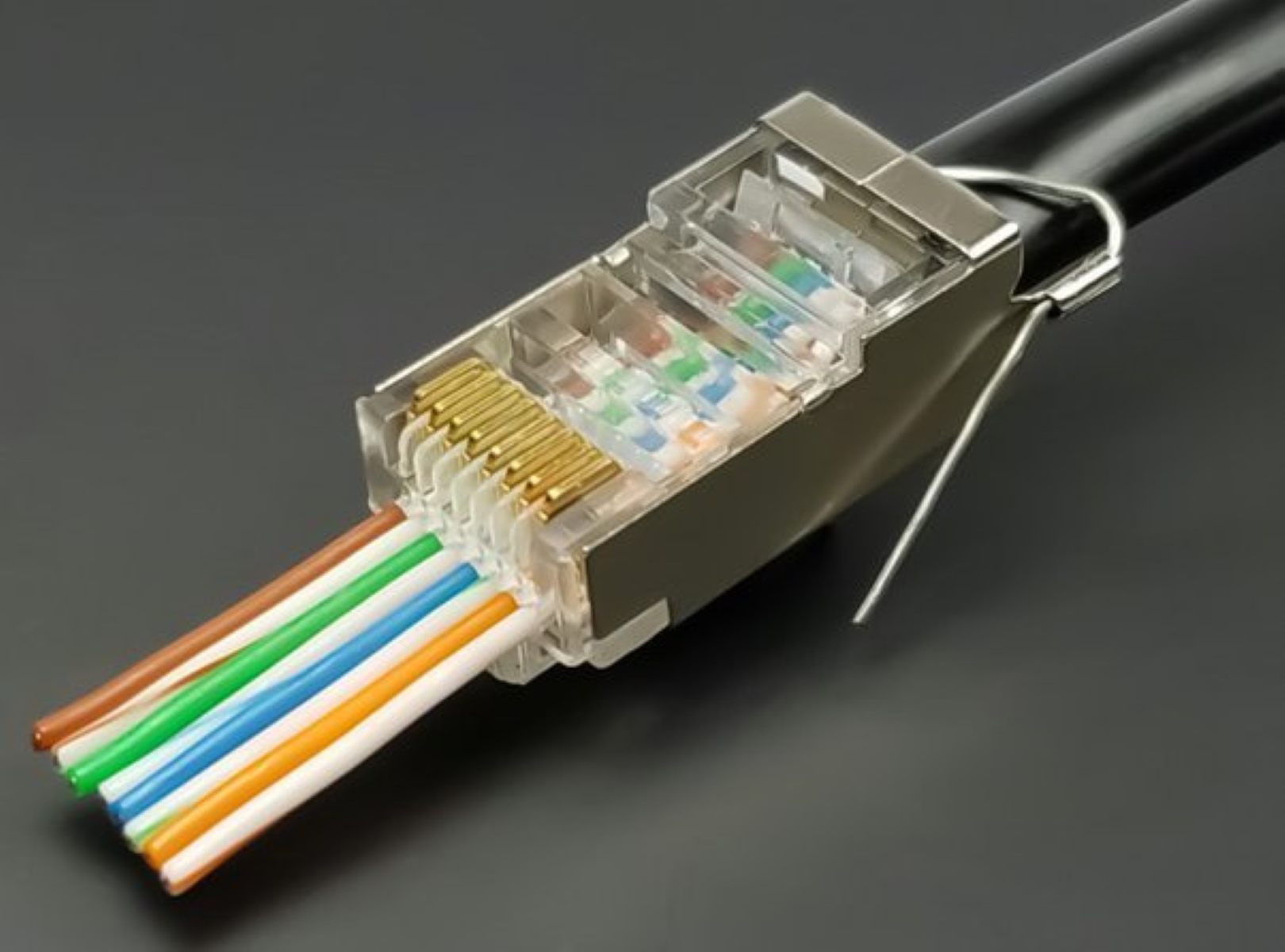
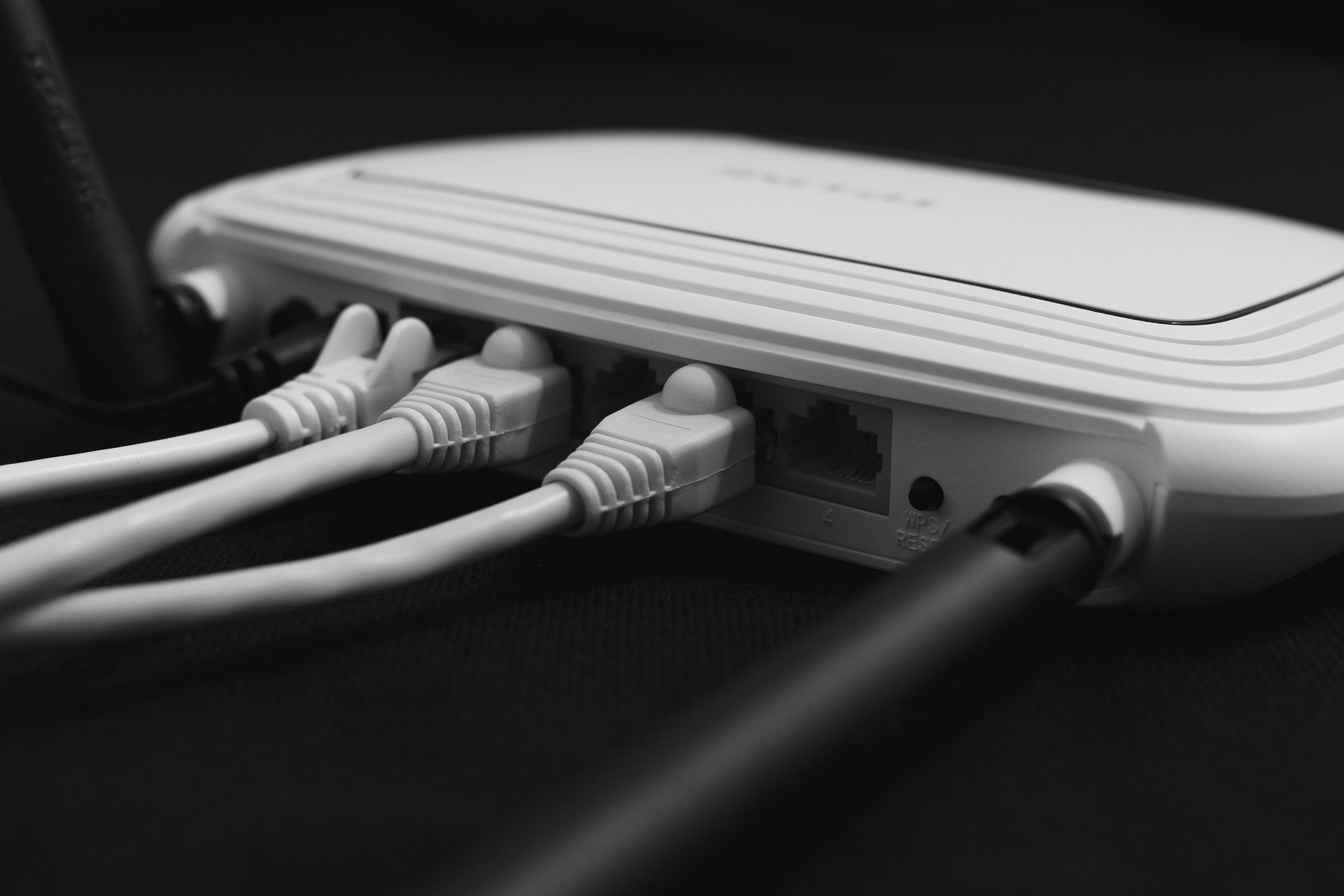
Grip the connector firmly by its rigid body, never the cable itself. Squeeze the small plastic tab down to disengage the locking mechanism from the port. If you pull without pressing the clip first, you risk snapping it off inside the jack. You will then need to remove a broken Ethernet clip stuck in the port before the connection can be used again.
Once the tab is fully depressed, draw the connector straight out. Wiggling it side to side can bend the pins inside the jack. It can also loosen the solder joints at the Ethernet cable connection points on the device’s motherboard. After the plug is free, inspect both the clip and the port opening for any debris or bent metal.
A common confusion arises when someone tries plugging an Ethernet cable into a phone jack with an adapter. The clip may seat partially but the pins won’t align. If the cable feels loose or the tab didn’t click, stop and check the port shape. Store the cable loosely coiled rather than wrapped tight. This prevents the clip from being crushed or the jacket from splitting near the connector.
If you're moving to a wireless setup
Once you decide to cut the cord, the first step is to make sure your wireless network is actually working before you unplug anything. If you are already connected via Ethernet, you can keep that cable plugged in while you locate your Wi-Fi password. One reliable method is to find out wifi password through Ethernet cable by checking your router's settings page from a connected computer. After you have the password, you will need to connect PC to wifi without Ethernet cable. This usually means clicking the network icon in your system tray, selecting your SSID, and typing in that password. Only once the wireless connection is active and stable should you reach for the cable.
When you do, press the release tab on the connector, grip the connector firmly by its rigid body, not the thin wire, and pull straight out. Yanking at an angle is exactly how you snap the plastic locking tab, leaving it stuck inside the port. If you ever need to switch back, you can always use Ethernet instead of wifi for a faster, more stable link. If you are setting up a new router in a different room, you can connect router to modem without Ethernet cable using a powerline adapter or a wireless bridge. Either way, treat that little clip with respect.
When you need to reach a different room
If your router sits in the living room but your desk is two floors up, the temptation to pull the long cable from the back of the console and drag it across the house is real. Before you do, check whether you can actually get Ethernet when router is far away without running a trip hazard. Many homes have telephone jacks that can be converted. You can also use a powerline adapter to send the signal through your electrical wiring.
Another option is to extend wifi with Ethernet cable by placing a second router in your workspace and connecting it wirelessly to the main one. Then plug your PC into that second router’s LAN port. If your room has wall plates that look like phone jacks but have eight pins, you might find Ethernet port in house by popping the cover off and inspecting the wiring. Some builders install the cabling but never terminate it at the panel. In that case you can activate Ethernet ports in house by connecting the wires to a patch panel or switch yourself.
If none of these solutions for missing Ethernet outlets work, consider the cost of having an electrician run Ethernet through walls. It is often less than you think, especially if you bundle it with other work. Whatever path you choose, resist the urge to yank the cable. Squeeze the tab first. The only guaranteed way to convert a daisy-chained phone line into a functional data link without touching the wall is to terminate every jack in the chain, which is a wiring topology unique to residential phone systems and not found in any modern Ethernet installation.
Buying and using a new cable
If you have already broken a clip or simply need a fresh cable for a new setup, you can find Ethernet cable local purchase options at electronics retailers, office supply stores, and even some convenience stores that carry basic networking gear. Buying locally lets you inspect the connector before you leave the store. This is important because cheap cables often have brittle plastic tabs that snap the first time you push them into a port.
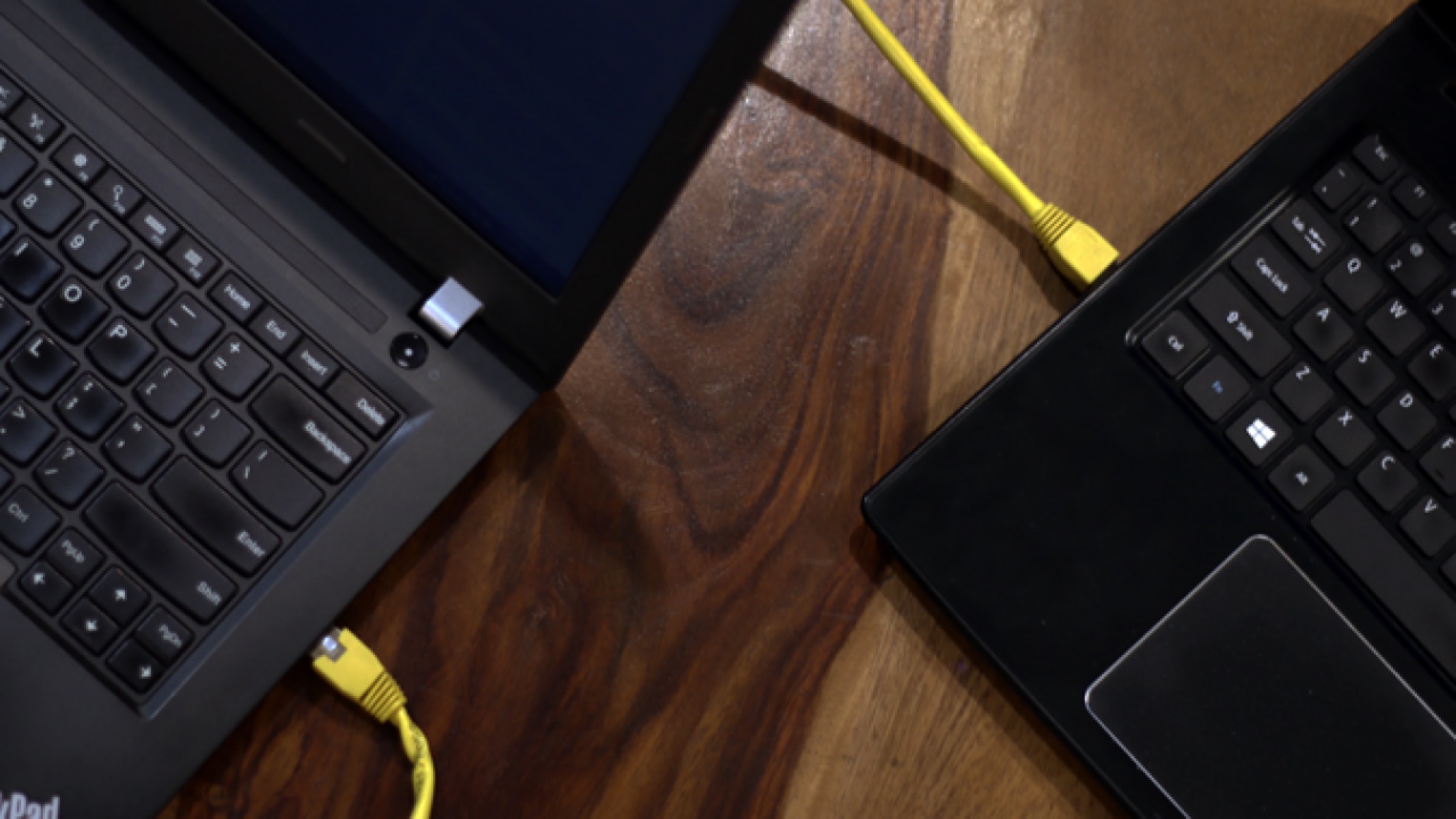
When you get home with the new cable, you can also use it to transfer files from PC to PC using Ethernet cable if both computers have working network ports and you set up a small local network. To do that, plug one end into each machine. Then open the sharing settings on both computers. No internet connection is required for the two devices to talk to each other.
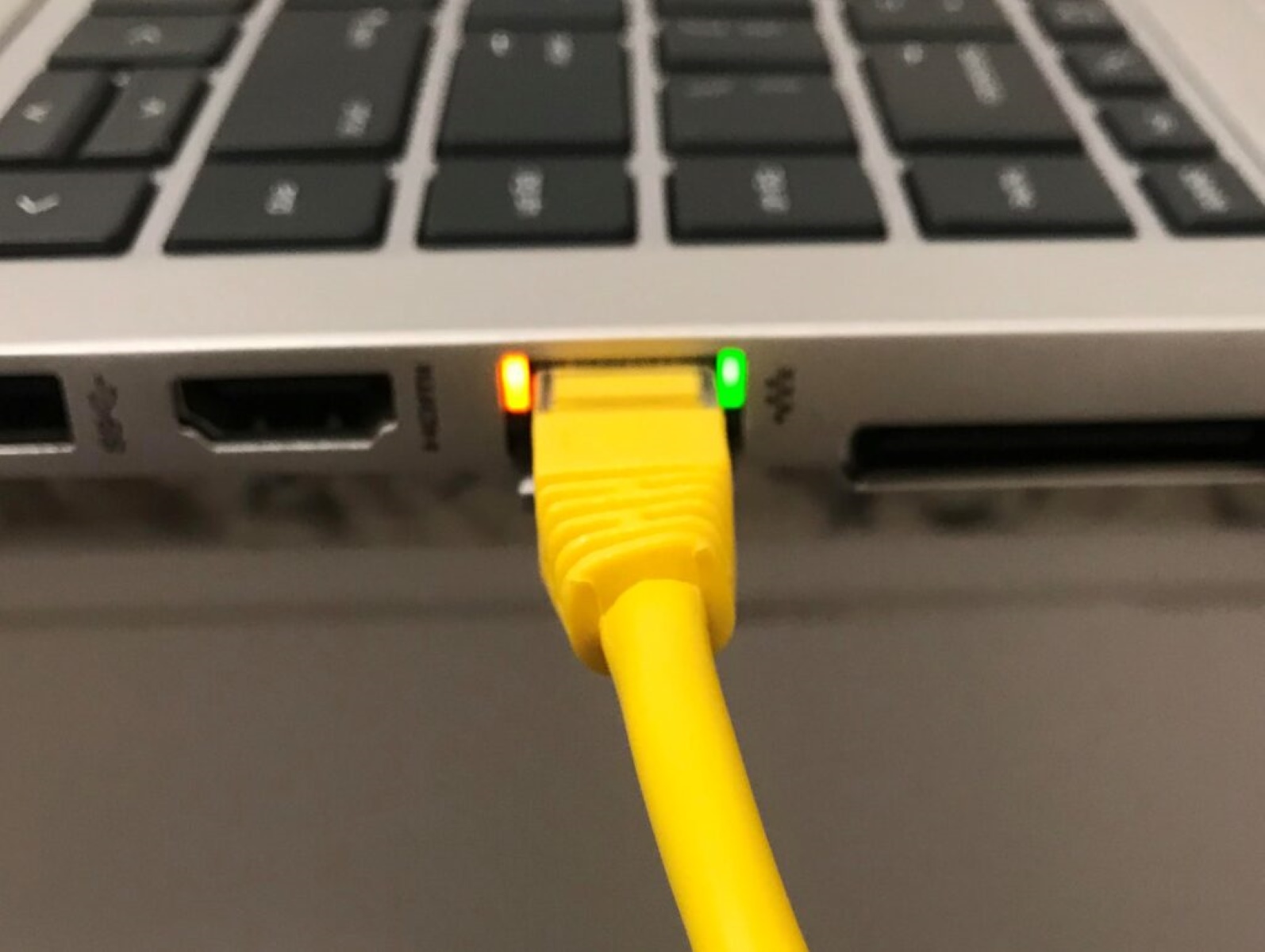
Before you push the connector in, check that the clip clicks fully into place. A half-seated cable can lose connection mid-transfer. And when you eventually need to unplug this new cable, press the clip down flat against the connector body before pulling straight out. Never pull at an angle. This way you avoid repeating the same broken-clip problem you started with.