The only way to get PlayStation Plus free is through Sony’s official limited trial, which gives first-time subscribers full access to online multiplayer, monthly games, and exclusive discounts for a set number of days. You must link a valid payment method to start the trial, but you can cancel immediately after signing up and still keep every benefit until the trial period ends, and if you forget to cancel in time, you can still refund a PlayStation plus subscription as long as you act quickly. Below is the exact process for PS5 and PS4, plus other legitimate methods to access PlayStation Plus benefits without paying the full subscription fee.
How to get PlayStation Plus free with an official trial
Sony offers a free trial of PlayStation Plus exclusively to accounts that have never subscribed to any PlayStation Plus plan. The trial is not available to everyone, it appears only if Sony has activated the offer for your region and account type. To check eligibility and start the trial:
- Turn on your PS5 or PS4 and sign in to the PlayStation Network account you want to use.
- Open the PlayStation Store from the home screen.
- Scroll to the “PlayStation Plus” tab on the left sidebar (PS5) or the “PS Plus” icon in the top menu (PS4).
- Look for a banner or button that says “Free Trial” or “Try Free.” If you don’t see it, the offer is not active for your account or region.
- Select the free trial option and choose the PlayStation Plus plan you want to try (Essential, Extra, or Premium).
- Enter or confirm your payment method. A credit card or PayPal account is required even though you won’t be charged during the trial.
- Review the terms, then select “Accept” or “Start Trial.” Your trial begins immediately.
Once the trial is active, you have full access to all benefits included in the plan you selected. The trial length varies, typically 7 or 14 days, but Sony does not publish a standard duration. After the trial ends, your subscription automatically rolls into a paid plan with recurring fees unless you cancel before the last day. The critical step is to cancel right after activating the trial so you never get charged.
Canceling your PlayStation Plus trial on PS5 and PS4
You can cancel the trial’s auto-renewal while still using the benefits until the final day. The cancellation path is different on each console:
On PS5
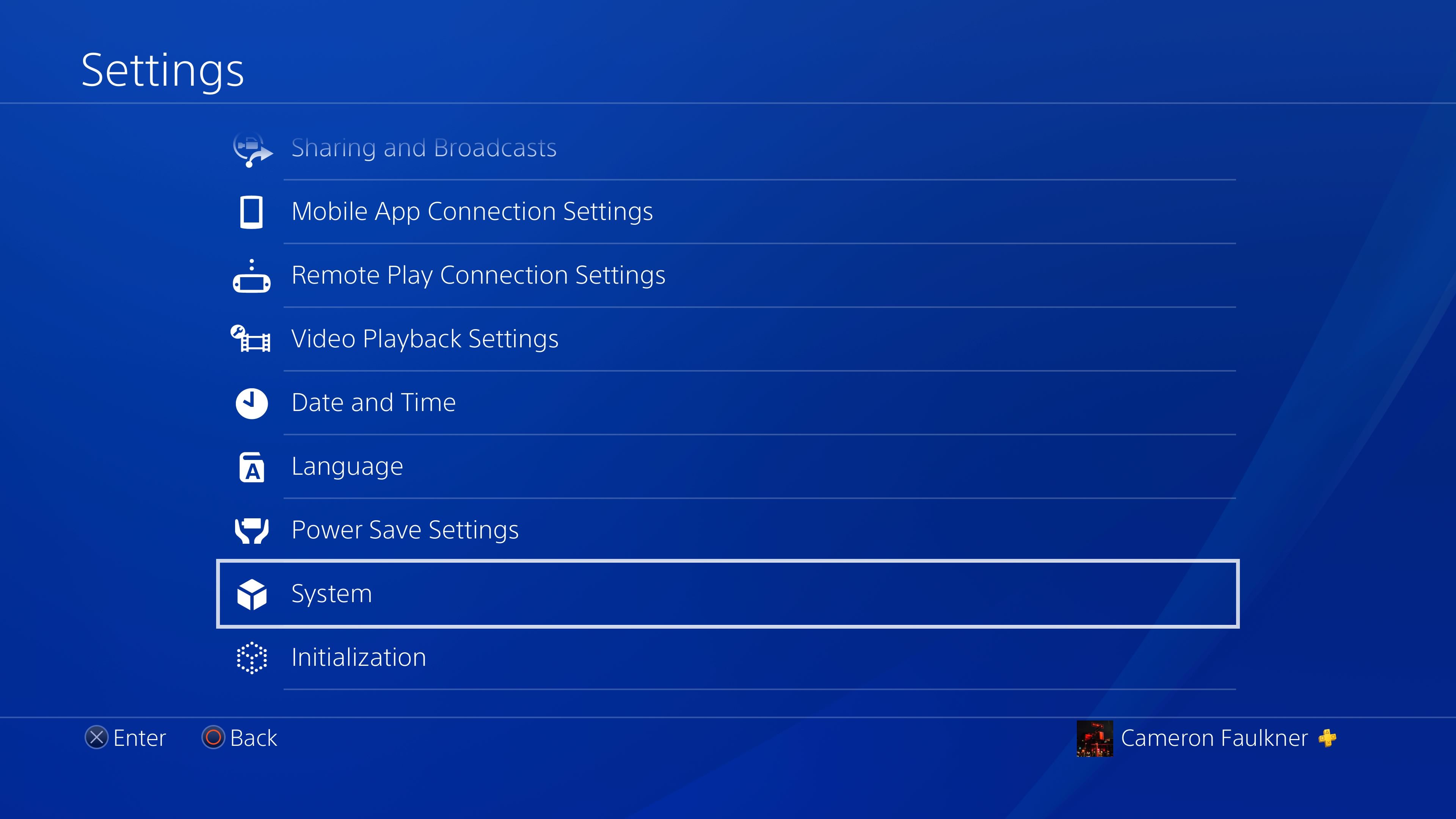
- Go to [Settings] from the home screen.
- Select [Users and Accounts].
- Choose [Account].
- Open [Payment and Subscriptions].
- Select [Subscriptions].
- Find your PlayStation Plus trial, then select Cancel Subscription.
- Confirm the cancellation when prompted.
On PS4
- Go to [Settings] from the home screen.
- Select [Account Management].
- Choose [Account Information].
- Open [PlayStation Subscriptions].
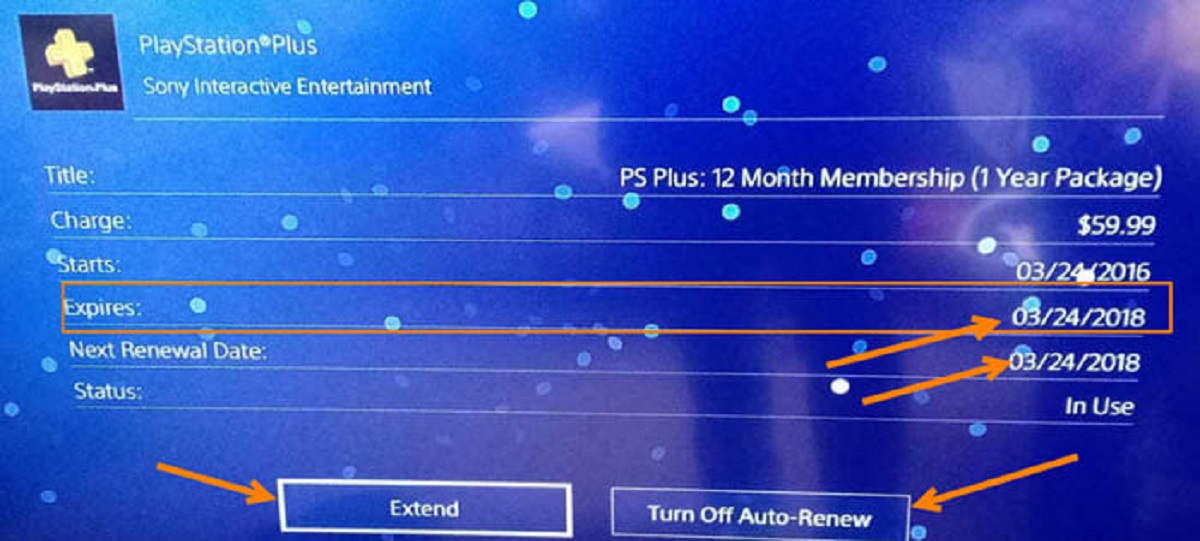
- Select your PlayStation Plus trial, then choose Turn Off Auto-Renewal or Cancel Subscription.
- Confirm the cancellation.
After canceling, you keep all PlayStation Plus features, online multiplayer, monthly games, and discounts, until the trial expiration date. Mark that date on your calendar so you know when access stops. Note that if you’ve had any PlayStation Plus plan before, the trial banner will not appear again for that account in that region, so this is a one-time opportunity per account.
Take advantage of free online multiplayer weekends
To find and join one:
- Check the PlayStation Store’s “Deals” or “Special Offers” section during known promotional periods (Black Friday, holiday seasons, or game launches).
- Look for a banner that says “Free Online Multiplayer Weekend” or “Online Multiplayer Open Access.”
- Navigate to the Games section on your console and download any participating multiplayer game.
- Launch the game and play online normally, no subscription or payment method required.
These weekends give you a taste of online play without any commitment, but they don’t include other PlayStation Plus benefits like monthly games or exclusive discounts. Sony announces these events through the PlayStation Blog and official social media channels, so follow those accounts to catch the next one.
Look for official promotional offers and bundles
To find these offers:
- Open the PlayStation Store and go to the “Deals” section.
- Filter by “PlayStation Plus” to see any discounted subscription cards or codes.
- Check the “Special Offers” tab on the PlayStation website.
- Look for bundle deals where a PlayStation Plus subscription is included free with a console, game, or accessory purchase, these appear frequently during new hardware launches or major game releases.
Always read the terms to confirm the offer applies to your region and account type. Promotional offers are limited-time and can sell out, so act quickly when you see a deal.
Share your subscription with family instead of Share Play
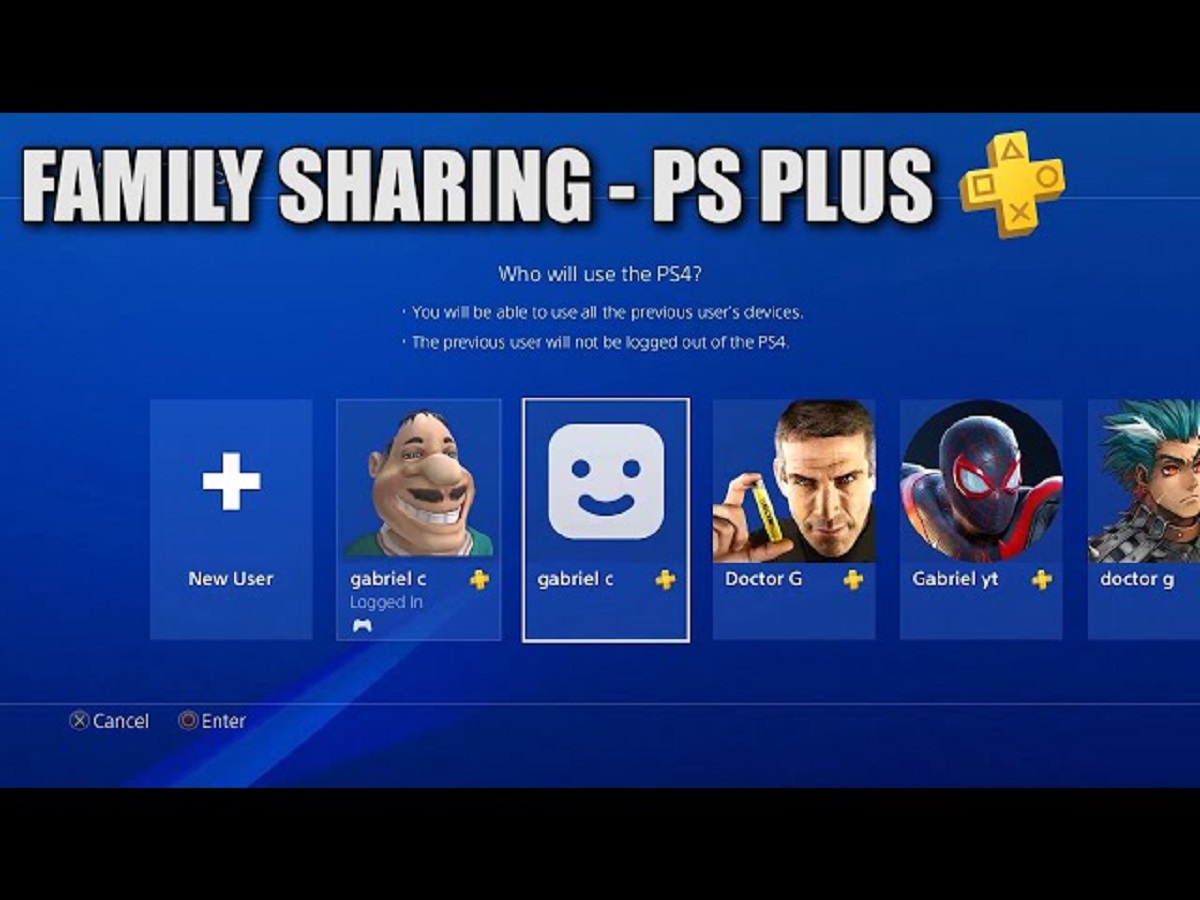
Share Play does not share PlayStation Plus benefits, it only lets a friend join your game session for up to one hour at a time, and the host must have an active subscription. The legitimate way to share a PlayStation Plus subscription is through the console’s family sharing feature, which lets you share games, online multiplayer, and other benefits with accounts on the same console. This is the correct method to share PlayStation plus with family without paying for multiple subscriptions. To set it up, activate your console as the primary PS4 or PS5 for the account that has PlayStation Plus, then create family sub-accounts for other users. Those sub-accounts can access online multiplayer and download the monthly games. For detailed steps, see the sibling guide on How To Share PlayStation Plus With Family. This method works only on one console at a time, and all users must be in the same family group. Additionally, if you want to get Discord on PlayStation, you don’t need a PlayStation Plus subscription, Discord voice chat is available on PS5 as a free feature, and you can link your PlayStation Network account to Discord to show your game activity. That feature is separate from PlayStation Plus and requires no subscription at all.
For the wider topic, see get Discord on PlayStation.