For standard 4×6 prints and most photo books, Google Photos print quality in Storage Saver mode is visually indistinguishable from Original quality. You only risk visible pixelation or softness when printing larger than 16×20 inches. The same risk applies when cropping heavily into a low-resolution original. Google Photos compresses your images to 16 megapixels in Storage Saver mode. That resolution comfortably covers the vast majority of consumer printing needs. Your holiday photo book will look sharp on paper.
The math behind Google photos print quality limits
Storage Saver mode caps every photo at 16 megapixels. For a standard 4:3 image, that is roughly 4,608 × 3,456 pixels. Print sharpness is measured in dots per inch (DPI), and the industry standard for a crisp photo print is 300 DPI. Divide each dimension by 300 to find the print size at that DPI. 4,608 ÷ 300 equals 15.36 inches, and 3,456 ÷ 300 equals 11.52 inches. That gives a print of about 15 × 11 inches at 300 DPI, which is larger than a standard 8×10. If you print at a lower but still acceptable 240 DPI, the same 16-megapixel image yields a 19 × 14-inch print. The pixel density drops below 240 DPI only when you push past 16 × 20 inches, which risks visible softness or jagged edges. This is why the 16-megapixel cap is a generous safety buffer for nearly every home print job. Google Photos is built to keep your archive safe, not to limit your creativity.
When compressed copies fail a print
A compressed copy fails in three specific scenarios. First, aggressive digital zoom. If you crop a photo down to only 2 or 3 megapixels inside Google Photos before printing, the remaining resolution may drop below 1,200 pixels on the long edge. That produces a blurry 4×6 print. Second, large canvas prints. A 20×30 canvas at 300 DPI would require 6,000 × 9,000 pixels, which is 54 megapixels and far beyond the 16-megapixel limit. You will see pixelation and soft edges. Third, low-light photos. The JPEG compression becomes more aggressive in noisy areas, creating visible blocky artifacts that look like smudged patches on glossy paper. If you kept an original backup elsewhere, you can still use the “download full resolution photos from Google photos” option to retrieve it, or download all photos from Google photos at once to PC to secure every original before ordering prints.
The photo book exception people miss
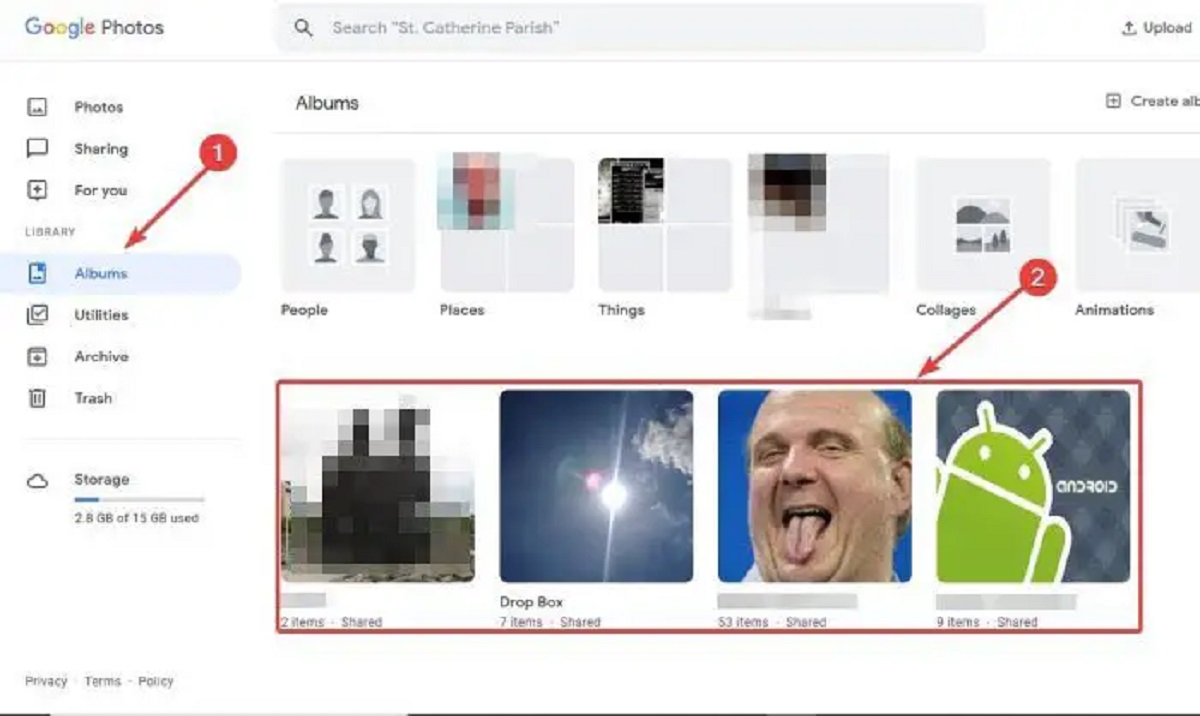
Photo books are significantly more forgiving than loose prints because each image occupies a smaller portion of the page. A typical 8×10 photo book layout places a 4×6 photo on a 10×8 page. The image is already below the 300 DPI threshold for its actual print area. The printing press itself applies a halftone screen or dithering pattern that masks minor JPEG compression artifacts from the space-saving copies. Even a 16-megapixel photo cropped to 4×6 inside the book will look sharp. The viewing distance is often 12-18 inches, not the 6-8 inches you would use for a loose 8×10. To keep your book organized, you can easily organize Google photos into albums before printing. The only caution applies to full-bleed 8×10 images that use one photo per page. Treat those like large loose prints and ensure they meet the 16-megapixel minimum. Otherwise, the compressed copy is perfectly sufficient for a sharp print.
The 16-megapixel cap is a print-first safety net, not a quality compromise, because it preserves enough data for every standard print size while eliminating the bulk of raw files you will never need on paper.