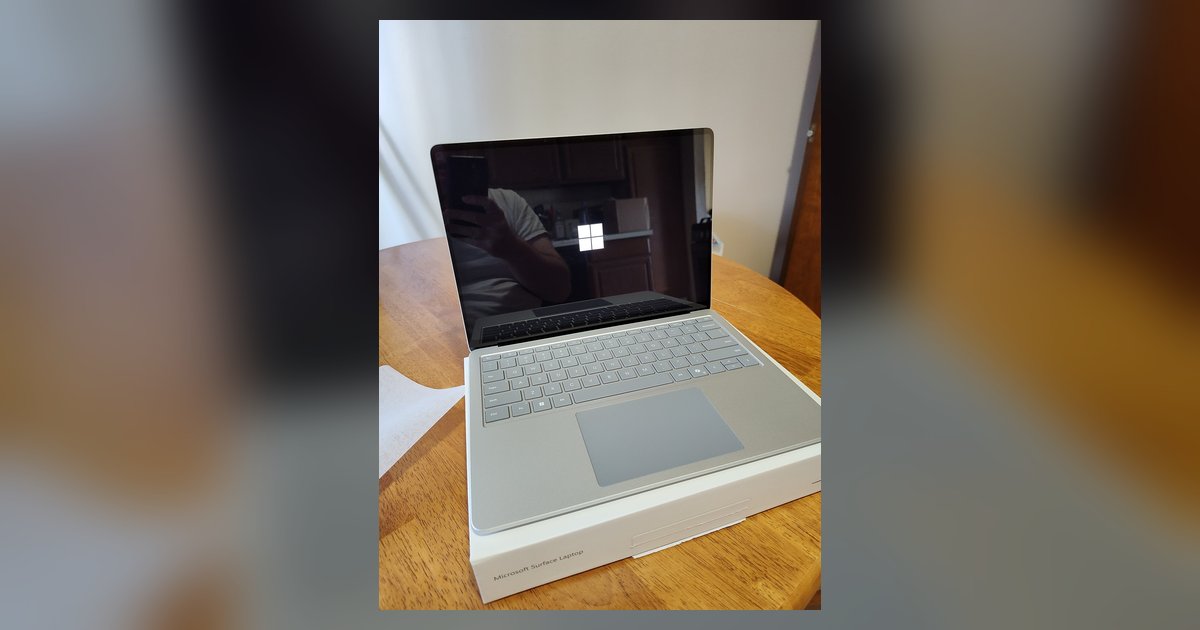
No, you cannot use a laptop's HDMI port as a video input without a capture card, but you can use the laptop screen as a second monitor wirelessly through software like Miracast, spacedesk, or remote desktop apps.
Why a laptop as monitor fails with HDMI
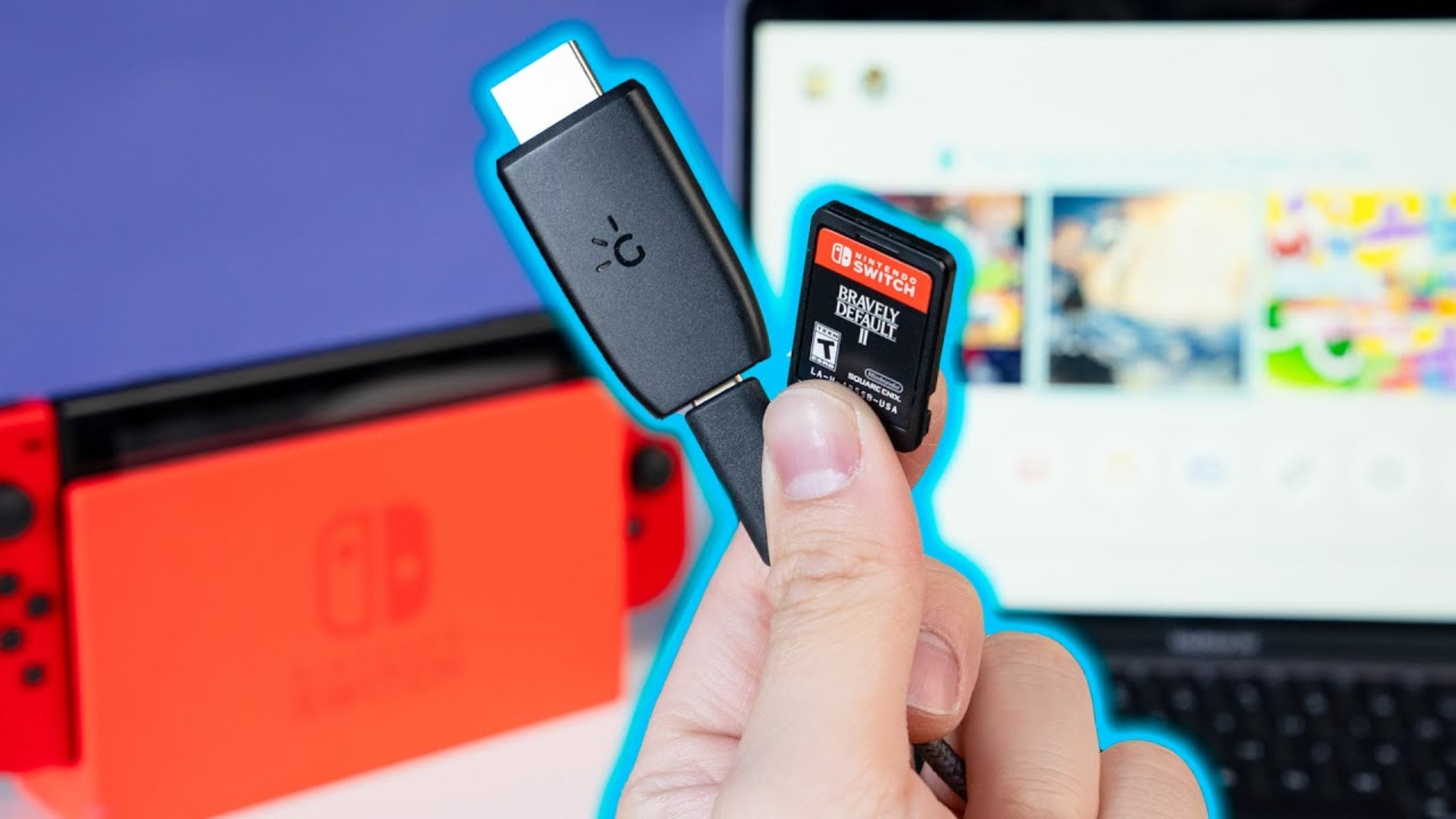
The reason your attempt to connect two laptops via HDMI failed is a fundamental hardware limitation. Laptop manufacturers almost never include an HDMI input controller. It adds cost and complexity to a component that is almost exclusively used to connect to projectors or monitors. When you plug a cable into your laptop’s HDMI port, the system only recognizes it as a potential output destination. To accept video input, the port would need a separate chipset that can decode incoming signals. This chipset is absent from virtually all consumer laptops. For example, if you try to use your laptop as a monitor for a PlayStation 5, you will hit the same wall. You cannot simply play PS5 on laptop through HDMI without a capture card because the laptop’s port is output-only. The same applies to Nintendo hardware. You cannot connect Nintendo switch to PC with HDMI directly into a laptop port for the same reason. Even if you navigate to your display settings and attempt to switch from HDMI 1 to HDMI 2, the laptop will never show an input option. Those inputs do not exist in the hardware. If you need to configure a secondary display, you can use HDMI on Lenovo laptop to extend your screen to a monitor.
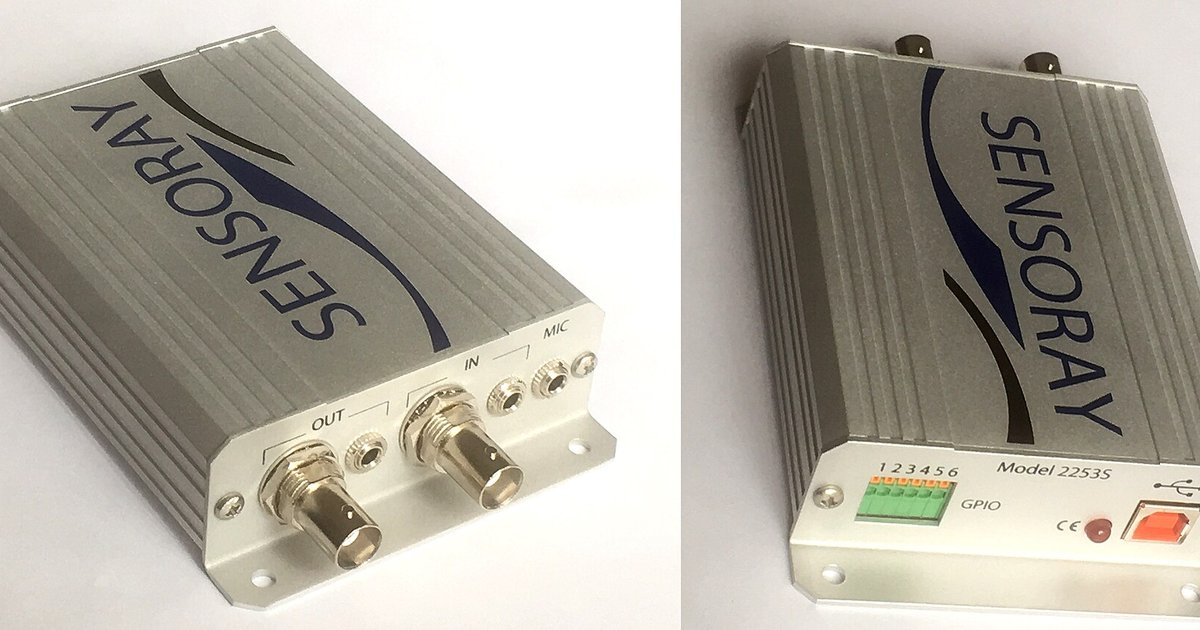
The only way to turn a laptop screen into a true wired monitor for another device is to use a capture card, because the HDMI port on virtually every consumer laptop is physically incapable of receiving a video signal.
Software that turns a laptop into a wireless monitor
Since the HDMI port cannot receive video, software solutions bypass the hardware entirely by sending the display signal over your local network. Spacedesk installs a driver on the primary computer and a receiver app on the laptop. This allows the laptop screen to act as a secondary monitor over Wi-Fi or Ethernet. Miracast is built into Windows 10 and 11. Open the “Connect” app (Windows 10) or “Wireless Display” app (Windows 11) on your laptop, then on the source device press Windows Key + K (Windows 11) or Windows Key + P (Windows 10) and select “Connect to a wireless display” to mirror or extend your desktop. Remote desktop apps like Windows Remote Desktop or third-party tools like TeamViewer also work. However, they are better for accessing a computer remotely than for low-latency display extension. If you need to adjust the source computer’s output, you can switch to HDMI on PC Windows 11 through the sound and display settings. The video will still travel over the network to the laptop. For a wired connection without a capture card, you would need to connect HDMI laptop to DisplayPort monitor using an active adapter, as this still requires compatible physical ports. These tools are free and require no extra hardware, making them ideal for office work, web browsing, or watching videos.
When software isn't good enough
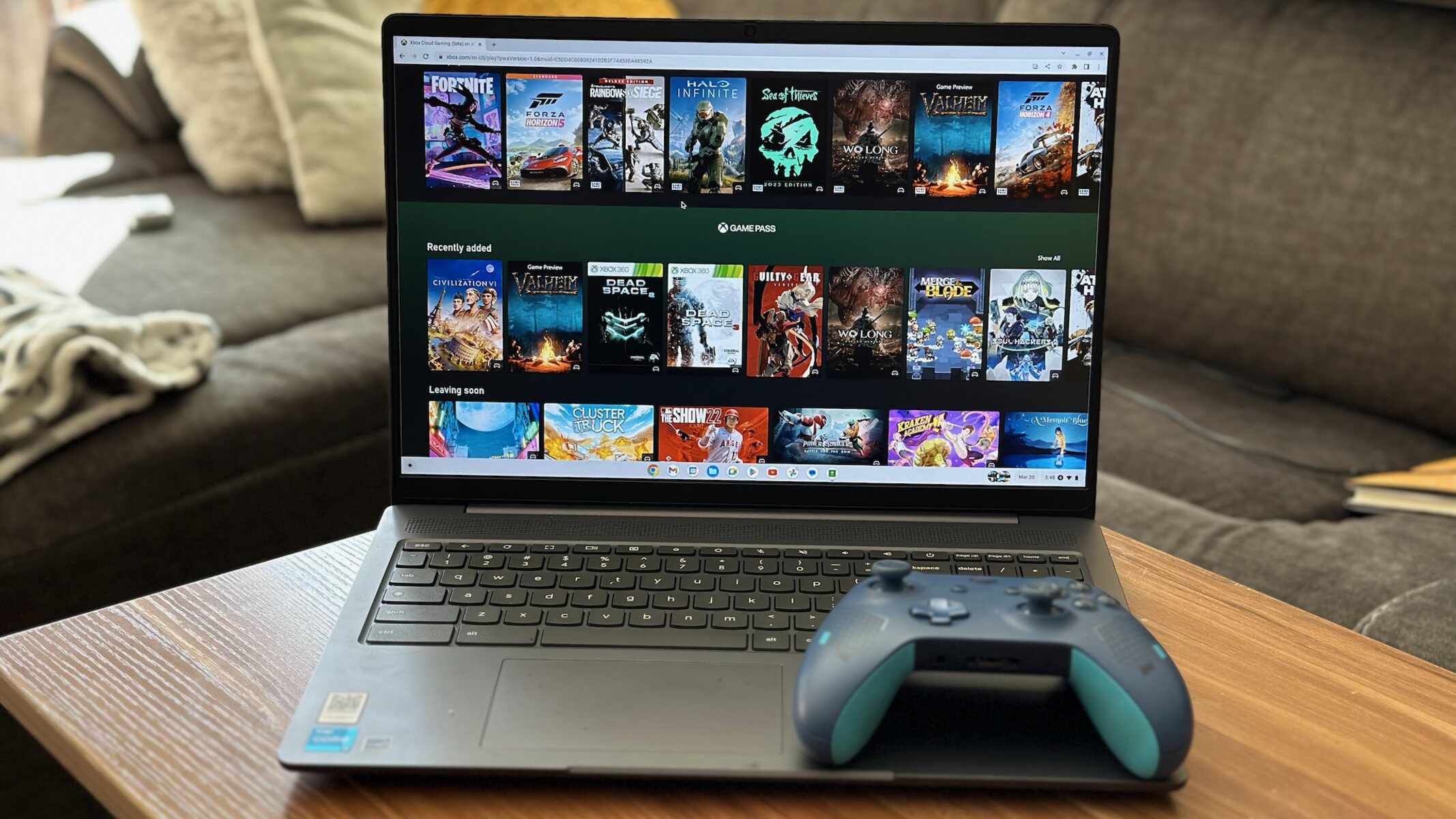
Wireless display software introduces unavoidable trade-offs that make it unsuitable for demanding tasks. Latency typically ranges from 50 to 200 milliseconds. This is noticeable in fast-paced games or when using a mouse for precise work. Video compression artifacts appear on gradients and fine text. Color-critical photo editing or graphic design suffers as a result. Network stability is another weak point. If your Wi-Fi signal drops or experiences interference, the laptop screen will stutter or disconnect entirely. For gaming, the delay is often too high to enjoy responsive controls. You would still need a capture card to play PS5 on laptop through HDMI with acceptable performance. Similarly, if you want to connect Nintendo switch to PC with HDMI for low-latency gameplay, only a capture card provides the wired connection that bypasses network lag. The software option works best for static content like spreadsheets or presentations. For anything requiring real-time response or accurate color reproduction, the hardware limitation remains. A capture card is the only way to turn that laptop screen into a true wired monitor.