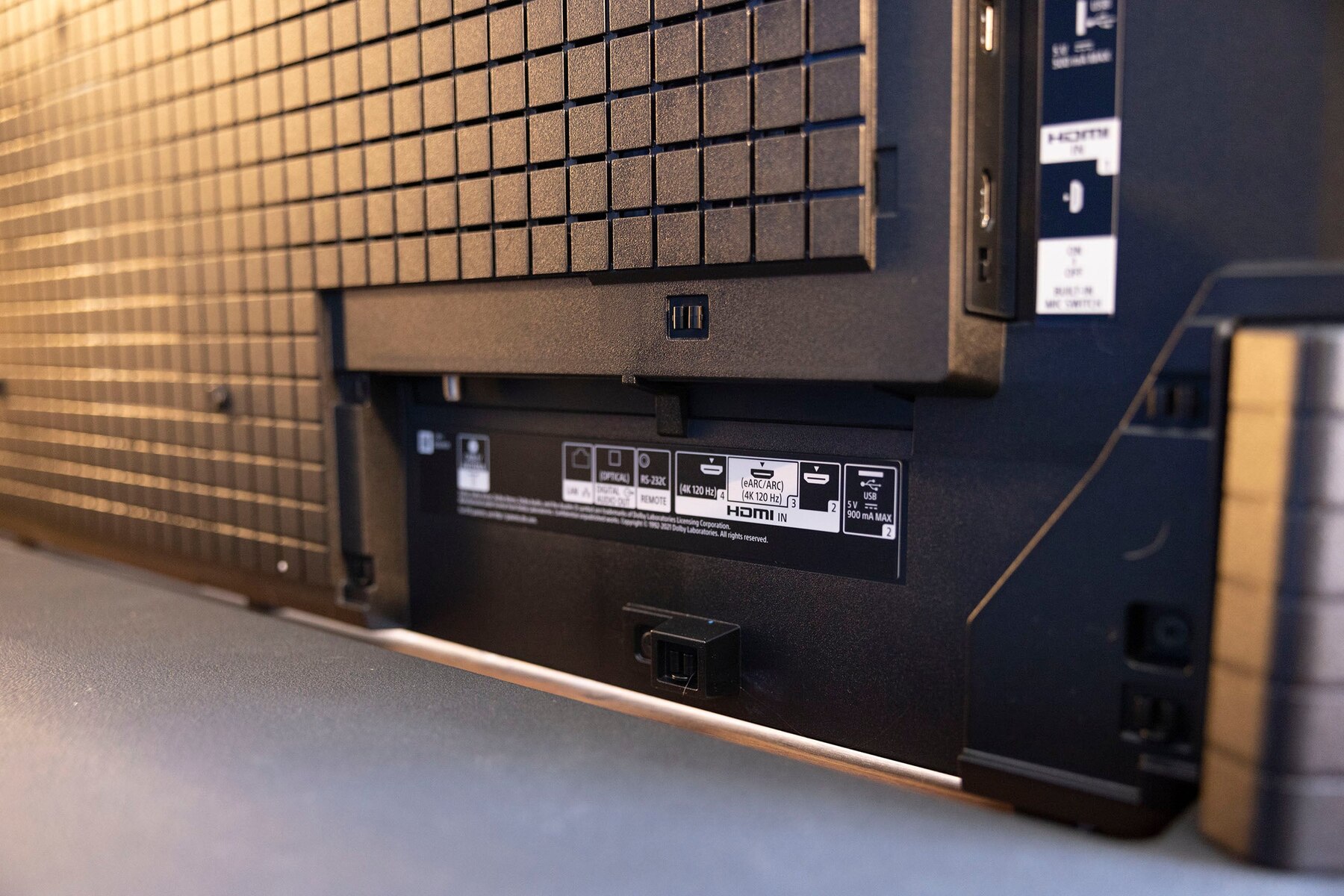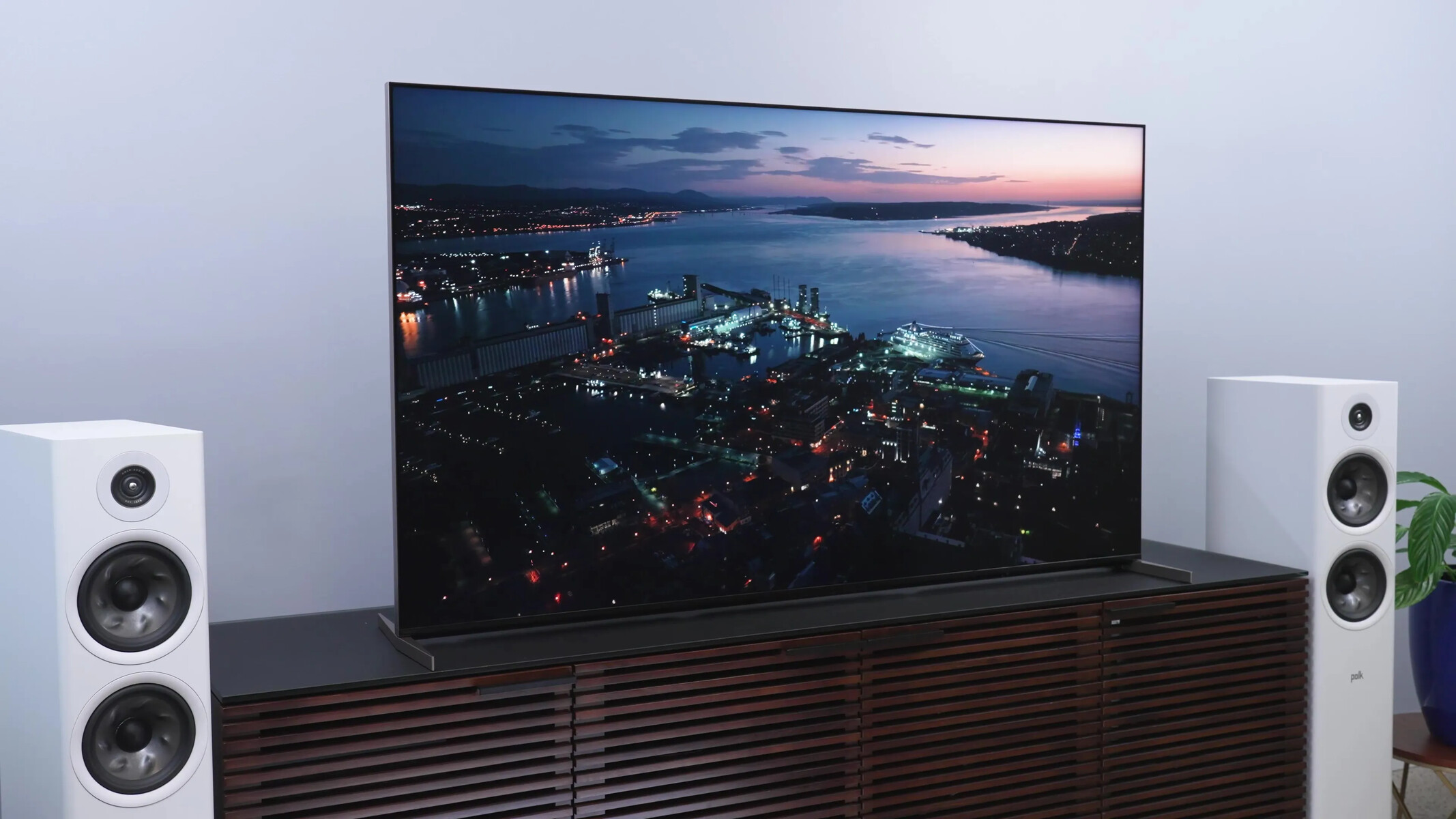
On virtually every Sony Bravia 4K TV, all HDMI ports support 4K, so the real question of which HDMI port is 4K on Sony Bravia comes down to enabling the correct signal format in the settings menu, not hunting for a single magic port. You’ll need to switch the specific HDMI input your device is connected to into “Enhanced format” to unlock full 4K capability.
Enable Enhanced format for any 4K HDMI source
To get 4K working on any port, press the HOME button on your remote, then navigate to Settings → Channels & Inputs → External inputs → HDMI signal format. Select the HDMI input your 4K device is plugged into (e.g., HDMI 1, HDMI 2), and change it from “Standard format” to “Enhanced format”. This single setting unlocks 4K resolution, HDR, and higher color depth on that port.
Important caution: If you see no picture or hear no sound after switching to Enhanced format, revert that port back to “Standard format”, your source device or cable may not support the higher bandwidth. Only use Enhanced format when you have a compatible 4K device connected, otherwise you may experience black screens or flickering.
Finding the HDMI 2.1 ports for 4K at 120Hz
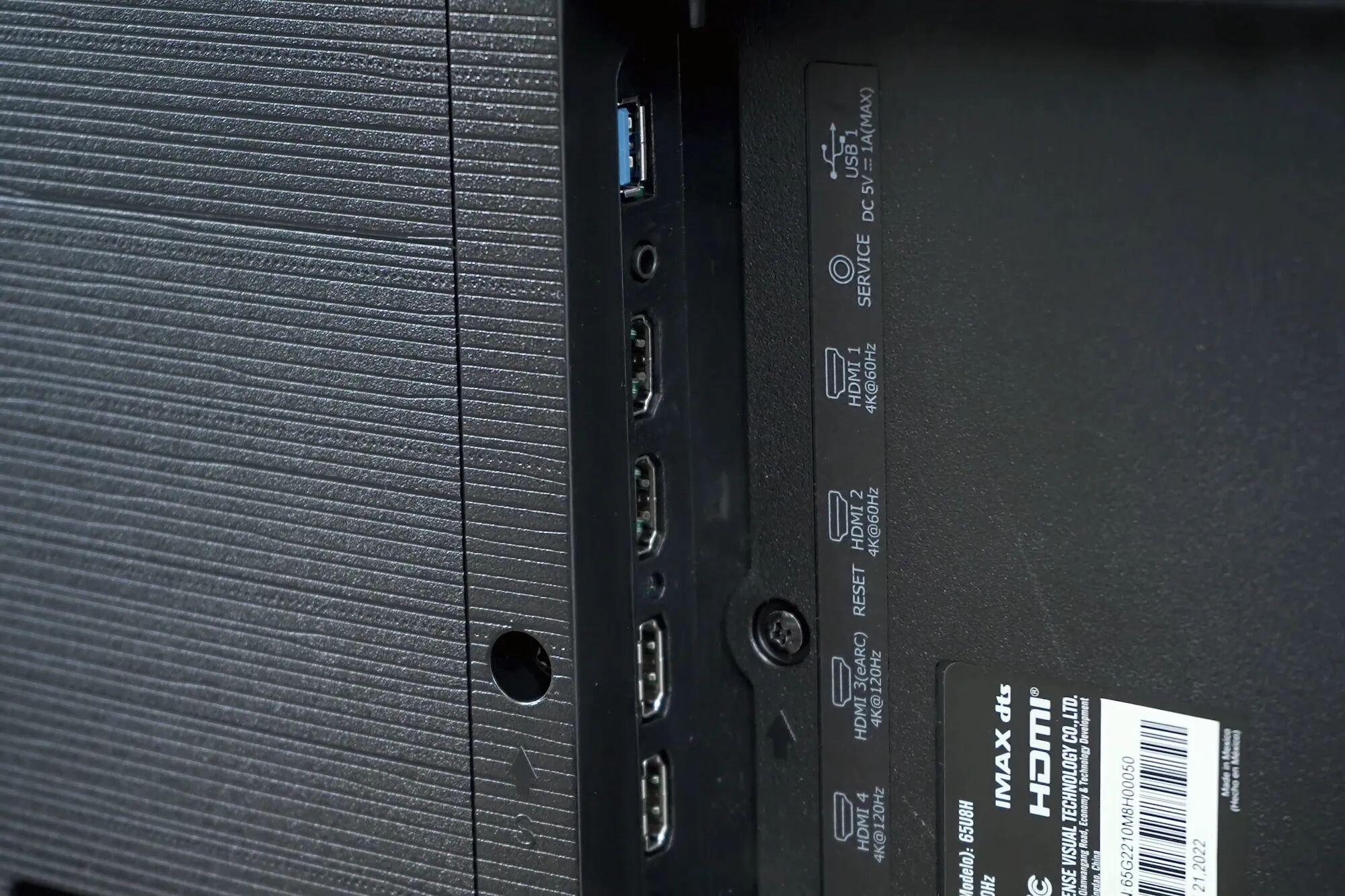
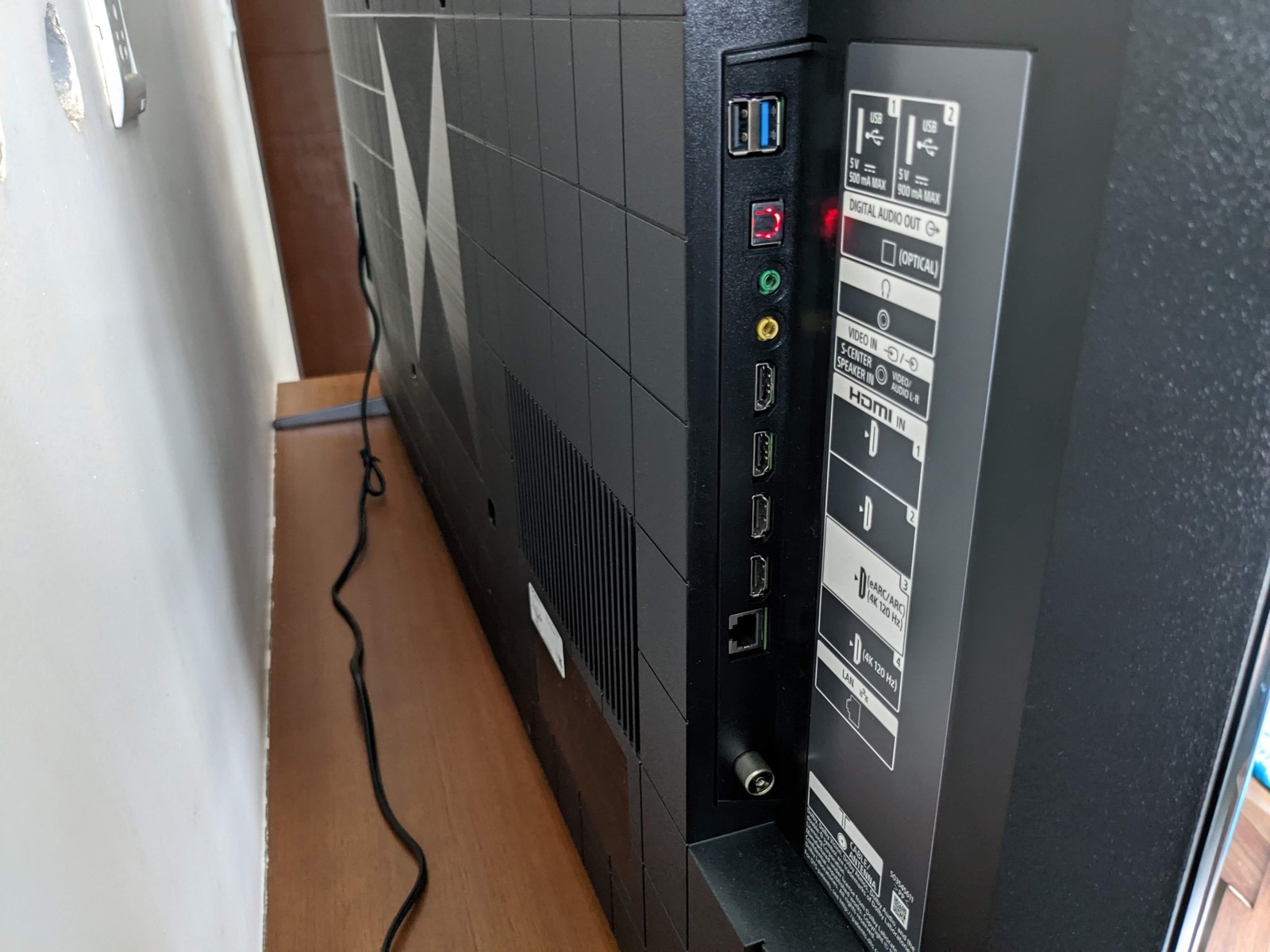
If you’re a gamer with a PlayStation 5, Xbox Series X, or a high-end PC, you’ll need more than just 4K at 60Hz, you’ll want 4K at 120Hz with VRR and ALLM. On most Sony Bravia models (including the X90J/X95K/A80K/A90J series), HDMI 3 and HDMI 4 are the designated HDMI 2.1 ports that support 4K@120Hz, Variable Refresh Rate (VRR), and Auto Low Latency Mode (ALLM).
For older Bravia models, consult the reference guide that came with your TV or search Sony’s support site for the specific port mapping, because the advanced functions vary by model year.
Choosing the right HDMI cable for 4K
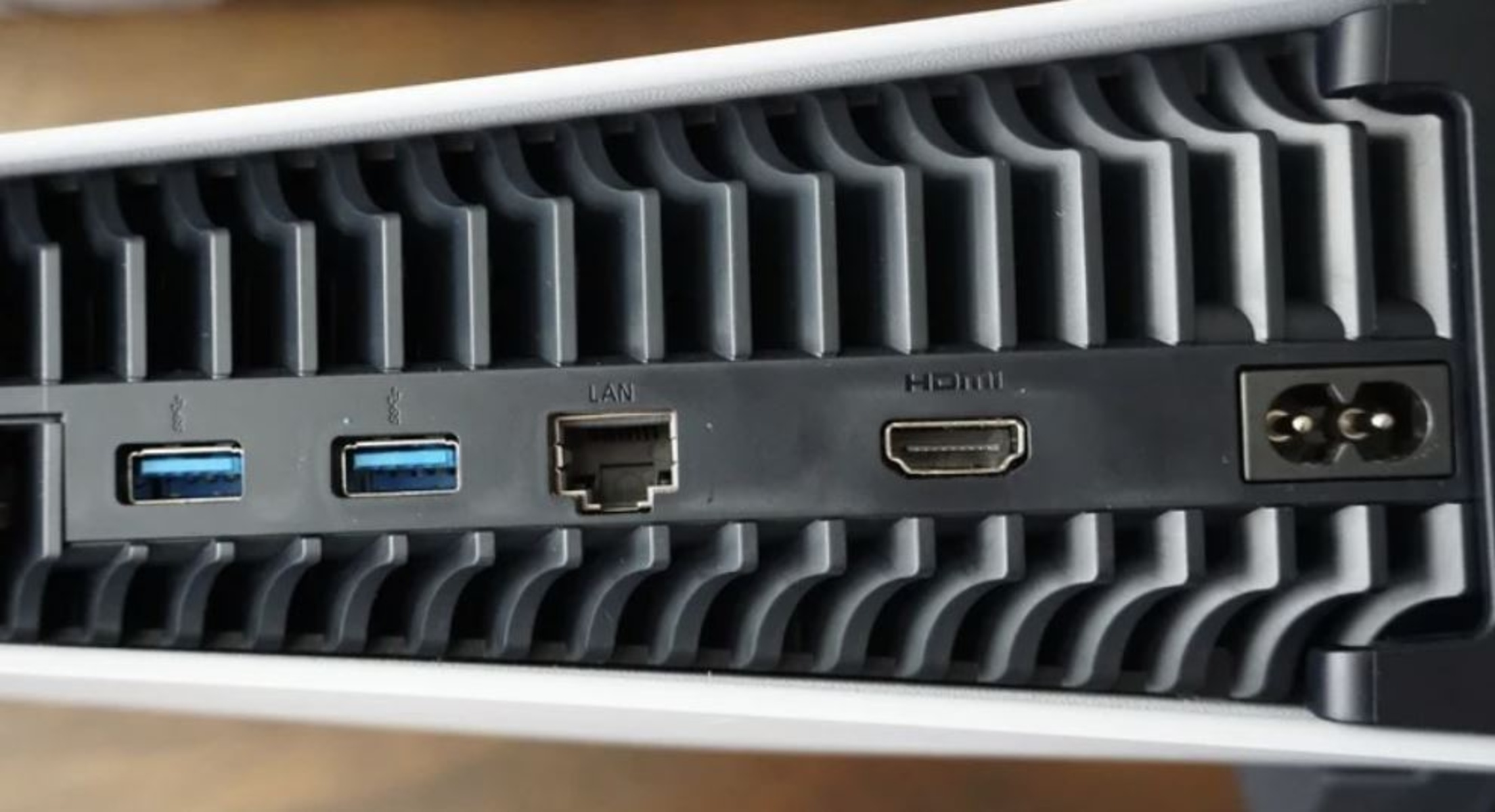
Your cable matters just as much as the port. For standard 4K at 60Hz with HDR, you need a Premium High Speed HDMI Cable (certified for 18 Gbps). For 4K at 120Hz or 8K, you must use an Ultra High Speed HDMI Cable (certified for 48 Gbps).
Don’t rely on old “High Speed” cables from years ago, they lack the bandwidth for HDR or high refresh rates. If you’re buying a cable for your Bravia, always choose one that’s certified for the maximum feature you plan to use, not just the resolution.
Troubleshooting 4K on your Sony Bravia TV
If 4K still isn’t working after enabling Enhanced format, work through these fixes in order:
1. Verify the source device is actually outputting 4K
Check your streaming box, Blu-ray player, or game console’s display settings, many devices default to 1080p or “Auto” which may not trigger 4K. Set the output to 4K or “3840 x 2160” manually, and confirm the device supports HDCP 2.2 (required for 4K copy-protected content).
2. Update your TV’s firmware
Go to Settings → System → Software Update and check for updates. Sony regularly patches HDMI handshake issues and adds new Enhanced format options via firmware, so an outdated TV can block 4K even with the correct settings.
3. Power cycle everything
Unplug the TV and all connected devices from power for 60 seconds, then plug them back in. This clears HDMI handshake errors that commonly cause blank screens or resolution drops when switching Enhanced format.
4. Use the correct Enhanced format variant
On newer Bravia models, the HDMI signal format menu offers multiple Enhanced options: Enhanced format (Dolby Vision) for Dolby Vision content, Enhanced format (VRR) for gaming, and Enhanced format (4K120) for 120Hz. If you’re using a standard 4K device, try “Enhanced format” (without parentheses) first, but if that fails, test each variant to match your device’s capability.
If you’re still stuck, connect your device to a different HDMI port set to “Standard format” to isolate whether the issue is the port or the source. Also, double-check that your cable is firmly seated, a loose connection can cause intermittent 4K failures.
Remember that HDMI ports on a TV are not all equal, while every port can do 4K, only certain ports handle 120Hz or eARC. Finding and switching them is straightforward once you know where to look: the port labels on the TV itself, combined with the HDMI signal format menu, give you complete control over which features each input supports.