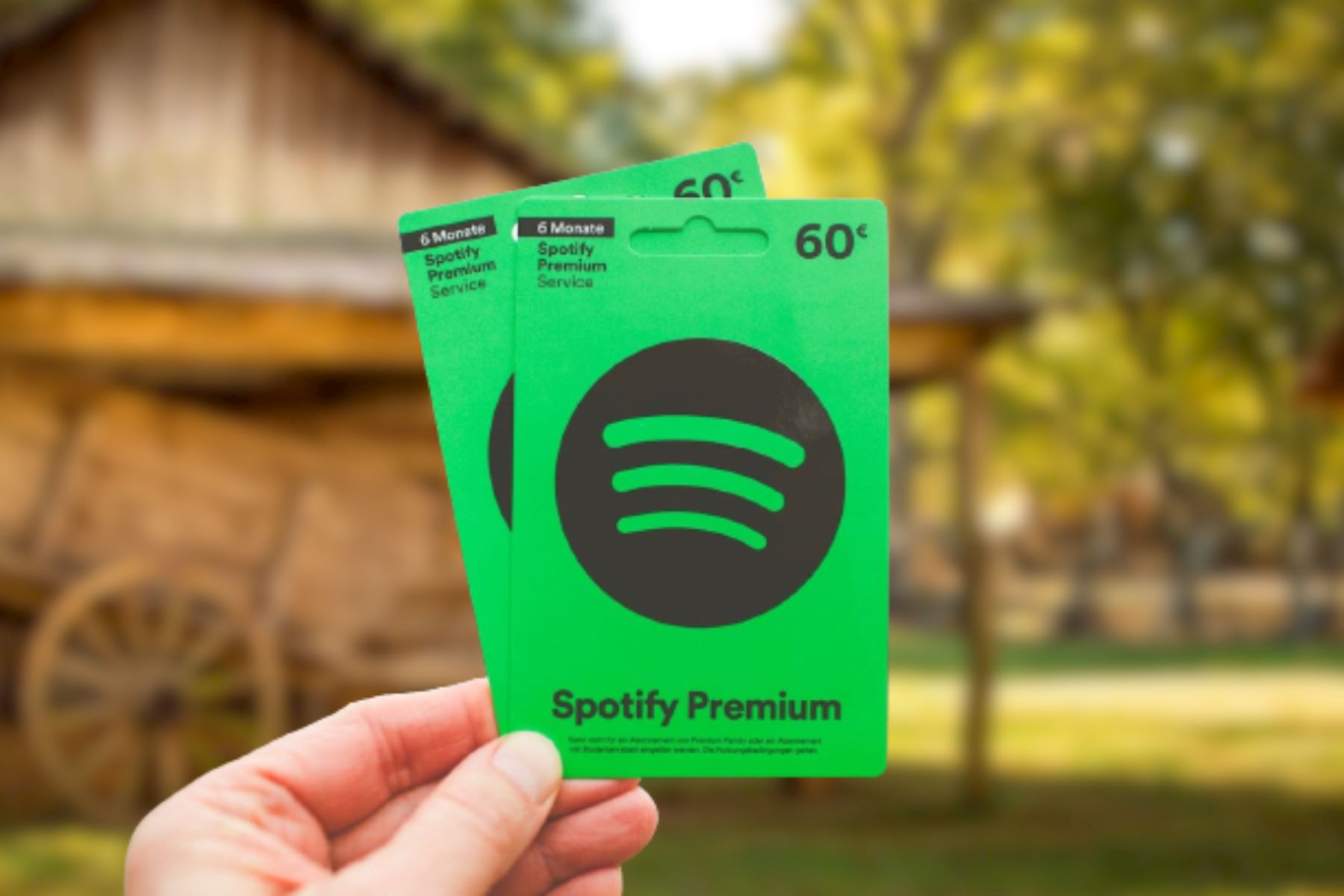
To use a Spotify gift card, you must redeem it on the Spotify website, not inside the app, this is the only way to activate Premium on an individual account. The process takes about two minutes: go to Spotify.com/redeem, log in, enter the code, and confirm; note that gift card sales end March 31, 2026, but cards you already own remain valid for redemption. Once Premium is active, you can use Spotify pair with external devices to stream your ad-free music on speakers and smart TVs.
Before you redeem: requirements and restrictions
Spotify gift cards come with a specific set of rules you need to know before you start. First, redemption happens only through a web browser, the Spotify app has no redemption field, so open any browser on your computer or phone. Second, gift cards apply only to individual Premium plans; they cannot be used for Premium Student, Premium Family, Premium Duo, or any trial offer. If your account is on a discounted plan, an add-on, or a Basic plan, you must switch to an individual Premium plan first. Once you have Premium, you can even add songs to Spotify from YouTube to fill your library with tracks not natively available.
Your account's country or region settings must match the country where the card was purchased. A card bought in the U.S. won't work on a U.K. account, and vice versa. Physical cards bought at a retail store must have been activated by the cashier at checkout, if the cashier skipped that step, the card is dead on arrival. You can stack a maximum of 18 months of Premium time on your account using gift cards, and each card expires 12 months from its purchase date. Gift cards are single-use: the full value is deducted at redemption, and you cannot redeem part of a card or get credit for leftover value. Finally, if your Premium is billed through a third party or your mobile carrier, you must cancel that plan and wait for the current billing period to end before a gift card will work.
Step 1: Go to the redemption page and log in
Open your web browser and navigate to Spotify.com/redeem. You'll be prompted to log in to the Spotify account where you want the Premium time applied. Double-check that you're logged into the correct account, because the gift card value attaches to whichever account completes the redemption.
Step 2: Enter your gift card code
For a physical card, scratch off the PIN cover on the back to reveal the alphanumeric code. Type the code carefully into the field on the redemption page. Common typos include confusing the number 0 with the letter O, and the number 1 with the letter I, these look nearly identical in many fonts. If you're copying from a digital email or receipt, paste the code directly to avoid transcription errors. After entering it, click "Continue," then click "Redeem" to apply the card to your account.
Step 3: Confirm your Premium subscription
Once you click Redeem, the gift card value converts directly into Premium subscription time, it does not become a spendable balance. If you already have Premium, the gift card time starts on your plan's next payment date, extending your subscription. If you're upgrading from a free account, the Premium time begins immediately. If you don't have a payment method set up on your account, you'll still get the full gift card period, but when that time ends, your account will revert to the free, ad-supported service automatically. To avoid a gap, add a payment method in your account settings before the gift card period expires.
Troubleshooting common gift card problems
If your code isn't working, start with the simplest cause: typos. Re-enter the code slowly, or paste it if you have it digitally. Next, verify the card hasn't already been redeemed, gift cards are single-use, so if someone else used it, the code will be rejected. If you bought a physical card from a store, confirm the cashier activated it; a card that wasn't activated at the point of sale will show as invalid. Check that your account's country or region matches the card's country of purchase, a mismatch is a frequent reason for failure. Also confirm your plan type: gift cards only work on individual Premium plans, so if you're on Student, Family, Duo, a trial, or a Basic plan, the code won't apply. If you're billed through a third party or carrier, you must cancel that billing arrangement and wait for the current period to end before redeeming. Finally, be aware that entering an incorrect code four times triggers a 24-hour lockout; after that, you can try again. If you've checked all these and the code still fails, the card may be expired (12 months from purchase) or damaged, contact Spotify support with the card details for further help.
If you also want to mix tracks yourself, see how to use DJ on Spotify.