





Millions of people love Facebook for many reasons. As the largest social networking platform in the world, Facebook lets you find almost everything on the site. Videos alone come in abundance, with different users and pages sharing different kinds of content. So, what happens if you find yourself so engrossed with a Facebook video and want to keep it for subsequent viewing? You can either save it to watch for later or just download it to your device and watch it anytime even without an internet connection. If the latter option sounds good to you, keep on reading because this article will teach you different ways you can download videos from Facebook easily.
This guide will teach you how to download videos from Facebook easily for your personal consumption. Please take note that other people’s content on Facebook and other social media sites is protected by privacy laws, so it is not advisable to share them, especially on video-sharing platforms like YouTube. If you would like to share their videos, you can hit the Share button on the platform—which will work if the videos’ settings are set to Public.
How to Download Videos from Facebook Easily Using Popular Websites & Software

If you have been searching the web for the best software to use in downloading Facebook videos, you might have encountered a few that don’t work effectively. If you did, uninstall them immediately or block them from your browser then run an antivirus scan. These applications can harm your devices or worst, steal your personal information.
Luckily, there are several ones that function efficiently covering an uncomplicated process. If you’re wondering how to download videos from Facebook on Mac, Windows, or Linux, you can try the following online websites and software. Again, these tools are meant to download videos from Facebook for personal consumption. Perhaps, you really don’t have the time to watch them as they are posted, or you want to keep them in order to watch them offline. Either way, saving videos into your computer or phone is a good way to make sure that you don’t miss out on any video that has personal significance to you.
1. Fbdown.net
Fbdown.net is a popular media downloader that grabs your favorite Facebook videos with great ease. This web tool is easy to operate and never asks for an additional third-party application or plug-in. However, it can only download videos that you have access to or are tagged as public posts.
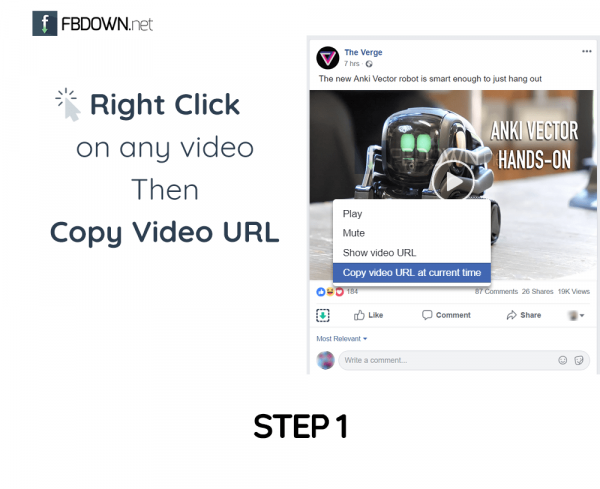
The step-by-step process for Facebook video downloading:
- Open Facebook and go to the video that you want to download.
- Play the video, right-click on it then select the URL and copy it (CTRL+C).
- Open a new tab and type in Fbdown.net.
- Paste the copied URL on the appropriate bar and click Download.
- Choose your desired video quality and save the video to your device.
- Your download should start any second after your selection. If it doesn’t, right-click on the video and select Save As.
2. Savefrom.net
If you love watching Facebook and YouTube videos, Savefrom.net is an ideal option for you. It works great on both platforms while making the download process much easier that can be followed by non-techies as well. You can download videos in SD, HD, Full HD, 2K, and 4K.
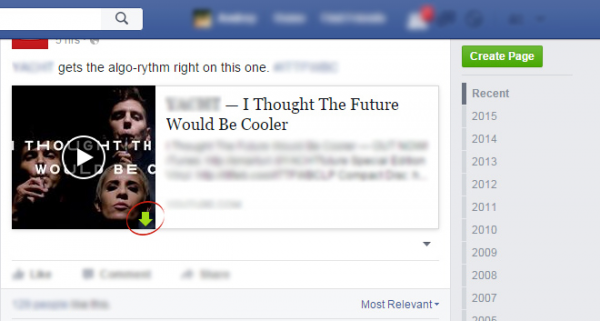
Step-by-step process in using Savefrom.net:
- Go to the video you want to download.
- Play the video, right-click the copy the link.
- Open Savefrom.net on another tab and paste the copied URL.
- Choose the quality then hit Download.
3. Freemake Video Downloader
One of the best software to use in downloading Facebook videos is Freemake Video Downloader. Apart from its amazing and user-friendly interface, this MP4 downloader is also completely safe and 100% free. It has over 180 million users worldwide and supports over 10,000+ websites such as Facebook, YouTube, Vevo, and more. However, the software is only available for Windows OS.
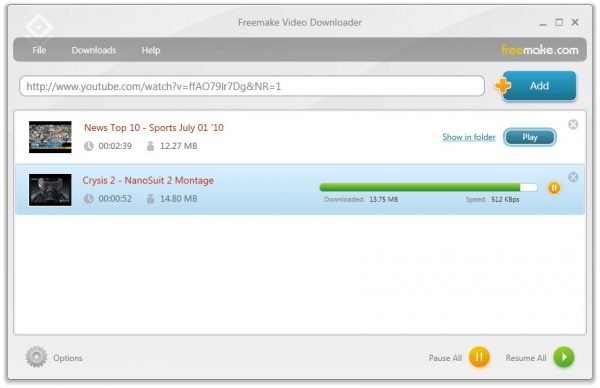
Step-by-step process in using Freemake Video Downloader:
- Open your browser, go to the official Freemake website, and download the software.
- After installing, open Facebook and go to the video that you want to download.
- Copy the Facebook video’s link.
- Run Freemake Video Downloader and paste the copied link by clicking the Paste URL button.
- Wait for a few seconds while the software processes the video.
- Once finished, select your preferred video format and quality.
- Click Download.
4. 4K Video Downloader
4K Video Downloader offers a list of useful features that work well on Mac, Windows, and Linux. You can download audio and video file from Facebook, YouTube, Vimeo, SoundCloud, and others. It has the ability to download YouTube subtitles, playlists, and channels. Moreover, the software supports 3D videos. In order to access these features, however, you have to buy the software from the site.
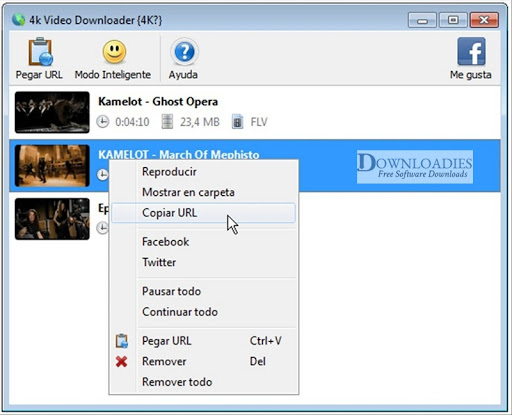
Step-by-step process in using 4K Video Downloader:
- Open your browser, go to the official website of 4K, and download the software.
- Install it on your computer.
- Open your Facebook and go to the Facebook video that you want to download.
- Copy the Facebook video link.
- Paste the copied link into 4K Video Downloader’s main window.
- Choose your preferred video format and quality then hit Download.
How to Download Facebook Videos to Your Phone
1. FastVid: Video Downloader for Facebook (Android)
You can find many video downloaders on the Google Play Store. However, not all of them are effective and safe. Some might include malware and damage your device permanently. If you want a guaranteed safe option, then you might want to go with FastVid: Video Downloader for Facebook to ensure that your phone is safe from any kind of malware.
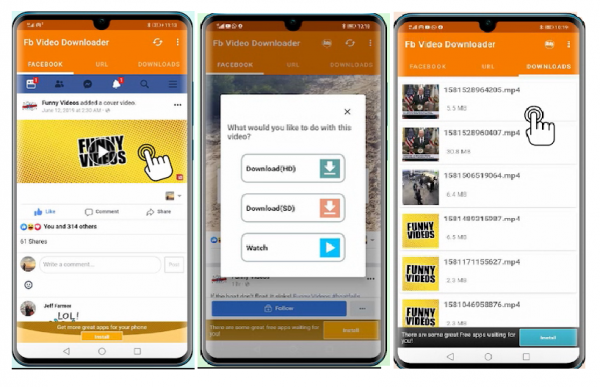
Step-by-step process in using Video Downloader for Facebook:
- On your Android device, open Google Play Store and search for FastVid: Video Downloader for Facebook.
- Run the app and open Facebook directly from the app.
- Log in. Don’t worry: the app will not store your information.
- Find the video that you want to download.
- Tap the video and select the Download option.
2. MyMedia (iOS)
While Apple has removed the majority of video downloader applications from the App Store, there are still a few of them lying around. A good example of video downloading software for Apple devices is MyMedia. It doesn’t directly download videos from Facebook but utilizes other online services in order to save and export them to the Camera Roll.
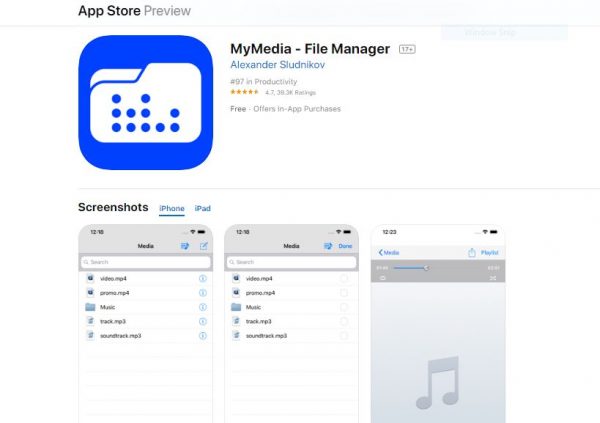
Step-by-step process in using MyMedia:
- From your device, open the Appstore.
- Search for MyMedia and install it.
- Using your device’s browser, open Facebook and go to the video that you want to download.
- Copy the video’s URL.
- Run MyMedia and open Savefrom.net on the app’s built-in browser.
- Paste the Facebook video’s link and choose your preferred video quality.
- Tap Download and name your file.
- Tap the media icon on the bottom of the app.
- Upon seeing your file, long tap the video and select the “Save To Camera Roll” option.
3. Catch.tube (For Android & iOS)
Catch.tube is another option if you want to download videos from Facebook to your phone. The process is similar when you are downloading videos using your PC.
- Open your phone’s built-in browser and go to Facebook.
- Insert your log-in credentials and look for the video you want to download.
- Copy the link of the video.
- Open a new tab and type in Catch.tube.
- Paste the video’s link and hit the Download button.
This video downloader is also available as a Chrome extension. Check it out here.
How to Download Private Facebook Videos
There are many options to consider when you are looking to download videos from Facebook videos that are set in public. While you can do the same with private videos, it’s completely a different story. The process may involve web codes, but obtaining them isn’t as hard as you think. Below is a guide on how to download videos from Facebook:
- Open your browser and go to Facebook.
- Enter your log-in credentials.
- Go to the video that you want to download.
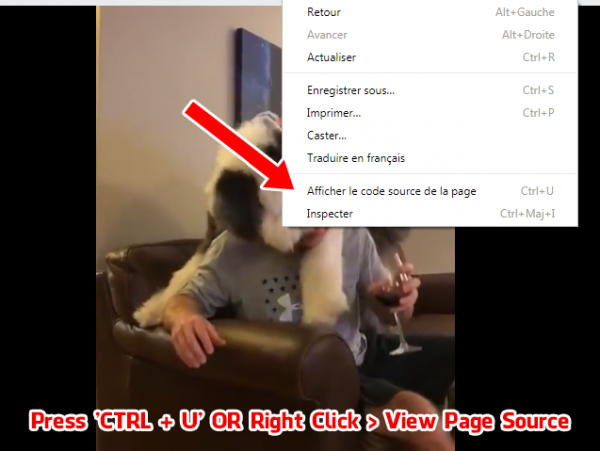
- Get the page source by right-clicking on the video and selecting the View Page Source option. You can also press CTRL + U.

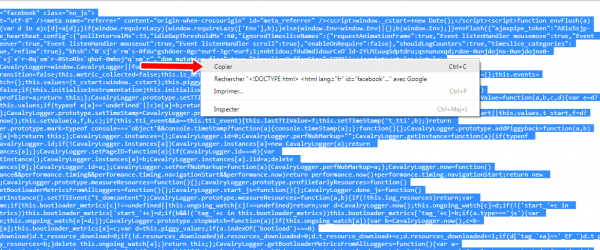
© Photo by getfvid.com - Copy the codes by pressing CTRL + A to select all and CTRL + C to copy.
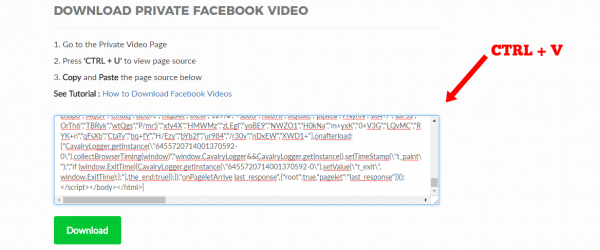
© Photo by getfvid.com - Open a new tab and go to Facebook Private Video Downloader.
- Paste the copied codes and hit Download.
How to Download Video from Facebook Messenger
Do you want to download videos from Facebook Messenger? The steps to do this are quite easy. To get started, check out the following guide below:
Using Your PC
- Open your browser and go to Facebook.
- Enter your log-in information.
- Choose the conversation from which the video was sent then scroll until you see the video.
- Click the video and hit Download at the upper-left corner of the screen.
Using Your Phone
- Tap your Facebook Messenger application and enter your log-in information (if you aren’t already logged into the app).
- Choose the conversation from which the video was sent then scroll until you see the video.
- Long-tap the video and a number of options will appear at the bottom of your screen.
- Tap Download.
How to Save Videos From Facebook to Watch for Later
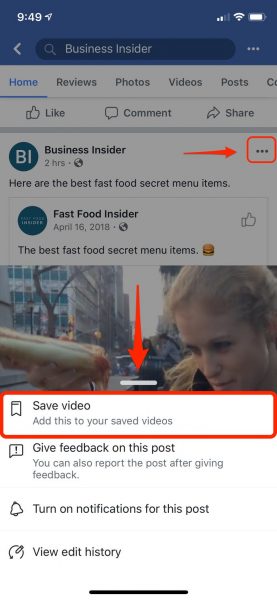
Saving videos to watch for later is a good option if you’re in a rush. All it requires is a few taps/clicks and you’re good to go.
- While watching the video, click on the three dots next to the Facebook name of the person who posted the video.
- Tap the ‘Save to watch later’ option.
- When the ‘Save To’ window pops up, choose any collection you want to save the video in.
To check your saved videos, go to your Facebook account’s menu (represented by three horizontal lines that are piled on top of each one) and choose the Saved category. There you will see the list of videos you have saved over time.
How to Download Facebook Videos Without any Software
The truth is, you can download videos from Facebook without any software; not even using online video downloaders. All you have to do is to follow a few simple steps, and the video that you’ve been meaning to download will be automatically stored on your device. However, this trick only downloads the video in Standard Definition (SD) format. If you plan to download it in High Definition (HD), use third-party software/applications that are listed above.
A step-by-step process on how to download videos from Facebook without any software:
- Run your browser and go to Facebook.
- Login to your account and proceed to the video that you want to download.
- Play the video, right-click on it, and copy the video’s URL.
- Open a new tab on any web browser and paste your copied link. Important: Don’t press “Enter” just yet.
- Change the “www” segment in the video URL to “mbasic.” It should look like this: https://mbasic.facebook.com/nameofvideoexample
- Hit Enter. The link should redirect you to the Facebook mobile page.
- From here, you should press “Play” on the video, right-click, and select Save As.
- Your download will begin in a few seconds.
Did you miss any live tutorials offered by any Facebook group? Don’t worry, you can also download live videos using a similar process as mentioned above.
Final Word on How to Download Videos from Facebook Easily
Take note that while the steps above are meant to help you download videos from Facebook, but only for your personal consumption and not for distribution purposes. Videos of other social media users are protected by privacy laws, so it’s important not to share these without their permission. But if the videos’ settings are set to public, then you are free to share them using the Share button on the platform. It would also help to give credit to the content owners and creators.