You have a game trailer sitting in your downloads folder. The soundtrack is exactly what you want on your phone during your morning run. Or maybe it’s a Twitch stream you recorded last week, and the only part worth keeping is the music playing in the background. A downloaded conference talk. A film score from a clip you saved months ago. Whatever the source, the video itself is irrelevant. The sound is the whole point, and you do not want to install a full desktop application for a ten-minute job.
The frustration here is genuine. Most people assume audio extraction requires software like Audacity, HandBrake, or a carefully configured VLC export workflow. None of that is necessary for a one-off conversion. Your browser can handle it entirely on its own, and the process takes less time than finding the right software to download.
Audio Extraction at a Glance
MP4 files wrap AAC audio in a video container, and not every device or app handles that combination. Converting to MP3 solves the compatibility problem because MP3 is supported on virtually every audio player, car stereo, and mobile device made in the last twenty years. Browser-based converters handle the re-encoding in your tab, with no sign-up and no software to install. The whole process takes under a minute for most clips.
Why MP4 Audio Doesn’t Always Play Where You Need It
An MP4 file is a container. Think of it as a box that holds several streams of content: video data, audio data, and sometimes subtitle tracks, all packed together in one file. The audio inside that container is usually encoded in AAC (Advanced Audio Coding). AAC is a modern, efficient codec. It sounds excellent, compresses well, and takes up less space than older formats at the same quality level. But here is the problem: not everything that plays audio understands AAC.
Car stereos built before 2015 often handle MP3 and nothing else. Older portable MP3 players from brands that no longer exist definitely do not handle AAC in a standalone file. Some podcast apps, voice memo tools, and audio editors expect MP3 as their input format. Even some smart speakers stumble on an AAC file if it is not packaged inside a container they recognise.
MP3 has been around since 1993, and its approach to lossy compression made it the dominant standard for portable digital audio throughout the 2000s. Every audio playback device manufactured in the last two decades treats MP3 as a baseline. That is what makes it the safe choice for playback across different devices, not because it is technically superior to AAC, but because its compatibility is baked into hardware at a fundamental level.
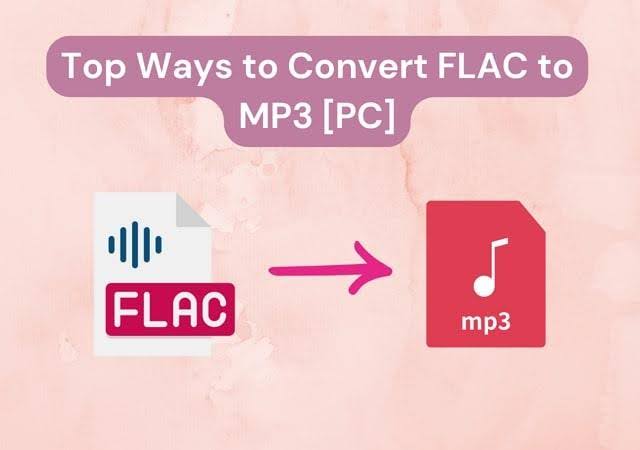
When you convert an MP4 to MP3, you are not just swapping a file extension. The audio track is decoded from AAC and re-encoded as MP3. That is a real process, even if it happens fast. And it is why you need a proper tool for it rather than a simple rename.
How Browser-Based Conversion Actually Works
The good news is you do not need to install anything to get this done. Modern browser tools have become surprisingly capable. Many use WebAssembly to run audio processing code directly inside your browser tab, which means your video file never has to leave your computer. The conversion happens locally, using your own machine’s CPU.
This matters for two reasons. Speed is the first one. Processing a file locally is often faster than uploading it to a remote server, waiting for that server to do the work, and then downloading the result back. The second reason is privacy. If your video clip contains anything personal, a meeting recording, a voice memo, or a home video, you probably do not want it uploaded to a random server.
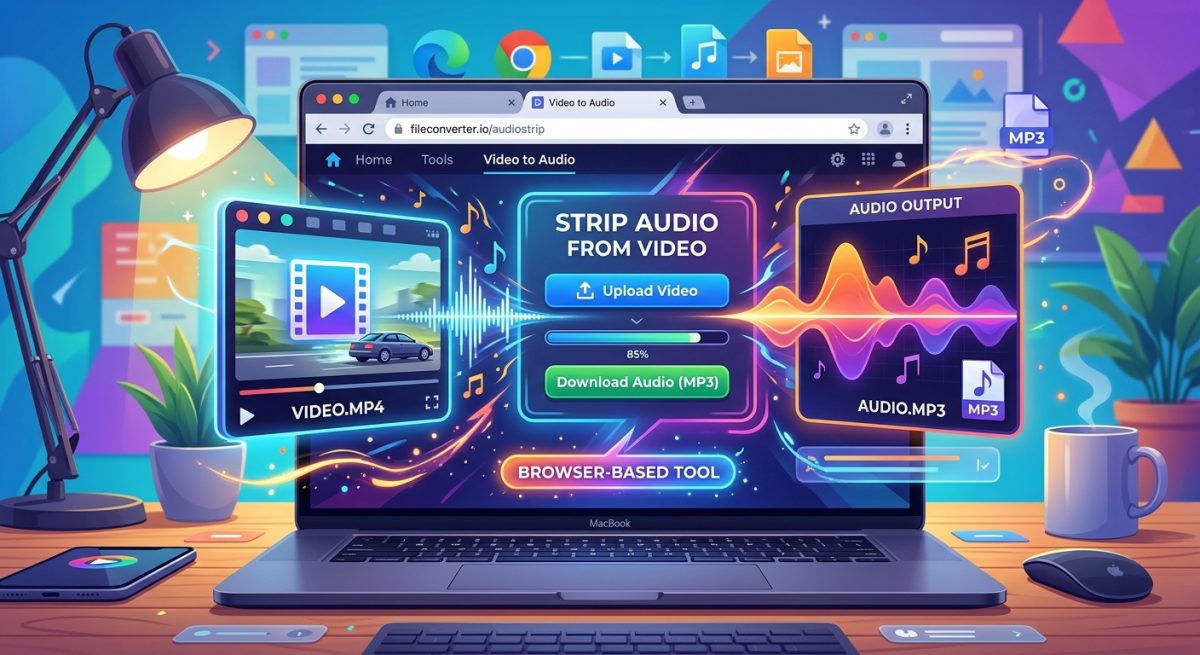
A browser-based mp4 converter handles the entire process without requiring an account, a subscription tier, or a file size gimmick that pushes you toward a paid plan. You drop the video file into the browser, choose your settings, and download the finished MP3. No install. No email address. No waiting for a confirmation link. You land on the page, convert, and leave.
Converting Your File in Five Steps
Here is the process from start to finish:
- Open the converter in your browser. Any modern browser works. Chrome, Firefox, Edge, and Safari all handle this without issues on both desktop and laptop hardware.
- Upload your video file. Click the upload area or drag your MP4 directly from your file manager into the browser window. Most tools accept drag-and-drop.
- Set your output preferences. Choose your bitrate before hitting convert. The default setting works for most use cases, but the next section covers how to fine-tune this for music versus voice content.
- Click the convert button and wait. A typical five-minute video clip takes around fifteen to thirty seconds to process, depending on your hardware. Longer files take proportionally more time.
- Download your MP3. The file saves directly to your downloads folder. From there, move it to your phone, a USB drive, a music library, or any other destination you need.
That is the entire workflow. No software installed, no browser tabs left open, no account to delete later.
Choosing Your Bitrate for Music or Voice
Bitrate is the most important setting you will touch during conversion. It controls how much audio data gets packed into every second of your MP3 file. Higher bitrate means better sound quality and a larger file. Lower bitrate means smaller files with some trade-off in audio detail.
The right choice depends entirely on what you are converting. Music and cinematic soundtracks carry a wide frequency range: bass, midrange, highs, and stereo separation all degrade noticeably at lower bitrates. Voice content is more forgiving because the human speaking voice sits in a narrow frequency band, and your ears are far less sensitive to compression artifacts in speech than in music.
Bitrate Options and Their Best-Fit Scenarios
| Bitrate | Best For | Approx. File Size Per Minute | Perceived Quality |
|---|---|---|---|
| 96 kbps | Podcasts, voice memos, spoken word recordings | ~720 KB | Acceptable for voice content |
| 128 kbps | General use, interviews with background music | ~960 KB | Good across most content types |
| 192 kbps | Music, game soundtracks, film scores | ~1.4 MB | Very good, noticeable upgrade from 128 |
| 320 kbps | High-fidelity music, audiophile listening | ~2.4 MB | Highest quality MP3 can deliver |
If you are converting a game trailer soundtrack to put on a dedicated music player, 192 kbps hits the sweet spot between quality and file size. If you are converting a recorded lecture or a voice-only clip, 128 kbps gives you perfectly clear audio at a fraction of the storage cost. Pushing voice recordings to 320 kbps wastes space without any audible benefit.
Video Formats This Approach Handles
MP4 is the most common file type people convert, but browser-based audio extractors typically accept a range of video containers. The extraction process works the same way regardless of the outer container. You are always pulling the audio track out and re-encoding it into MP3. These are the formats you are most likely to encounter:
- MKV files are common for downloaded movies and long-form video content. They often carry multiple audio tracks in different languages, so check which track you want before starting the conversion.
- MOV files come from iPhones, screen recording tools on Mac, and older digital camcorders. They behave almost identically to MP4 during the conversion process.
- WebM files appear when you save video from browser-based players or streaming tools. They carry audio encoded in Opus or Vorbis format, both of which re-encode cleanly into MP3.
- AVI files originate from legacy recording software and older video cameras. They are less common now but still show up in archives and older game capture setups from the early 2010s.
What to Check Before You Upload
Browser converters are convenient, but not every tool behaves the same way. A few checks before you start can save you from hitting a wall partway through a conversion.
- File size cap: Many free browser tools limit uploads to 500 MB or less. A long Twitch VOD or a full-length movie can easily blow past that threshold. Check the tool’s stated limits before uploading a large file.
- Processing location: Client-side tools process your file in the browser using your own CPU. Server-side tools upload your file to their servers first. If your clip contains anything private, a client-side tool is the safer option.
- Output format options: Some converters only produce MP3. Others let you choose between MP3, OGG, WAV, and other formats. If you need a specific format for a particular app or device, confirm the tool supports it before you invest time uploading a large file.
From Video Folder to Your Ears, Without a Single Install
The barrier between “I have a video with a great audio track” and “I have that audio on my phone” used to require a software install and a learning curve. That gap has closed considerably. Browser-based conversion tools handle the full re-encoding process in your tab, using your machine’s own processing power, and they return a proper MP3 file that plays on anything from a ten-year-old car stereo to a brand new pair of wireless earbuds.
The core things to carry forward from this: MP3 wins on compatibility, not on technical quality. AAC sounds better at the same bitrate, but MP3 plays everywhere without argument, and that is the real goal when you are transferring audio to a different device. For music and soundtracks, push your bitrate to 192 kbps or higher. For voice recordings and podcasts, 128 kbps is more than sufficient and keeps your file sizes manageable. And for anything involving personal or sensitive footage, choose a converter that processes files locally in your browser rather than uploading them to a remote server.
You have the clip. The audio is right inside it. Getting it out takes five steps, a browser tab, and about thirty seconds of processing time. That is a reasonable exchange for skipping the software install entirely and getting exactly the file you need.