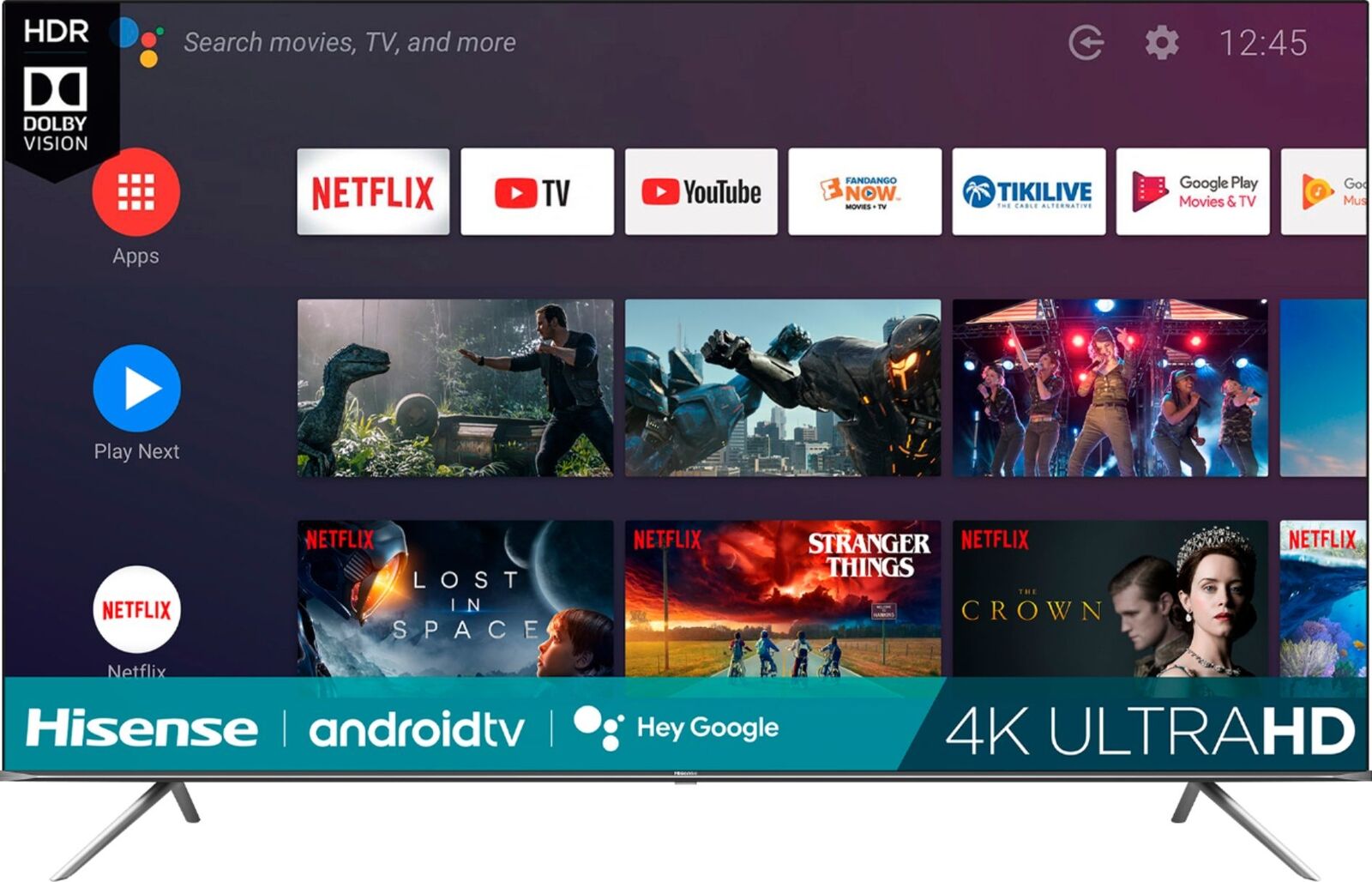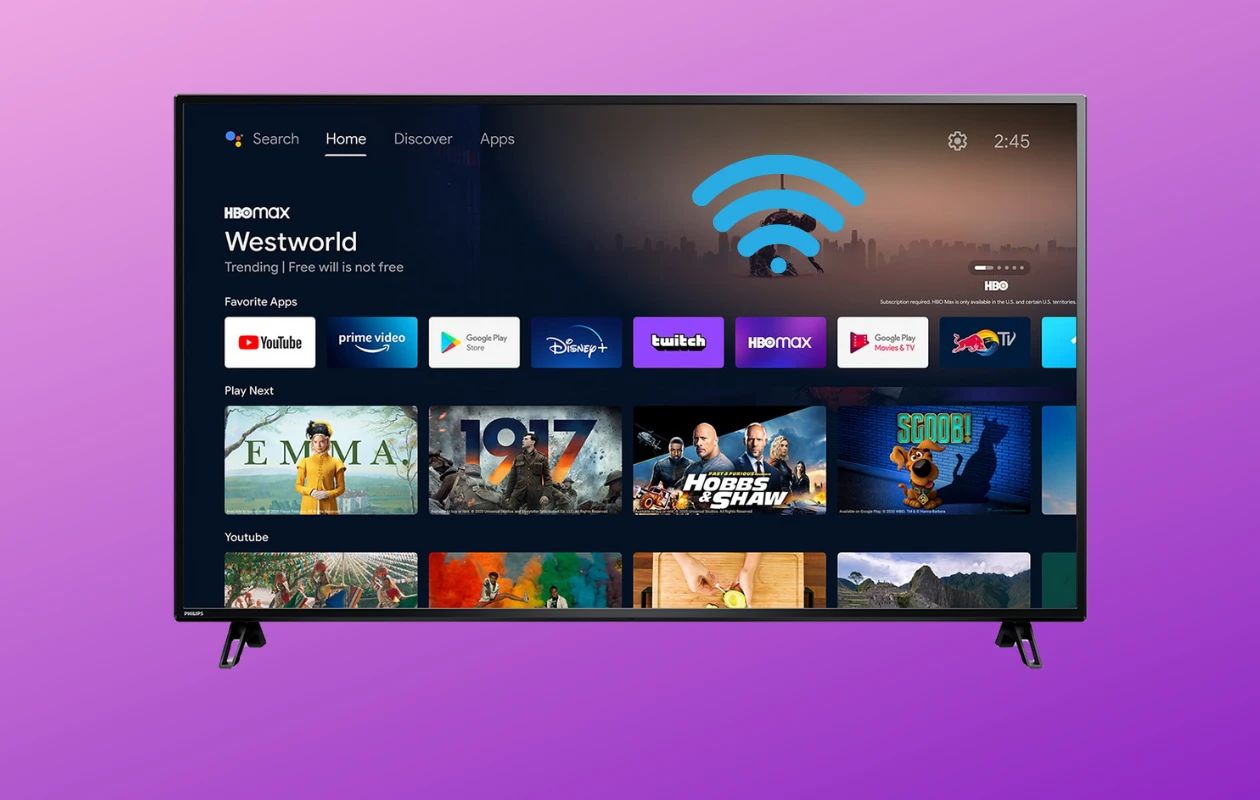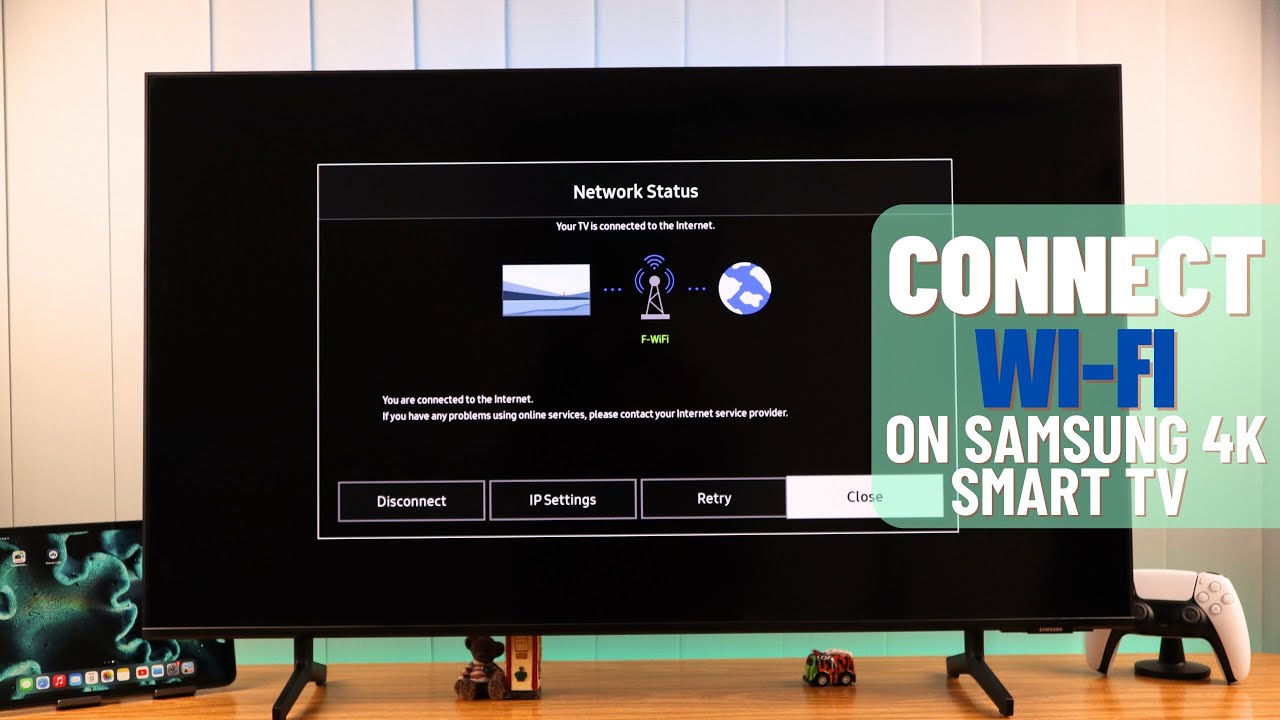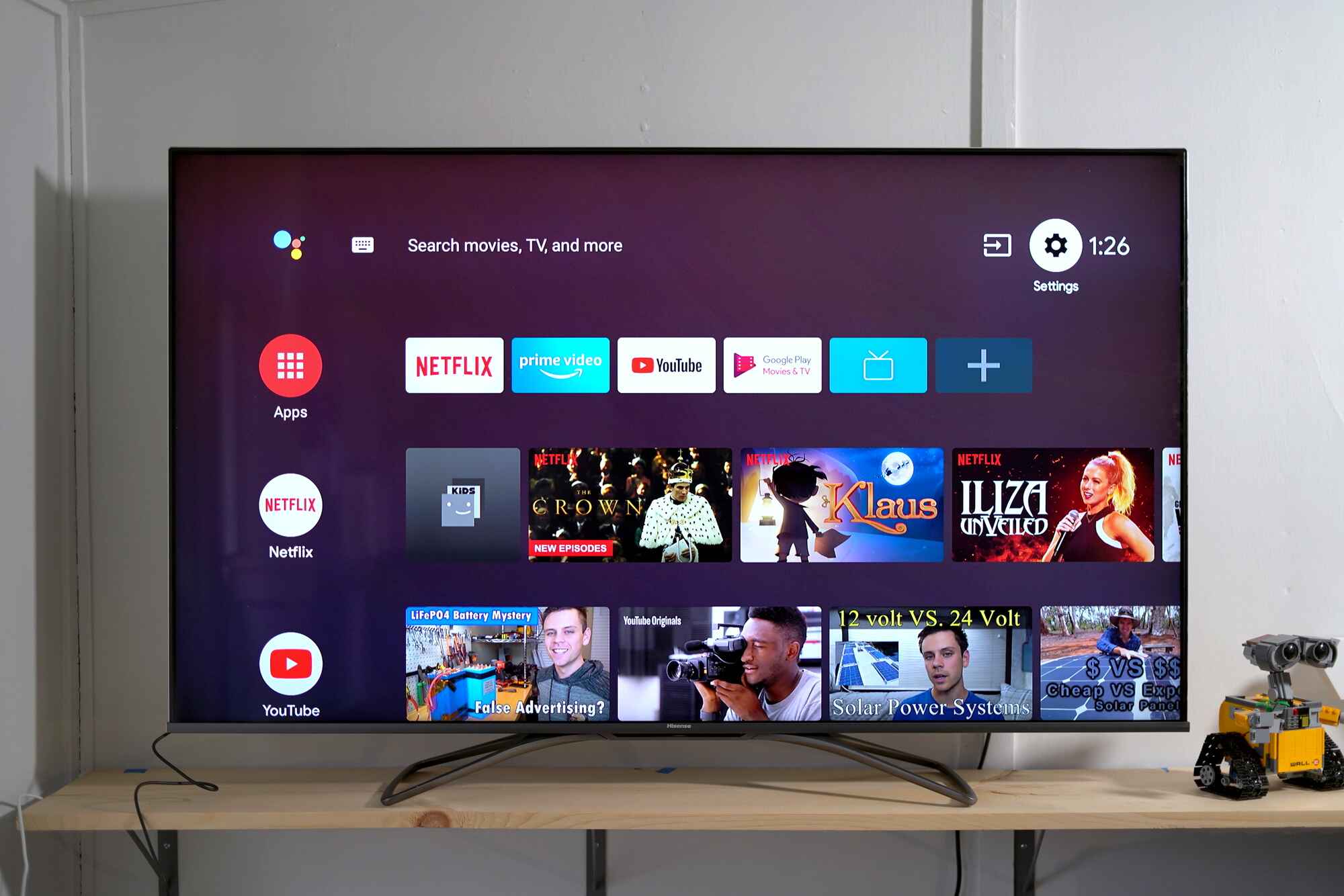
To connect Hisense Smart TV to Wi-Fi, press the Menu or Home button on your remote, go to Settings, select Network, choose your wireless network, enter the password, and select Connect. This guide covers connecting a smart TV to Wi-Fi, screen mirroring devices, hooking up game consoles and soundbars, and fixing common connection problems. If you own a different brand, you can also connect to internet Samsung smart TV for model-specific steps.
How to connect your Hisense smart TV to Wi-Fi
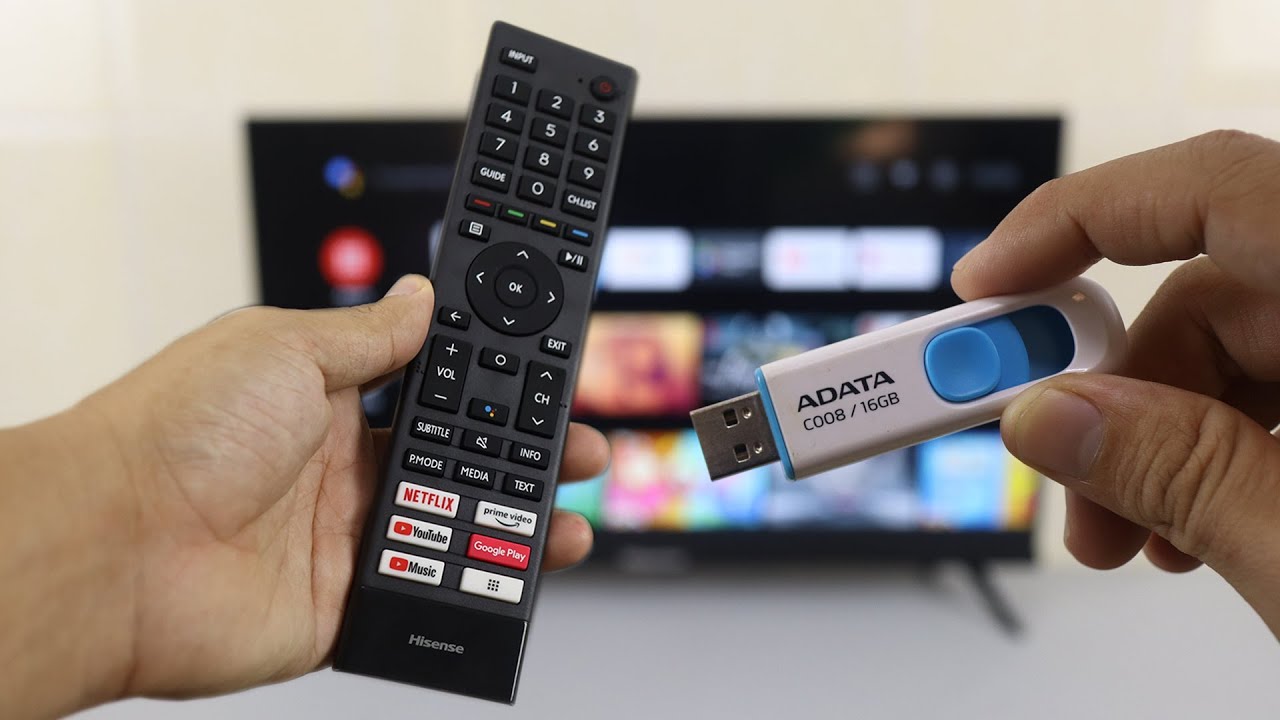
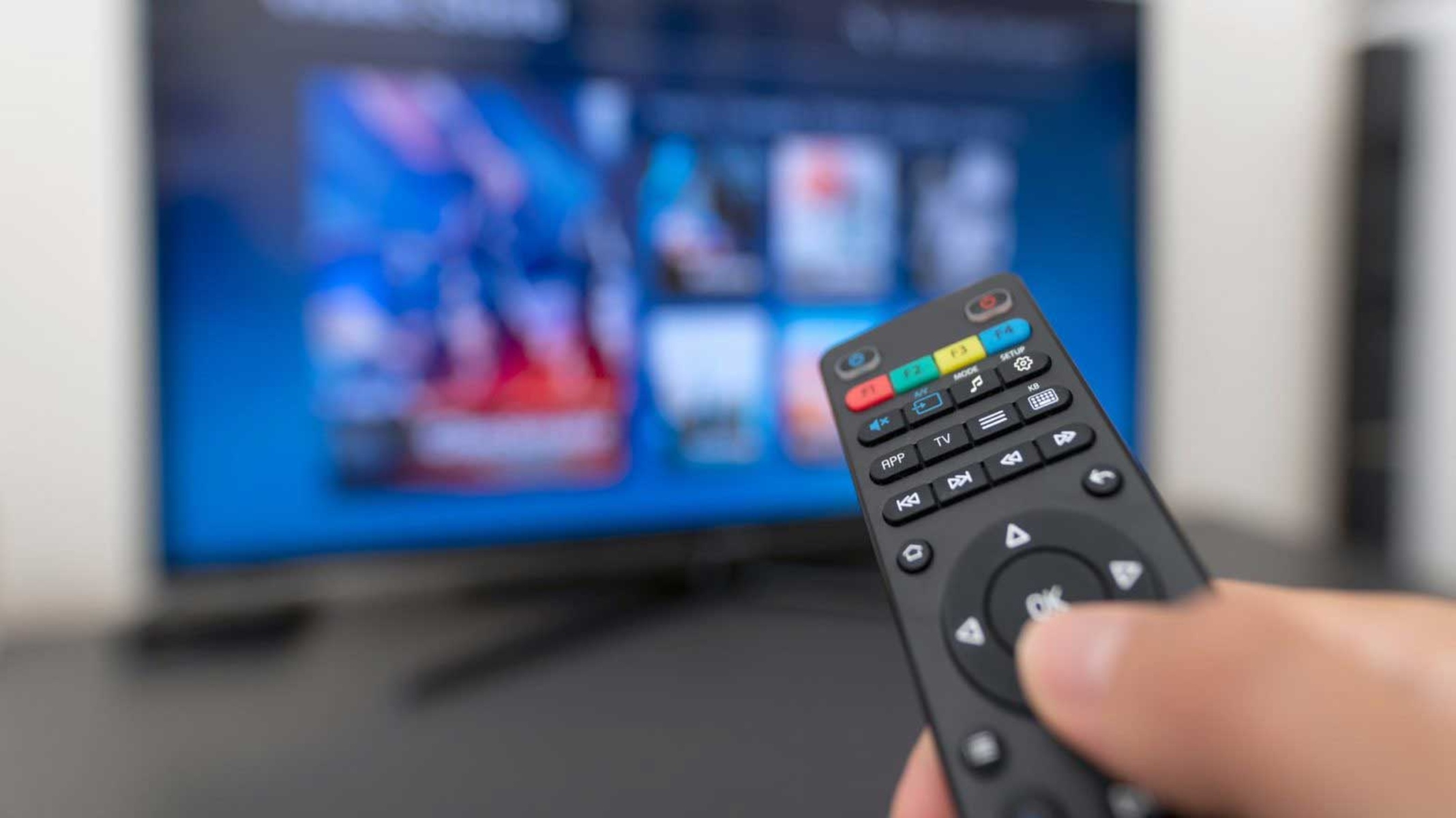
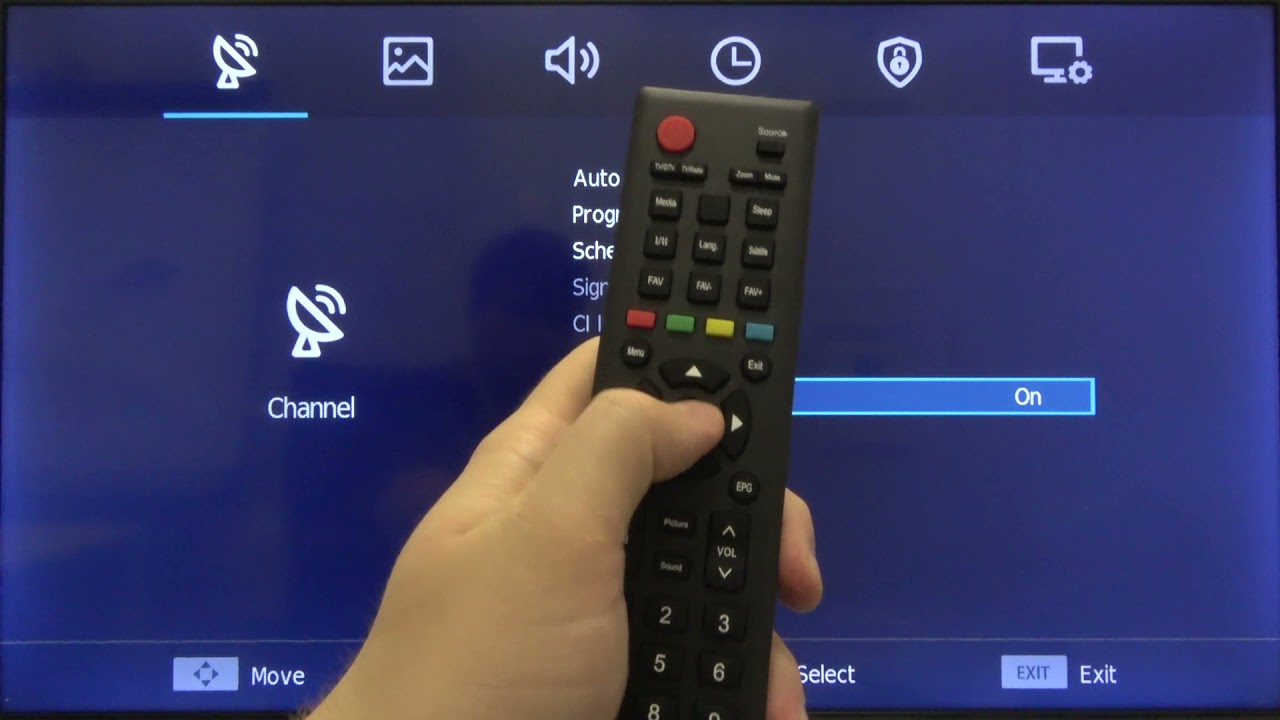
The primary method for a wireless internet connection uses your remote and the on-screen menus. Press the Menu or Home button on your remote, then navigate to Settings (often a gear icon). Select Network or Network & Internet, then choose the Wireless option. A list of available Wi-Fi networks will appear. Select your network, enter the Wi-Fi password using the on-screen keyboard, and select Connect or OK. If your network doesn't appear, you may first need to connect wireless router to smart TV by verifying it is powered on and broadcasting its SSID. Once connected, a confirmation message displays.
For a wired Ethernet connection, plug an Ethernet cable from your router into the LAN port on the back of your Hisense TV. The TV should automatically connect via DHCP, providing a stable internet connection without needing to enter a password.
Connect your phone or laptop with screen mirroring
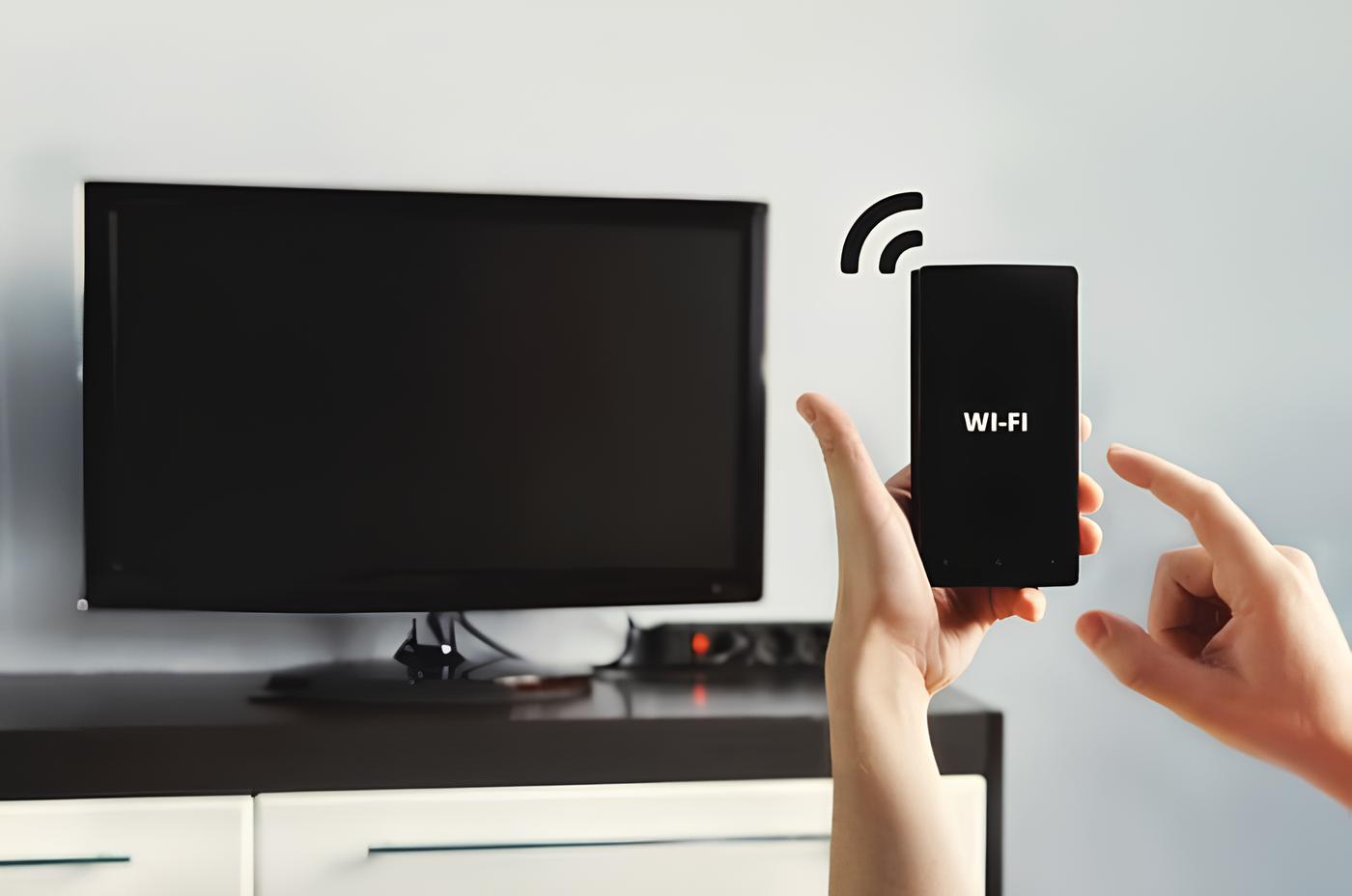
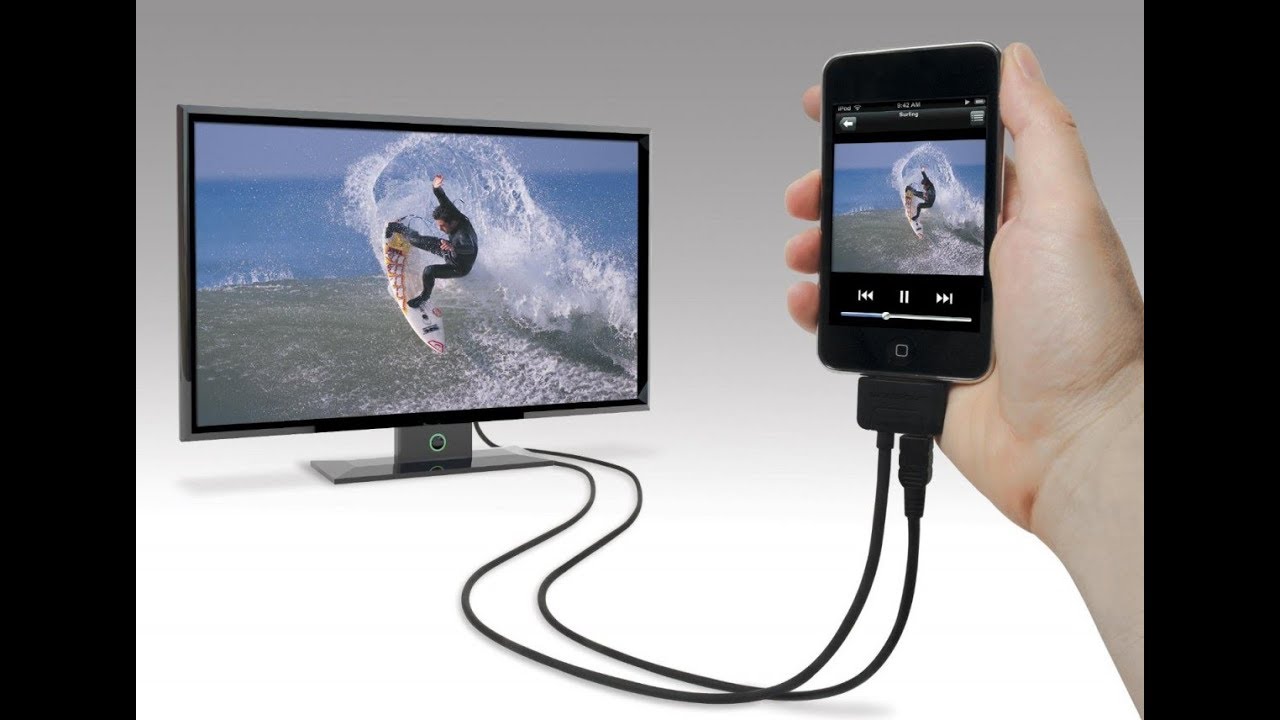
To cast or mirror a smartphone, tablet, or laptop screen to your Hisense TV, both devices must be on the same Wi-Fi network. On your mobile device or laptop, open the screen mirroring or casting settings (the name varies by operating system). Select your Hisense Smart TV from the list of available devices, it may appear as "Hisense TV" or the name you assigned during setup. On the TV, a notification will ask you to accept the connection request; use the remote to accept. Once connected, your device's screen will be mirrored on the TV, allowing you to share photos, videos, or play games on the larger display.
Connect a game console or Blu-ray player via HDMI
To plug an external device into an HDMI port, first ensure both the TV and the device are powered off. Locate an HDMI port on your Hisense TV, these are labeled "HDMI" and numbered (e.g., HDMI 1, HDMI 2). Connect one end of an HDMI cable to the HDMI output port on your game console or Blu-ray player, and the other end to the corresponding HDMI input port on the TV. Power on both devices. Using the Hisense remote, press the Input or Source button to open the input source menu, then select the HDMI input that matches the port you used. The device's content should now display on the TV.
Connect a soundbar or external speakers
To connect a soundbar or external speaker system for better audio, locate the audio output port on your Hisense TV. Depending on the model, this may be labeled "Audio Out" or "Digital Audio Out" and use optical, RCA, or 3.5mm connections. Identify the corresponding input port on your soundbar or speakers. Using the appropriate cable (optical, RCA, or 3.5mm), connect one end to the TV's audio output and the other end to the audio device's input. Set the soundbar to the correct input source. On the TV, go to Settings and select the audio output options, choosing the correct type (e.g., "Digital Audio Out" for optical). Test the audio by playing content, and adjust the volume on both devices as needed.
Troubleshooting connection issues
Wi-Fi not detected or connection fails
Ensure your router is functioning and broadcasting a stable signal. Double-check that the Wi-Fi password is entered correctly, including capitalization and special characters. Restart both the TV and the router. Move the TV closer to the router to improve signal strength. If the TV still doesn't detect your network, check that the TV's Wi-Fi adapter is enabled in the network settings.
Screen mirroring failures
Verify both devices are connected to the same Wi-Fi network. Update both the TV and your device to the latest firmware or software versions. Restart both devices to refresh the connection. Check that your device supports screen mirroring or casting, some older models may not. For laptops, ensure the display output settings are configured to mirror, not extend, the screen.
No signal on HDMI
Make sure the HDMI cable is fully inserted into both the TV and the external device. Try a different HDMI cable or a different HDMI port on the TV. Ensure the external device is powered on and set to the correct output resolution. On the TV, cycle through the input sources using the Input or Source button to confirm you have selected the correct HDMI port.
Audio sync issues with soundbar or speakers
Check that all cables are securely connected to the correct ports. Verify the audio output setting on the TV matches the connection type you are using (optical, RCA, etc.). If using an optical cable, remove the protective caps from both ends. Ensure the soundbar is powered on and set to the correct input source. Adjust the audio delay settings on the TV or soundbar if the audio and video are out of sync.