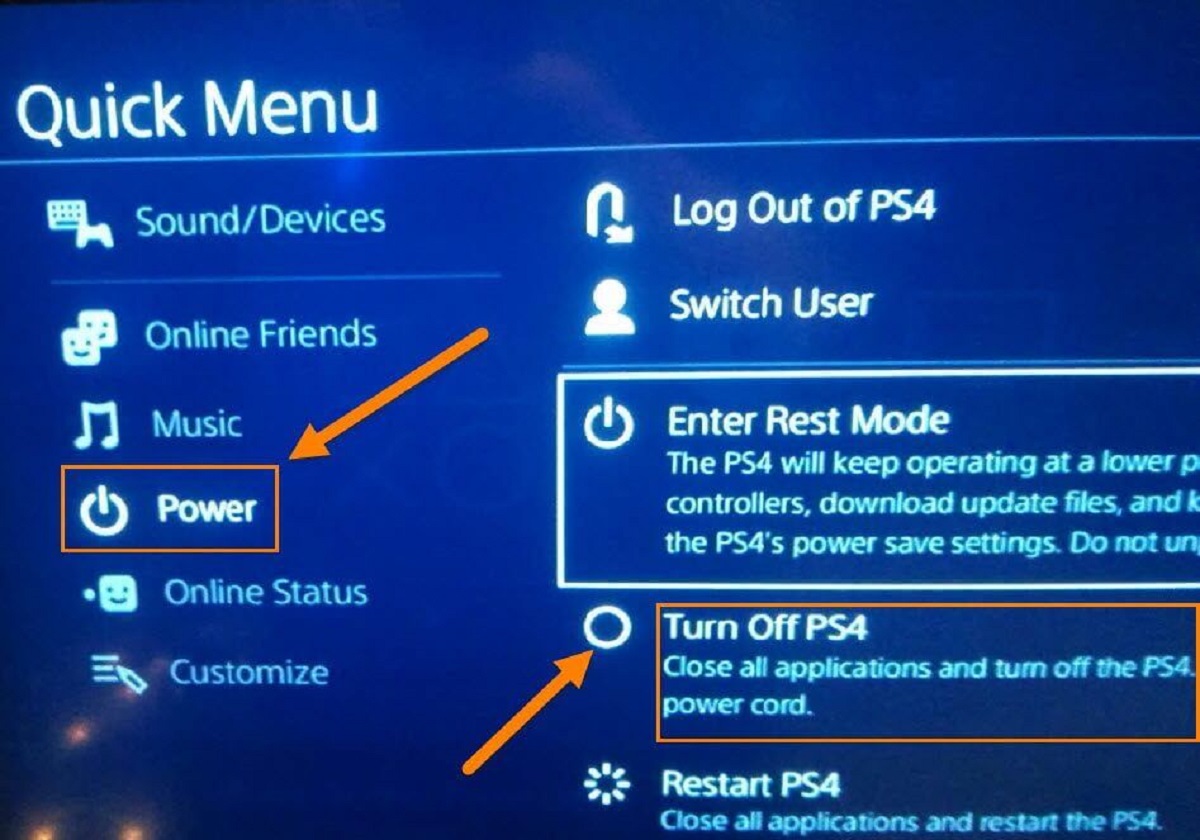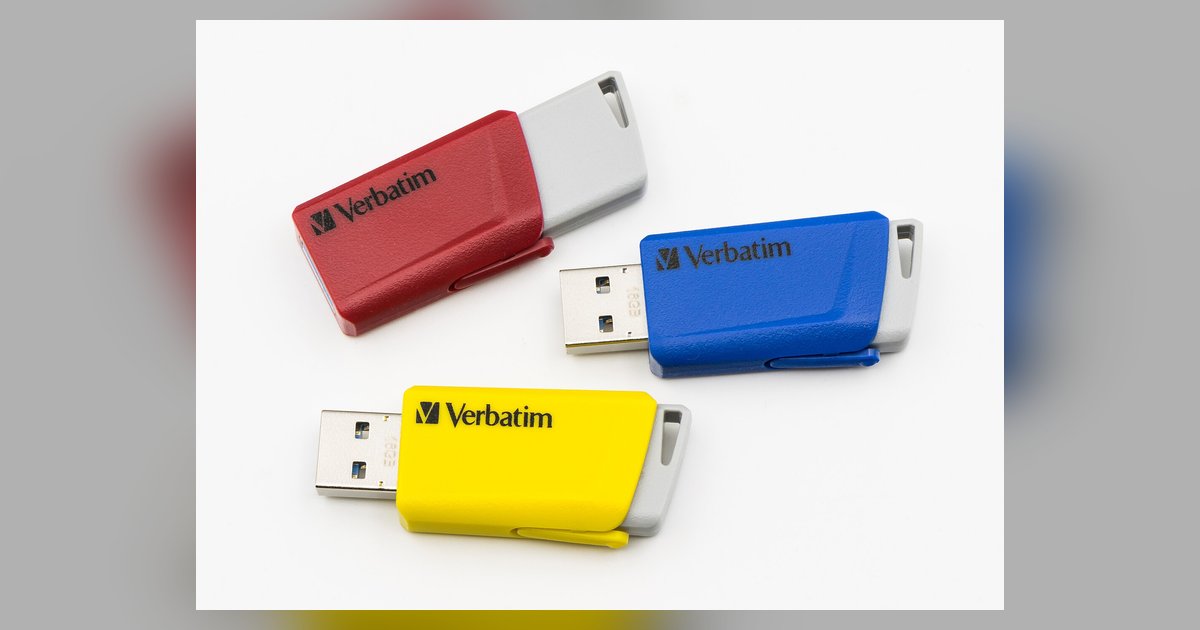
Copy your save data to a USB flash drive via Settings > Application Data Management > Saved Data in System Storage > Copy to USB Storage Device. Without PS Plus cloud storage, this USB method is the only way to keep your saves before a factory reset.
How to back up PS4 saves to a USB drive
First, insert a USB flash drive formatted to FAT32 or exFAT into one of your PS4’s front USB ports. You will see a list of all games with save data stored on your console. Select each game you want to keep, or choose “Select All” to copy everything. Confirm the copy operation; a progress bar will show the transfer speed. Once finished, safely remove the USB drive from the system. The saves now exist on the drive, independent of the console’s internal memory. This process works completely offline and requires no PlayStation Plus membership. After a factory reset, you will also need to download games on PS4 again before restoring your saves. If you later need to restore these saves on a different PS4 or after a factory reset, simply reverse the path: Settings > Application Data Management > Saved Data on USB Storage Device > Copy to System Storage.
When cloud saves are not an option
A common mistake is assuming saves are backed up automatically by the console. If you skip the USB step and proceed to reset your PlayStation 4, every game progress file will be erased permanently. The failure case is straightforward: a user without PS Plus who initiates a factory reset from the Settings menu loses all save data because they never copied anything to a USB drive. The console does not warn you again during the reset process, it only warns you before you begin. That single warning is your only cue to act. If you instead search for how to factory reset a PlayStation 4, you will find instructions that assume you already handled backups. Without the USB copy, those instructions lead to data loss.
What a USB backup cannot save
This USB method only preserves game progress files. It does not copy the game installations themselves, you must re-download or re-install your games from disc or the PlayStation Store after the reset. Captures, such as screenshots and video clips stored in the Capture Gallery, are not included in the save data backup; you must back those up separately by copying them to a USB drive via the Capture Gallery menu. Trophy data is linked to your PlayStation Network account, not to local save files, but you must manually sync your trophy list by going to Trophies, pressing the OPTIONS button, and selecting 'Sync Trophies With PSN.' If you need to reinstall the system software after the reset, you will have to download the update file for reinstallation from PlayStation.com onto a separate USB drive. Knowing these limits ensures you only rely on the USB backup for what it can actually preserve: your game saves and nothing else.