





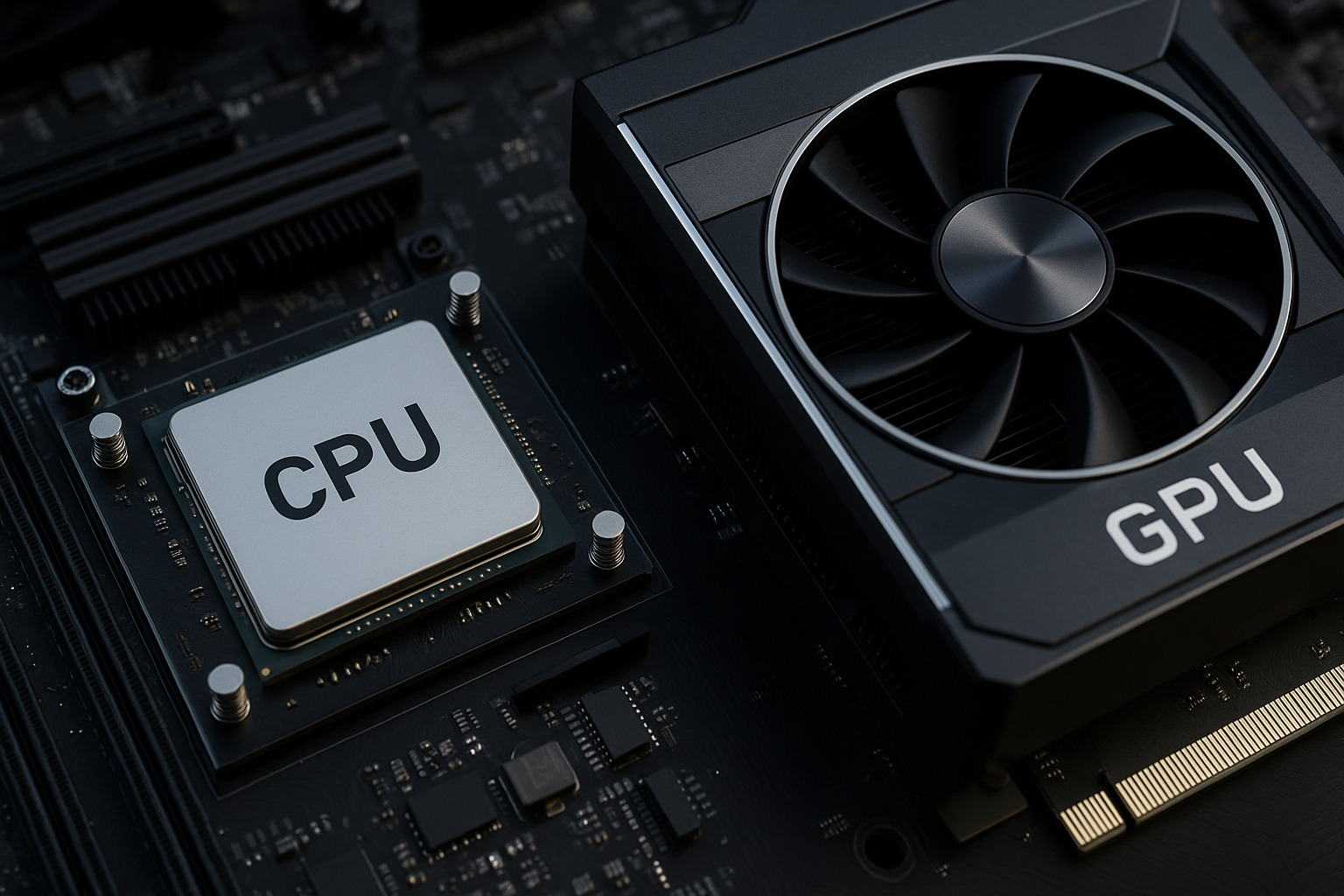
A CPU or GPU bottleneck occurs when one component limits the performance of the other, reducing overall system efficiency. The CPU handles instructions and logic, while the GPU focuses on rendering visuals. When they are out of balance, frame rates drop, workloads stall, and hardware potential is wasted. Identifying which component is the limiting factor helps optimize gaming, rendering, and other intensive tasks, ensuring smoother performance and better hardware utilization.
What Are CPU and GPU Bottlenecks
- A CPU bottleneck occurs when the processor cannot keep pace with the graphics card. The GPU waits for instructions, lowering frame rates despite having available power.
- A GPU bottleneck happens when the graphics processor struggles to keep up with the CPU’s output, which is common in high-resolution or graphics-intensive workloads.
- Using a bottleneck calculator can give a quick estimate of whether your system’s balance is off, but real testing provides the most reliable results.
How to Recognize Which One You Have
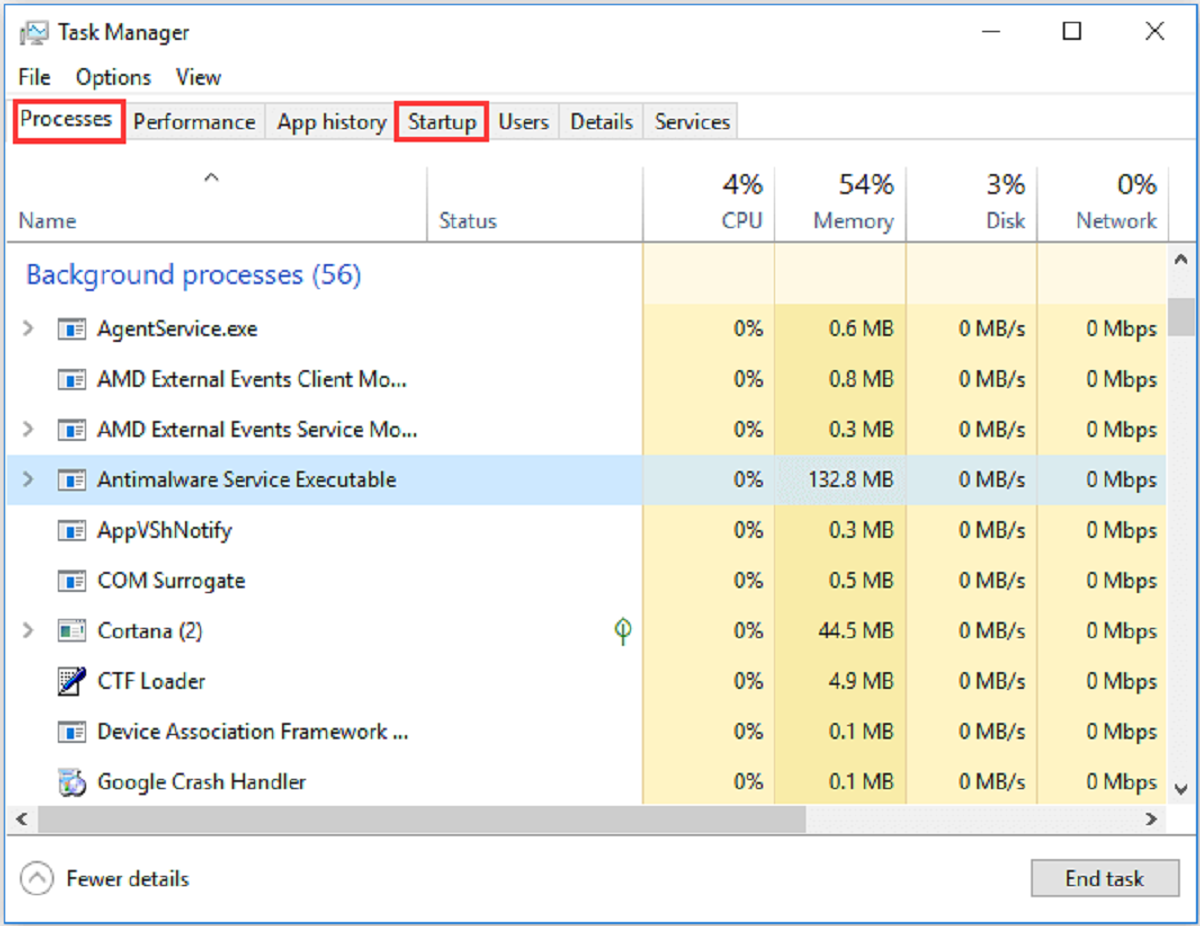
- Monitor hardware with tools such as MSI Afterburner, GPU-Z, CPU-Z, or Task Manager
- CPU bottleneck signs: GPU usage remains below ~90% while CPU cores consistently reach 100%
- GPU bottleneck signs: GPU utilization stays near 100% while CPU activity is moderate, with low frame rates despite CPU headroom
- Resolution scaling test: Increasing resolution shifts more workload to the GPU. If frame rates remain steady, the CPU limits performance. If frame rates drop sharply, the GPU is the bottleneck.
Impact on Real‑World Use
- Gaming at 1080p or high refresh rates: CPU bottlenecks are common due to heavy processing of AI, physics, and background logic.
- 4K or ultra-settings gameplay: GPU bottlenecks dominate, as rendering high-resolution textures pushes the graphics card to its limits.
- Non-gaming tasks: Video editing, simulations, and software compilation often stress CPUs, while GPU-heavy tasks include ray tracing and machine learning.
Why Small Bottlenecks Can Be Acceptable
- Mild CPU limits leave some GPU power unused, but adjusting settings can restore smooth performance.
- A GPU bottleneck at high resolutions is often acceptable because visual fidelity takes priority over maximum frame rates.
Tips to Fix or Reduce Bottlenecks
For CPU Bottleneck
- Upgrade the processor or platform to match the graphics card
- Use high-speed RAM and SSDs to minimize delays
- Close background applications and update drivers
- Lower physics or simulation details in games or software
For GPU Bottleneck
- Reduce resolution or texture quality
- Upgrade the graphics card or add more VRAM for texture-heavy workloads
- Ensure the power supply unit meets GPU demands
- Keep drivers and firmware updated
System-wide fixes
- Ensure adequate RAM speed and capacity
- Use SSDs for faster data transfer
- Avoid letting storage or memory limitations throttle performance
Quick Comparison Table
| Bottleneck Type | Typical Scenario | Signs | Fix Approach |
|---|---|---|---|
| CPU limited | 1080p, high FPS gaming | GPU usage low, CPU cores maxed | Upgrade CPU, reduce logic load |
| GPU limited | 4K, ultra graphics or ML tasks | GPU near 100%, CPU underutilized | Lower graphics or upgrade GPU |
| Mixed | Streaming game + background tasks | Both CPU and GPU high usage | Balance workload distribution |
Why Balance Matters
Matching the CPU and GPU ensures consistent frame delivery. An underpowered CPU creates stutter, while a weak GPU lowers visual quality. A balanced system maintains performance across different workloads.
Best Practice Recommendations
- Monitor both components under load with performance tools
- Compare benchmark scores against expected results
- Adjust hardware or settings so that neither component consistently limits the other
- Keep all firmware and drivers updated
- Build systems with components that complement each other instead of pairing extremes
Conclusion
Balancing CPU and GPU performance ensures hardware efficiency and smoother user experiences. Identifying whether the processor or graphics card limits your system helps target the right fixes. Monitoring usage, adjusting settings, and pairing compatible components reduce bottlenecks significantly. Small performance limits are acceptable in some scenarios, but consistent mismatches waste potential. Careful planning and regular updates keep your system optimized for gaming, creative work, or any GPU-accelerated tasks.