Seeing blue question marks instead of pictures on Safari usually means your browser can't load image files due to a corrupted cache, disabled JavaScript, a content blocker, or a network restriction. This guide provides step-by-step fixes for both Mac and iPhone/iPad to resolve the question marks instead of pictures safari issue quickly.
Why Safari shows question marks instead of pictures
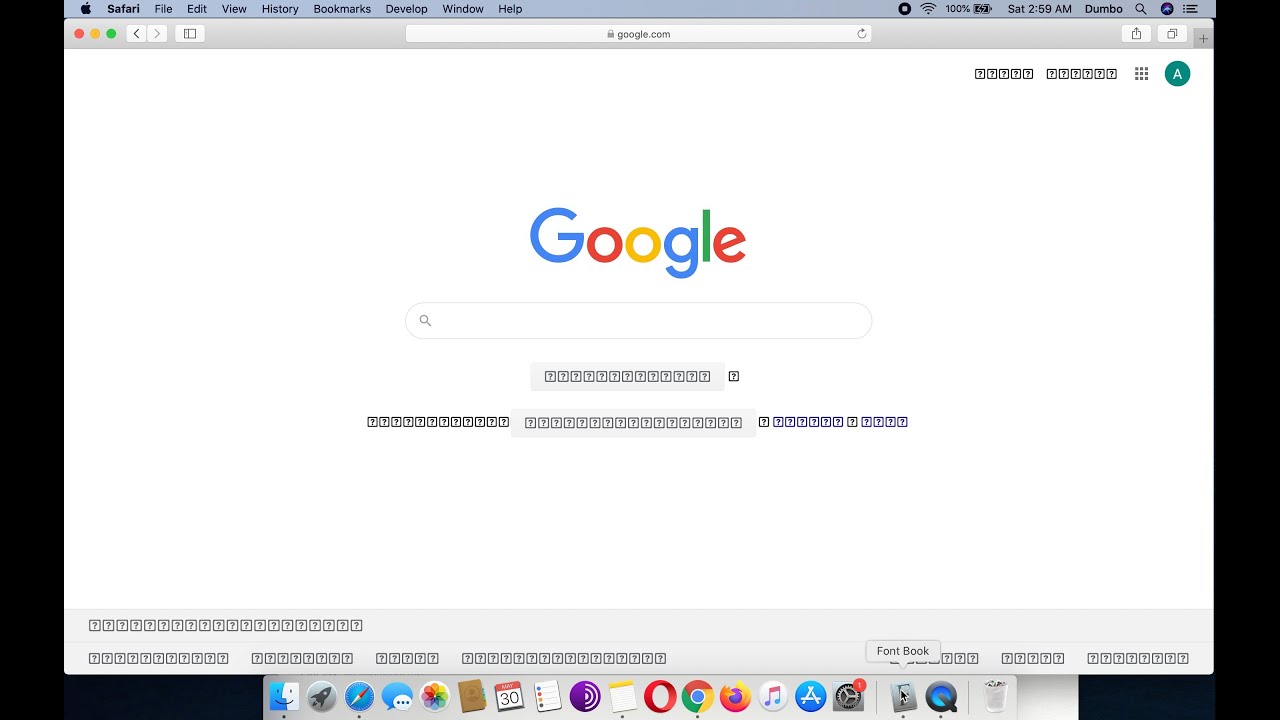
A blue question mark icon appears when Safari cannot retrieve or display an image. The most common causes are a corrupted browser cache that stores broken file references, JavaScript being turned off (many sites rely on it to render images), content blockers or ad extensions mistakenly blocking legitimate image requests, or network settings like Low Data Mode that restrict data-heavy content. Each of these issues has a straightforward fix, detailed below for both Mac and iPhone/iPad.
Clear history and website data
Clearing your browsing history and website data removes corrupted cached files that often cause image loading failures. This is the first step to try because it wipes out any temporary data that may be broken.
On Mac
- Open Safari and click the History menu in the menu bar.
- Select Clear History and Website Data...
- Choose a timeframe (for example, "all history") and click Clear History.
On iPhone/iPad
- Open the Settings app.
- Tap Safari.
- Tap Clear History and Website Data. Confirm the action.
Check if images are disabled in the develop menu
Safari has a hidden "Disable Images" setting in the Develop menu that, if enabled, directly causes question marks instead of images. You need to verify this setting is off.
On Mac only
- In Safari, go to Safari > Settings (or Preferences) > Advanced.
- Check the box next to Show Develop menu in menu bar.
- Now click the Develop menu in the menu bar.
- Ensure Disable Images is unchecked. If it is checked, click it to turn it off.
Enable JavaScript in Safari settings
Many websites use JavaScript to load images. If JavaScript is disabled, images may not appear and show question marks instead. You can enable it in two places depending on your device.
On Mac
- Choose Safari > Settings (or Preferences) > Security.
- Ensure Enable JavaScript is checked.
On iPhone/iPad
- Open the Settings app.
- Tap Safari > Advanced.
- Toggle JavaScript to ON.
Turn off content blockers and extensions
Ad blockers and privacy extensions can mistakenly block legitimate images from loading. Temporarily disabling them helps identify if an extension is the cause.
On Mac
- From the menu bar in Safari, choose Safari > Settings (or Preferences) > Extensions.
- Deselect the checkbox for each extension to turn it off.
On iPhone/iPad
- Open the Settings app.
- Tap Safari > Extensions.
- Toggle each extension off, or delete the app that provided it to remove it completely.
Disable low data mode on Wi-Fi and cellular
Low Data Mode restricts how much data Safari can use, which can prevent images from loading. Turning it off allows full image downloads.
For Wi-Fi
- Go to Settings > Wi-Fi.
- Tap the info icon (i) next to your connected network.
- Toggle Low Data Mode off.
For Cellular/Mobile Data
- Go to Settings > Cellular (or Mobile Data).
- Tap Cellular Data Options.
- Tap Data Mode and select Standard or Allow More Data on 5G (ensure Low Data Mode is off).
Update your operating system to update Safari
Safari updates are included with macOS and iOS updates. Keeping your system current ensures you have the latest bug fixes and compatibility improvements that can resolve image loading issues.
On Mac
- Click the Apple logo > System Preferences (or System Settings).
- Click Software Update. Install any available updates.
On iPhone/iPad
- Open the Settings app.
- Tap General > Software Update.
- Tap Download and Install if an update is available.
Reset experimental features and network settings
If the problem persists, experimental WebKit features or network configuration issues may be at fault. These resets are last-resort fixes that clear advanced settings without affecting your personal data.
Reset WebKit Feature Flags (iPhone/iPad)
- Open the Settings app.
- Tap Safari > Advanced > Feature Flags (or Experimental Features).
- Scroll down and tap Reset All to Defaults.
Reset Network Settings (iPhone/iPad)
- Go to Settings > General > Transfer or Reset iPhone.
- Tap Reset > Reset Network Settings. This will remove Wi-Fi networks and passwords, cellular settings, VPN, and APN settings.
Check screen time and content restrictions
Parental controls or content restrictions can block images from loading in Safari. Verifying these settings ensures they aren't interfering.
On iPhone/iPad
- Open the Settings app.
- Tap Screen Time > Content & Privacy Restrictions.
- Disable the Content & Privacy Restrictions toggle. If you prefer to keep restrictions on, review each category to ensure "Blocked" is not selected for images or web content.
Related reading: How To Find Out Wifi Password Through Ethernet Cable, How To Make Your PS5 Games Download Faster, and How To Connect Wireless Router To Smart TV.