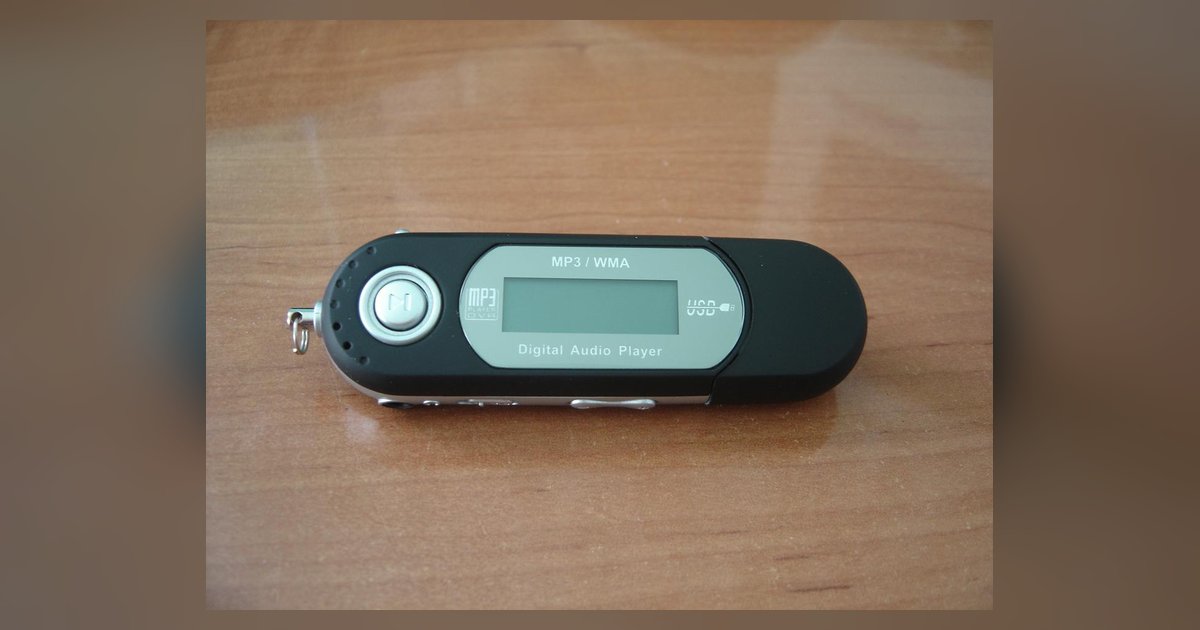
Your MP3 player cannot decode the file's internal audio codec or the bitrate is too high, even if the file extension says '.mp3'. Convert the track to MP3 using a standard constant bitrate like 320kbps or lower.
MP3 format not supported due to wrong file type
A file named "song.mp3" might actually contain audio encoded in AAC, WMA, or FLAC. These are codecs your basic MP3 player cannot read. Many music download sites or file-sharing sources mislabel files. They save a high-efficiency AAC stream inside an .mp3 container to trick your computer’s file manager. When you transfer that file to your player, the device looks at the internal codec header, not the extension, and refuses playback. To check, open the file in a media program like VLC or Windows Media Player and look at "Codec Details" under Properties. If it shows "AAC," "WMA," "FLAC," or "OGG," the extension is a lie. The only fix is to re-encode the track to genuine MP3 using a tool like Audacity or iTunes, selecting "MP3" as the output format. When you download music MP3 from reputable stores, always verify the file properties before transferring. Many budget players accept only MPEG-1 Audio Layer 3, not the newer AAC-LC or WMA Pro variants.
Bitrate ceilings on old hardware
Older or budget portable MP3 players often cap supported encoding rates at 320kbps for constant bitrate (CBR) files. This is especially true for devices with low-end decoding chips. If your track uses variable bitrate (VBR) encoding or exceeds 320kbps, the player’s decoder may choke and display the "format not supported" error. A 512kbps MP3 upsampled from a lossless source is a common culprit. For example, a Sandisk Clip Sport or Sansa Fuze may have specific bitrate limitations, so check your device's manual for supported encoding rates. VBR files with peaks above 384kbps can cause silence, skipping, or the error message. To fix this, re-encode the file with a fixed data rate of 192kbps or 256kbps CBR. When you download music on SanDisk MP3 player, use conversion software that forces the output to CBR. Check settings for constant bitrate (CBR) output in your preferred audio conversion software. If your player supports VBR but still fails, try lowering the average quality level to 192kbps VBR. Some older chips cannot handle the rapid fluctuations of high-quality VBR profiles.
When conversion won't fix it
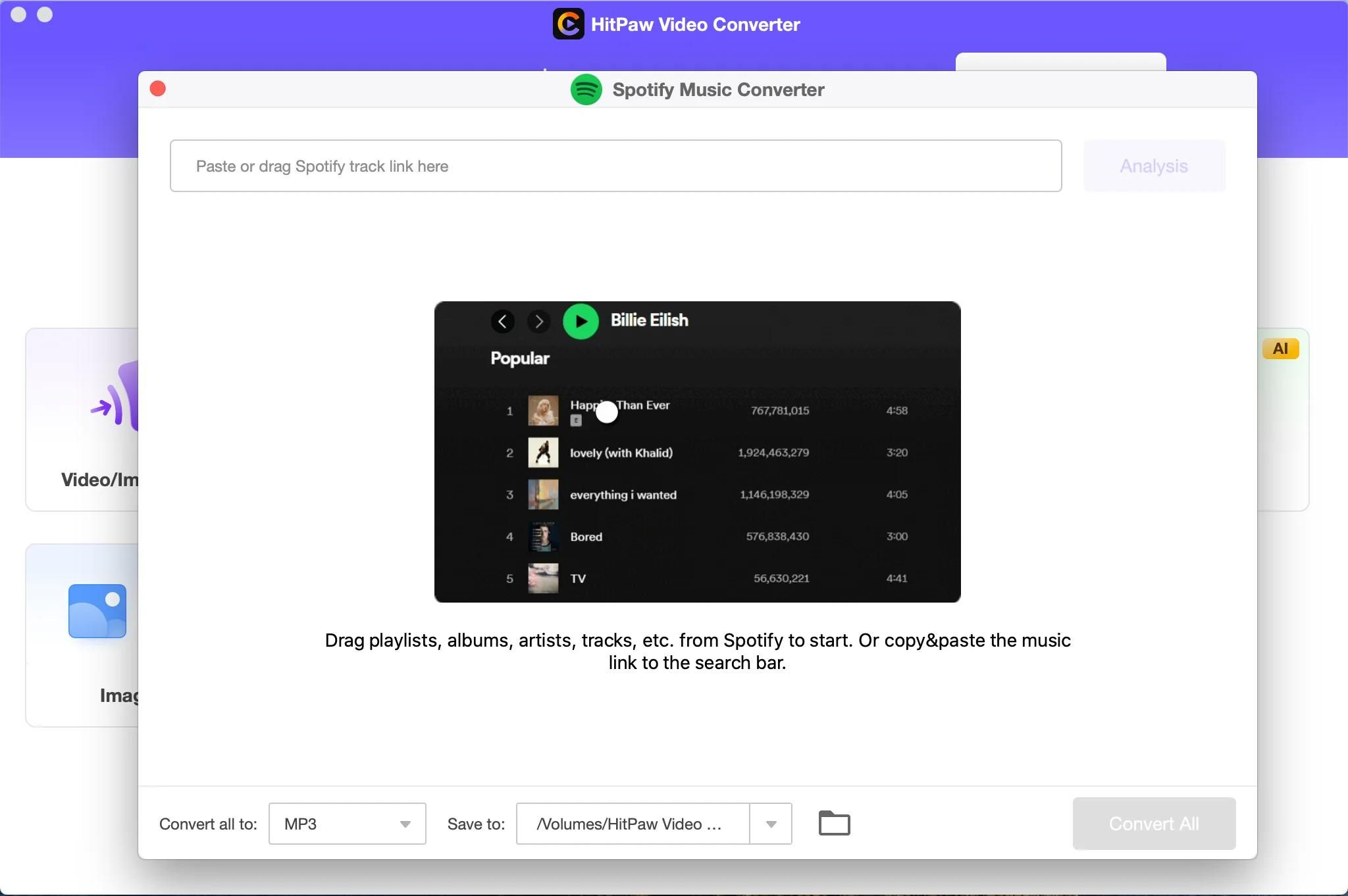
Re-encoding the file will not solve the problem if the audio is protected by digital rights management (DRM). A corrupted transfer can also be the cause. DRM-locked files from iTunes Store (pre-2009 purchases) or subscription services like Rhapsody require a license key that your portable player lacks. Even after conversion, the DRM wrapper may persist or the converter may output a silent track. Similarly, a corrupted USB transfer will produce a "format not supported" error because the player cannot parse the broken header. The file size may show correctly, but the binary data is garbled. Check the file on your computer by playing it in a software player. If it skips or fails there, the original file is damaged. When you download music to an MP3 player from a subscription service, look for a "download as MP3" option rather than a protected format like M4P. For corrupted transfers, delete the file from the player and reformat the device using the file system recommended by the manufacturer. Re-copy the file using a direct drag-and-drop method and avoid syncing software that may alter the file structure. Lastly, if you download videos to an MP3 player that contain audio tracks, the player may reject the container format. MP4 or AVI files will fail even if the audio codec is compatible. In that case, extract the audio stream to a standalone MP3 file using a tool like FFmpeg, then transfer the audio-only file.
The "format not supported" error on your MP3 player is almost never caused by a broken device, it is a mismatch between the file's hidden internal codec and the specific decoding limits of your hardware's chipset, a problem that survives file renaming and requires forensic inspection of the audio stream itself. For a deeper understanding of how to avoid such mismatches in the first place, you can explore the broader topic of how to download music MP3 correctly.