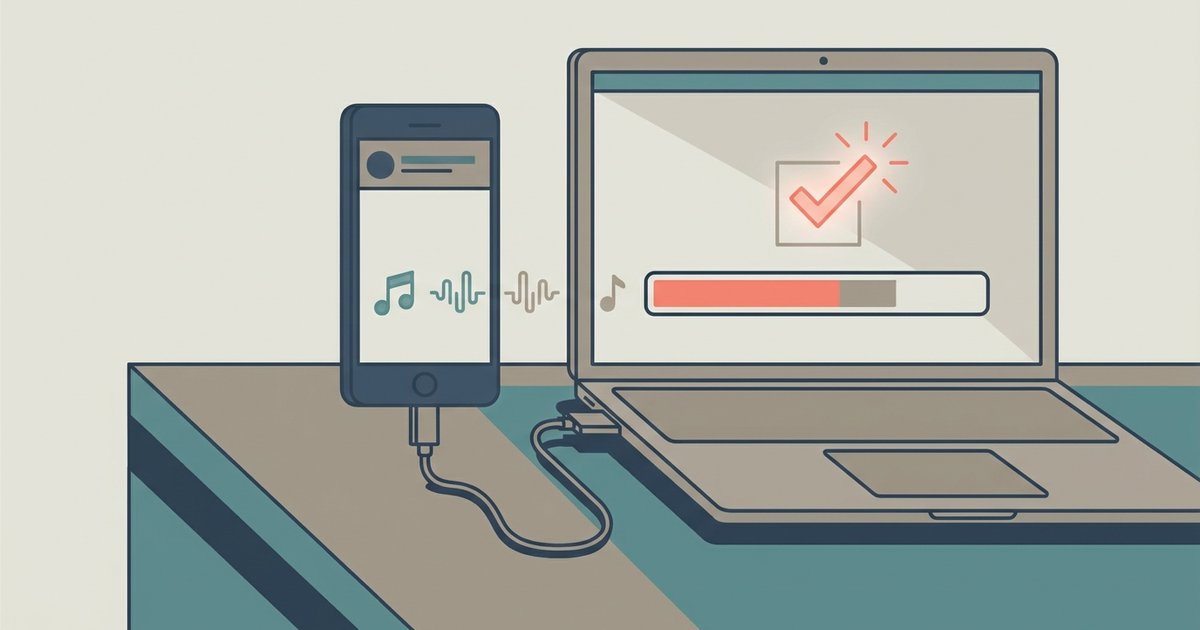
iTunes fails to recognize your iPhone because of a missing or corrupted Apple Mobile Device USB driver on Windows, or a macOS trust issue where the computer isn't authorized. Fix it by updating the driver via Device Manager on Windows, or resetting the Lockdown folder on a Mac.
The real reason your iPhone is not recognized by your PC
On Windows, the Apple Mobile Device USB driver is the critical piece of software that translates the iPhone’s connection into something iTunes can read. When this driver is missing, outdated, or corrupted, Windows sees the iPhone as an unrecognized device and refuses to hand it off to iTunes. A common culprit is third-party security software, antivirus suites like McAfee or Norton often quarantine or block the driver during installation, thinking it’s a threat. To verify, open Device Manager (right-click the Start button), expand “Universal Serial Bus controllers,” and look for “Apple Mobile Device USB Driver.” If it’s absent or has a yellow exclamation mark, right-click it, select “Update driver,” then “Browse my computer for drivers,” and point to C:\Program Files\Common Files\Apple\Mobile Device Support\Drivers.
What to do when the driver fix fails
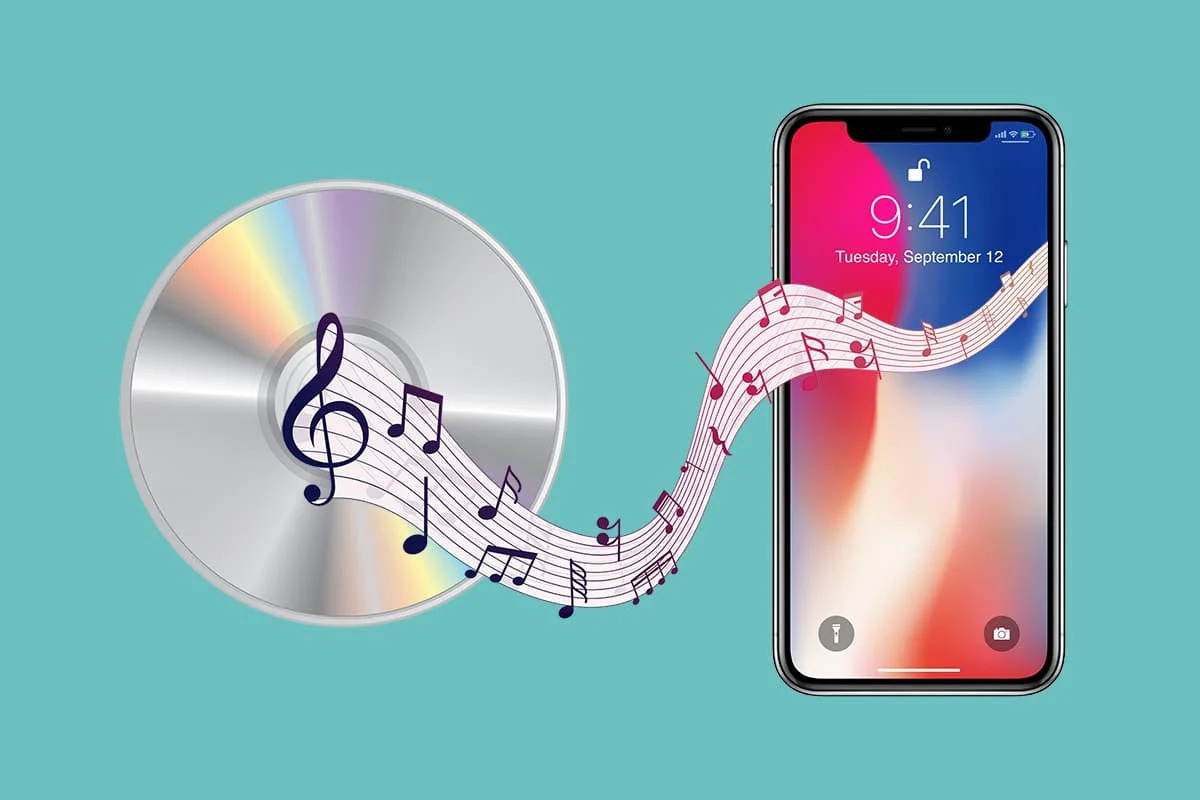
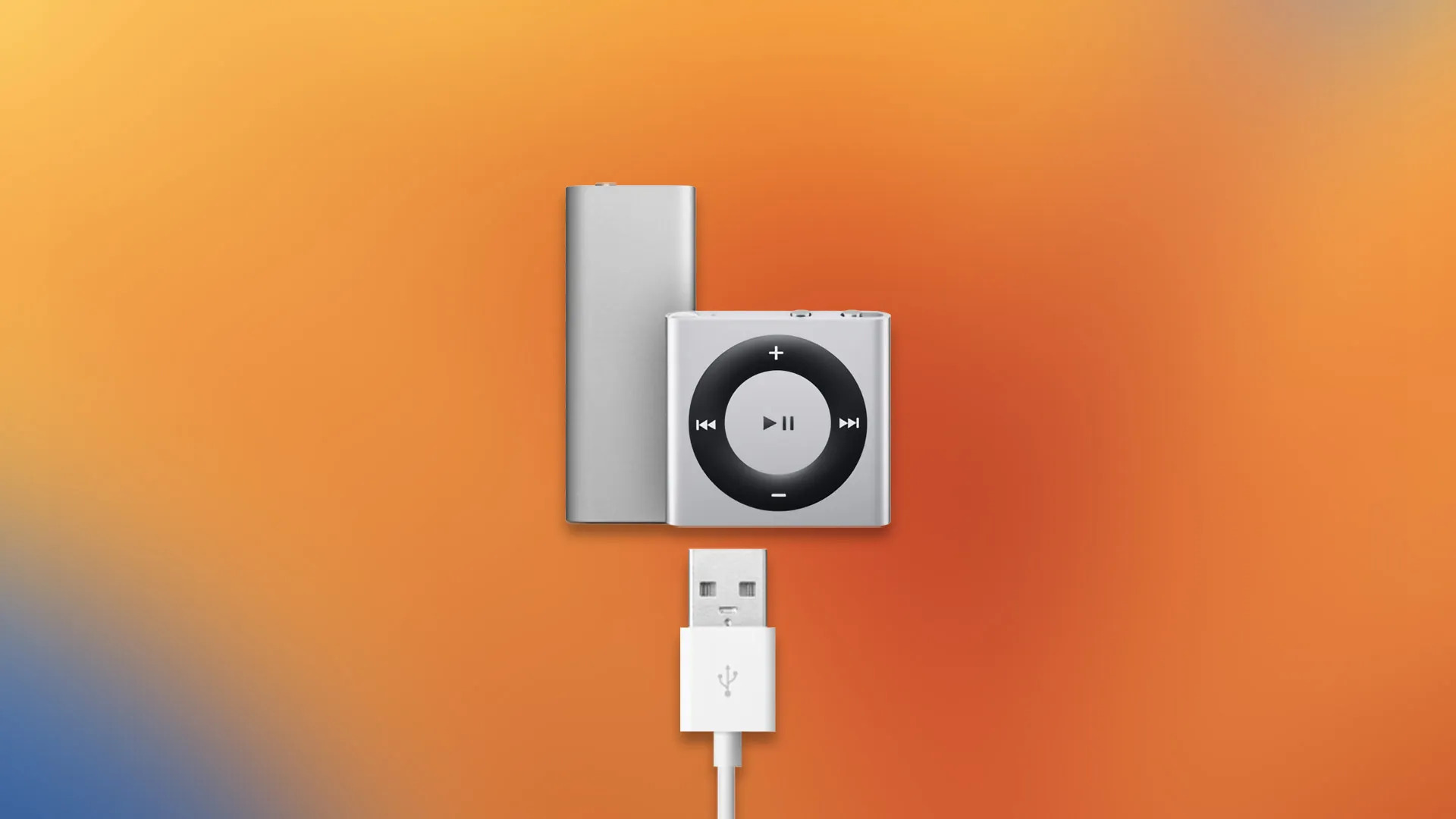
If updating the driver shows no change, Windows has likely cached a corrupted version of the driver that persists even after a manual update. In this case, you must completely uninstall the Apple Mobile Device Support component. Go to Control Panel > Programs and Features, find “Apple Mobile Device Support,” and uninstall it. Then, uninstall iTunes itself. Reboot the PC, download the latest iTunes installer directly from Apple’s site, and run it. This forces Windows to rebuild the driver from scratch. After reinstalling, plug in the iPhone, iTunes should prompt you to trust the computer. If you are tired of these driver headaches entirely, you can download music to iPod shuffle without iTunes using alternative software, or once connected, download music from a cd to iPhone to finally enjoy your physical collection on the go.
The Mac trust loop and how to break it
On macOS, the problem is almost never the driver; it’s a corrupted Lockdown folder that stores trust permissions between your Mac and iPhone. When you first plug in an iPhone, macOS asks “Trust This Computer?” and saves the response in /var/db/lockdown/. If that folder gets corrupted, often after a macOS update or a failed sync, the Mac silently refuses the connection, and the trust prompt never reappears. To fix it, disconnect the iPhone, reset your iPhone's Location & Privacy settings by going to Settings > General > Transfer or Reset iPhone > Reset > Reset Location & Privacy, and reconnect. Reboot the Mac, plug in the iPhone, and the trust prompt will return. Tap “Trust” on the iPhone, and iTunes (or Finder on Catalina and later) will recognize it. If you’re trying to download iTunes to iPhone directly, that’s not possible, iTunes is a desktop app, but after fixing the trust loop, you can manage media normally. Always keep the iPhone unlocked during the first connection to complete the authorization.
Even with the correct cable and an unlocked phone, the software handshake between the two devices fails when the driver is outdated or when macOS stores a broken trust certificate, which blocks the connection entirely.