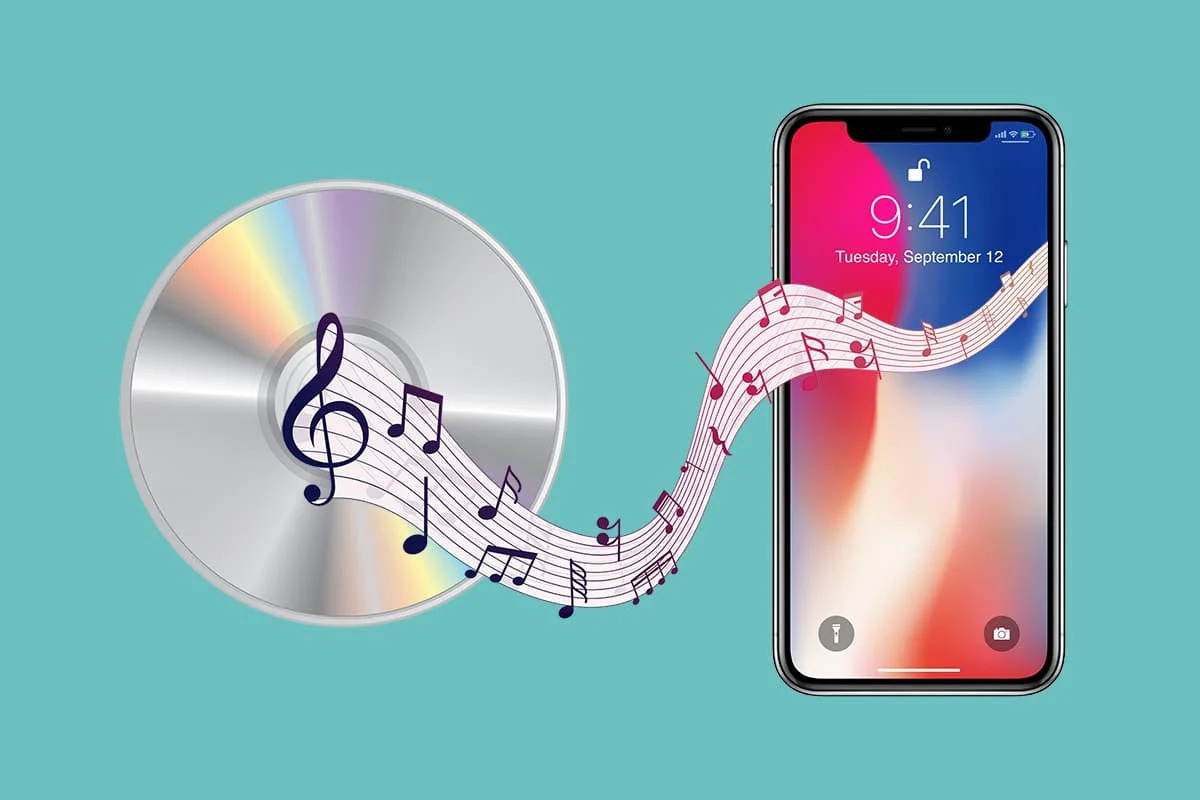
You can sync music to your iPhone without erasing your existing library, provided you are using the original computer that first loaded the music onto the device. If you are connecting to a new or different machine, iTunes will force you to erase the phone first. The key is understanding the difference between how an iPhone handles syncs versus the infamous iPod Shuffle logic. Then you must use the right settings to keep your library intact.
The difference between sync music iPhone and iPod shuffle logic
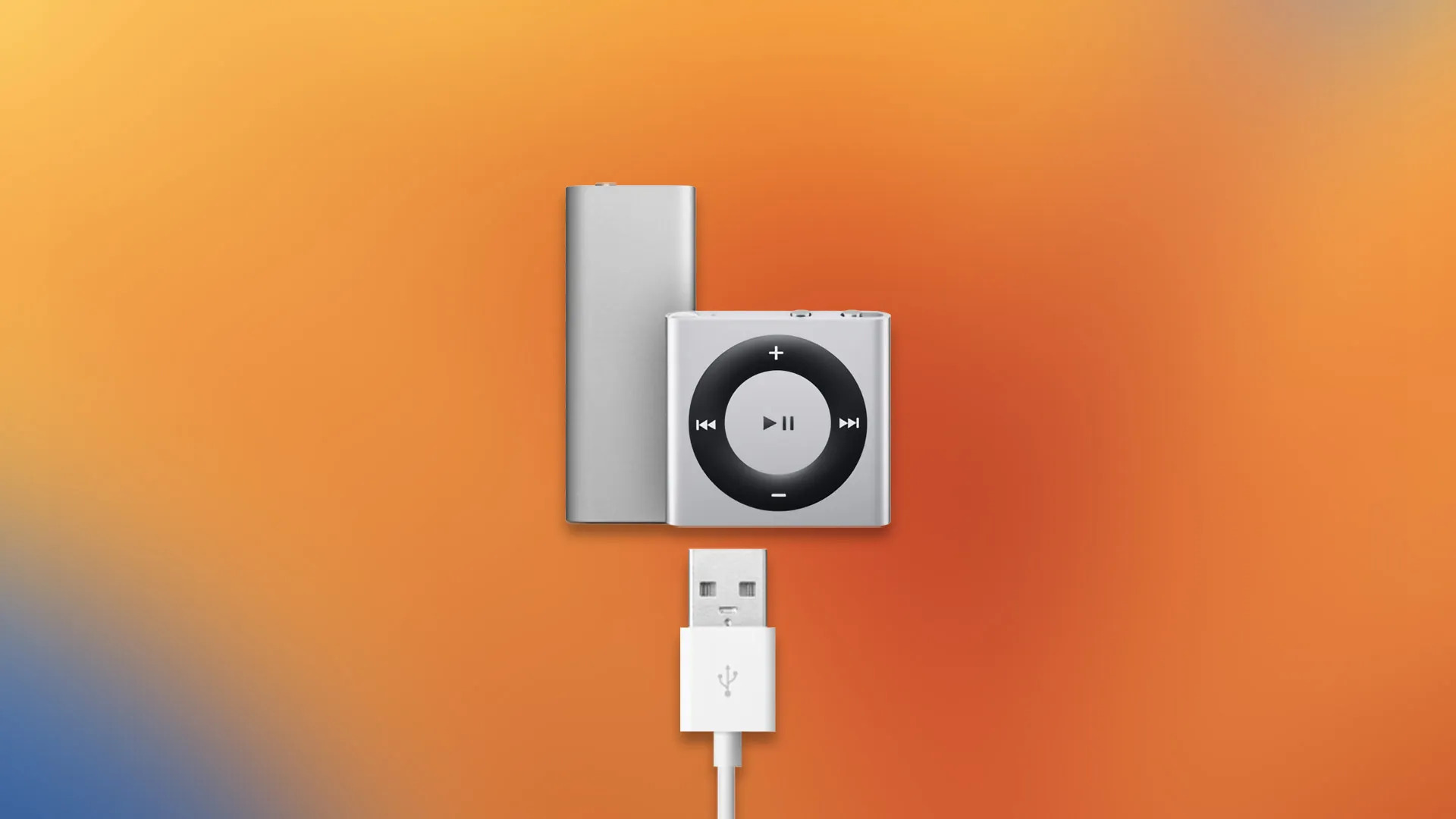
The horror stories you have heard about iPod Shuffles are real. They do not apply to iPhones in the same way. An iPod Shuffle uses a strict “automatic sync” mode. The moment you plug it into any system with iTunes, the program assumes you want to replace the entire contents of the Shuffle with whatever is in that library. There is no manual override on a Shuffle. It wipes everything unless you specifically check “Manually manage music” before connecting. The iPhone, by contrast, can be set to a “manual management” mode for music when you connect it to your primary host by enabling the option in settings. This means iTunes treats your iPhone like a separate drive. It can read your existing library, add new songs, and remove only the songs you explicitly tell it to remove. As long as you stay with the same host that first loaded your music, you can safely use the “Manually manage music and videos” option to avoid any automatic wiping. If you ever need to download iTunes to iPhone for a fresh start, the manual mode remains your safety net.
What happens when you use a different computer
The failure case happens when you plug your iPhone into a new or different machine. iTunes on that device scans your iPhone’s music library. It sees that the songs were loaded from a different library on the prior host. Each song is tied to a specific Apple ID, file path, and database. Because iTunes cannot merge two separate libraries, it presents you with a stark prompt: “Erase and sync” or “Cancel.” There is no “merge” or “add to existing” option. If you click “Erase and sync,” iTunes wipes every song currently on your iPhone and replaces it with the new machine’s library. This is the exact scenario that triggers the panic you are trying to avoid. If you want to add music from a secondary machine without losing your initial library, you must first copy those songs to your primary host’s iTunes library. Then you sync from there. For example, if you need to download music from a cd to iPhone, you would rip the CD on your first machine. You would import it into iTunes and then sync. Never plug the phone into a foreign machine. Similarly, if you want to download music from YouTube to iTunes, you would download the audio file on your first machine. You would add it to that same iTunes library and sync from there.
How to safely add new music without losing anything
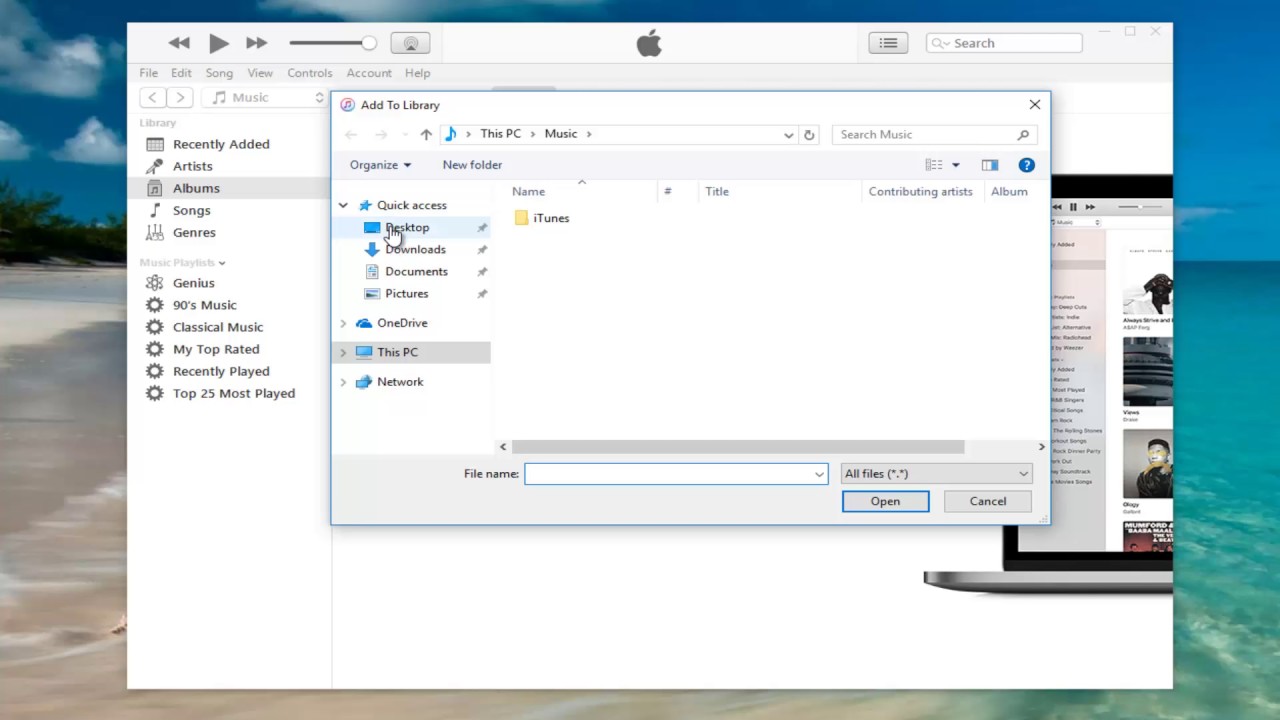
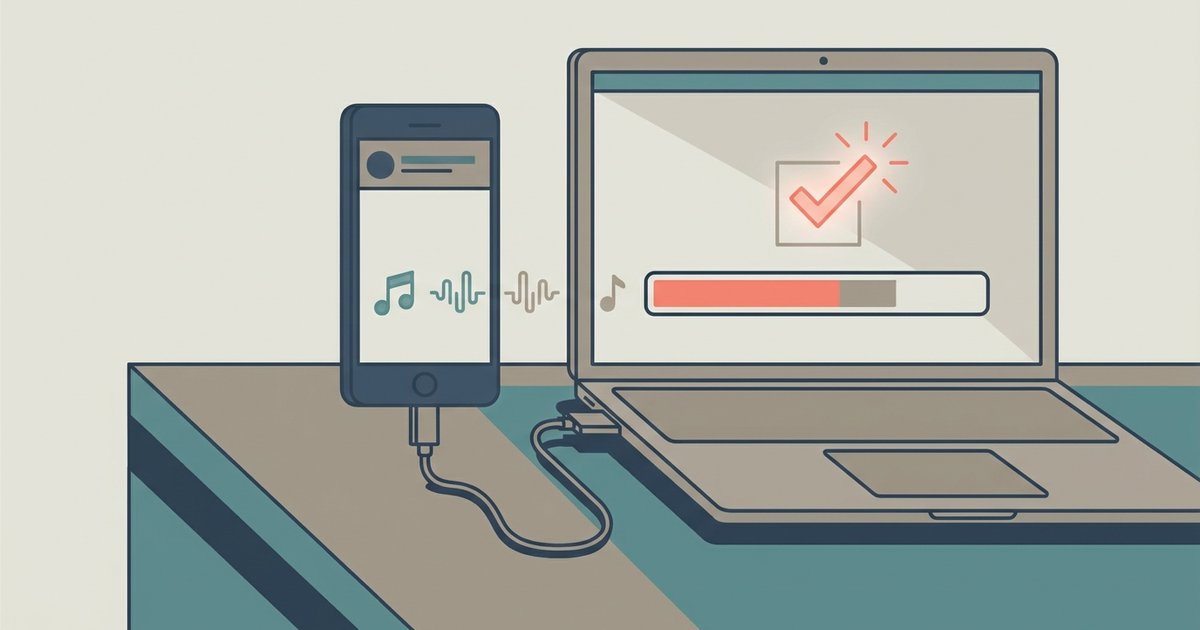
To add new music without triggering a full library replacement, follow these exact steps. First, connect your iPhone to your primary host and open iTunes (or Finder on macOS Catalina and later). Click the device icon, a small phone silhouette, in the iTunes window (or select your iPhone in Finder on macOS Catalina and later). In the left sidebar, click “Summary” (or the equivalent tab in Finder on macOS Catalina and later). Scroll down to the “Options” section (or the “General” tab in Finder) and check the box next to “Manually manage music and videos.” Click “Apply” in the bottom-right corner. This setting tells iTunes to treat your iPhone like a portable hard drive. It will not sync automatically. It will not erase anything. Now, go to your iTunes music library by clicking the “Music” icon at the top of the window (or open the Music app on Mac). Find the songs you want to add. You can drag and drop them directly onto your iPhone’s name in the left sidebar (or onto the iPhone in the Finder window on macOS Catalina and later). You can also click and hold a song, then drag it onto the iPhone icon. iTunes will copy the file without touching any existing tracks. The iPhone’s manual mode is a critical distinction. You would add the tracks to the same iTunes library and then drag them onto your phone. Download the MP3 file. Add it to the primary iTunes library. Drag it over. The manual mode ensures nothing gets erased.