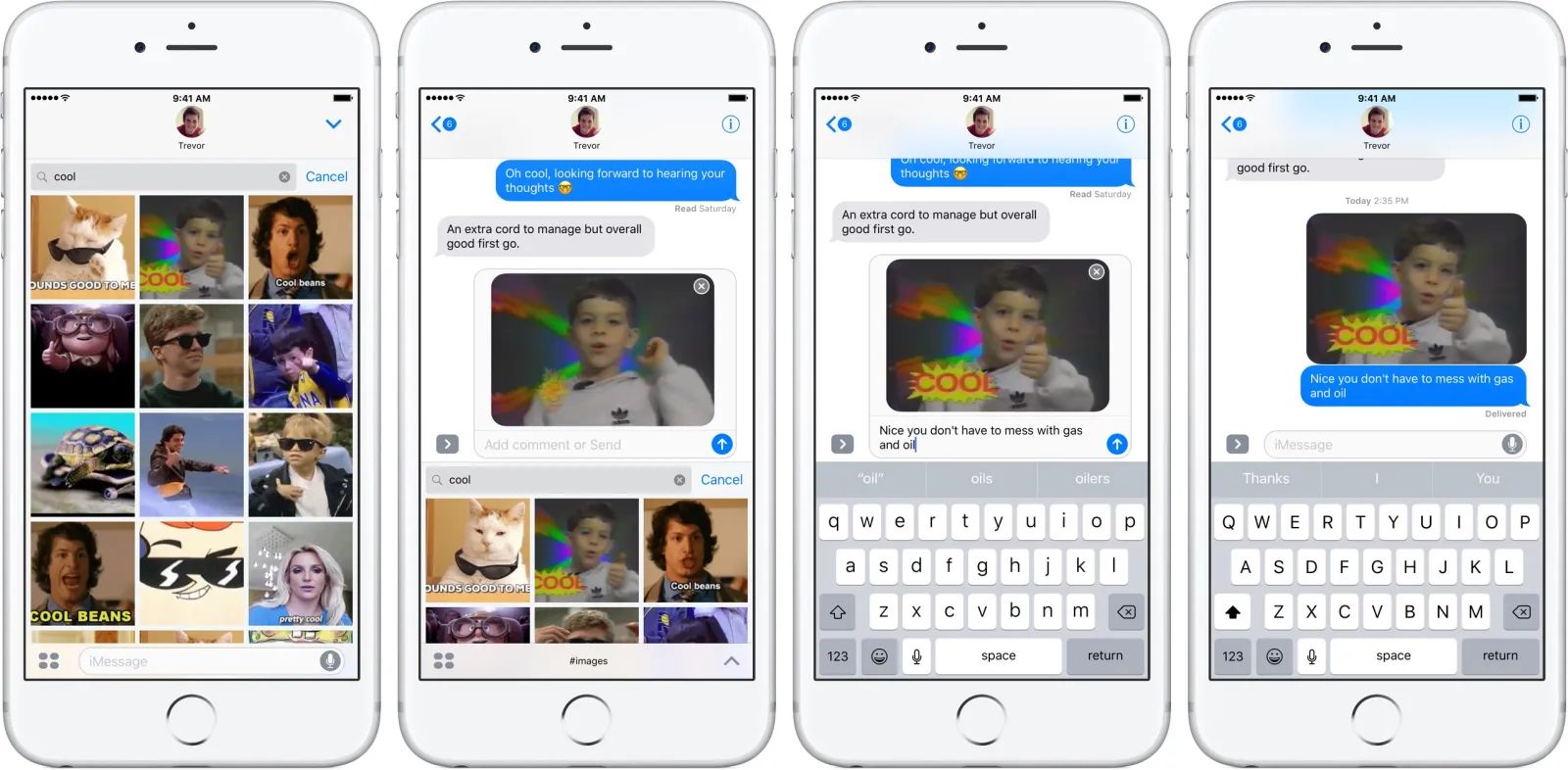
You cannot change the keyboard background on iPhone without an app because iOS does not offer a built-in setting for this. The native keyboard’s appearance is fixed by Apple, so the only way to change keyboard background on iPhone without app is to use a third-party keyboard. This guide will explain what you can customize on the default keyboard, then show you the only reliable workaround: installing a third-party keyboard app.
Can you really change your keyboard background on iPhone without an app?
No, you cannot change the keyboard background on iPhone without an app. iOS does not include any option to alter the default keyboard’s background color, image, or theme. The native keyboard is intentionally locked to match Apple’s design, and there is no hidden menu or settings toggle that reveals background customization. If you search for “change keyboard background on iPhone without app,” you’ll find outdated guides or false claims, but the honest answer is that this feature does not exist in iOS. The only path to a different keyboard background is to install a third-party keyboard app, which we’ll cover in detail below.
What you can customize on the native iPhone keyboard
While you cannot change the background, the native iPhone keyboard does offer several legitimate customization options that Apple officially supports. These include:
- One-handed mode: You can shrink the keyboard and move it to the left or right side of the screen for easier thumb typing.
- Text replacements: Create shortcuts to expand abbreviations into full phrases (e.g., typing “omw” becomes “on my way”).
- Keyboard language and layout: Add multiple language keyboards and switch between them, or assign alternative layouts like QWERTY, AZERTY, QWERTZ, or Dvorak.
- Autocorrect and predictive text: Toggle these features on or off, or reset the dictionary.
- Keyboard feedback: Turn keyboard sounds and haptic feedback on or off for tactile response.
- Uppercase-only keys: For accessibility, you can force the keyboard to display only uppercase letters.
- Landscape mode: Rotate your iPhone to landscape to get a larger keyboard in many apps.
- VoiceOver gestures and keyboard shortcuts: Customize accessibility options for typing and navigation.
These features are verified by Apple’s official support documentation. None of them, however, let you alter the keyboard’s background. To change the background, you must move to a third-party solution.
The workaround: use a third-party keyboard app to change the background
Since iOS does not provide a native way to customize the keyboard background, the only effective workaround is to install a third-party keyboard app. These apps are designed specifically to offer extensive personalization, including background colors, images, gradients, and themes. By using a third-party keyboard, you gain full control over the visual appearance of your typing interface. This is the standard method recommended by tech experts and Apple enthusiasts alike. Below, we walk through the step-by-step process to set up a third-party keyboard and change its background.
Step 1: Download a third-party keyboard app
Open the App Store on your iPhone and search for a reputable third-party keyboard. Popular options include Microsoft SwiftKey, Gboard, and Fleksy. These apps are free to download and offer a wide range of customization features. Tap the “Get” or “Install” button next to the app you prefer, then authenticate with your Apple ID or Face ID. Once the download is complete, open the app from your home screen. You may be prompted to allow the keyboard to access your device’s storage or contacts, these permissions are optional but may be required for certain features like GIF search or personalized suggestions. After installation, move on to Step 2 to enable the keyboard in your settings.
Step 2: Enable the new keyboard in your settings
After installing the third-party keyboard app, you must enable it in your iPhone’s settings. Go to the Settings app on your device, then tap “General,” followed by “Keyboard,” and then “Keyboards.” Tap “Add New Keyboard” and select the third-party keyboard app from the list. You will see a list of available keyboards, including the default Apple keyboard and any others you’ve added. Locate your newly installed keyboard and tap on it. Full Access allows the third-party keyboard to sync your settings and personalize the appearance. Once enabled, you can also reorder your keyboards by dragging the handle icon (three horizontal lines) on the right side of each entry. This step ensures the third-party keyboard is active and ready for use.
Step 3: Switch to the third-party keyboard and customize it
To start using your new keyboard, open any app that requires text input, such as Messages, Notes, or Safari. Tap and hold the globe icon (🌐) located at the bottom of the keyboard. A menu will pop up showing all your installed keyboards. Swipe up or down to select the third-party keyboard app you just enabled. The keyboard will immediately switch to the new design. Now, to change the background, open the third-party keyboard app itself from your home screen. Tap on that option to browse through the available backgrounds. You can choose from solid colors, gradients, or even upload a custom image from your photo library. Some apps also offer pre-designed themes that change the entire look of the keyboard, including button colors and fonts. Once you select a background, the change is applied instantly. Exit the app, and your keyboard will now display the new background every time you type. Remember to explore the app’s other settings, many third-party keyboards let you adjust key height, enable swipe typing, or add emoji shortcuts. The customization options vary by app, so take time to experiment and find the perfect look for your typing experience.
\nRelated reading: How To Add GIF Keyboard To iPhone, How To Change iMessage Background, and How To Clear Keyboard History.