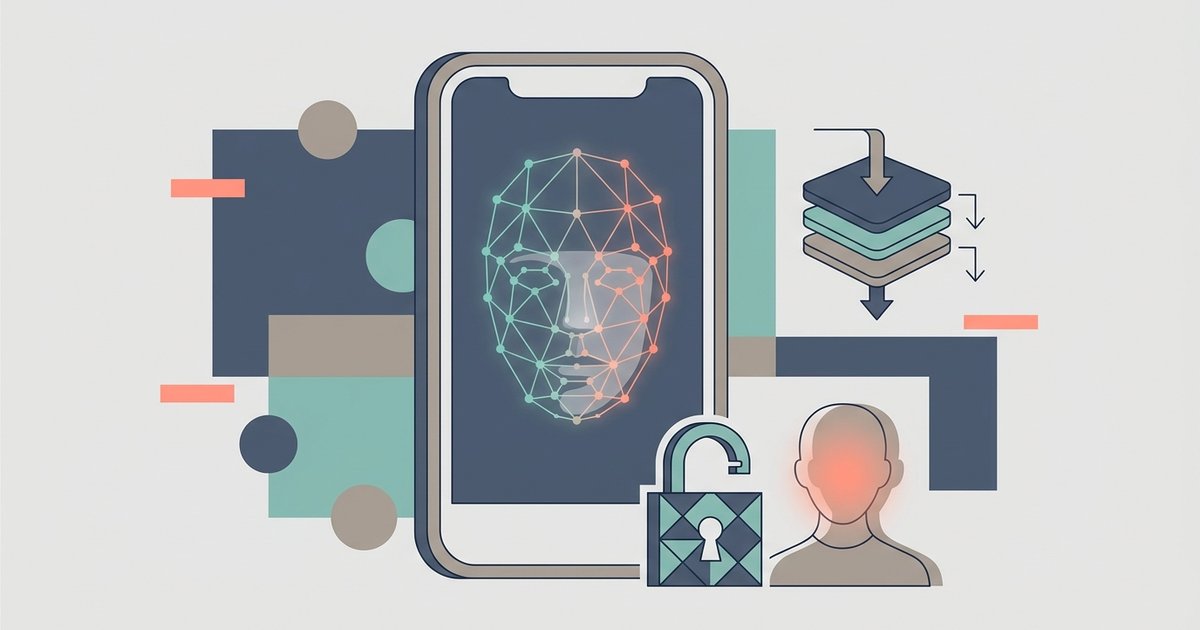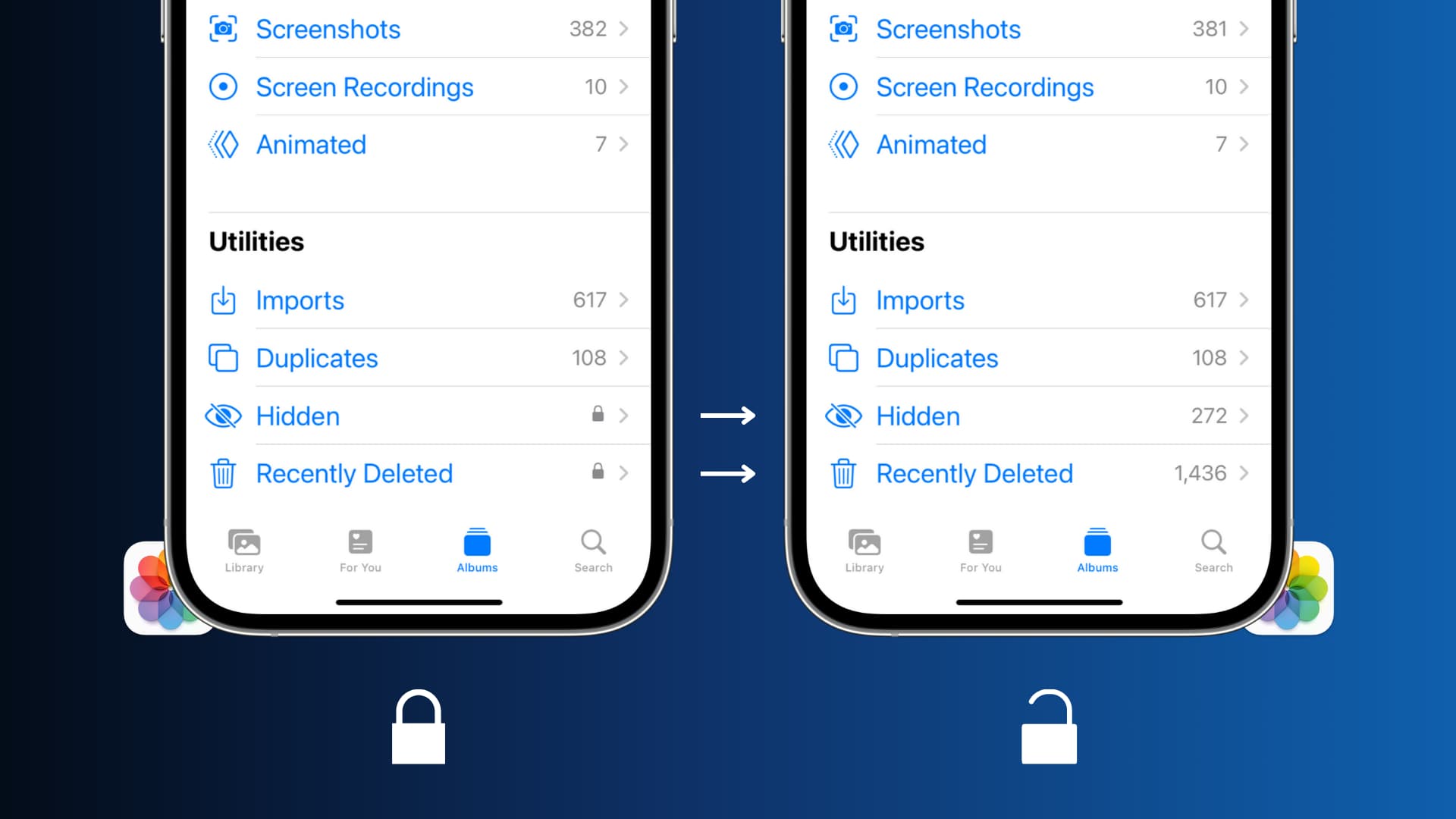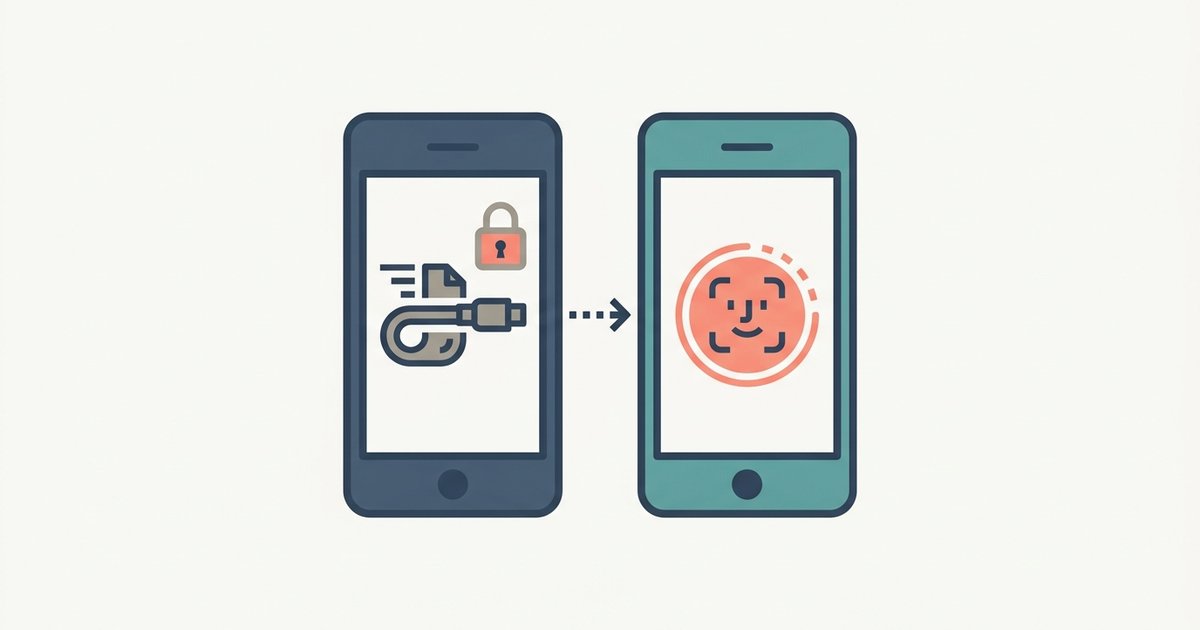
Most app Face ID locks survive an iPhone transfer without a hitch. The biometric data is re-enrolled on the new device but the app’s permission toggle remains on. However, some high-security apps like banking or crypto wallets detect the hardware change. They will force you to re-authenticate with a password before Face ID works again. This means you can open most social and utility apps immediately, and you can rest assured that Face ID for app locks and battery drain is negligible on your new device. But you should keep your account passwords handy for financial apps and any service you previously locked with biometrics.
Why most app Face ID transfers work immediately
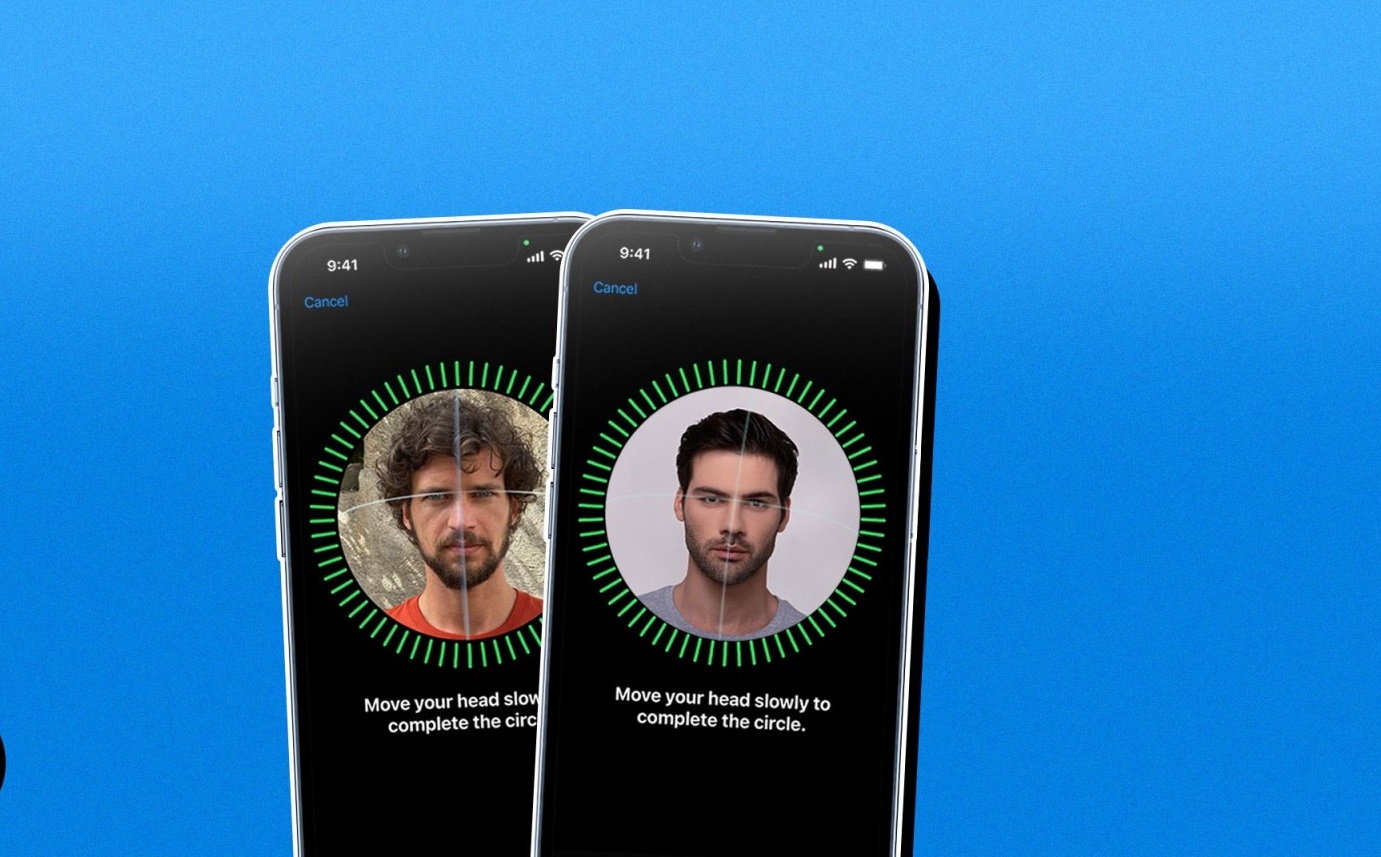
When you transfer your data via iCloud backup or direct device-to-device migration, the app’s Face ID permission is stored as a simple flag inside the app’s encrypted keychain. This keychain data, including the on/off toggle for Face ID, migrates intact because iOS encrypts the entire backup with your device passcode. On the new iPhone, you first enroll your face during initial setup. This registers a new mathematical representation of your face with the Secure Enclave. When you open an app like Snapchat, the app checks its keychain flag, finds it set to “on,” and then asks the system for a biometric match. The system sees your freshly enrolled face, compares it to the stored reference, and unlocks the app without any extra step. This is why you can put a face id on Snapchat on your old phone, back up, restore, and immediately unlock it with your face on the new device. The permission and the biometric reference are separate systems that work together transparently.
The hardware change that breaks some locks
The failure case occurs when an app ties its encryption keys directly to the unique Secure Enclave identifier of your old iPhone. Banking apps, password managers, and cryptocurrency wallets often generate a device-specific cryptographic token. That token is stored in the keychain but encrypted with a hardware-bound key from the Secure Enclave. When you restore that token to a new iPhone, the app opens, reads the token, and attempts to decrypt it with the new Secure Enclave. It fails because the hardware key does not match. The app then invalidates the stored biometric token entirely. It displays a “device changed” or “security re-verification required” message. It demands your account password or PIN before it will let you re-enable Face ID. For example, if you previously used a banking app and now want to find face id passwords stored inside its vault, you will first have to log in with your master password. After that, the app will generate a fresh biometric token linked to the new iPhone’s Secure Enclave. Face ID will work again. The same logic applies to apps that use Face ID for in-app purchases or content access. They treat a hardware change as a potential security risk.
What resetting Face ID actually revokes
It is important to understand that toggling Face ID off for a specific app in Settings only removes that app’s permission. It does not remove the face data itself. Your face enrollment lives inside the Secure Enclave and is shared across all apps that request biometric verification. If you go to Settings > Face ID & Passcode and tap “Reset Face ID,” you delete your facial reference from the Secure Enclave entirely. This action instantly revokes every app’s ability to use Face ID. It does not just affect the ones you manually turned off. Every app that had the permission flag set to “on” will now fail biometric checks because there is no face data to compare against. You will then need to re-enroll your face. Next, you must open each app individually to toggle Face ID back on. For instance, after a full reset, you will have to open Instagram, go to its settings, and manually enable Face ID for Instagram again. The same is true for any app that previously relied on Face ID. The permission flag remains in the keychain, but it is useless until you provide a fresh face scan and the system confirms the match.
The permission flag and the biometric reference are separate systems that work together transparently, and for more detailed guidance on using and managing Face ID across all your devices, you can explore the broader topic of How to Use and Manage Face ID.