Set up Face ID for apps and features
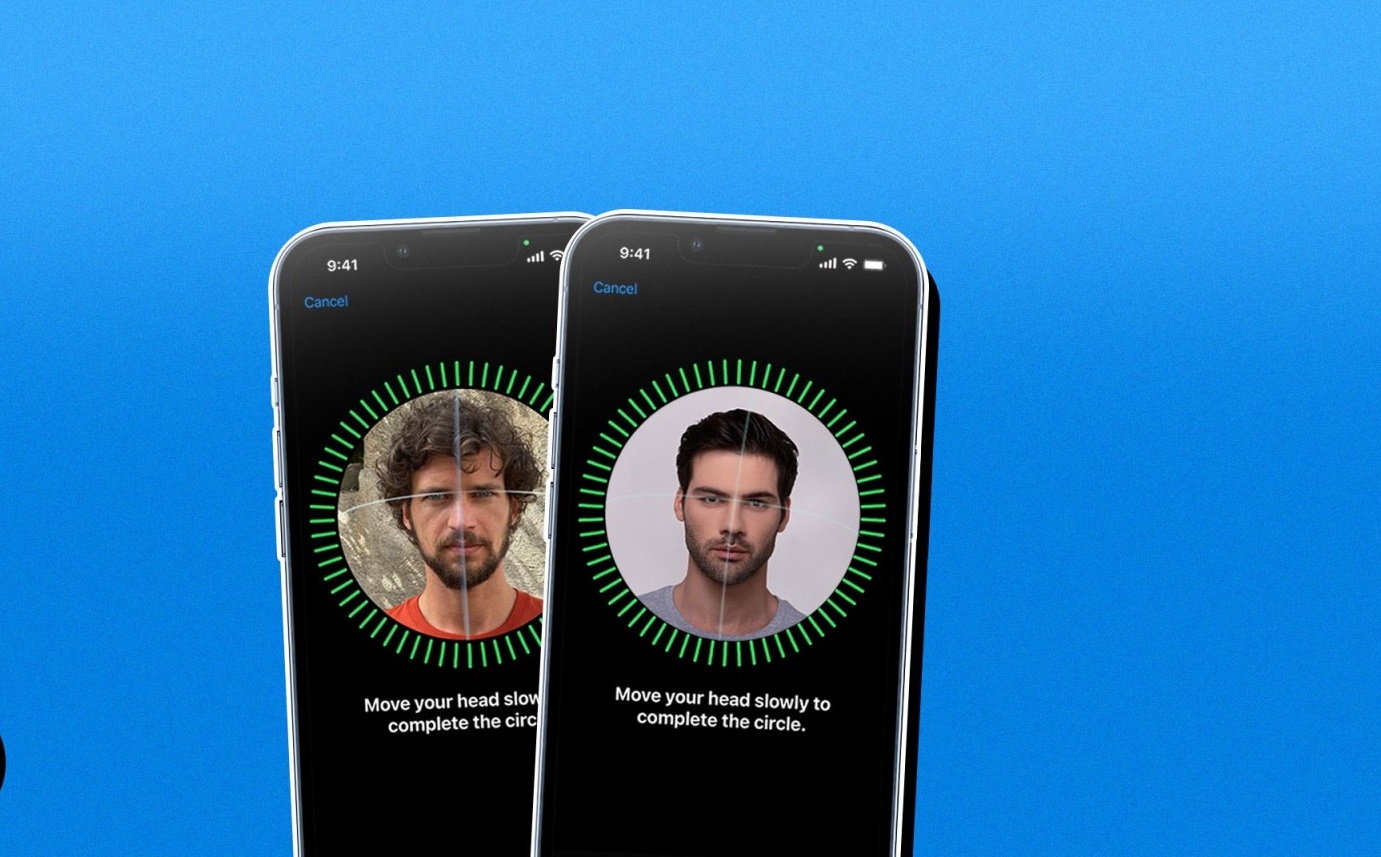
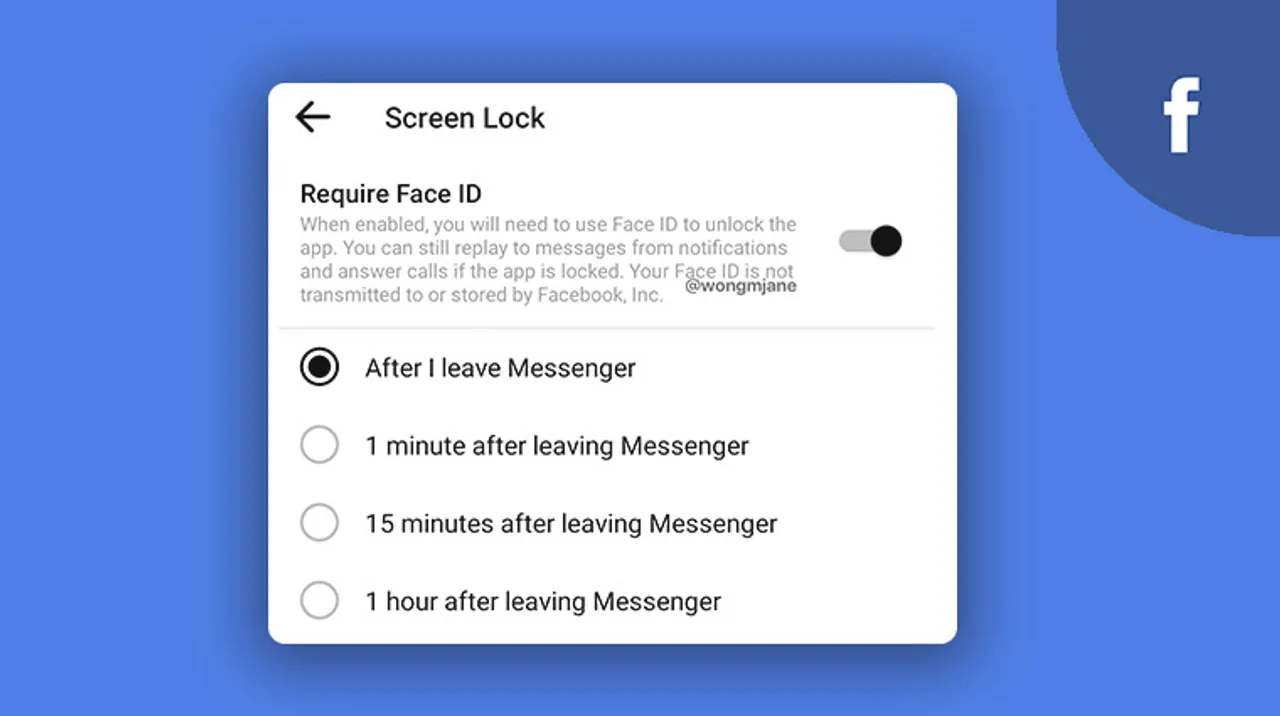
To manage Face ID effectively, you must understand that the system toggles control unlocking the device, Apple Pay, iTunes & App Store, Password AutoFill, and other apps. Many people assume that turning on Face ID in the Face ID & Passcode panel automatically locks every app on the phone. That is not how iOS works. For third-party apps, you can manage many of them in Settings > Face ID & Passcode > Other Apps, though some may also offer an in-app toggle in their own security or privacy menu. For example, if you want to put a face id on Snapchat, you open Snapchat, go to its settings, and look for an option to enable Face ID. The process is similar for Instagram. To add face id on Instagram, you navigate to Instagram’s settings and look for a Face ID toggle. The steps are similar when you want to put a face id on Facebook: head to Facebook’s settings and look for a Face ID option. Banking apps are just as independent. To enable face id on bank of america app, you open the app, log in, then go to its security settings and look for the option to use face id instead of passcode. Even Apple’s own Notes app requires a separate step. To open locked notes with face id, you must first set a password for Notes, then turn on the Face ID option. Unlike a passcode, Face ID is not a universal master key, every app must be told to trust it individually. Remember that removing someone else’s Face ID from your phone requires deleting their enrolled face from the system-level Face ID & Passcode panel, not just turning an app toggle off.
Manage and troubleshoot Face ID access
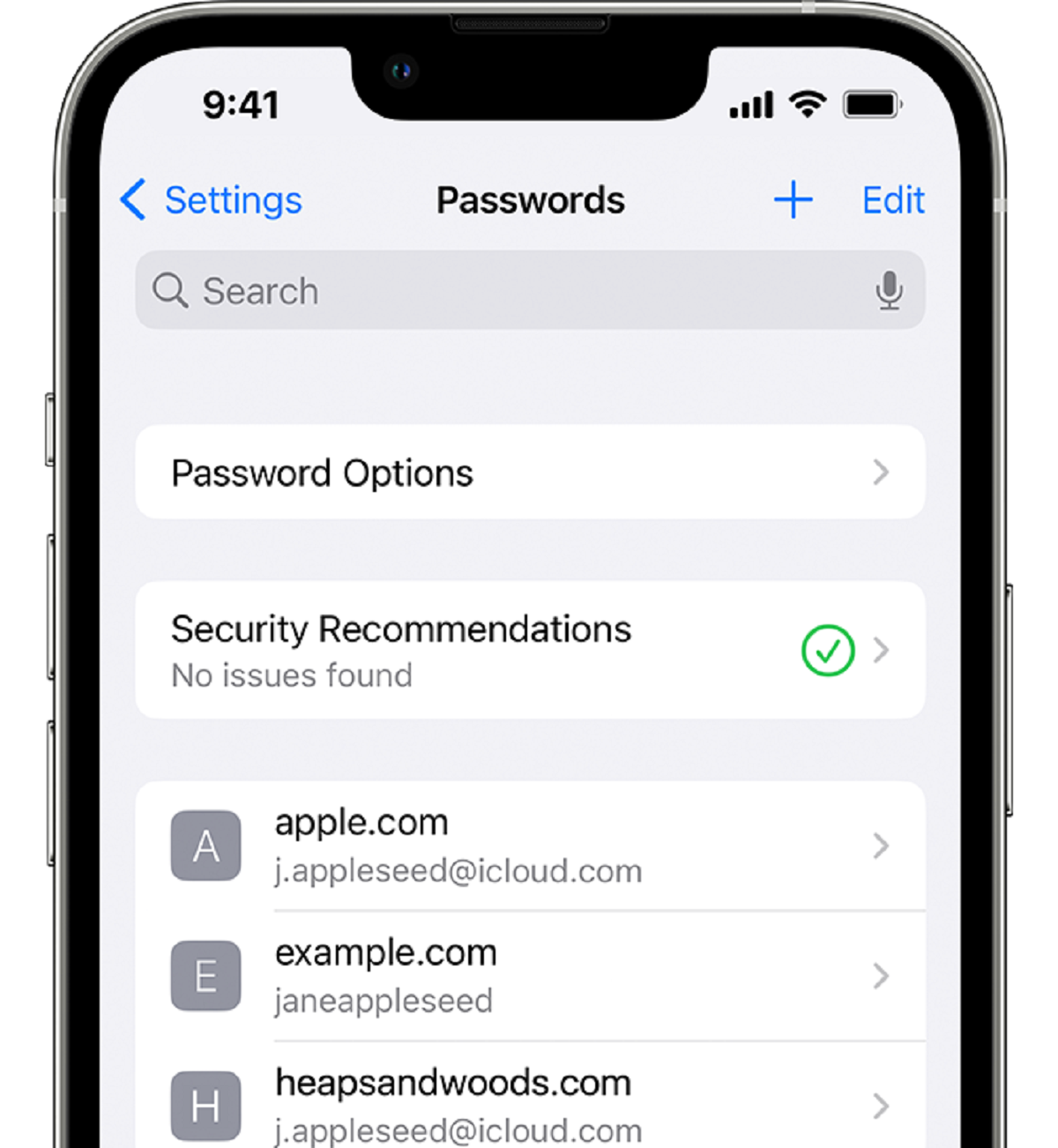
When you need to access a service password that Face ID normally enters for you, go to Settings > Passwords to find face id passwords stored on your device. This list shows every saved login across all your apps and websites. You can view or copy credentials manually when the biometric sensor isn't available. It also helps when an app requires the password for re-authentication.
If you recently moved to a new iPhone, you should check what happens to app Face ID locks after iPhone transfer. Each app’s internal security setting travels with your data only if you restore from a full iCloud or iTunes backup. Standalone app permissions often reset. You will need to re-enable Face ID inside each app’s own privacy menu.
Many users worry about performance, so it helps to understand Face ID for app locks and battery drain. The infrared scan itself uses negligible power because it fires only when you open the app. The phone’s dedicated neural engine handles the processing without taxing the main CPU. You can verify this by opening a locked app, watching the battery graph, and noticing no unusual drop. Remember that removing a person’s enrolled face from your phone requires resetting Face ID from the Face ID & Passcode panel, not from inside any single app. The system-level face data governs all biometric checks, making this the only place where a deletion permanently revokes access across every protected application.
Disable or bypass Face ID when needed
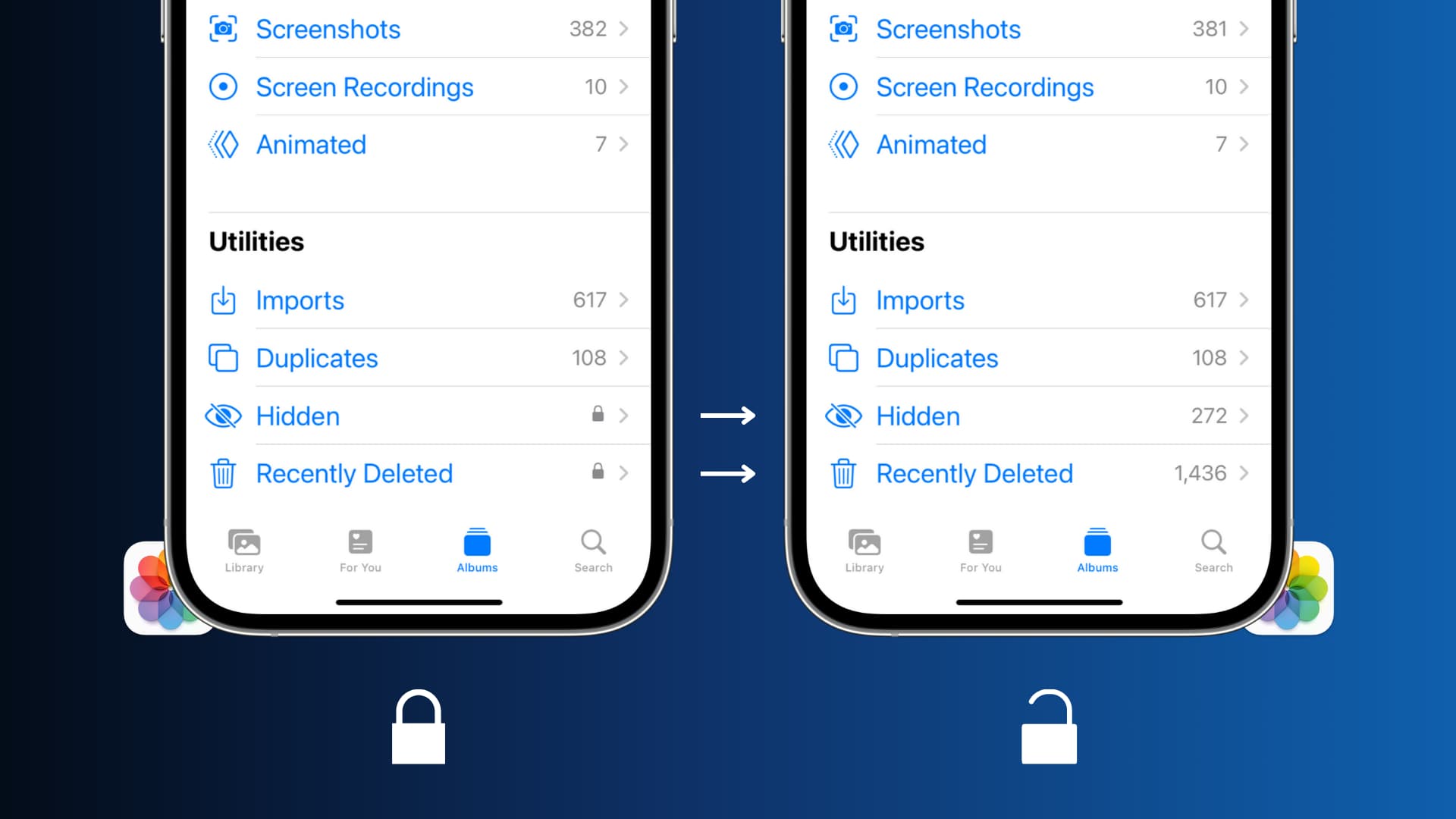
If you need to hand your phone to someone else, you can temporarily disable Face ID for all apps without resetting enrolled faces. Do this by going to Settings > Face ID & Passcode and toggling off the desired options under 'Use Face ID For.' This locks the system-level scanner without deleting your stored face data. When you toggle it back on, everything works as before. If another person’s face has been enrolled on your device, you must remove someones face id from your phone. Tap “Reset Face ID” in that same security pane. This is the only way to fully revoke their access. Toggling an app off in its own preferences does not erase their enrollment. For the Photos app, you can turn off face id for recently deleted photos. Open the Photos app settings and disable the Face ID lock for that album if available. When you’re in a checkout line and want to use Apple pay without face id, double-click the side button and authenticate with your passcode instead. The phone remembers that choice for the transaction. Each app manages its own lock independently, so revisit its internal preferences to disable Face ID for that single app without touching the system-level enrollment. Apple requires you to reset the entire enrolled face map to remove an alternate appearance.