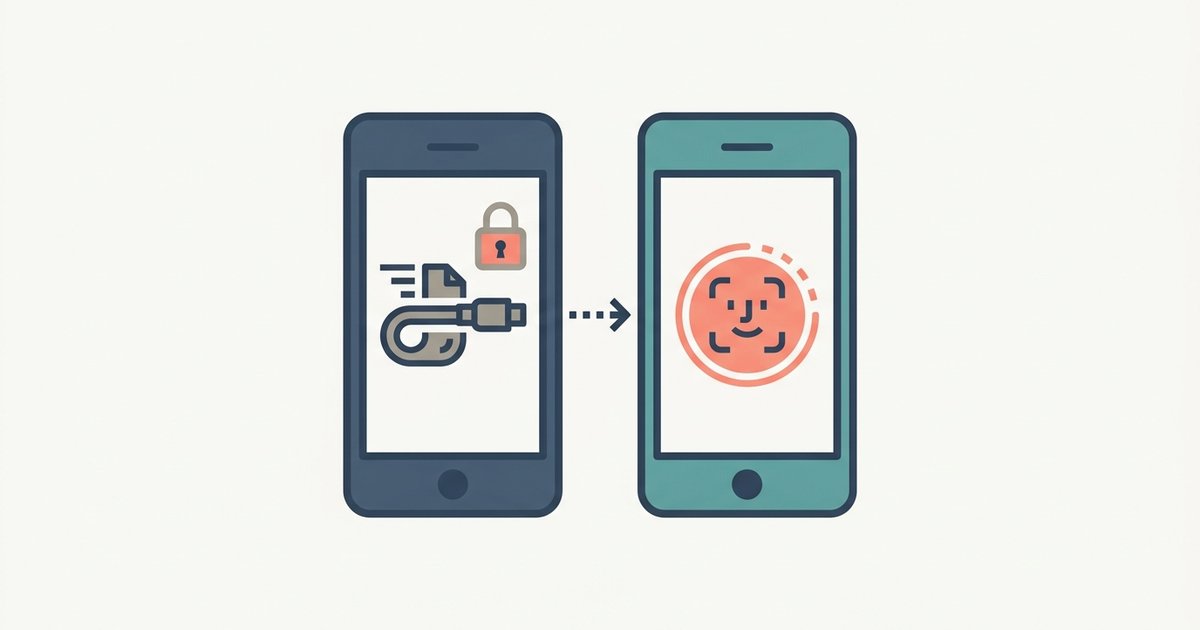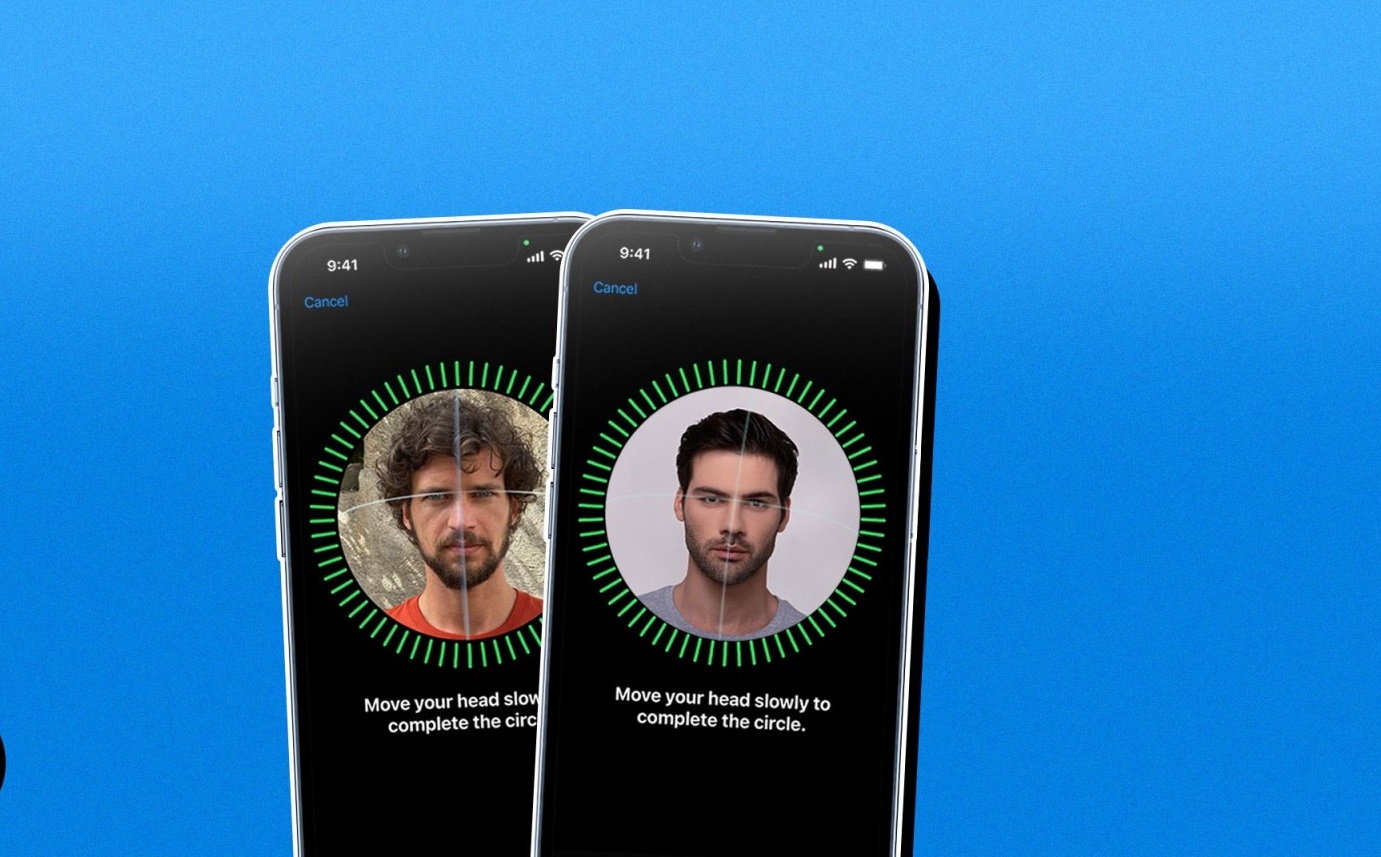
To remove someone's Face ID from your phone, you must reset all enrolled facial data, which deletes every face including your own. This is the only way to revoke a specific person's ability to unlock your iPhone with Face ID.
Why you can't remove a single person's face ID
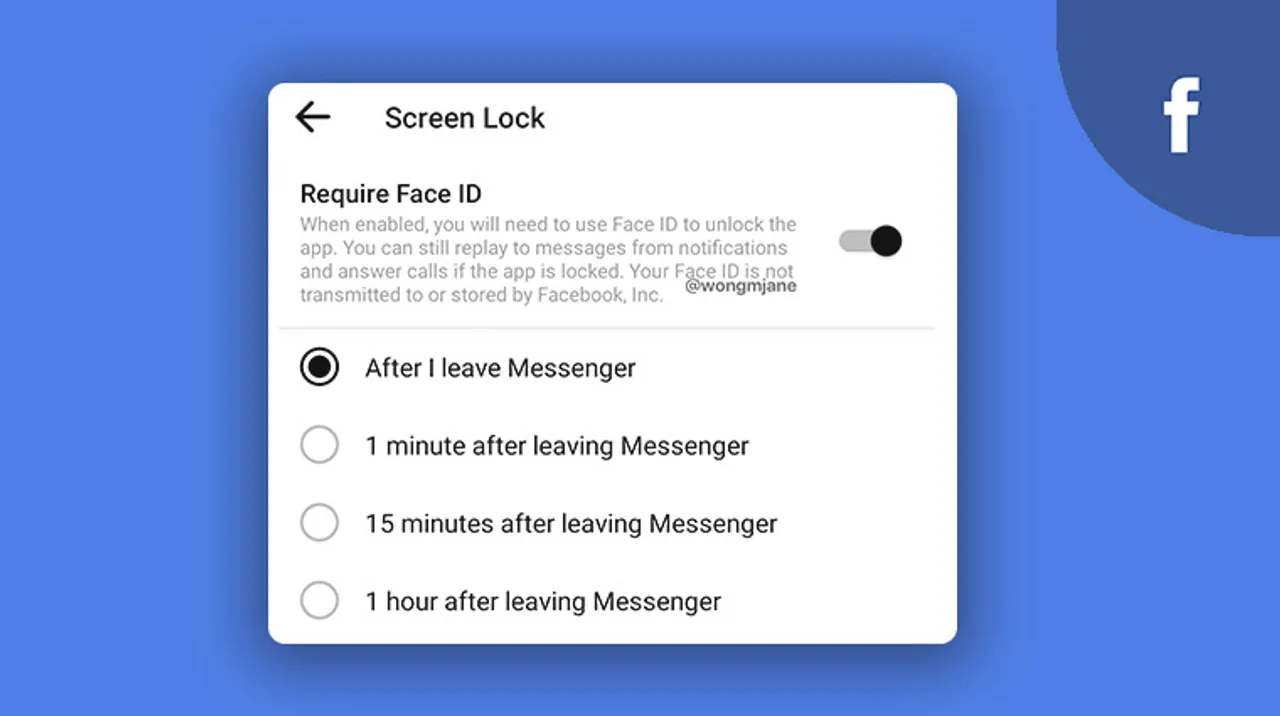
A common misconception is that you can select and delete one person's face from a list of profiles. iOS does not work this way. Face ID stores only one primary face and one alternate appearance. When you share your phone with someone else and they enroll their face, their scan replaces or becomes part of the alternate appearance. There is no separate profile to pick and remove. The only way to eliminate their access is to wipe all face data and start fresh. If you want to use facial recognition in a more controlled way, you can put a face id on Snapchat for app-specific security instead.
The only way to remove someone's face ID: reset all face data
The accurate, single-step process is straightforward. Go to Settings, then tap Face ID & Passcode. Enter your device passcode. Then tap Reset Face ID. This action deletes all enrolled facial data, including your own and anyone else's. Face ID data is encrypted and stored only on your device's Secure Enclave; it is never backed up to iCloud. After the reset, no face can unlock your phone until you set up Face ID again.
Re-enroll your own face after the reset
Once you tap Reset Face ID, the option Set Up Face ID appears immediately. Tap it and follow the onscreen prompts to scan your face. Face ID requires a passcode to be set up, and it is most accurate when you hold the device at eye level for full-face recognition. If you use an iPhone 12 or later with iOS 15.4 or later, you can also set up Face ID to work with a mask by analyzing the area around your eyes.
Alternative: disable Face ID for specific features without resetting
If you do not want to delete all face data but still need to restrict what the other person can do, you can use the toggles in Settings > Face ID & Passcode. Turn off iPhone Unlock to prevent the device from being unlocked with any enrolled face. Disable Apple Pay so that no one can authorize payments with their face. Turn off Password AutoFill to stop automatic password entry. These controls let you lock down sensitive functions without wiping any enrolled faces. For example, you might want to temporarily disable Face ID for all apps without resetting enrolled faces by toggling the relevant switches.
Verify the removal was successful
After resetting Face ID and re-enrolling your own face, lock your device by pressing the side button. Hold your phone in front of your face. If the reset worked, the lock screen will prompt you to enter your passcode before it recognizes your newly enrolled face. If the previous user tries to unlock the phone, their face will not be recognized, and the device will require the passcode. Face ID allows only five unsuccessful match attempts before a passcode is required, so repeated failed attempts will lock the phone completely.
Additional security steps to fully protect your device
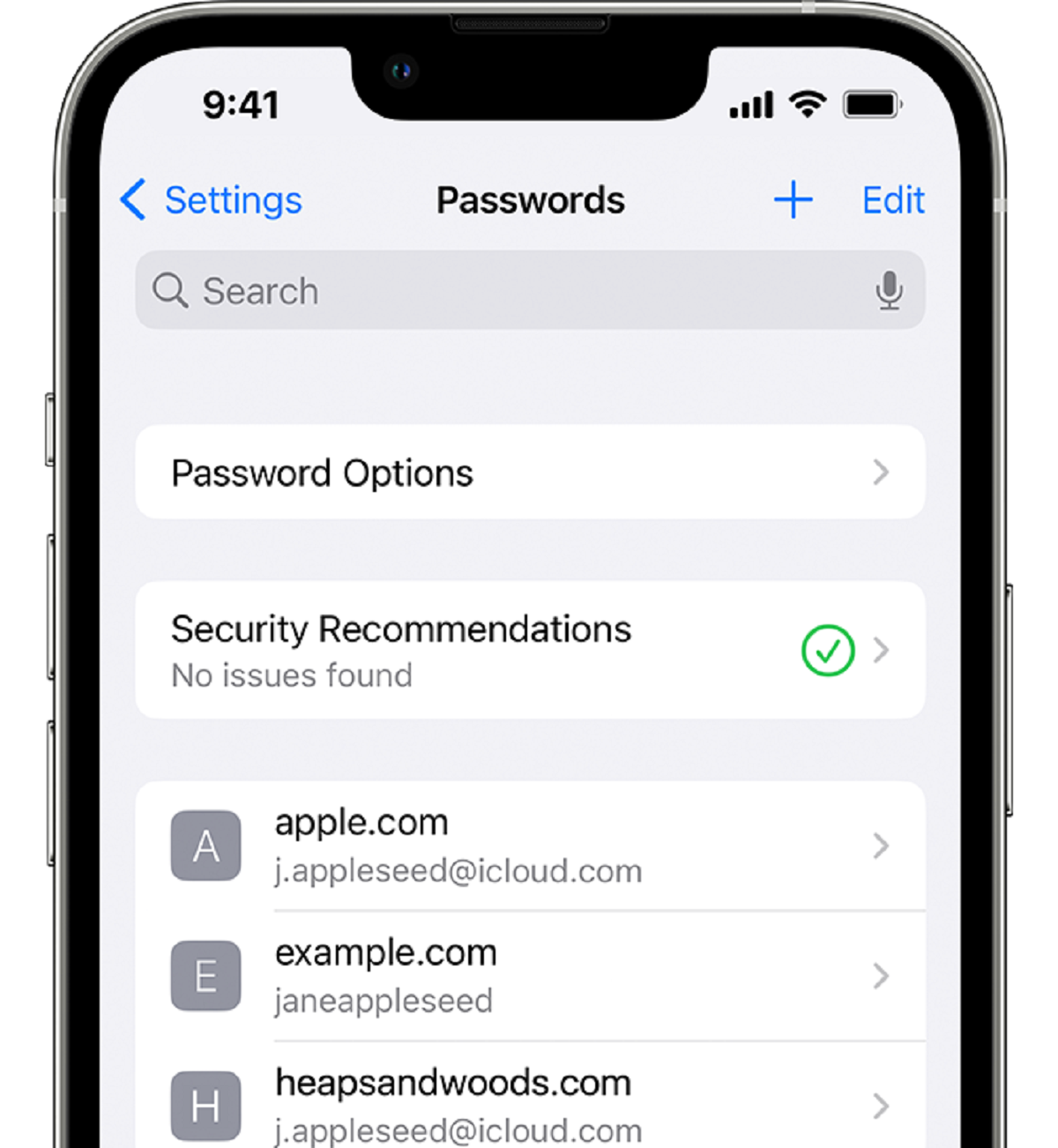
If the person whose Face ID you removed knew your device passcode, change it immediately. Go to Settings > Face ID & Passcode, enter your current passcode, then tap Change Passcode. This prevents them from using the passcode to bypass Face ID or re-enroll their face. Also check any accounts linked to your phone, such as iCloud or Apple Pay, and sign them out if necessary. For ongoing management, refer to the hub page on using and managing Face ID.