Press and hold the side button and either volume button until the power-off slider appears, then tap Cancel—this forces a passcode requirement until the next successful unlock. You can also say 'Hey Siri, whose phone is this?' to trigger the same lockdown.
The button-hold trick to disable Face ID
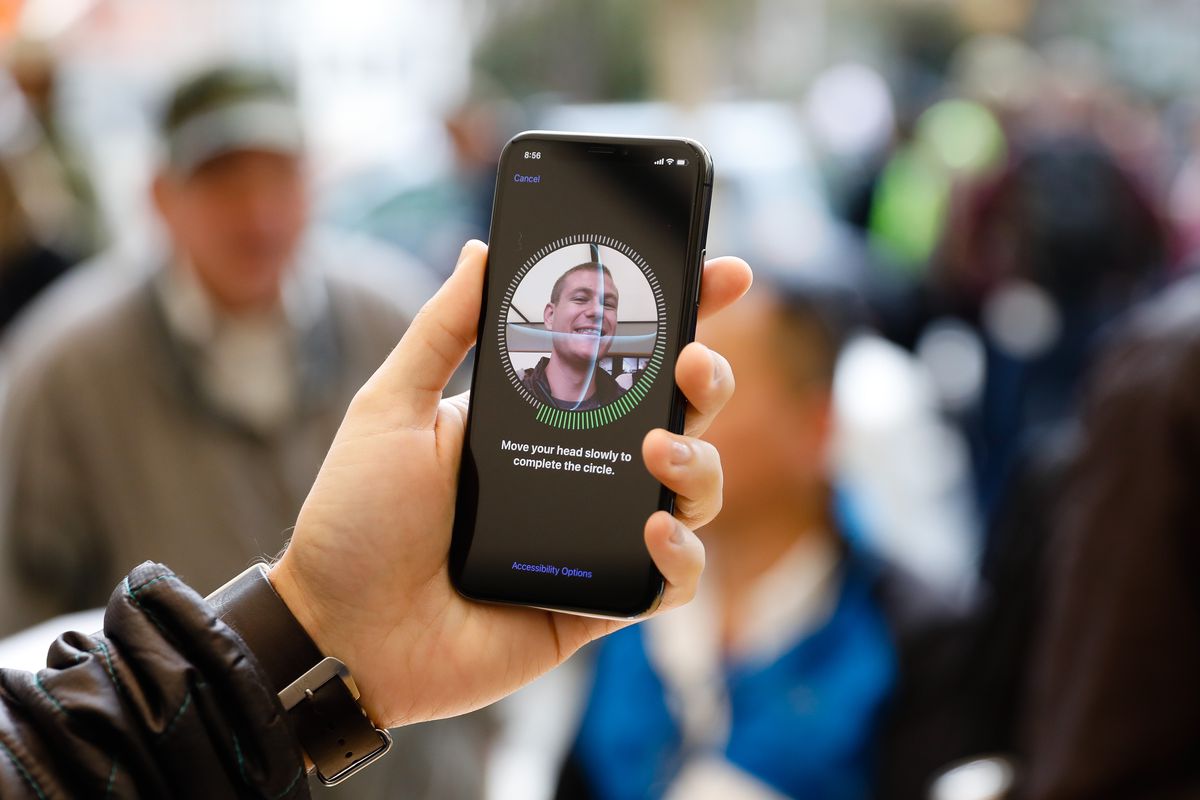
To trigger the lockdown without changing any settings, simultaneously press and hold the side button and either volume button for about two seconds. Keep holding until the power-off screen appears with the red "slide to power off" slider. Crucially, do not slide to power off. Instead, tap the gray "Cancel" button at the bottom of the screen. You can also press the side button again to dismiss the screen. This action immediately blocks Face ID for all apps, including those where you previously chose to put a face id on Snapchat or allowed Face ID for banking apps. The iPhone now requires your device code for every access attempt. This remains true even if you close your eyes, look away, or cover the TrueDepth camera. The restriction stays in place until you successfully sign in once with your code. After that single entry, Face ID resumes working normally for all apps and system functions. This trick works because the power-off screen triggers a security state that requires your passcode before Face ID can be used again. That state persists across app switches and lock-screen wake cycles.
Using Siri as a shortcut
If your hands are full or you cannot reach the physical buttons, you can achieve the same forced code-entry state hands-free. Simply ask Siri "whose phone is this?" or "who am I?" Siri responds with a generic message like "I'm not sure" and immediately locks the device. Your PIN or password is then required on the next unlock. This Siri command works even when your iPhone is already unlocked. It will lock the screen and disable Face ID until you enter your credentials. Unlike the button-hold method, this approach does not require you to look at the screen or touch any buttons. That makes it ideal for situations where you need to quickly prevent someone else from using Face ID to access your device. The Siri lockdown is identical in effect. It forces the code requirement across all apps, including those where you normally use face id instead of passcode for quick access.
What this method does not do
This emergency lockdown does not sign you out of any accounts. It does not erase your enrolled faces or change per-app permissions you have previously set. Your saved face data remains intact in the Secure Enclave. Every app that you configured to use Face ID will still require it after you unlock with your credentials once. This includes apps where you use Face ID on Instagram for private account switching. It also covers Safari autofill, where you use Face ID to access passwords stored in your keychain. The lockdown only temporarily suspends Face ID authentication until the next successful sign-in. It does not alter your settings in Settings > Face ID & Passcode. It also does not modify any app-specific Face ID toggles. After you enter your code, all your existing Face ID enrollments and app permissions return to their previous state automatically, with no residual changes.
When the trick fails
The most common mistake is fully powering off the iPhone by sliding the "slide to power off" slider instead of tapping Cancel. If you power off completely, the device reboots. It still requires a code on first unlock, but you add an unnecessary 30-60 second delay while the phone restarts and re-establishes cellular connectivity. Additionally, after a full reboot, Face ID requires you to enter your credentials once anyway, as it always does after restart. The lockdown effect is identical, but you waste time waiting for the boot process. Another failure point occurs if you accidentally press and hold only the side button without a volume button. This triggers Emergency SOS or a medical ID screen instead of the power-off slider, and does not lock Face ID. To reliably trigger the trick, ensure you press both buttons simultaneously until you see the slider. Then immediately tap Cancel without waiting for the screen to time out.
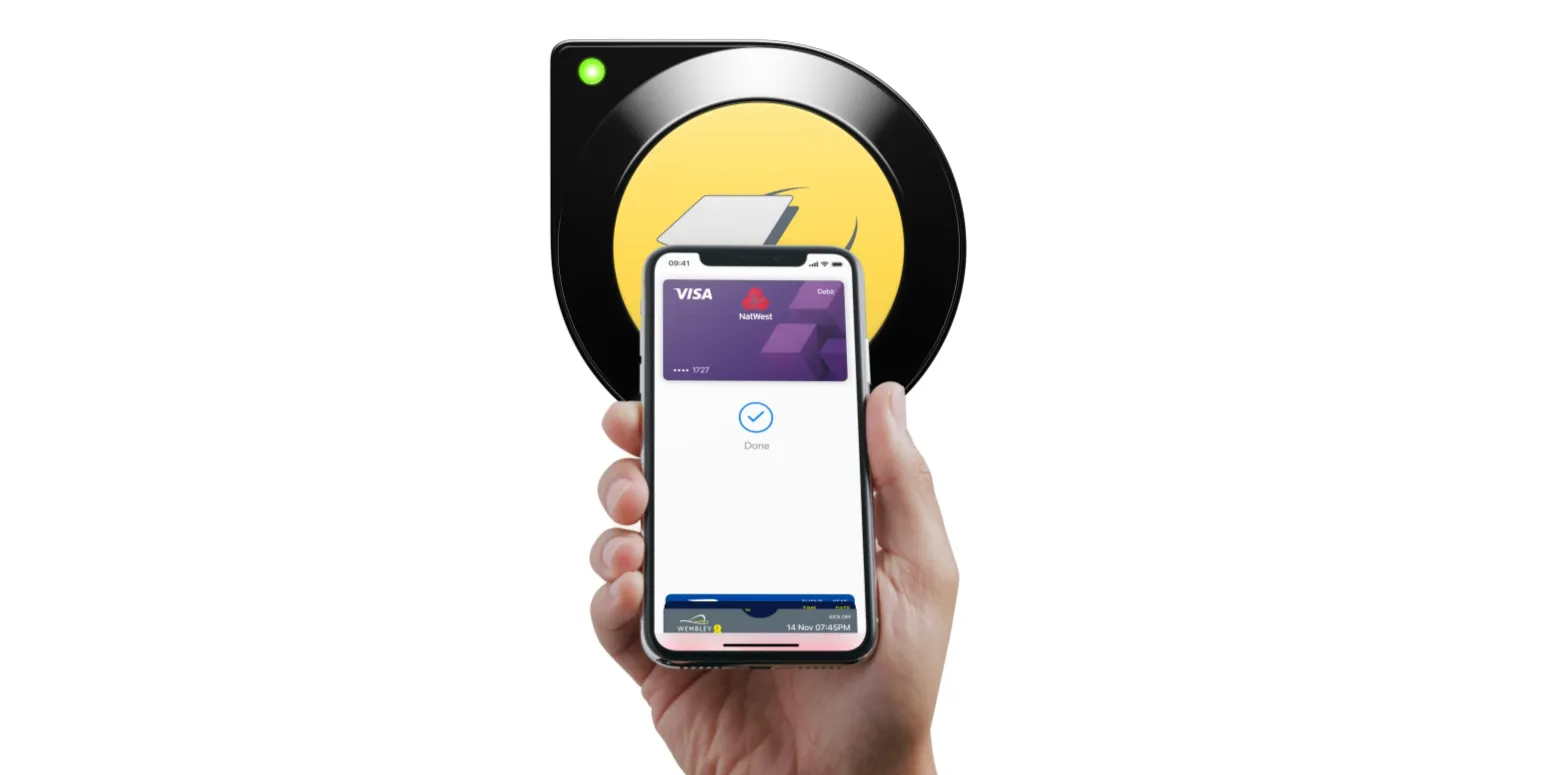
This emergency method lets you temporarily disable Face ID for all apps without resetting enrolled faces. It gives you instant code-only access across your iPhone while preserving every saved face and per-app toggle, and you can still use Apple pay without face id during a lockout. For more on using and managing Face ID, explore the broader topic of How to Use and Manage Face ID.